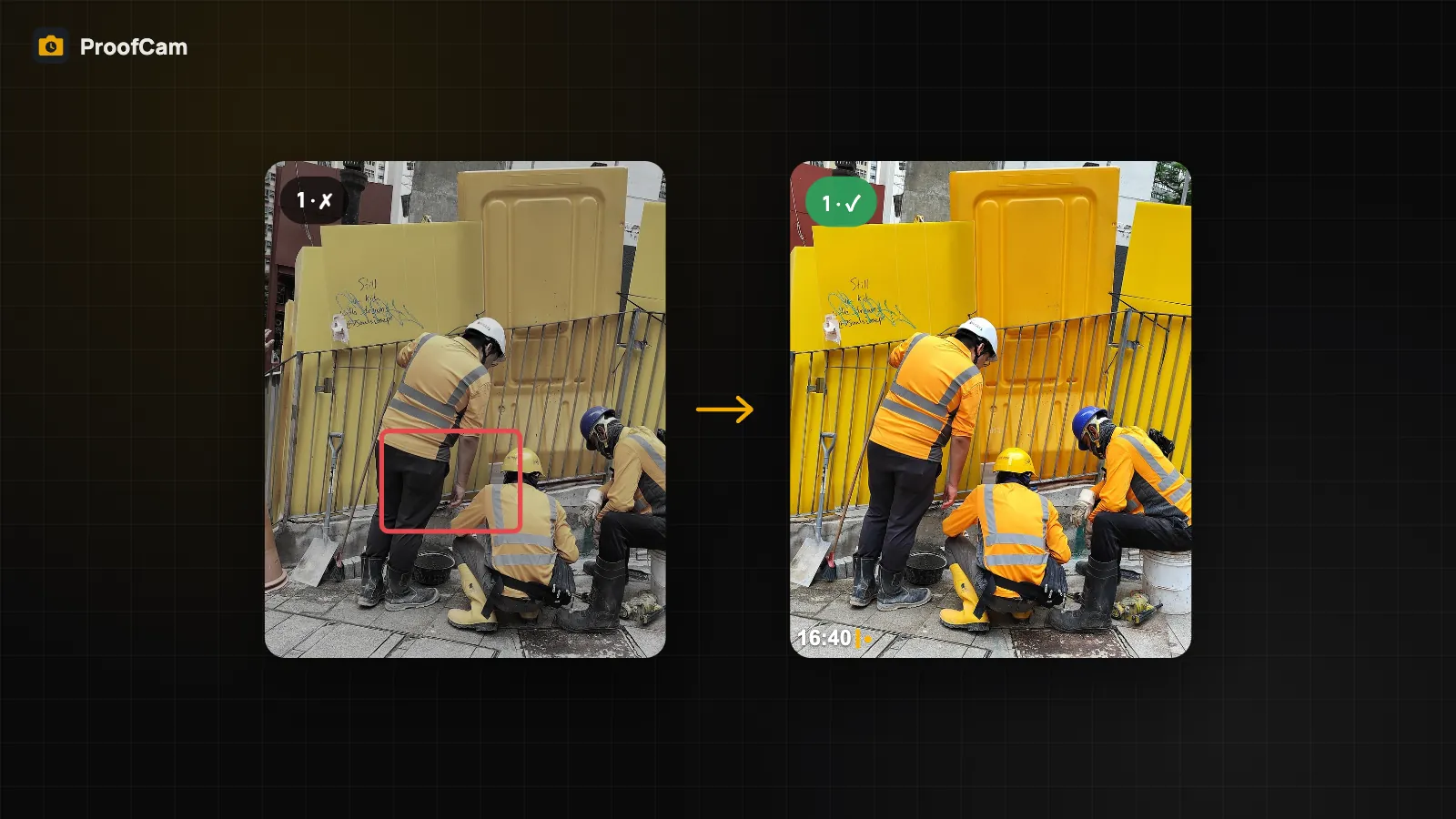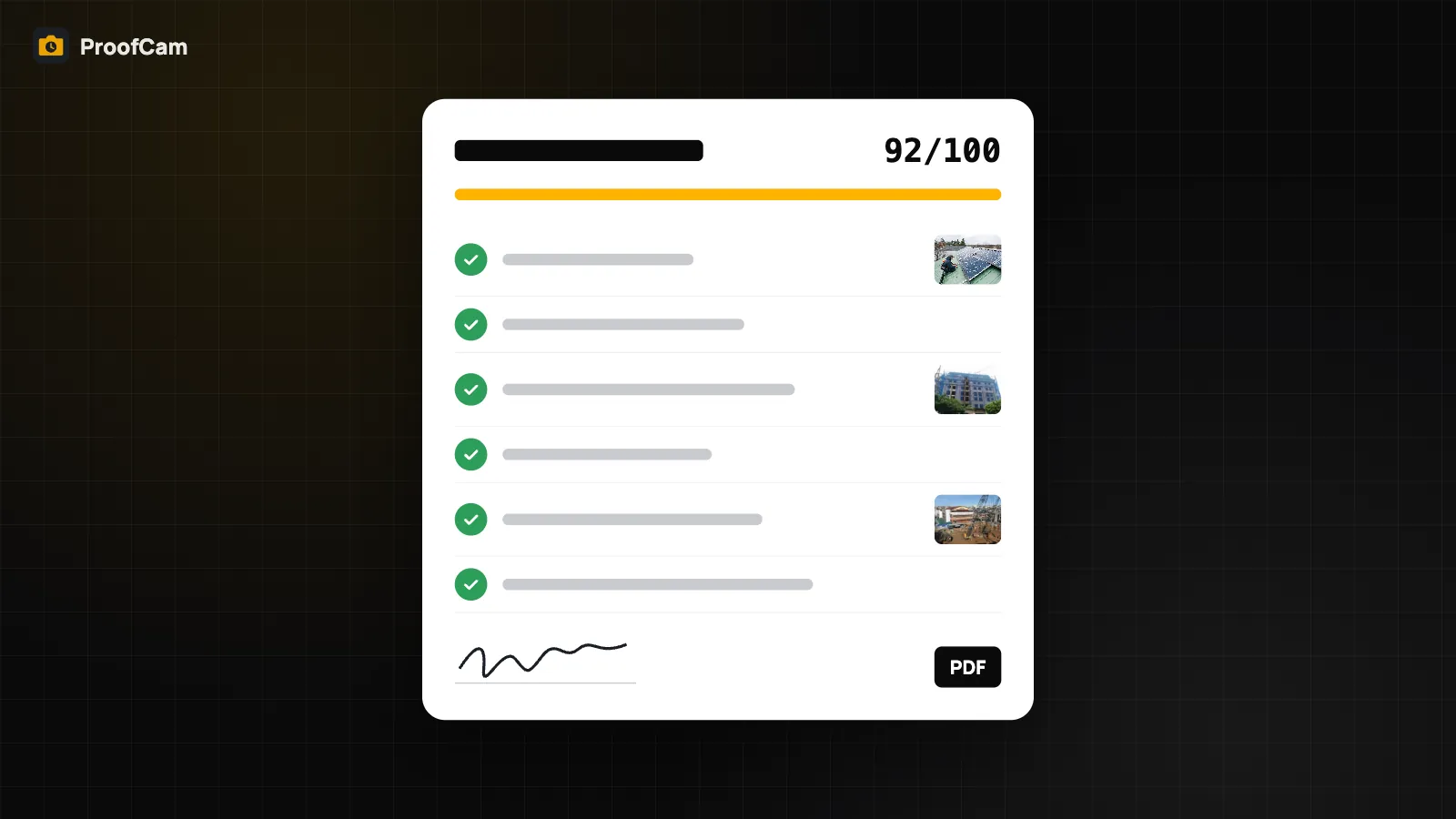
Paper checklists get wet, lost and filled in at the end of the day from memory. A generic form app is better, but the photos attached to it are just files from the gallery: nobody can tell when or where they were taken. ProofCam Checklist 2.0 puts the inspection and the proof in one place. Every photo is taken with the ProofCam camera, so it carries time, GPS, address and a Photo Code. Answers are scored, signatures are collected on the phone, and the result is a clean PDF report you can send before you leave the site.
What a checklist can ask
Templates are organised in sections, and you fill them in with a progress bar at the top. There are 12 question types:
| Type | Example |
|---|---|
| Checkbox | "Area cleaned" |
| Yes / No | "Fire extinguisher in place?" |
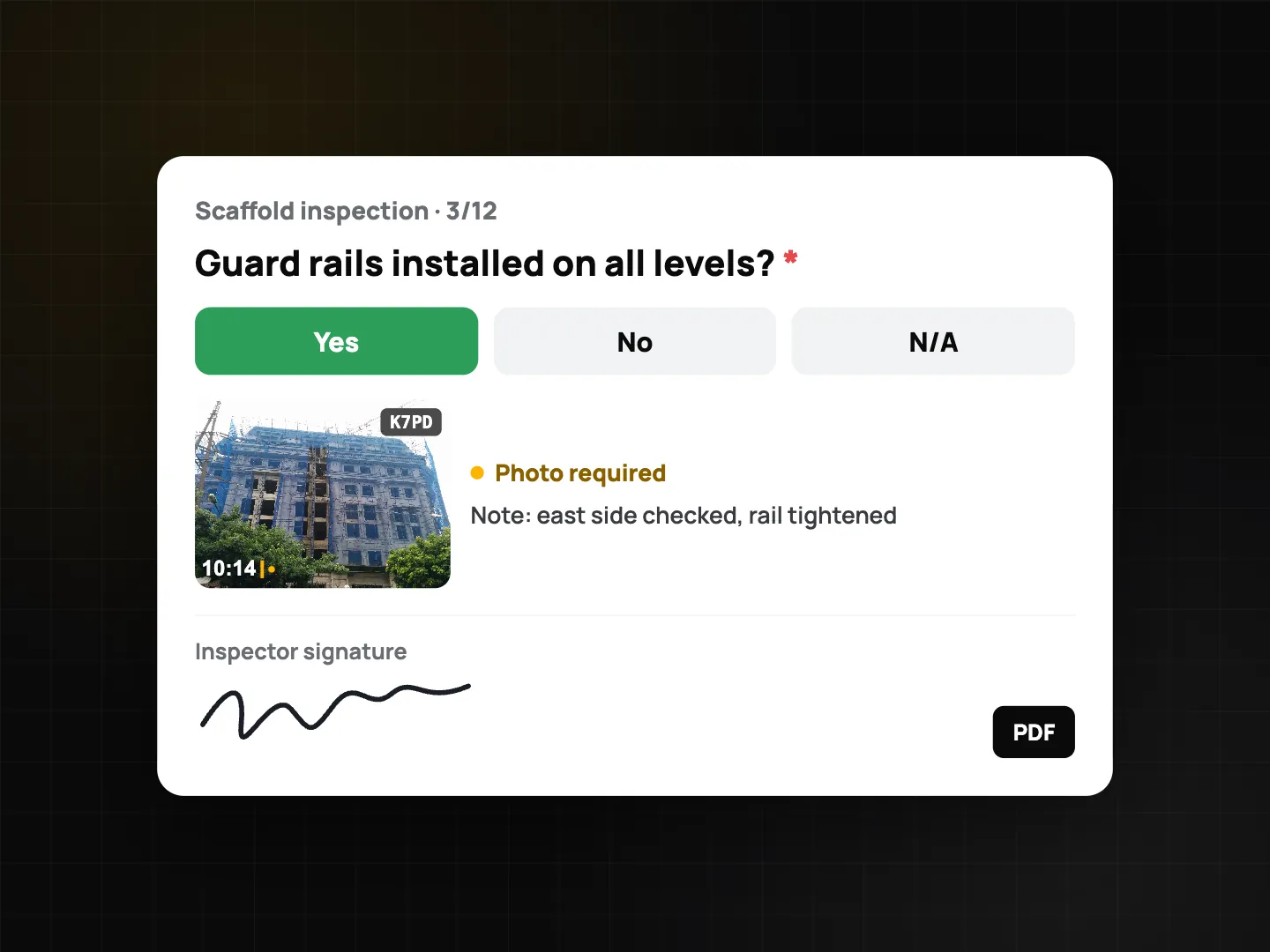
| Yes / No / N/A | "Guard rails installed?" when some floors have none |
| Text | Notes, defect description |
| Number | Pressure, temperature, with unit and min/max |
| Single choice | Condition: good / fair / poor |
| Multiple choice | Hazards covered in a briefing |
| Date | Next service date |
| Photo | Required photos, with a minimum and maximum count |
| Signature | Inspector or client signs on screen |
| Barcode / QR scan | Equipment serial or asset tag |
| GPS location | Exact position of a defect |
Questions can be required, can require a photo, and can appear only when another answer matches (for example, show "Describe the damage" only when the answer is No). These rules work offline. Drafts are saved automatically as you go.
Scoring, flags and follow-up
Turn on scoring in a template and ProofCam calculates a percentage as you fill it in, with a pass mark (80% unless you change it). Questions can be weighted, and answers like "No" or a choice marked as a problem are flagged. Teams can have a task created automatically for each flagged item, with the inspection photos attached as "before" photos, so problems don't get lost. See punch lists with before and after photos.
PDF report with cover and Photo Codes
When you finish, ProofCam builds a PDF with:
- a cover page with the score,
- every answer, with flagged items easy to spot,
- the photos, each with its Photo Code,
- a signature page for the inspector and the client,
- a QR code that links to the online verify page for that submission.
A client can check any photo's Photo Code on the verify page to see whether it is the original file.
Review and approve
In a team, submitted checklists go to managers. Anyone with permission to manage templates can approve or reject a submission with a note. Templates can also have a due time, and ProofCam reminds the assignee an hour before. A separate reminder at 17:30 nudges you about checklists started today but not finished.
Turn a paper form into a checklist
Already have a paper form you trust? With form import (Plus), take a photo of it or pick a PDF (up to 10 pages). ProofCam reads the text on the phone, splits it into questions and guesses each type: section headings, yes/no boxes, numbers with units, photo and date fields, and a signature line. You review the draft, fix anything it guessed wrong, then start filling it in right away, save it on the phone, or publish it to your team.
Ready-made templates
You don't have to start from scratch:
- Safety: a toolbox talk / safety briefing with signatures for everyone present, and a site audit scored by area with a photo required for every item.
- Telecom: BTS site audit, fiber splice and route.
- Insurance: damage survey.
- Real estate: apartment handover check-in and check-out.
- Team starter templates that an admin can install, such as 5S, scaffold safety, fire safety, electrical acceptance, restroom cleaning, equipment inspection and vehicle check.
Daily report for each project
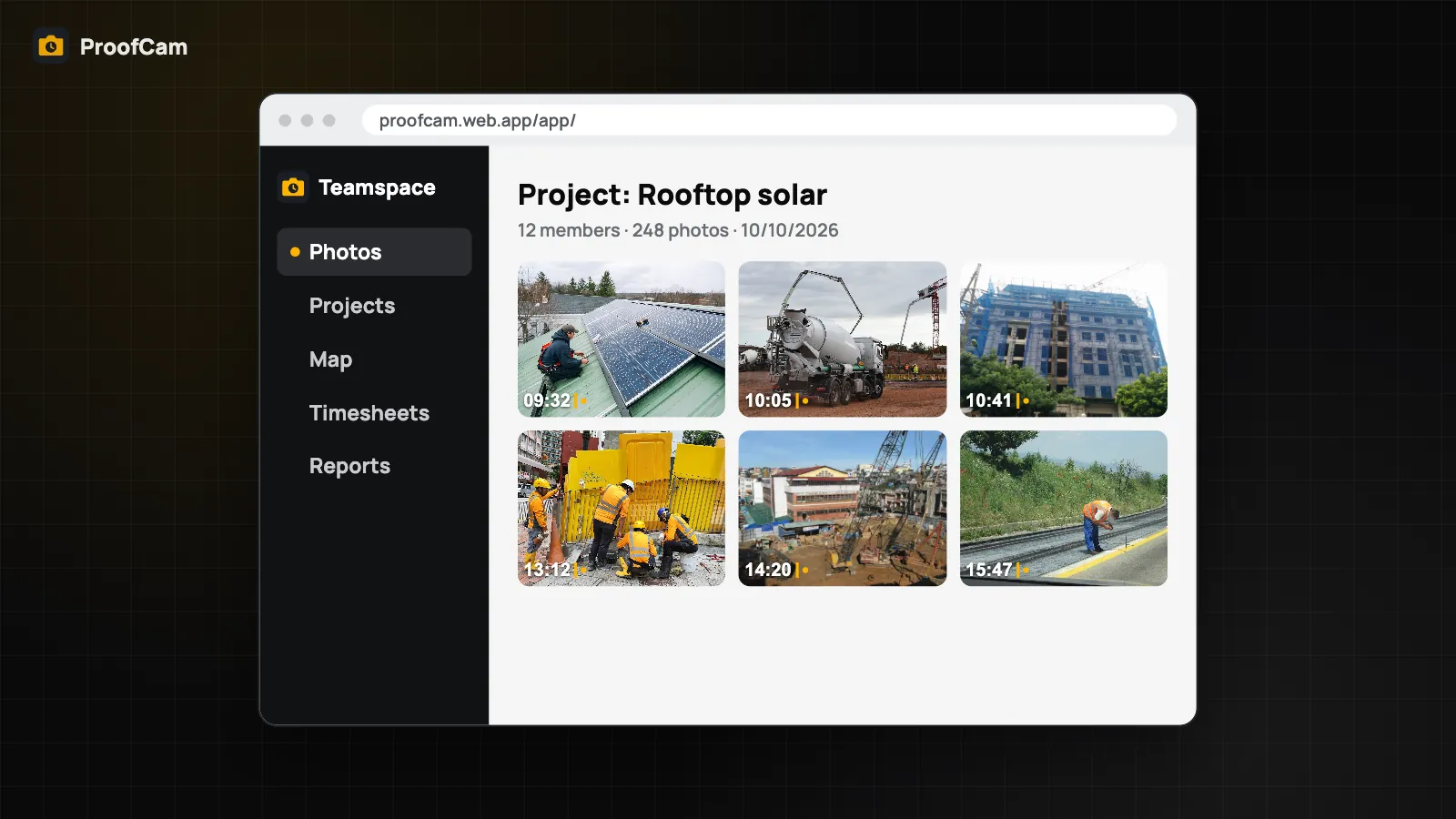
For teams, Teamspace builds a daily report for every active project in the late afternoon: weather, crew and hours from clock-ins, the day's photos, checklists, tasks opened and closed, and notes. A manager adds notes, signs it and shares the PDF.
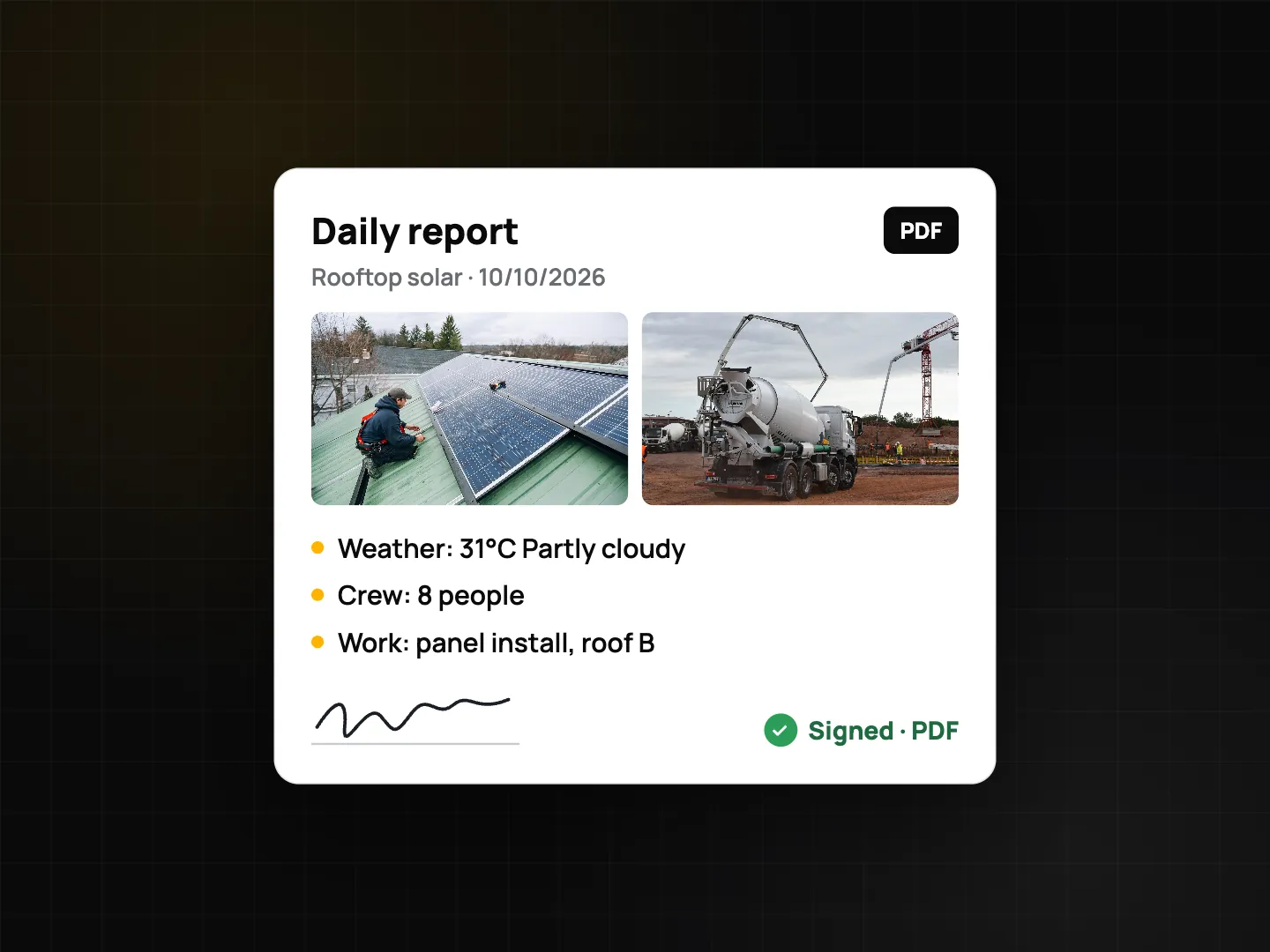
Working alone? The personal site diary (Plus) builds a similar PDF on your phone from today's photos and your own clock-ins.
Which plan do you need?
- Free: one checklist template.
- Plus: unlimited templates, form import, industry template packs and the site diary.
- Business team: shared team templates, review and approve, automatic tasks from flagged items and daily reports.
FAQ
Can inspectors attach photos from the gallery?
Photo questions use the ProofCam camera, so every photo has a Photo Code. A team admin can also block gallery imports across the app for the whole team.
Does it work without internet?
Yes. Templates, conditions, drafts, signatures and the PDF all work offline. Submissions sync to Teamspace when you are back online.
Can I see the results on a computer?
Yes. Team submissions appear in the Teamspace web portal for managers.