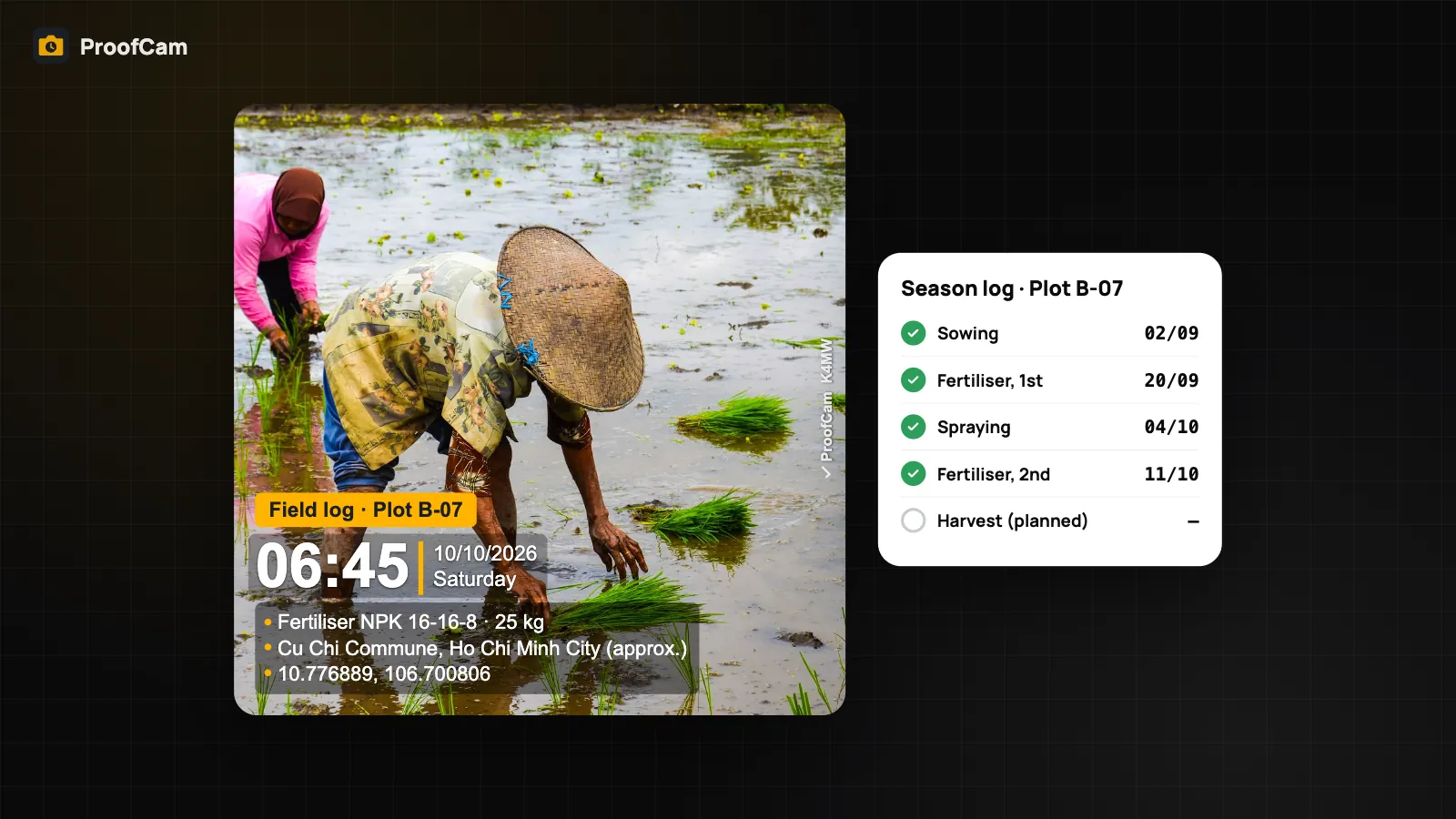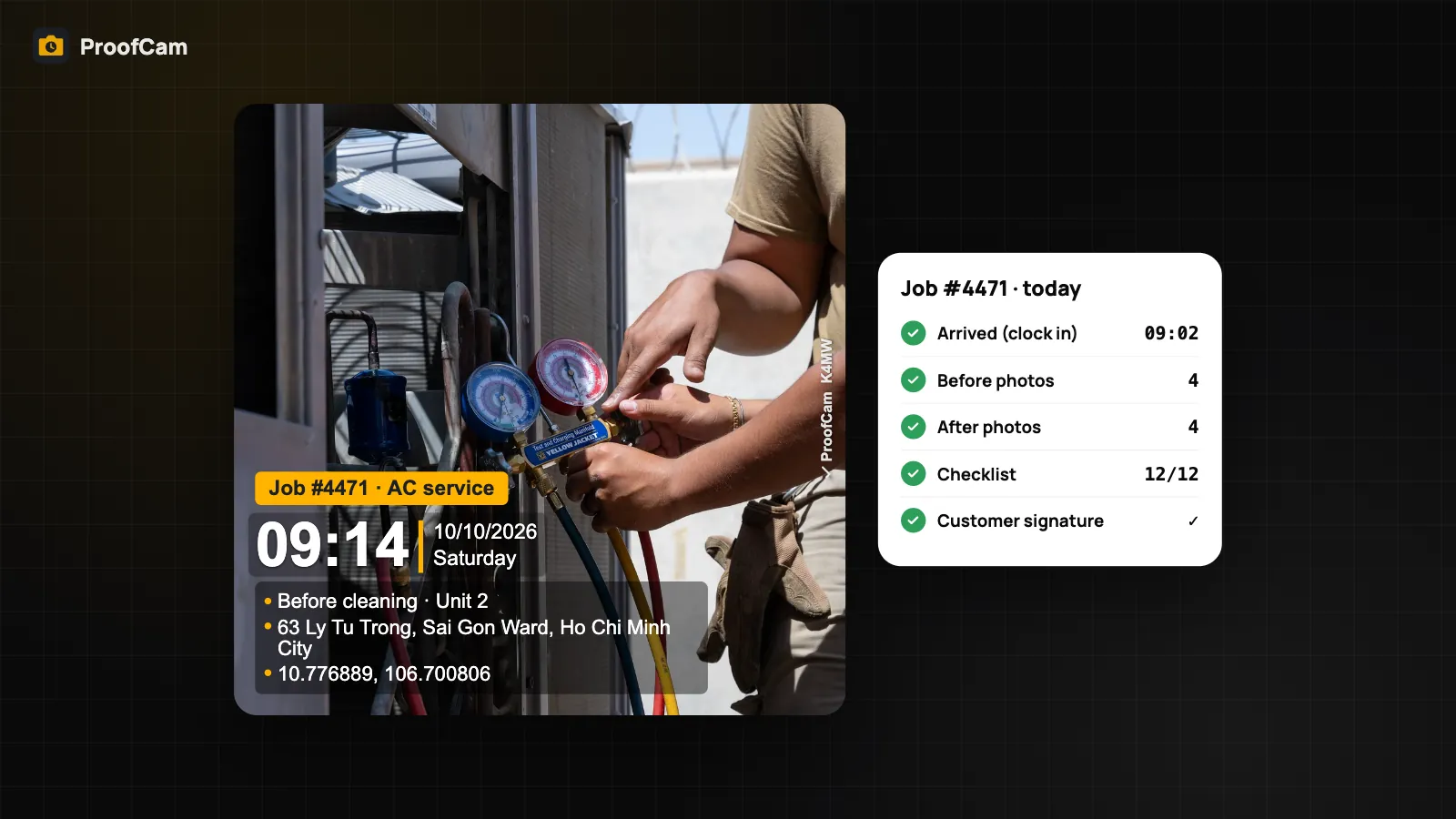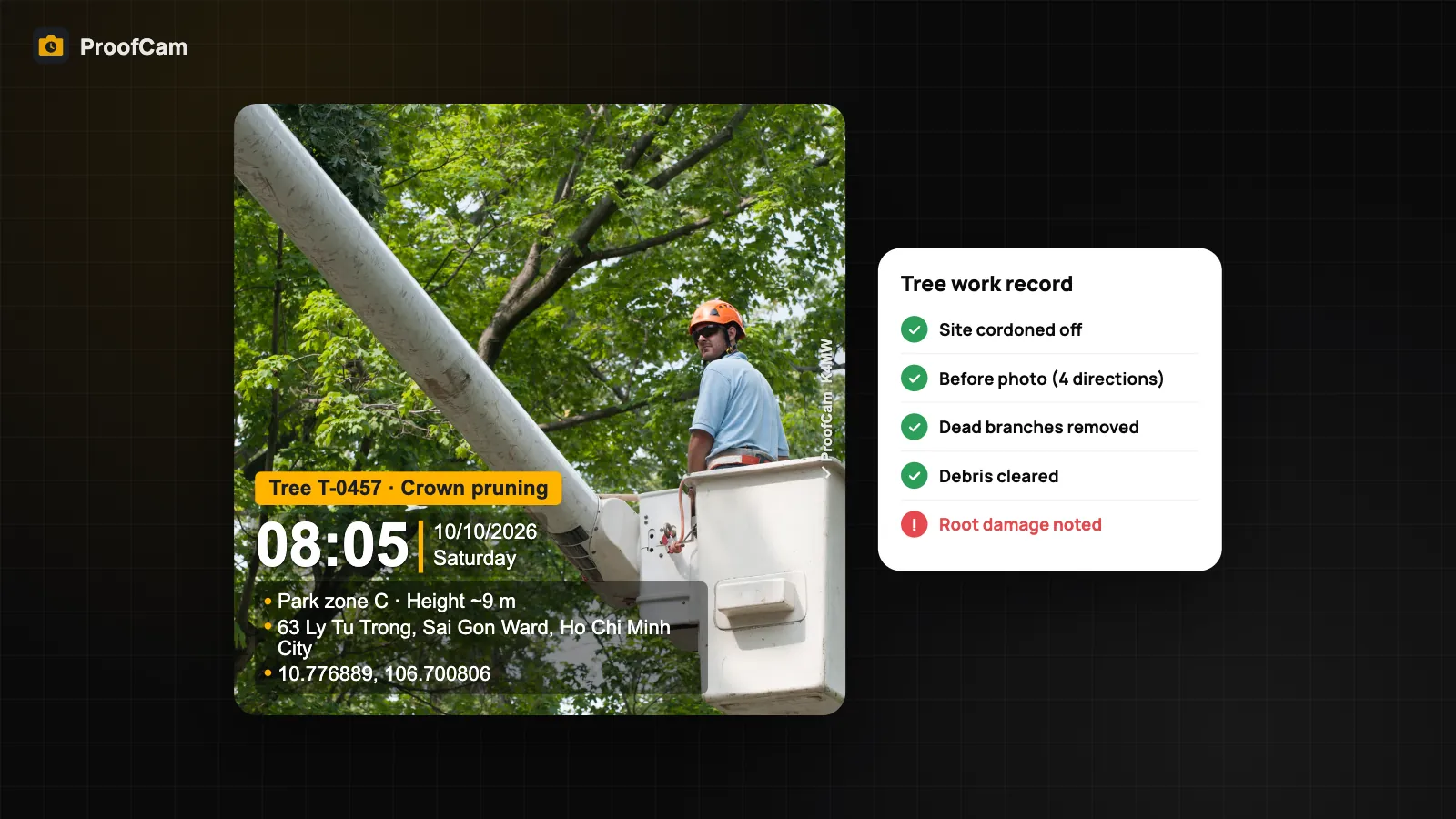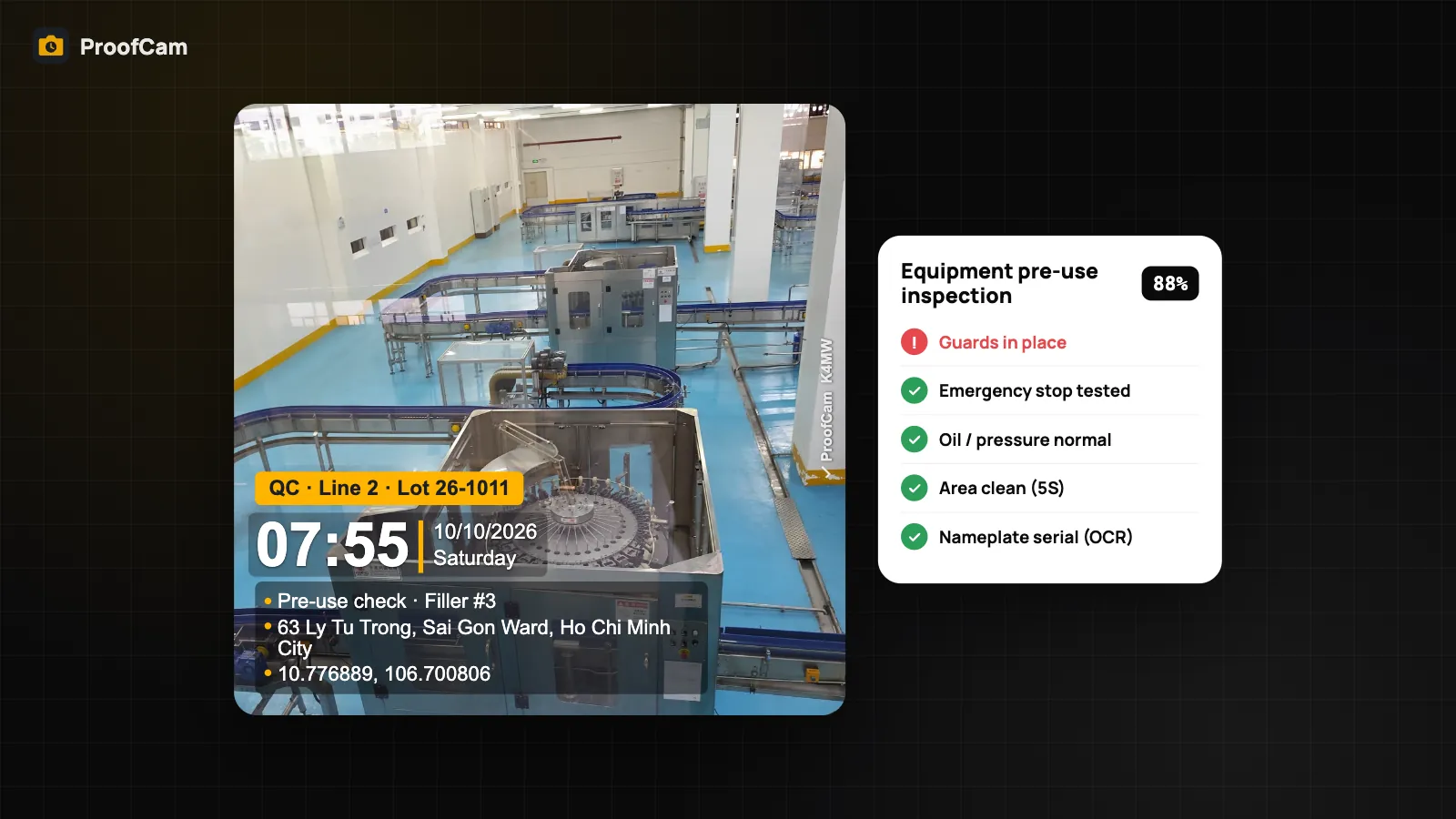
On a production line, the pre-use check happens at 05:50, before the first shift starts the press. The 5S audit happens on Thursday afternoon. The QC round happens every two hours, mostly on clipboards that nobody opens until an auditor asks. An equipment inspection app that puts the checklist, the photo and the follow-up in one place turns those rounds into records you can actually find. This guide shows how a plant, a maintenance team or a QC department can run equipment inspections, 5S audits and quality checks with ProofCam.
A note before we start: ProofCam helps you document inspections. It does not replace your safety procedures, lockout rules or the regulations that apply to your machines. Safety-critical inspections must follow your own procedures and local requirements.
Why factory inspections are hard to trust
- Ticks without evidence. A paper sheet with "guard OK" ticked at 05:52 doesn't show that anyone looked at the guard.
- Photos with no context. Operators send pictures of an oil leak to a chat group. Which pump? Which line? When? The chat shows when the message was sent, not when or where the photo was taken.
- 5S scores by feel. Auditors score "Shine" differently from one week to the next, and the numbers can't be compared between lines or months.
- Flags that go nowhere. The audit finds a missing guard, a faded rack label and a cable across a walkway. Three weeks later, the next audit finds the same things.
- Serials copied by hand. Asset tags and nameplates are copied with typos, so the inspection record doesn't match the maintenance log.
Which ProofCam features help
| Need | ProofCam feature | Plan |
|---|---|---|
| Time, place and code on every photo | Watermark with network time, GPS, address and Photo Code; Inspection preset | Free |
| Line, machine and lot on every photo | Custom fields on the watermark ("Line", "Machine", "Lot") | Free (3 fields), Plus (10) |
| Pre-use checks and 5S audits | Checklists with sections, required photos, scoring with weights and a pass mark | Free (1 template), Plus (unlimited), Business (team templates) |
| Ready-made factory templates | Team starter templates 5S workplace audit and Equipment pre-use inspection | Business team (or trial) |
| Asset tag on the record | Barcode / QR scan question in the checklist | Same as checklists |
| Serial numbers from nameplates | On-device text recognition, copy the serial into the photo note | Free from photo details; OCR in document mode is Plus |
| Paper QC records and certificates | Document mode: multi-page scan to PDF, Photo Code per page | Plus |
| Your existing paper checklist | Form import from a photo or PDF | Plus |
| HMI and control panel photos | Device screen mode (no recapture warning for intentional screen photos) | Free |
| Noise, vibration and light near a machine | Field meters, stamped on the photo (indicative, not certified) | Plus or Business team |
| Flagged items turned into work | Automatic tasks from flagged answers, tasks Kanban | Business team |
| Supervisor sign-off | Review: approve or reject a submission with a note | Business team |
| Dark machine bays | Night/HDR | Plus |
Running an equipment inspection app on the line
The core of the setup is a checklist per machine type, with photos that can't be faked from the gallery. Photo questions use the ProofCam camera, so every picture carries the network time, the place and a Photo Code. More about question types and the PDF in inspection checklists with photos, signatures and PDF.
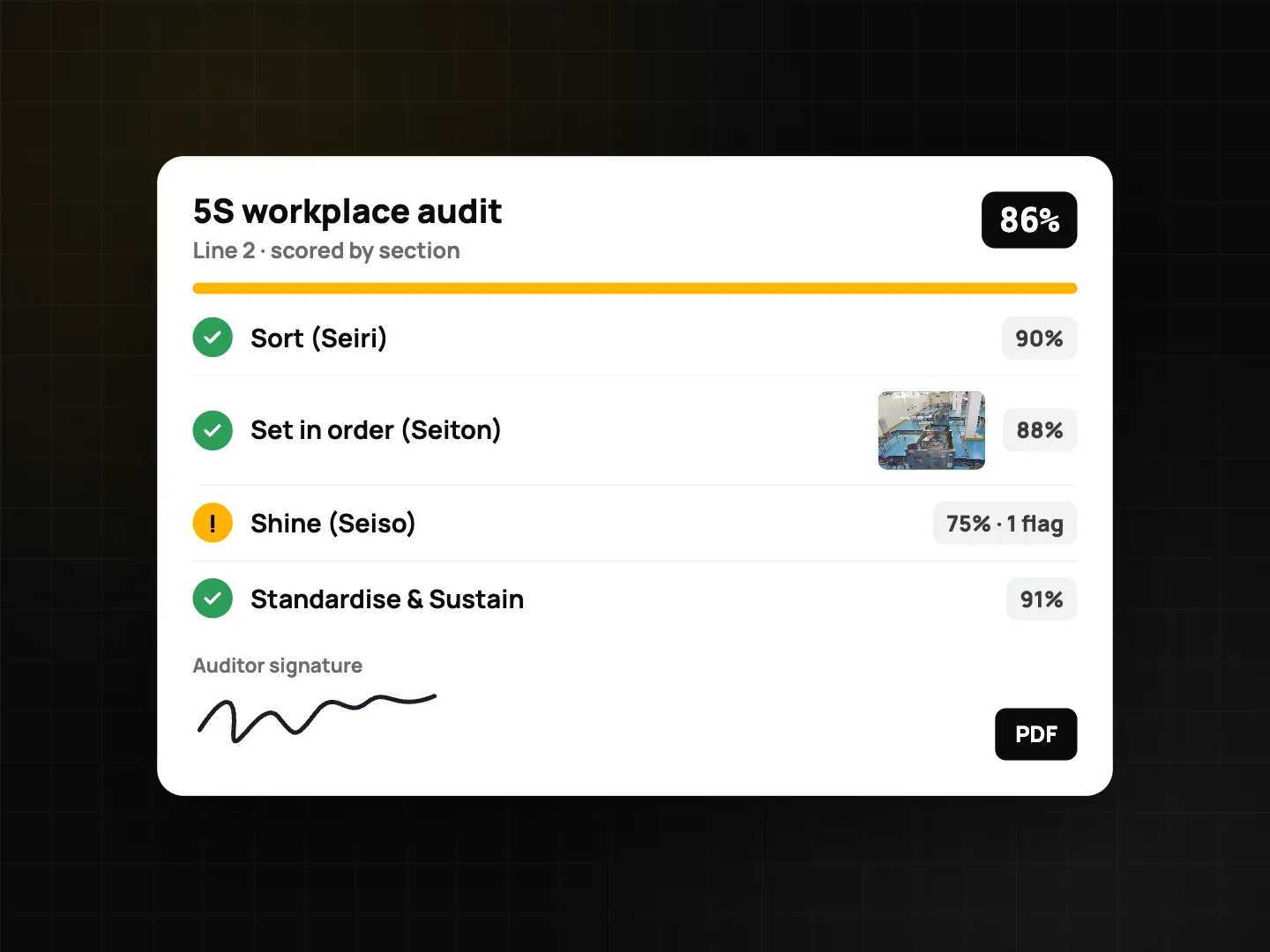
Scoring works well for both kinds of round. For a pre-use inspection, give safety items like guards and emergency stops a high weight, so one failure drops the score below the pass mark (80% by default; you can change it). For a 5S audit, split the checklist into sections (Sort, Set in order, Shine, Standardise, Sustain) and you get a score per section as well as the total.
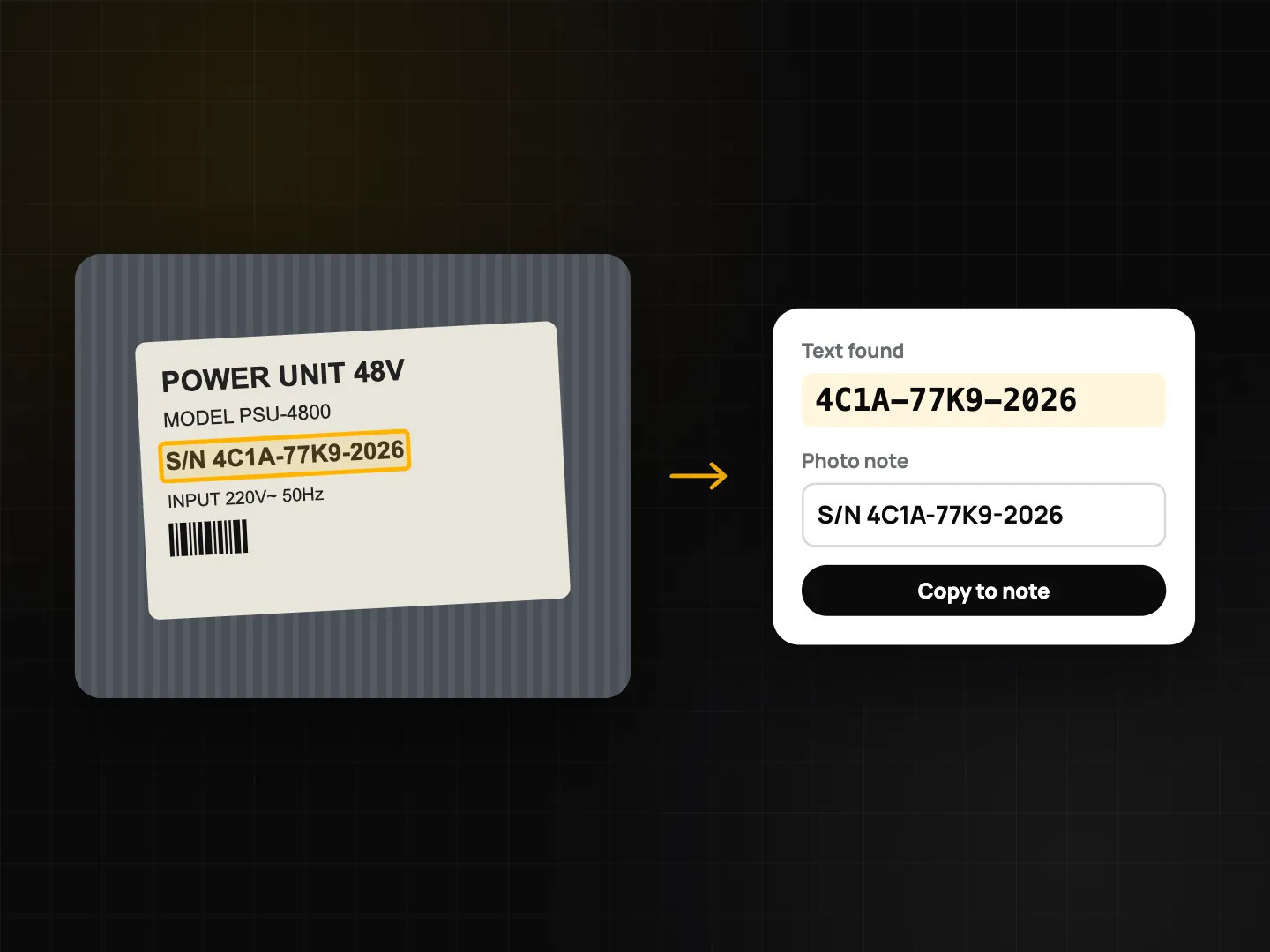
Asset tags and nameplates. Add a barcode / QR scan question as the first item, so each submission is tied to an asset tag. For machines without a tag, photograph the nameplate, open the photo's details and tap text recognition. ProofCam reads the text on the phone, lists likely serial numbers first, and copies the one you tap into the photo note. Search then finds that photo by typing part of the serial. Details in document scanning and OCR.
Machine displays. Pressure, temperature and cycle counts often sit on an HMI screen. ProofCam normally warns when a photo looks like it was taken of another screen. For real control panels, turn on Device screen mode: the warning is skipped for that photo, and the photo records that it was intentionally taken of a screen. See screen recapture detection.
Step-by-step workflow
- Set up the stamp. Pick the Inspection preset and add custom fields such as "Line", "Machine" and "Lot". On a Business team, an admin can make the team template mandatory so every inspection photo looks the same.
- Create projects. In the Teamspace portal at /app/, create a project per plant, hall or line, with its address and geofence. Give members access only to the lines they work on, and add a custom role such as "QC" for auditors.
- Install the starter templates. An admin installs Equipment pre-use inspection and 5S workplace audit from the team starter templates, then adapts items, weights and the pass mark to your machines.
- Bring your paper forms across. If you already have a QC sheet that works, photograph it or pick the PDF and use form import (Plus). ProofCam reads it on the phone and drafts the questions; you review the types before publishing.
- Do the pre-use check. The operator scans the asset QR, answers each item, takes the required photos and signs. In a dark machine bay, Night/HDR (Plus) helps; the quality gate warns about blurry or dark photos (the photo is still saved).
- Add readings where useful. For a noisy compressor or a vibrating pump, use Capture with readings to stamp the sound level (dBA, 10 s Leq + max) or vibration (m/s² RMS + Hz) on the photo. These are estimates from the phone's sensors, not certified measurements. More in field meters.
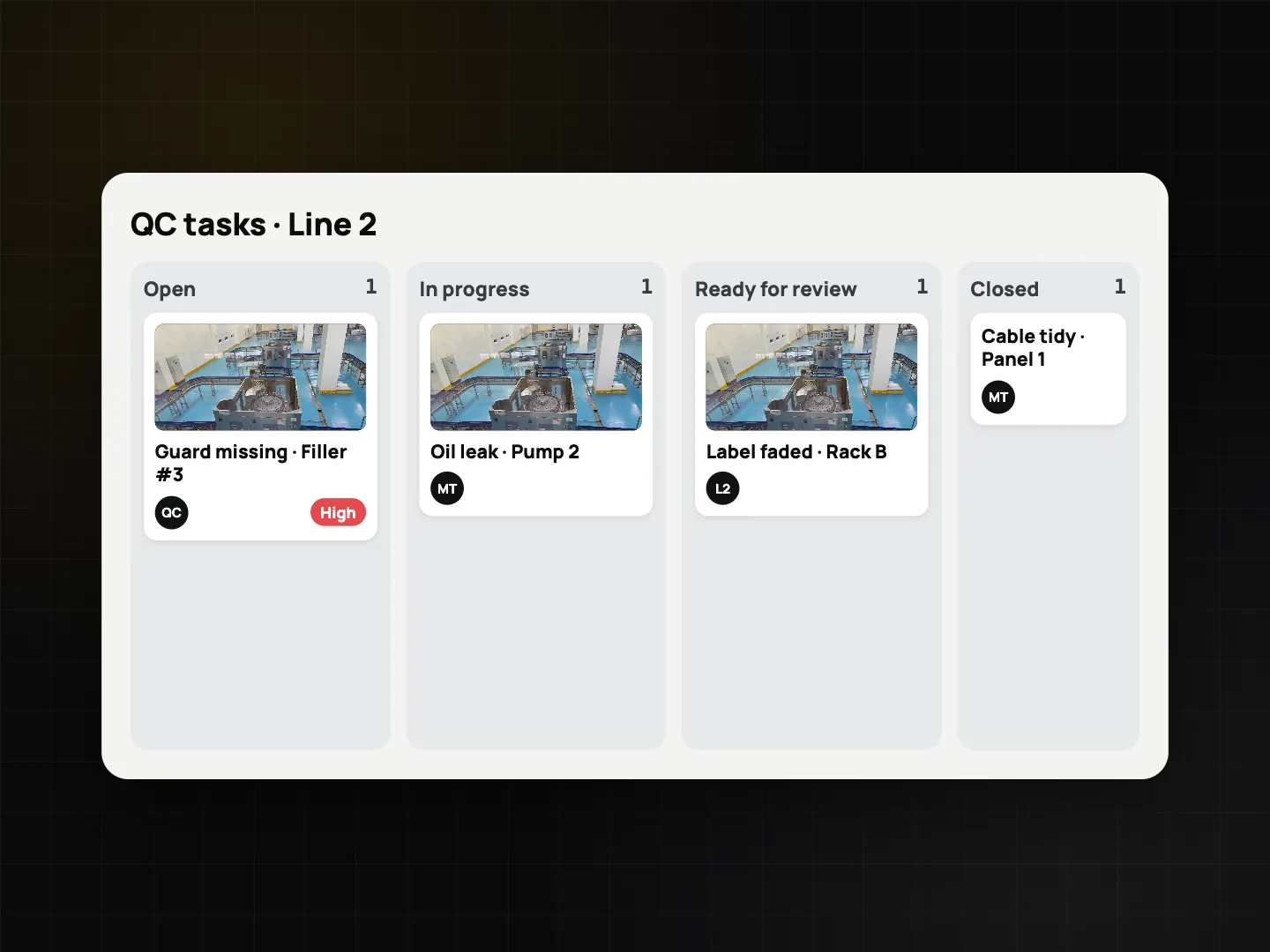
- Flag and follow up. A "No" on a weighted item flags it. On a Business team, each flagged answer can create a task automatically, with the inspection photo attached as the "before" photo.
- Fix and close. Maintenance moves the task across the Kanban, takes the after photo over a 30% ghost of the before, and sets it to ready for review. A supervisor closes or rejects it. See punch lists with before and after photos.
- Review submissions. Supervisors approve or reject inspections in the portal and export PDF, Excel or ZIP when an auditor asks.
- File paper records. Calibration certificates, signed batch records or supplier QC sheets can be scanned in document mode (Plus) into one PDF with a Photo Code on each page.
Checklist templates for the shop floor
Equipment pre-use inspection (adapt per machine type):
| Item | Question type | Notes |
|---|---|---|
| Asset tag | Barcode / QR scan | First item, required |
| Machine | Single choice | Press #3, Pump 2… |
| Guards in place | Yes/No + photo | High weight; flag on "No" |
| Emergency stop tested | Yes/No | High weight |
| Oil level / pressure | Number with unit, min/max | Out-of-range values stand out |
| HMI display | Photo (Device screen mode) | Shows counters, alarms |
| Leaks, unusual noise | Yes/No, conditional photo + note | Photo only asked if "Yes" |
| Area clean and clear | Yes/No/N/A + photo | Links to 5S |
| Operator signature | Signature |
5S workplace audit (sections with weights):
| Section | Example items | Evidence |
|---|---|---|
| Sort | Only needed items at the station, red-tag area used | Photo of the station |
| Set in order | Tools on shadow boards, racks labelled | Photo per board or rack |
| Shine | Floor, machines and drip trays clean | Photo, flag on "No" |
| Standardise | Visual standards posted, colour codes followed | Photo |
| Sustain | Last audit's actions closed, checklist done on time | Yes/No |
| Auditor | Signature |
Repeat the audit from the same spots each time. The comparison slider in photo details lets you compare this week's rack with last month's.
Tips
- Weight what matters. A dirty drip tray and a missing guard should not cost the same points.
- Use the lot number field. When a customer complaint arrives, search by lot to find every QC photo for that batch.
- Sync on Wi-Fi. Large factories often have dead zones. Everything works offline and syncs later; you can limit large files to Wi-Fi.
FAQ
Can ProofCam send inspection results to our MES or ERP?
There is no MES/ERP integration and no API. A Business team can use webhooks (for example checklist.completed) and export PDF, Excel or ZIP files.
Does ProofCam draw SPC charts?
No. Number questions record values with units and limits, and you can export them to Excel for your own analysis.
Are the sound and vibration readings good enough for compliance?
No. They are labelled estimated and are useful to document conditions. Use a calibrated instrument when a regulation or contract requires a measurement.
Can operators photograph a machine screen without a warning?
Yes. Turn on Device screen mode for that photo. The photo records that the screen was photographed on purpose.
Do operators need a paid plan?
Stamped photos and one checklist template are free. Unlimited templates, form import and document mode need Plus; starter templates, automatic tasks and team review need a Business team (new teams get a 14-day trial).
Related: HVAC, plumbing and electrical job photos and environmental monitoring photo log.