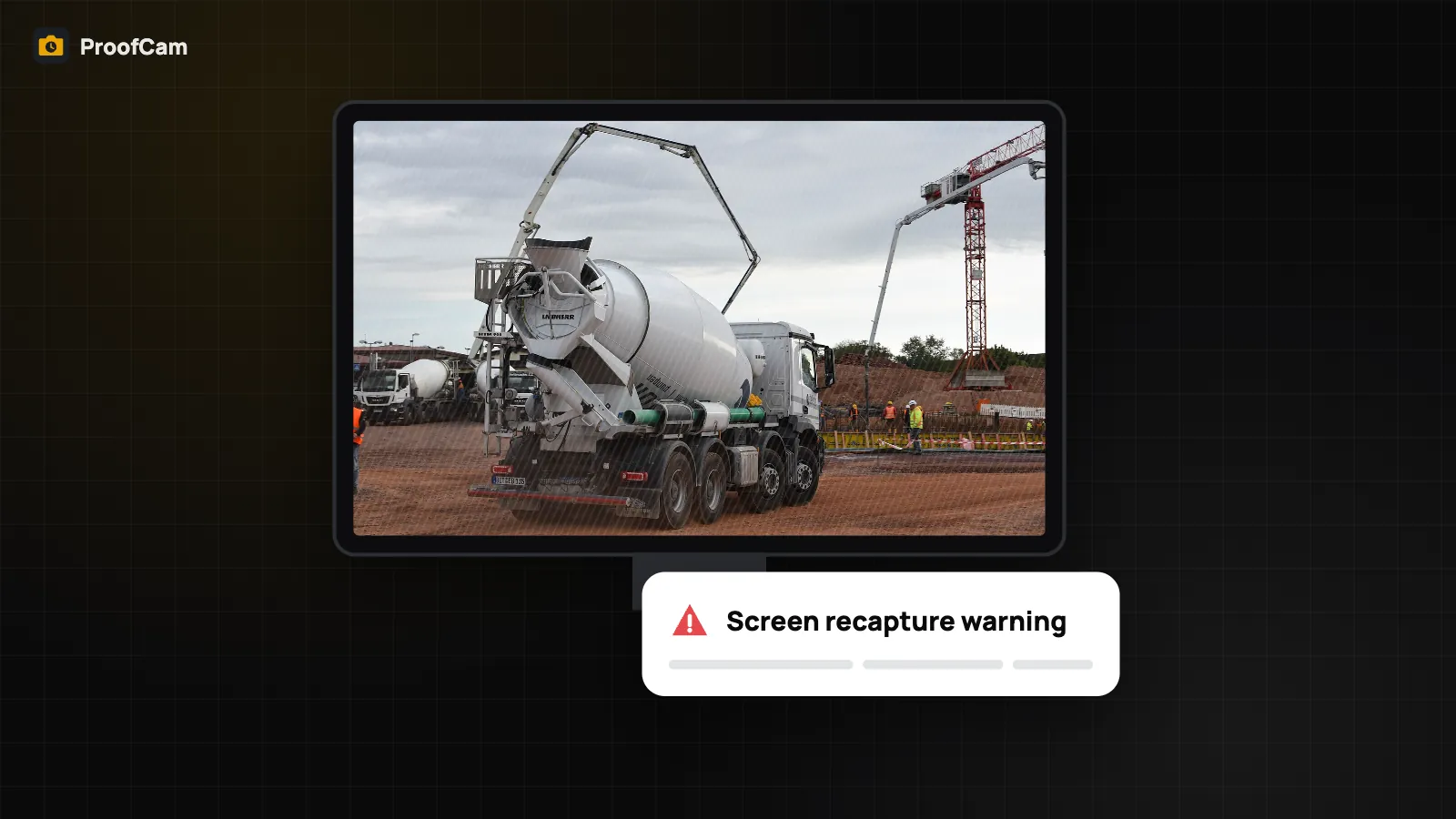
There is an old trick that beats any timestamp camera: take yesterday's photo, open it on a laptop or print it out, and photograph the screen today. The new photo gets today's time and today's location, but the scene is old. ProofCam has two features aimed at this. Screen recapture detection checks every photo for signs that it was taken of a screen or a printed picture. Live proof keeps a short clip from just before and just after the shutter, so the moment itself is recorded, not only a single frame.
Both are designed to make faking harder and easier to spot. Neither can promise to catch every case, and the app is honest about that.
How screen recapture detection works
Right after you press the shutter, before the photo is saved, ProofCam analyses the image:
- On Android, it looks at the colours and patterns in the photo (RGB analysis). Photographing a screen often creates moiré, a fine wavy pattern from the screen's pixel grid, and banding, horizontal stripes from the screen refresh. ProofCam measures both.
- On iPhone, it can also use depth data from the dual or TrueDepth camera, and the LiDAR scanner on models that have it. A real scene has depth: near and far objects. A monitor or a sheet of paper is flat. ProofCam combines that flatness check with the same moiré and banding analysis.
Because iPhones can measure depth, detection on iOS is generally stronger. On Android it depends on the photo alone, so treat its result as a helpful warning.
If the score is high, you see a message: the photo may have been taken from a screen or a printed photo. You can Retake it of the real scene, or Keep anyway. A kept photo is marked, so a reviewer can see that the warning was overridden.
Free warns, Business can block
| Plan | What happens when a recapture is suspected |
|---|---|
| Free and Plus | A warning with Retake or Keep anyway. The choice is recorded with the photo. |
| Business team | An admin can turn on "Don't save suspected screen/print photos". The worker can only retake. |
There are real jobs where you must photograph a screen: a machine control panel, a digital meter, a scale display. For those, turn on Device screen mode on the camera. The check is skipped for that photo, and the photo records that it was intentionally taken of a screen, so it is not mistaken for a trick.
Live proof: a short clip around every photo
A single frame can be staged. A short moving clip is much harder to fake convincingly. With Live proof on, ProofCam keeps about 1.5 seconds before and 1.5 seconds after the shutter and stores the clip inside the same photo file, as a Motion Photo. The watermark is burned into the clip too, so the clip shows the same time and place as the photo.
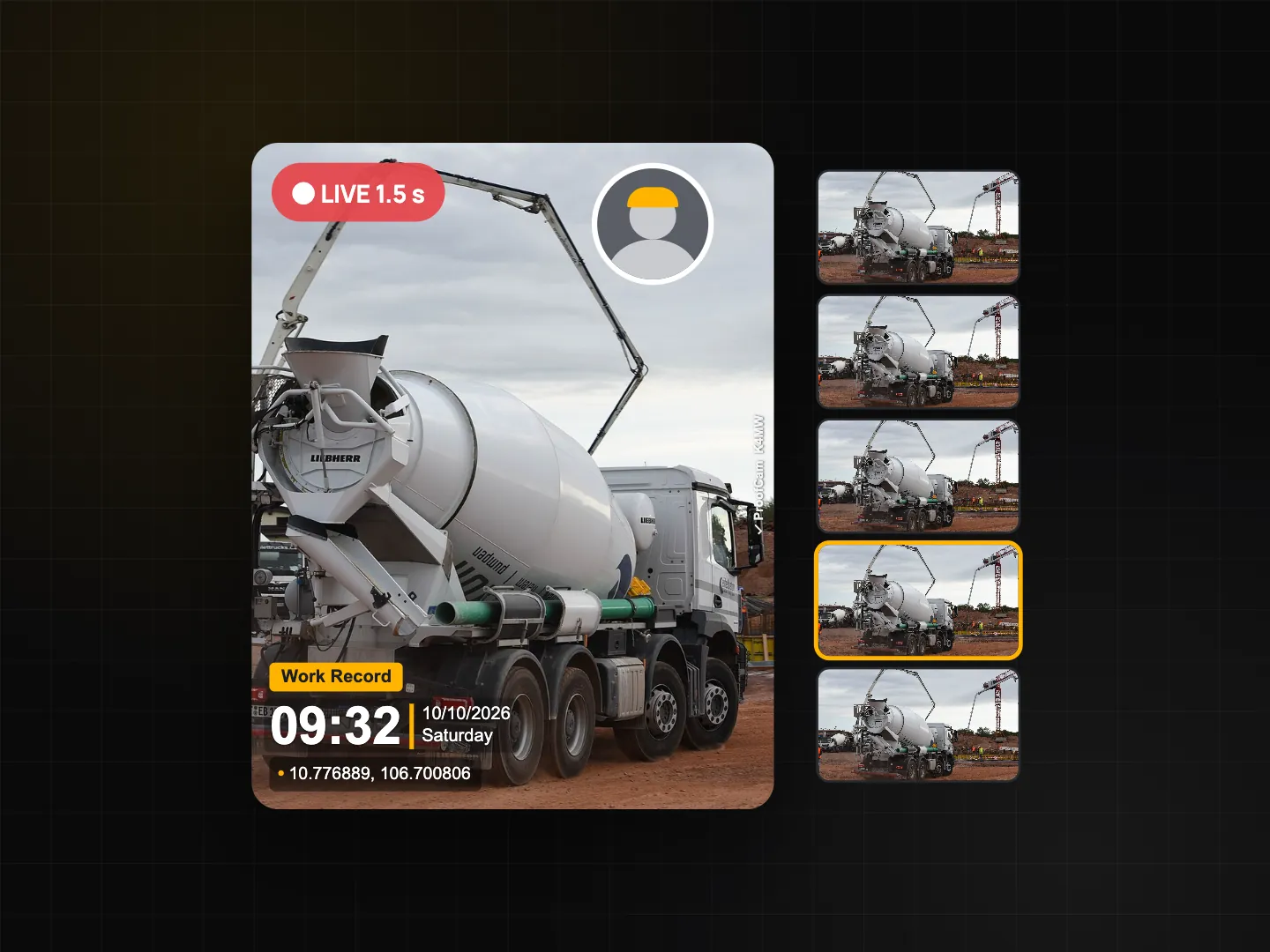
What this gives a reviewer:
- Movement. You can see the camera moving through the real scene, people walking, light changing. A clip of a flat screen looks very different.
- One file. The clip lives inside the photo file, so the Photo Code fingerprint covers the whole file. Any edit to the file makes it stop matching. Read more in Photo Code: verify original photos.
- Motion data. ProofCam also notes how much the phone moved during the clip.
To play it, open the photo in ProofCam and press and hold. Gallery apps that support Motion Photos may play it too; the iPhone Photos app does not play these clips, but ProofCam does.
How to use it, step by step
- Turn on Live proof. Go to Settings and switch on Live proof (Plus, or a member of a Business team).
- Take photos as usual. There is nothing extra to press. Each photo now carries its clip.
- Check the clip. Open any photo and press and hold to play it.
- For teams: in Teamspace, an admin can turn on Require Live proof for clock photos. Workers then always capture a clip with their clock-in and clock-out photos.
Live proof adds roughly 1–3 MB per photo. It pauses automatically when the battery is low or the phone is hot, and the camera shows a banner when that happens.
Tips
- Keep the phone moving slightly for a second before you shoot. A few steps or a slow pan makes the clip more convincing.
- Use Device screen mode only for photos that really are of screens, and turn it off afterwards.
- For attendance, combine Live proof with the other clock-in checks in photo clock-in with selfie, geofence, Wi‑Fi and QR.
FAQ
Can recapture detection be wrong?
Yes. A patterned fabric or a fence can look like moiré, and a very good print photographed in perfect light may pass. That is why Free and Plus only warn and let you keep the photo, and why the result is recorded rather than hidden.
Which plan includes Live proof?
Live proof is part of Plus, and is available to members of a Business team (or a team on trial). Recapture warnings are on every plan; blocking suspected photos is a Business team setting.
Do these checks need an internet connection?
No. Both run on the phone at the moment of capture, so they work on a site with no signal. The results sync with the photo later.