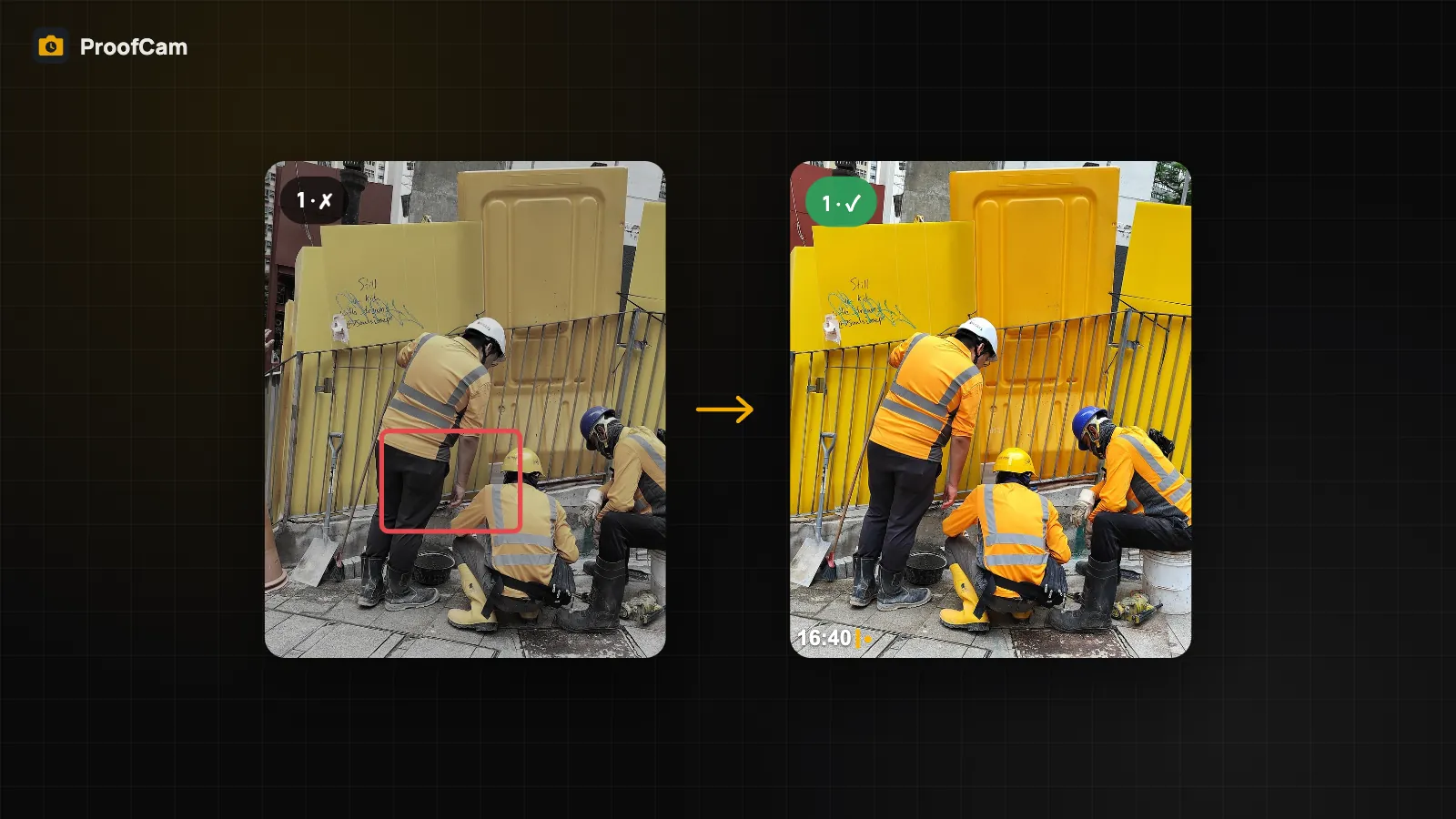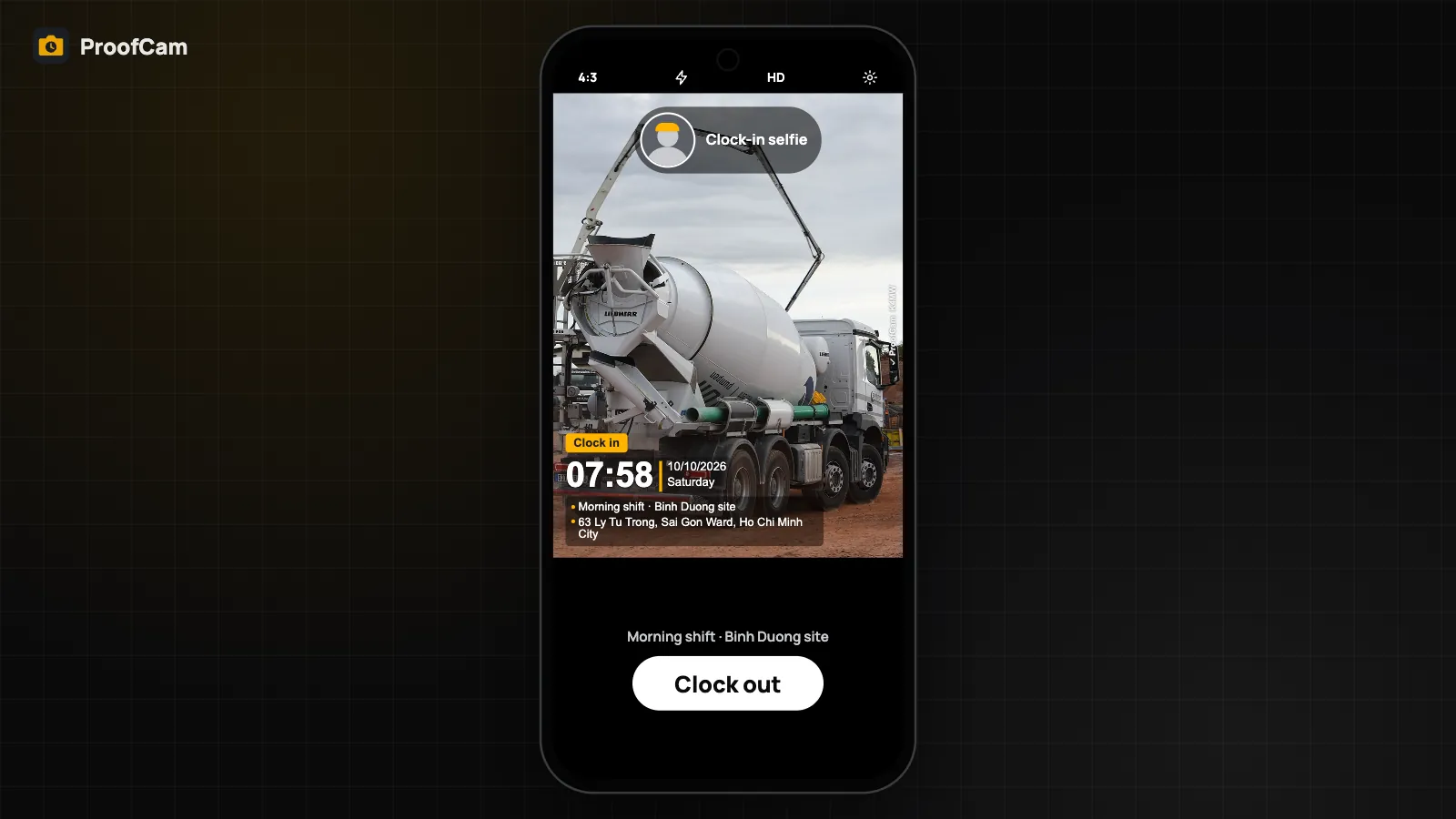
Most attendance apps record a tap and a GPS point. That tells you a phone was somewhere; it does not show the person, the site or the work. ProofCam clocks you in with a stamped photo: network time, GPS, address and a Photo Code on the picture. On top of that, a team can add the checks that fit its site: a selfie with a liveness check, a geofence around the project, the company Wi‑Fi, or a QR code that changes every 30 seconds.
All of these checks run on the phone, so they also work on sites with weak signal. Records sync to Teamspace when the connection comes back.
Clock in, break and clock out, each with a photo
Open the camera and switch to the Clock tab. The flow is simple:
- Press Clock in. ProofCam takes a stamped photo of the site and starts the shift timer.
- Press Break when you stop, and again when you are back. Breaks are subtracted automatically.
- Press Clock out with a final photo. ProofCam calculates the hours worked.
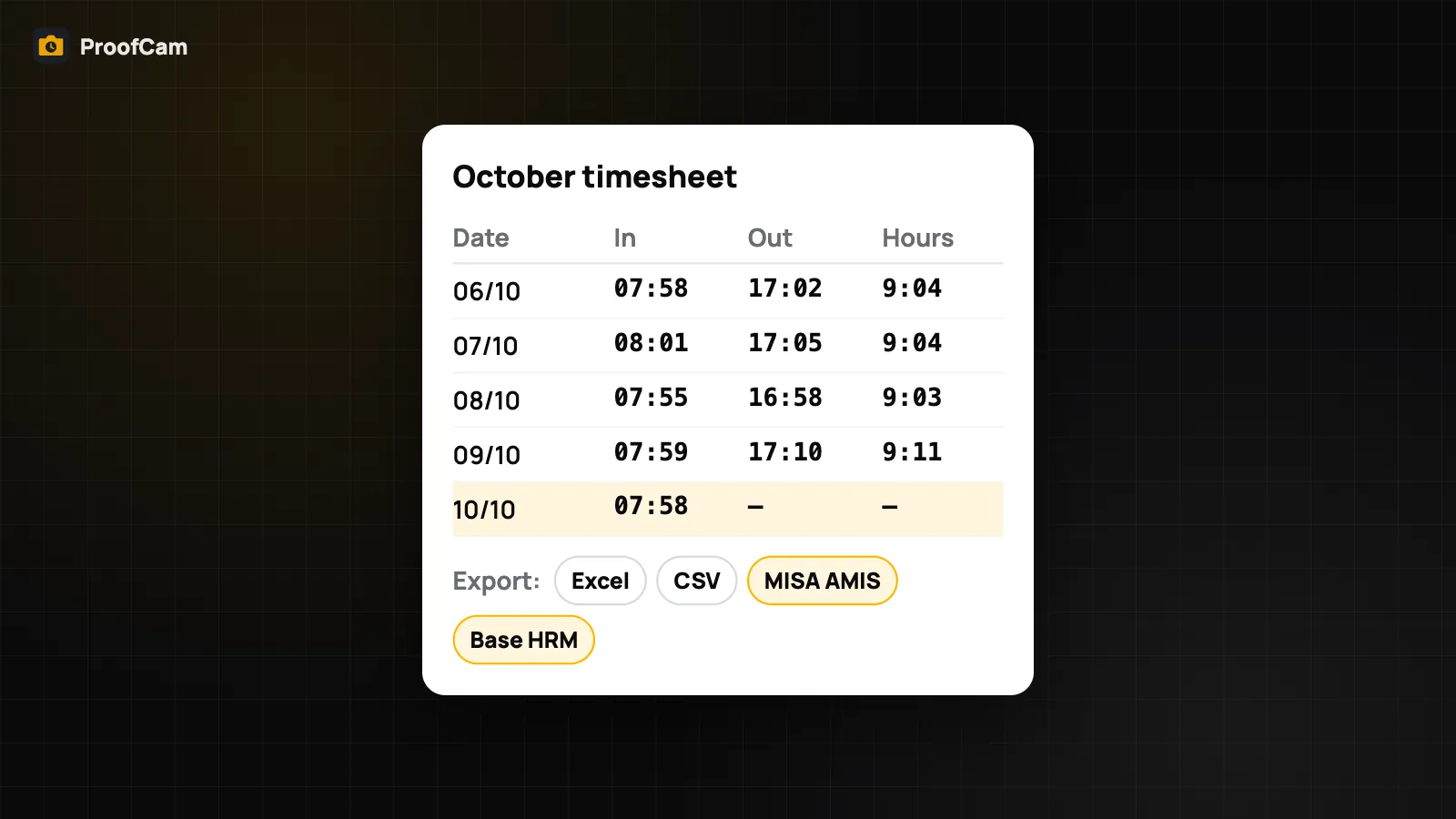
While the shift runs, a notification shows the live timer with Break and Clock out buttons on Android, and the iPhone shows the shift on the Lock Screen and in a Live Activity. Everything lands in My Timesheet, ready to export (see timesheet export to Excel and CSV).
Selfie with on-device liveness
A site photo proves the place. A selfie proves who was there. With selfie clock-in on, after the clock-in photo ProofCam switches to the front camera and asks you to blink or turn your head within 5 seconds. That simple liveness step stops someone holding up a photo of a colleague.
The check runs entirely on the phone. ProofCam only checks that a live face is present; it does not recognise who the person is, and no biometric data is sent anywhere. The selfie is saved as a clock photo linked to the shift. Selfie clock-in is part of Plus and is included for Business teams.
Business teams can also ask for a selfie with every clock photo: one press takes the site photo, then a small round selfie is added to it. Tell your staff before switching this on, since the selfie becomes part of the attendance record.
Geofence: clock in at the site, not on the way
A team admin can draw a geofence around each project: a circle from 50 m to 1 km. Every clock photo then records whether you were inside it and how far from the centre. With Require inside geofence turned on (Business), the Clock in button only works inside the circle and shows the distance when you are outside.
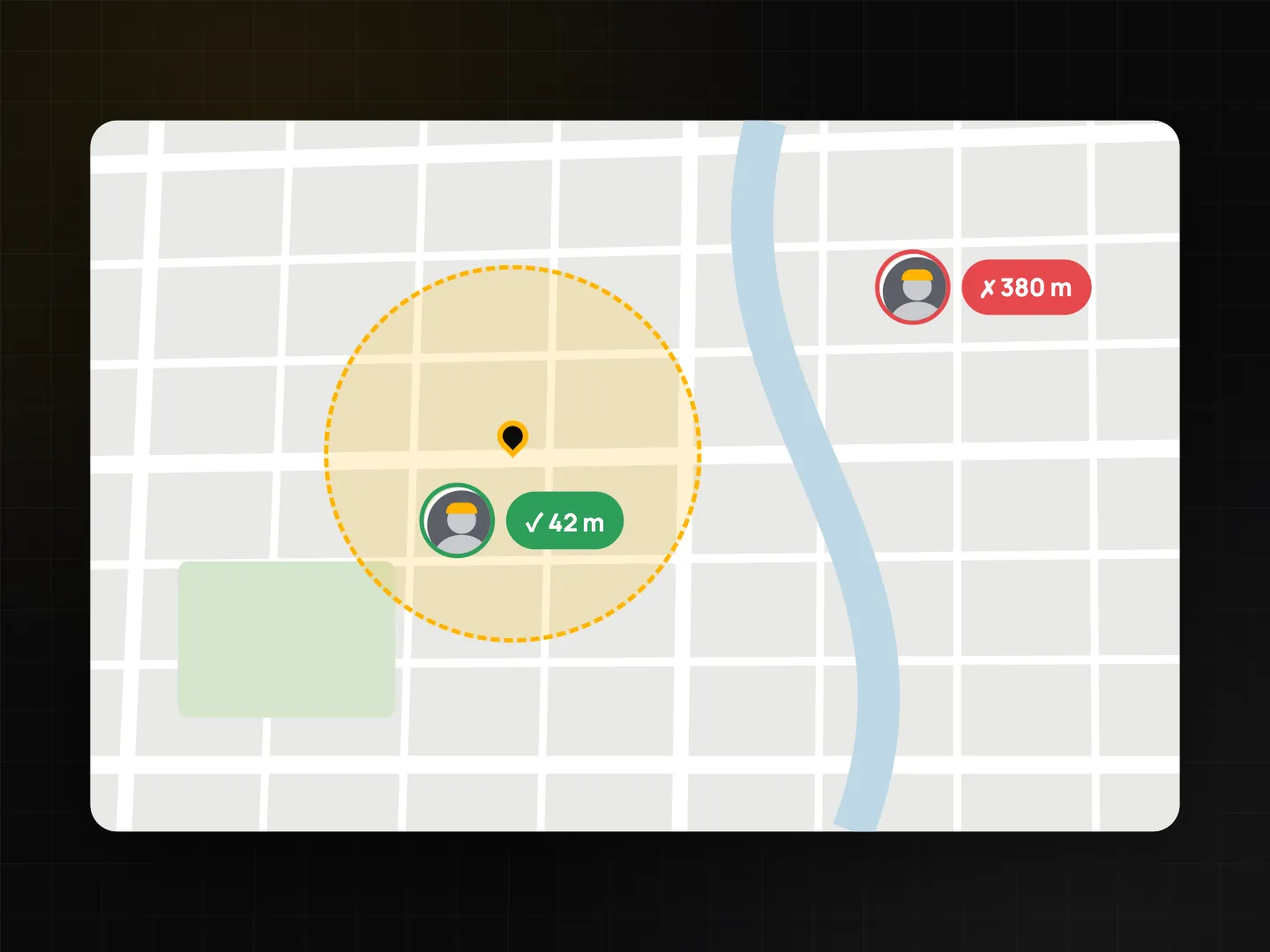
Geofences also power two reminders. Turn on Arrive / leave site reminders and ProofCam reminds you to clock in when you arrive and to clock out when you leave. The location is used only near your team's project sites and is not uploaded. On Plus and Business, the leave notification has a Clock out button: tap it and the camera opens ready for the clock-out photo. ProofCam never clocks you out without a photo.
Company Wi‑Fi and rotating QR (Business)
For offices, shops, factories and gatehouses, GPS indoors is often weak. Two extra signals help:
- Company Wi‑Fi. In Teamspace, an admin connects to the office Wi‑Fi and taps Add current Wi‑Fi. Then choose a mode: off, warn or block. When someone clocks in, ProofCam checks whether the phone is on one of those access points. Only a salted hash of the access point is stored, never the network name. Reading Wi‑Fi details requires location permission on both Android and iPhone.
- Rotating QR code. An admin creates a QR key in Teamspace and opens the QR kiosk on a tablet or spare phone at the entrance. The code changes every 30 seconds. Workers tap Scan clock-in QR in Clock mode, then take the clock-in photo. The check happens offline on the phone, and admins can make the QR required. A photo of an old code stops working after about a minute.
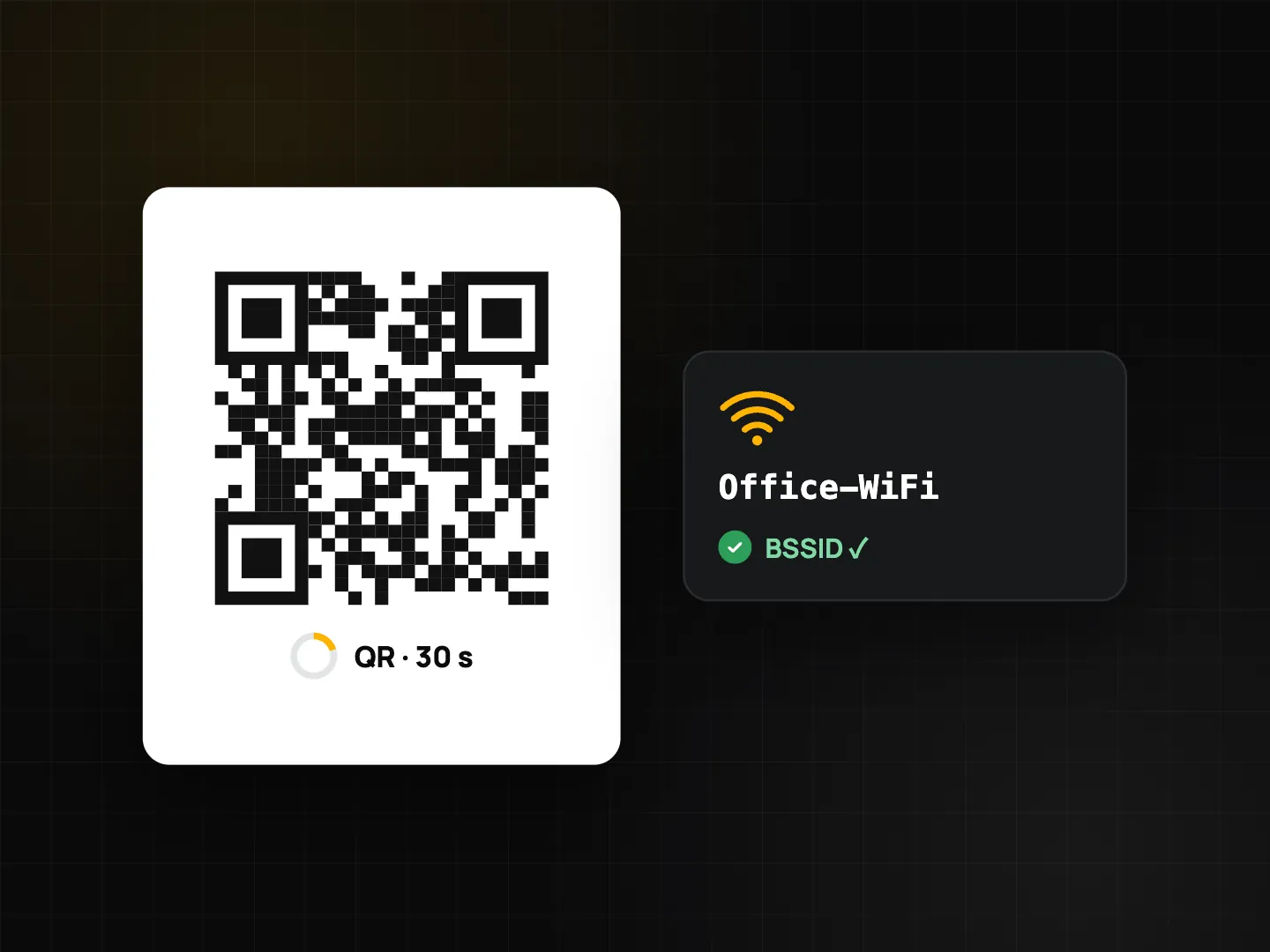
These are on-device checks. Anyone in the team can technically read the QR key, so the rotating QR is mainly protection against people sending around a photo of the code.
Forgot to clock out?
It happens to everyone. In Settings you can set Remind me to clock out after a number of hours, plus a break reminder after 4 hours of work. If you are still clocked in at that point, ProofCam sends a gentle "Still clocked in?" notification so you can clock out with a photo.
Tips for a smooth rollout
- Start with photo clock-in and the geofence. Add selfie, Wi‑Fi or QR only where they solve a real problem.
- Combine checks: geofence for outdoor sites, Wi‑Fi or QR for indoor workplaces.
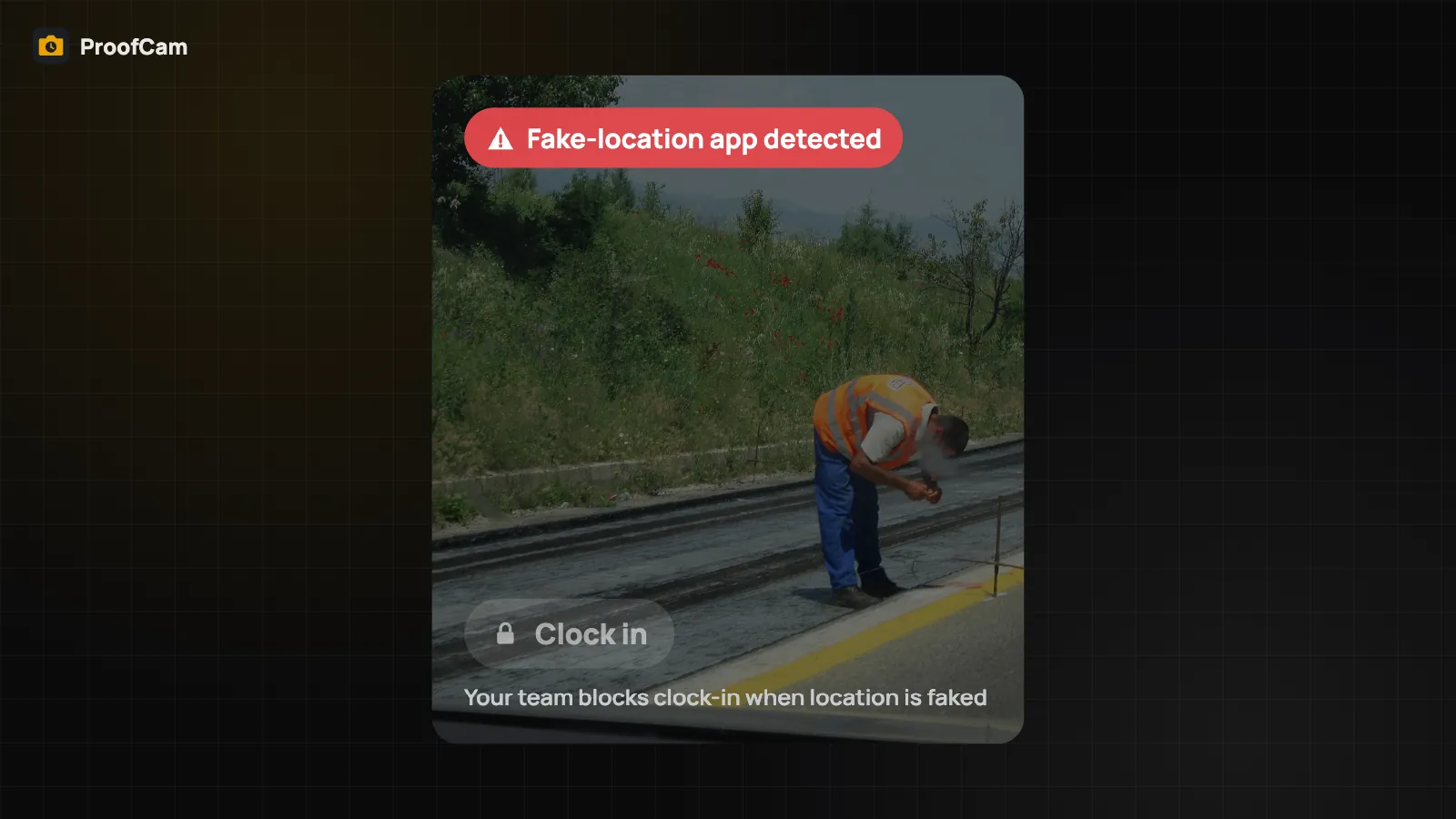
- Turn on mock-location blocking too; see fake GPS detection.
- Explain each check to your team before switching it on.
FAQ
Which features are free?
Clock in, break and clock out with photos, the shift timer and reminders work on Free, and Free shows the last 7 days of your timesheet. Selfie liveness and the one-tap Clock out button need Plus or a Business team. Wi‑Fi, rotating QR and locking the button by policy are Business team features.
Does the selfie check recognise faces?
No. It only checks that a live face is in front of the camera (a blink or head turn). It does not identify people and stores no face templates.
Does it work offline?
Yes. Photos, shifts, Wi‑Fi and QR checks are done on the phone and sync when you are back online.