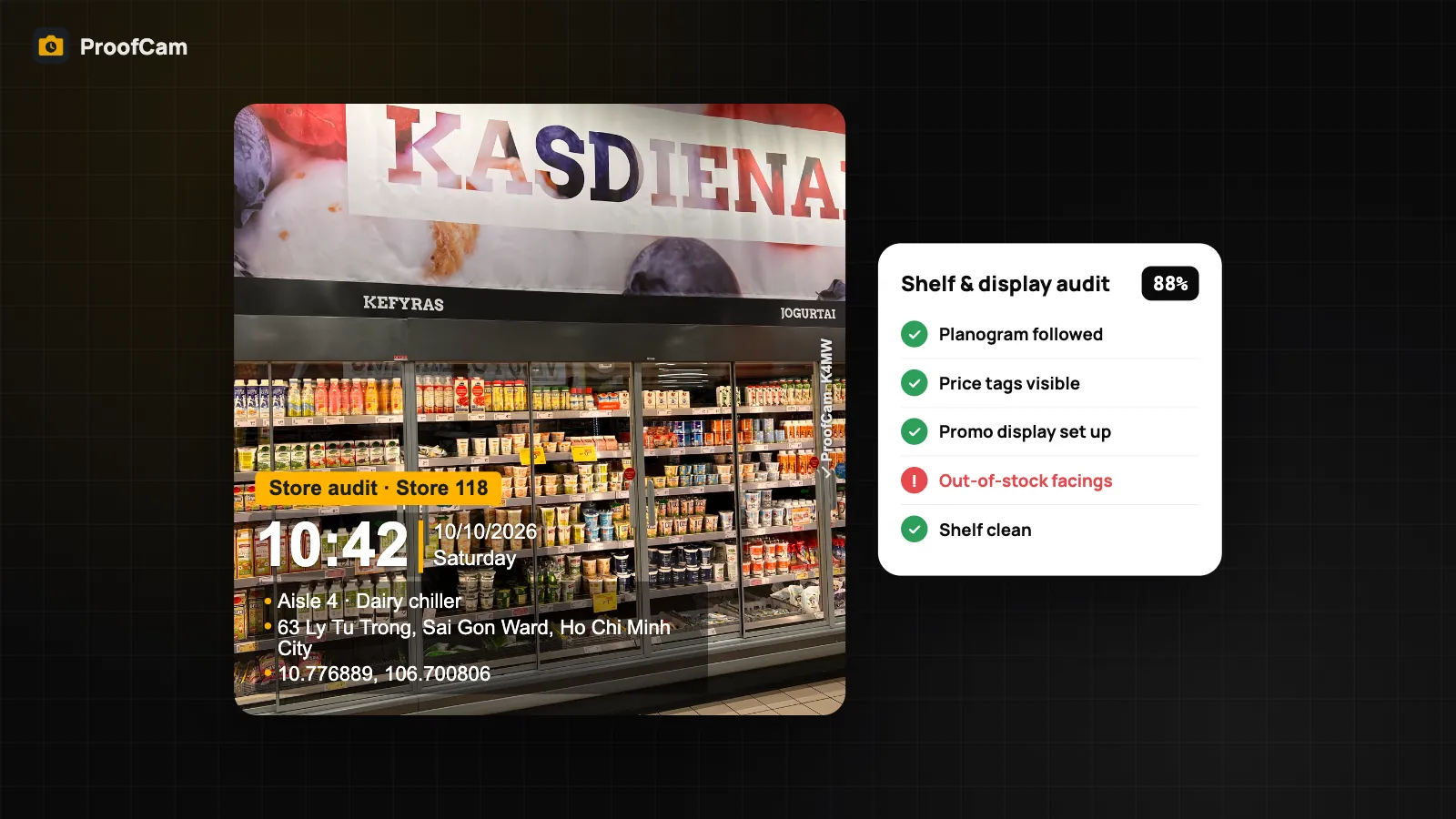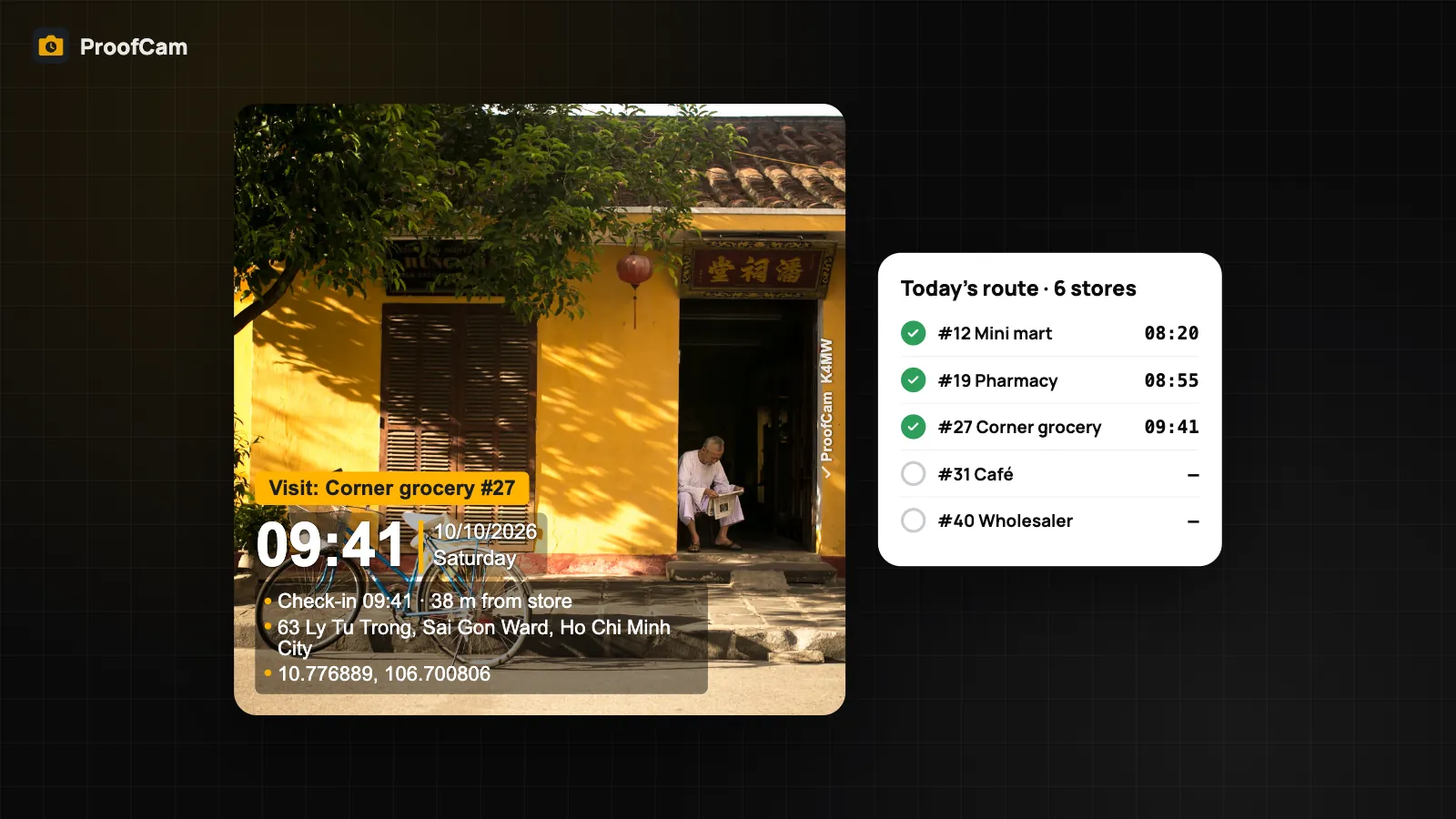
Your reps cover 30 to 40 outlets a week each. The visit report says every store was visited; the order numbers say otherwise. A GPS ping from a generic app proves the phone was somewhere near the street, not that anyone walked in, checked the shelf or talked to the owner. And on Android, a fake GPS app takes two minutes to install. A field sales check-in app should leave a visit record that is hard to fake: a stamped photo of the storefront, a short checklist inside the store and a route you can review at the end of the day.
This guide shows how sales managers use ProofCam to get proof of each visit, catch mock locations and keep working hours in one export, without tracking reps in the background.
The usual problems with rep visits
- "Visited" without proof. A tick in a spreadsheet or a check-in tap from the café down the road looks the same as a real visit.
- Fake locations. Mock-location apps make the phone report the store's position from anywhere.
- Recycled photos. Last month's storefront photo, re-sent through a chat app, is hard to spot in a busy group.
- Visit details lost. Was the display up? How many facings? Was an order taken? That information stays in the rep's head or in a voice message.
- Working hours guessed. Reps start and end the day on the road, and the timesheet is reconstructed from memory at month end.
Which ProofCam features help with field sales check-ins
| Need | ProofCam feature | Plan |
|---|---|---|
| Storefront photo with time, GPS and address | Watermark with network time; Visit template | Free |
| Store code and visit type on the photo | Custom fields (also usable in file names) | Free 3 fields · Plus 10 |
| Same check-in format for every rep | Team template, can be made mandatory | Business |
| Catch fake GPS | Mock-location detection + location trust grade A–D | Free (full grade on Android, basic check on iPhone) |
| Stop fake clock-ins | Policies: block mock location, minimum trust grade | Business |
| Distance from the key account | Project geofence (50 m–1 km) recorded on each photo | Teamspace project |
| The right person started the day | Clock-in selfie with on-device liveness (blink / turn head) | Plus or Business |
| What happened in the store | Visit checklist: photos, numbers, yes/no, signature | Free 1 template · Plus unlimited · Business team templates |
| Daily route review | Teamspace map with the route built from photos | Teamspace |
| Working hours | Clock in / Break / Clock out + timesheet export Excel/CSV | Clock-in Free · export Plus or Business team |
| Stores with no signal | Offline capture and checklists, Sync center | Free |
What ProofCam is not: a CRM, an order-management system, a route planner or a live tracker. It doesn't plan routes, record order values or follow reps between stores. It records evidence of each visit, and the portal's filters and exports give you the data to compare with your sales system.
Step-by-step workflow
- Create projects for key accounts. In Teamspace, create a project for each key account or important outlet with its address and a geofence radius (from 50 m to 1 km). Every photo taken there records whether the rep was inside the circle and how far from the centre. For small traditional outlets, one project per territory is often enough.
- Set up a "Visit" template. Use a watermark preset or a custom template titled "Visit", with custom fields Store code and Visit type (regular, new outlet, display check). In a Business team, make it the required team template and turn on Require project. See watermark templates and custom fields.
- Turn on anti-fraud policies. In a Business team, switch on Block mock location and, after watching real grades for a few days, a minimum location trust grade. These lock the Clock in / Clock out button when the check fails. Mock-location and grade signals are also recorded on every photo, so you can review visit photos too. Details in fake GPS and mock location detection.
- Start the day. The rep taps Clock in with a stamped photo and, if you require it, a selfie with a quick liveness check. ProofCam checks for a real face on the phone; it doesn't recognise who it is. See photo clock-in with selfie, geofence, Wi‑Fi and QR.
- Check in at each store. Photograph the storefront with the sign in frame. The photo carries network time, GPS, address, the store code and a Photo Code.
- Fill in the visit checklist. Display or POSM present (photo), facings for the main SKU, competitor promo, order taken yes/no, owner signature. It takes a minute and works offline.
- End the day. Clock out with a photo. Anything taken without signal syncs from the Sync center when the phone is back online.
- Review in the portal. Open the map in Teamspace at
/app/to see the rep's day as numbered photo pins in time order. Filter photos by member, project and day, review checklist submissions and export what you need.
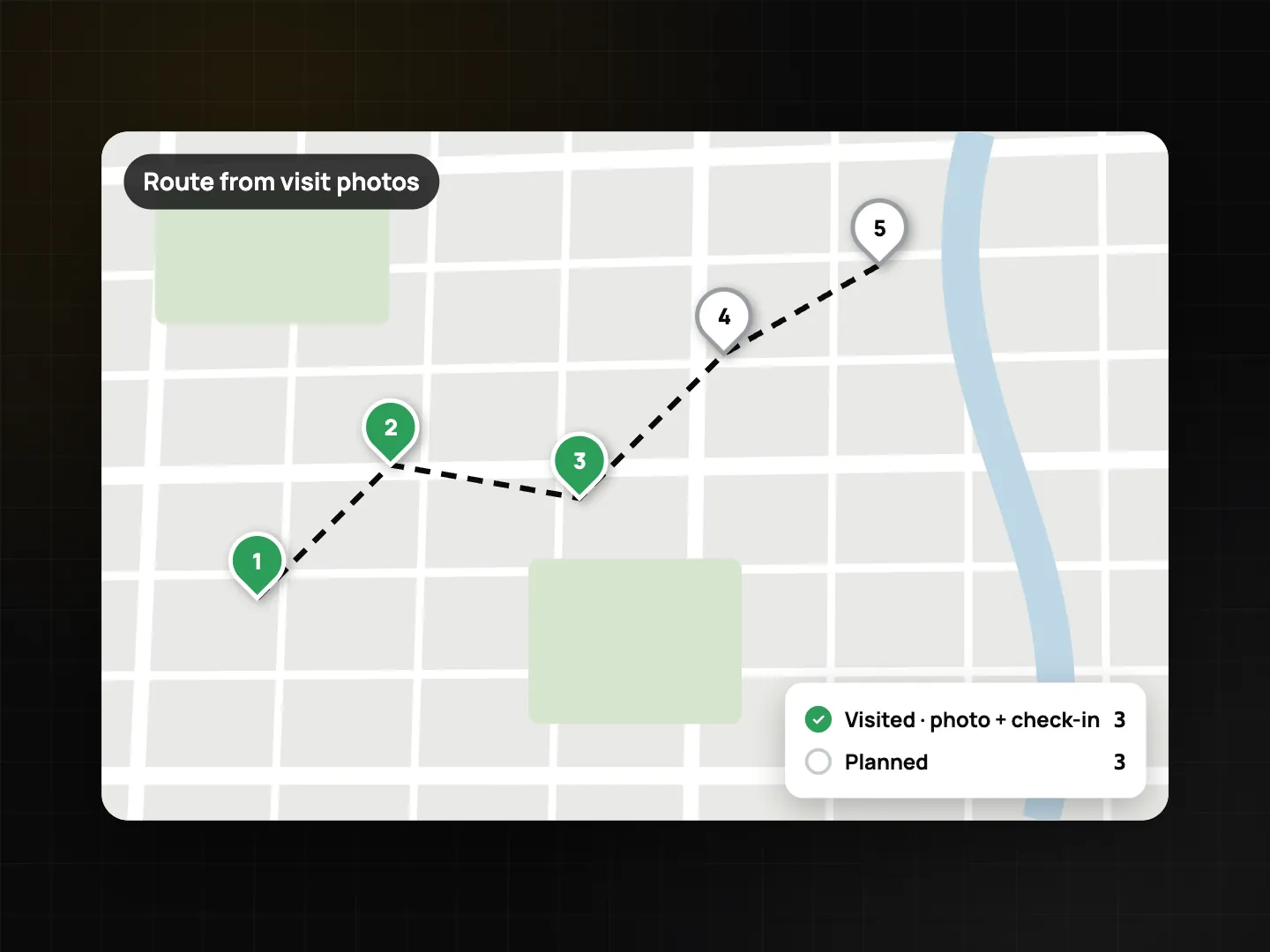
The route is drawn from the photos the rep took. ProofCam doesn't run background tracking, so there is nothing between two stores, and nothing after clock out.
Telling a real visit from a faked one
Look at three things on each check-in photo:
- Location trust grade. A is a solid fix, D means don't trust it. A position that looks artificial drops to D even if no mock flag is set (full grading on Android; iPhone gets a basic check).
- Mock location flag and the distance from the project centre, when the store has a geofence.
- Time source. Network time means the phone clock was ignored; a "device time" flag means it couldn't be verified.
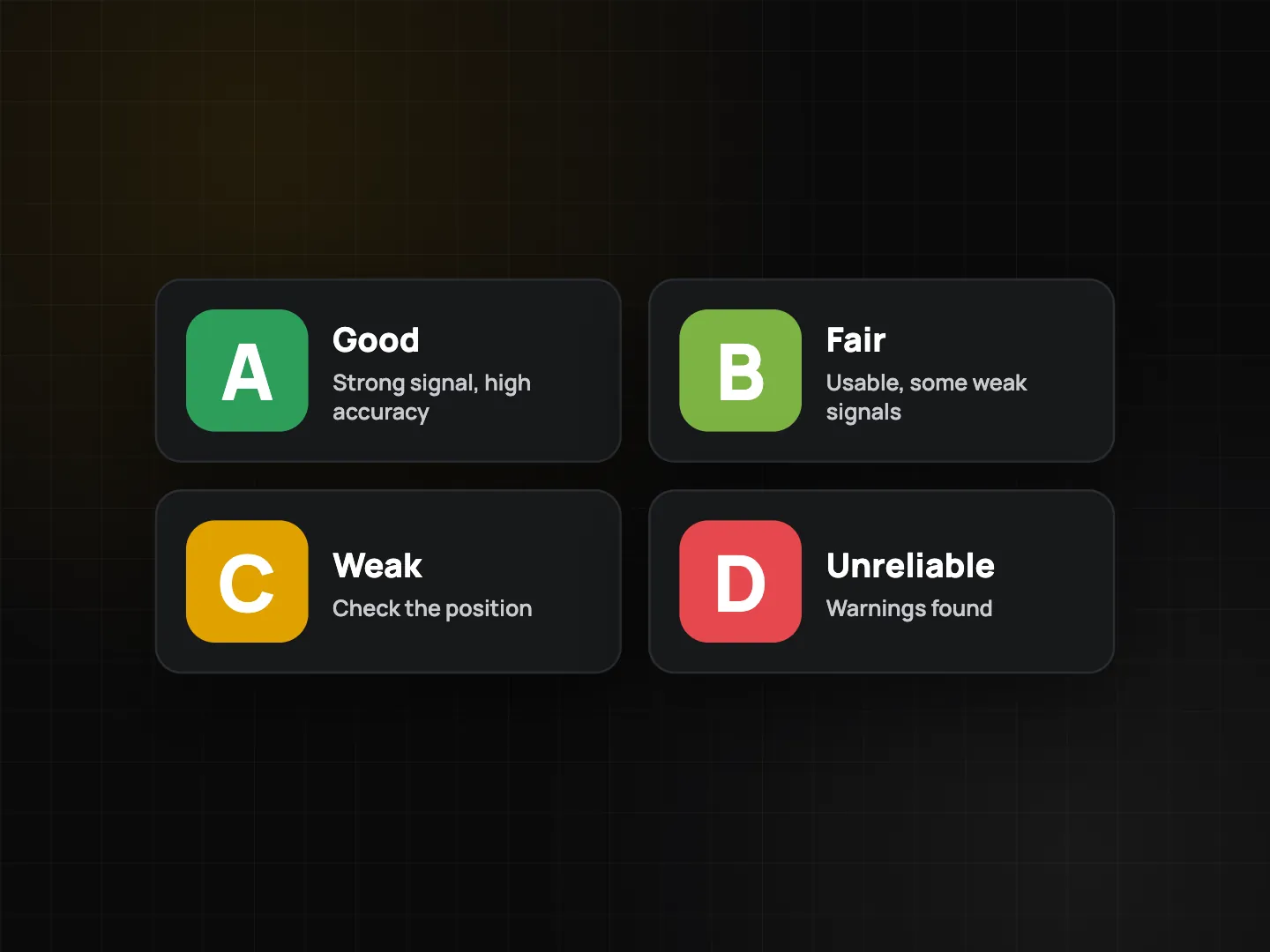
A low grade is a reason to ask, not proof of cheating: grades drop indoors and between tall buildings. More in GPS accuracy and the location trust grade.
Store visit checklist (template)
| Item | Question type |
|---|---|
| Store code | Text, required (or barcode / QR scan from a store sticker) |
| Storefront photo | Photo, min. 1 |
| Display / POSM present | Yes / No + photo |
| Facings for the main SKU | Number (min/max) |
| Competitor promo seen | Yes / No / N/A, photo if Yes (conditional) |
| Stock issue reported by the owner | Text |
| Order taken | Yes / No |
| Next visit | Date |
| Owner signature | Signature |
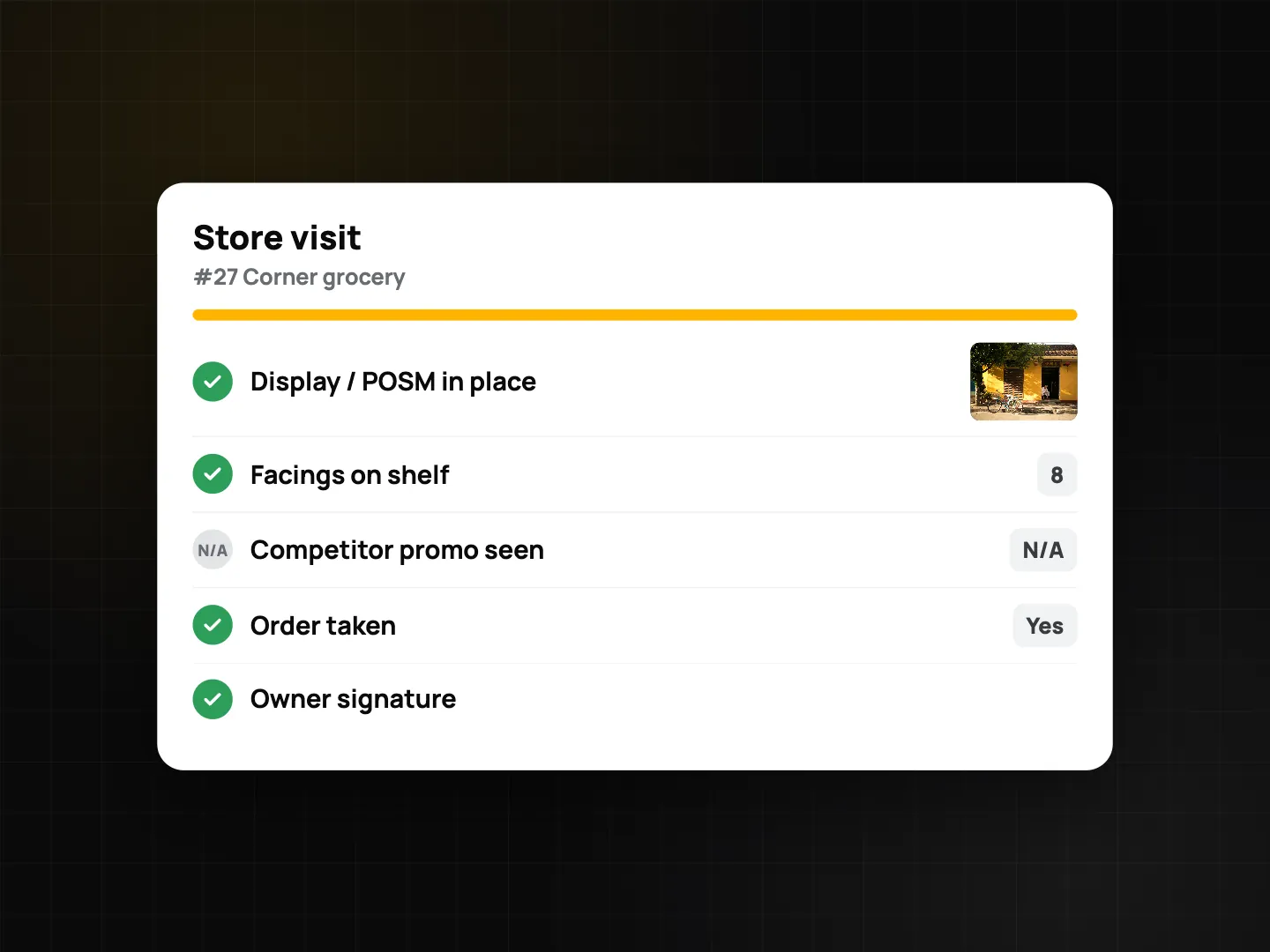
Record the order itself in your sales system; the checklist only notes that an order was taken. If your team also runs full shelf and planogram audits, use a separate scored template, as described in the retail store audit app guide.
Hours and exports
Clock-in records build the timesheet: hours, breaks, overtime and late or early minutes from shift settings. With Plus, or as a Business team member, export it to Excel or CSV for payroll. ProofCam doesn't calculate pay; it hands over the hours. See timesheet export to Excel and CSV.
From the portal, export visit photos to PDF, Excel, ZIP or KMZ, filtered by rep, project and date.
Tips
- Start with warnings. Turn on blocking only after you've seen normal grades in your territory.
- Ask reps to allow Precise location. Approximate location lowers the grade.
- Frame the sign. The stamp says when and where; the store sign says which outlet.
- Explain the checks to the team. Tell reps what is recorded, and that there is no tracking outside their photos.
FAQ
Does ProofCam track my reps all day?
No. There is no background tracking. The map route is built only from the photos and clock records the rep takes.
Can a rep fake the location with a GPS spoofing app?
ProofCam detects mock locations and grades each position. A Business team can block clock-ins with a mock location or a low grade. No single check catches every trick, but faking becomes harder and easier to spot.
Does it replace our CRM or order app?
No. ProofCam doesn't manage orders, customers or routes. It provides the visit evidence, and its exports can be compared with your sales data.
Does it work in stores with no signal?
Yes. Photos, Photo Codes, checklists and clock records work offline and sync later.
Related: photo clock-in and the Teamspace web portal for managers.