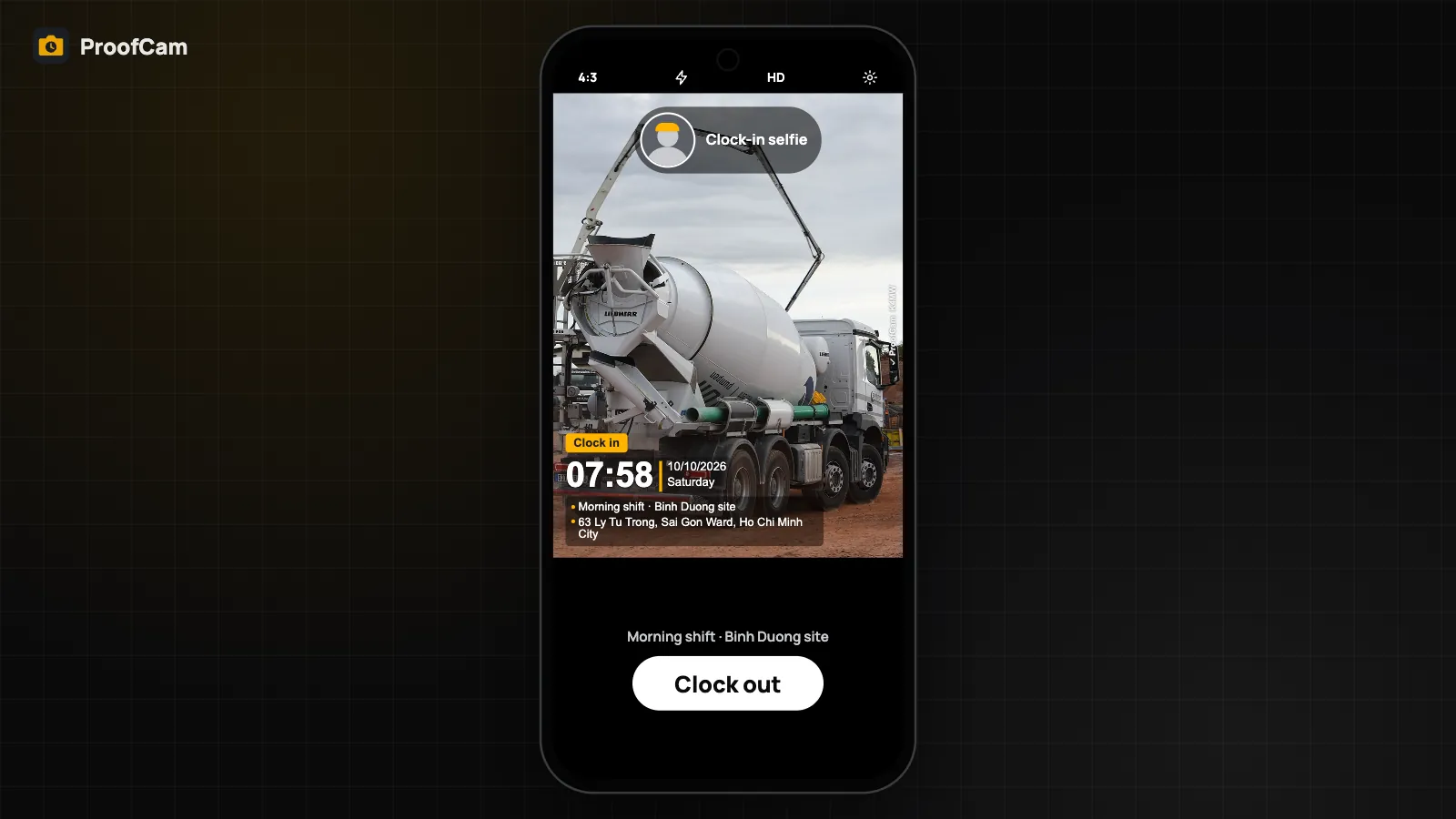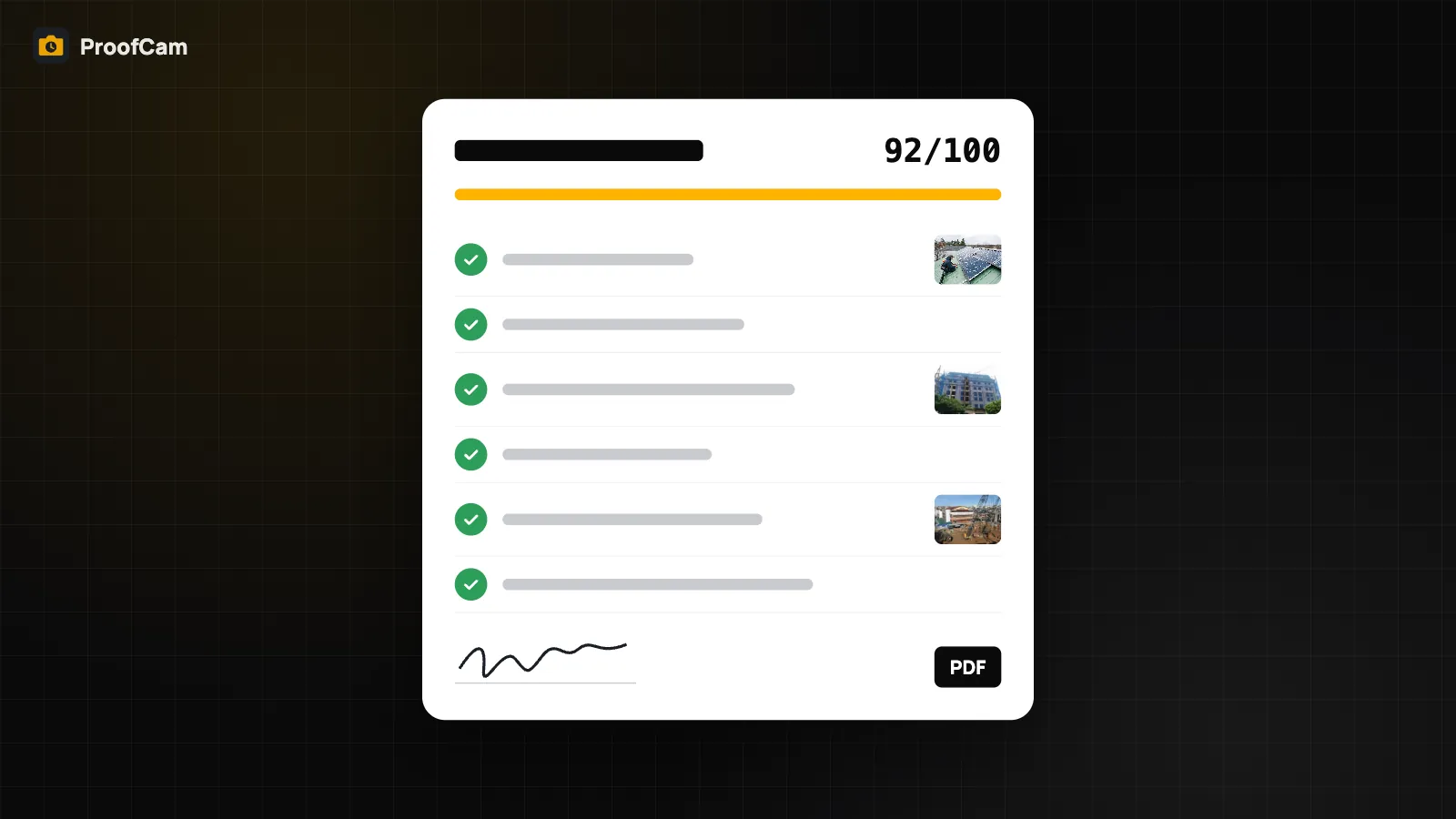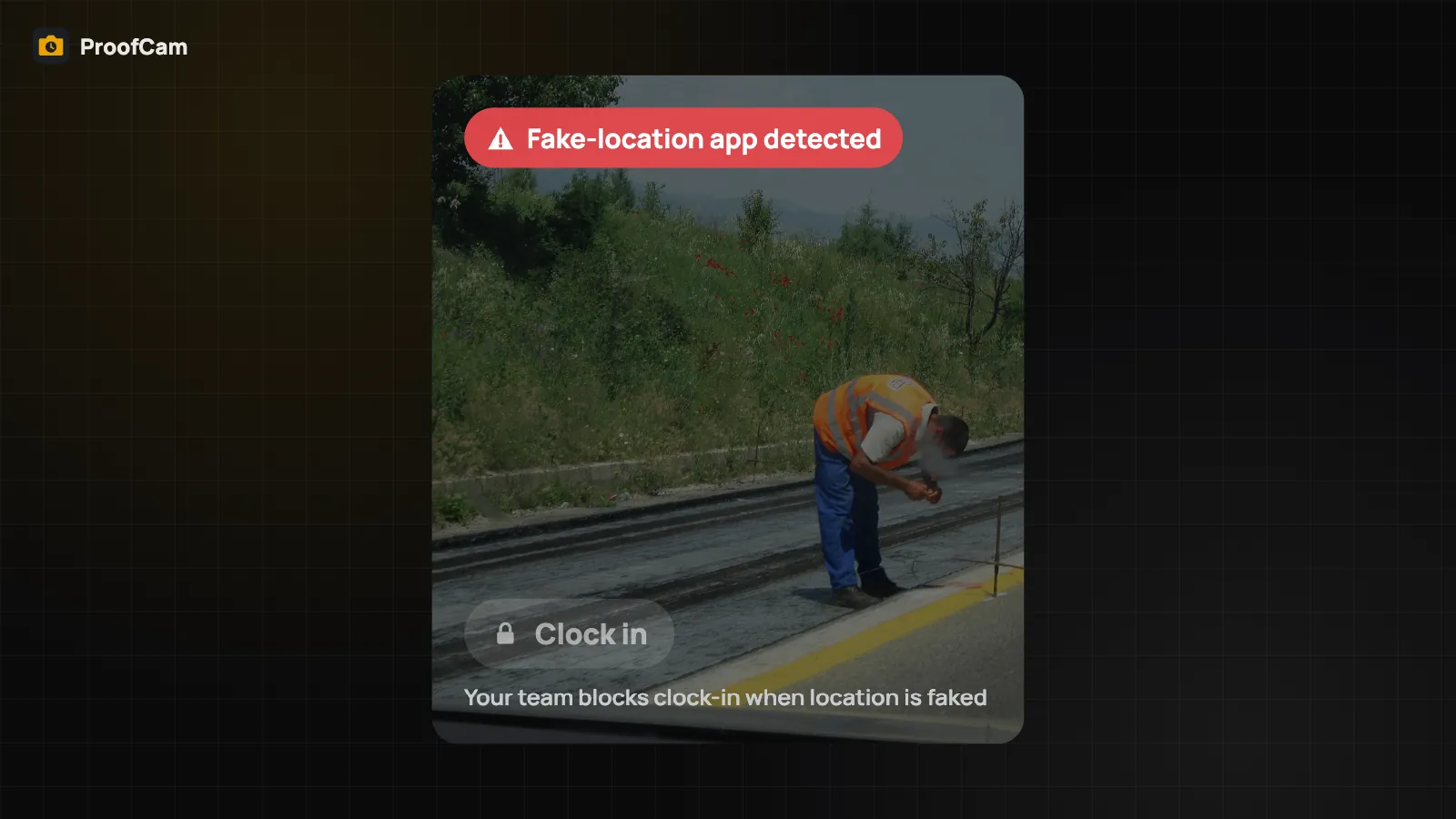
Clocking in with a photo is only half the job. At the end of the week or month, someone has to turn those shifts into numbers for payroll or a client invoice. Copying times by hand from a phone into a spreadsheet is slow and error-prone. ProofCam keeps every clock-in, break and clock-out in a timesheet on your phone and exports it to Excel (.xlsx) or CSV in a couple of taps, with hours, breaks, overtime, night hours and late arrivals already calculated.
What the timesheet shows
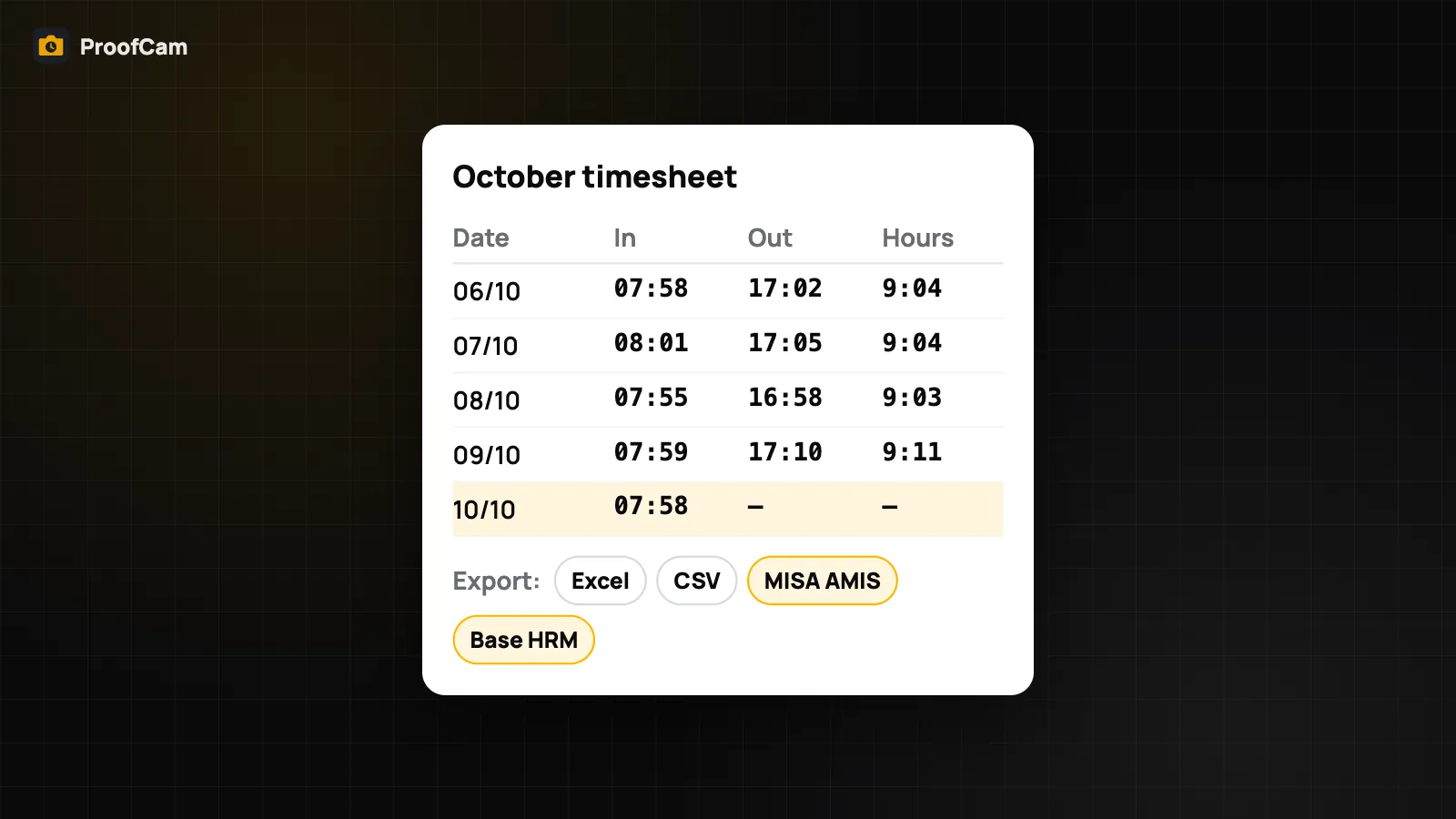
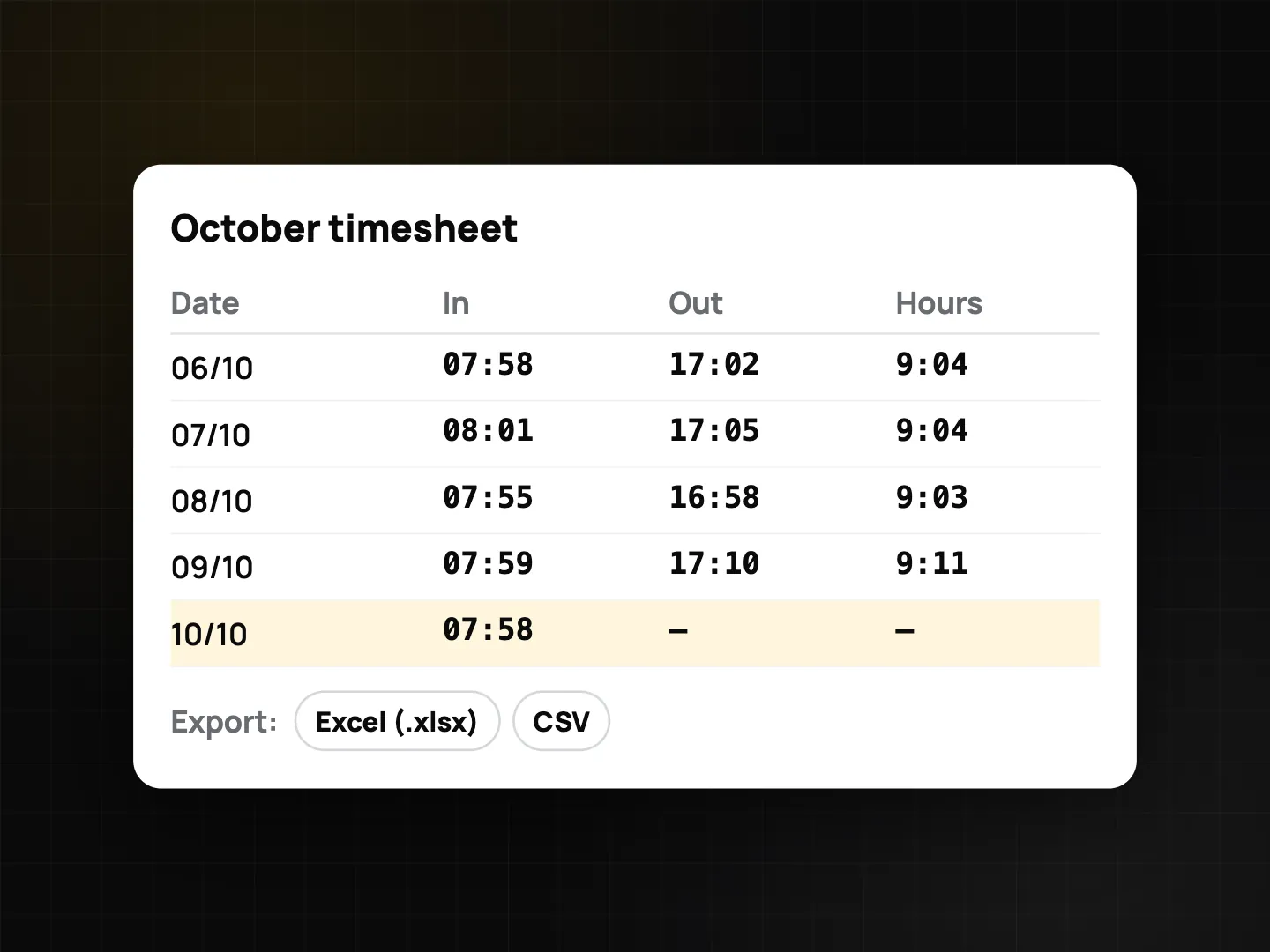
Open Timesheet from the Clock tab. Each day lists:
- the first clock-in and last clock-out,
- break time, subtracted automatically,
- hours worked for the day, and a total for the period.
Every row is backed by stamped photos, so if anyone asks "were you really there at 07:58?", the clock-in photo with its time, address and Photo Code answers the question. How those photos are taken is covered in photo clock-in with selfie, geofence, Wi‑Fi and QR.
Export formats
Tap the export button on the Timesheet screen and choose a format:
| Format | Best for |
|---|---|
| Excel (.xlsx) | Opening in Excel, Google Sheets or Numbers, adding your own formulas, sending to a client. |
| Daily summary (CSV) | Importing into payroll or accounting software. One row per day, UTF-8 with numbers stored as numbers, so they don't turn into text. |
| HR layouts | Ready-made Excel and CSV layouts for MISA AMIS and Base HRM, two HR systems popular in Vietnam. |
The file opens your phone's share sheet, so you can email it, save it to Drive or send it in a chat app.
Set up your shift once
Overtime and late arrivals only make sense if ProofCam knows your schedule. Open Shift & employee on the Timesheet screen and fill in:
- Employee ID, full name and work email, so the file can be matched to the right person.
- Shift start and end, for example 08:00–17:00. An end time before the start time means an overnight shift.
- Hours per workday, for example 8. Work beyond this on a day counts as overtime.
- Grace minutes, for example 5. Arriving later or leaving earlier than that is counted in full.
With that in place, each exported day includes:
- Workday units (for example 1.0 for a full day, 0.5 for half),
- Overtime hours beyond the standard day,
- Night hours between 22:00 and 06:00, minus breaks,
- Late minutes and left-early minutes against your shift.
Overnight shifts are attributed to the day you clocked in, so a 22:00–06:00 security shift appears as one row instead of being split across two dates.
How to export, step by step
- Clock in and out with photos as usual during the period.
- Open Timesheet and check the days. Fix anything odd before the period closes.
- Open Shift & employee once and enter your schedule and details.
- Tap Export and pick Excel (.xlsx), Daily summary (CSV) or an HR layout.
- Share the file with your manager, payroll or client.
Which plan do you need?
| Free | Plus | |
|---|---|---|
| Clock in / break / out with photos | ✓ | ✓ |
| View timesheet | Last 7 days | Up to 45 days |
| Export to Excel / CSV / HR layouts | – | ✓ |
The phone keeps up to 45 days of shift history. On Free you see the last 7 of them; upgrading to Plus shows the full history and unlocks export. Members of a Business team (or a team on trial) can export too.
Tips
- Export monthly. The phone keeps 45 days, so export at the end of each month and archive the file.
- Check your first import. The HR layouts follow the vendors' import templates as closely as we could, but company setups differ. Test the first file with your HR admin before rolling it out.
- For teams, shifts also sync to Teamspace, where managers can review everyone's clock records in the web portal for managers.
FAQ
Does the export include the photos?
The spreadsheet contains times and hours. The photos stay in ProofCam and Teamspace with their Photo Codes, so anyone can check a specific shift's photo when needed.
Can I export a whole team's timesheet from one phone?
The in-app export covers the shifts recorded on that phone. Team-wide clock records are reviewed in Teamspace.
Is the overtime calculation fixed?
It follows the settings you enter: hours per workday, shift times and grace minutes. Night hours use the 22:00–06:00 window.