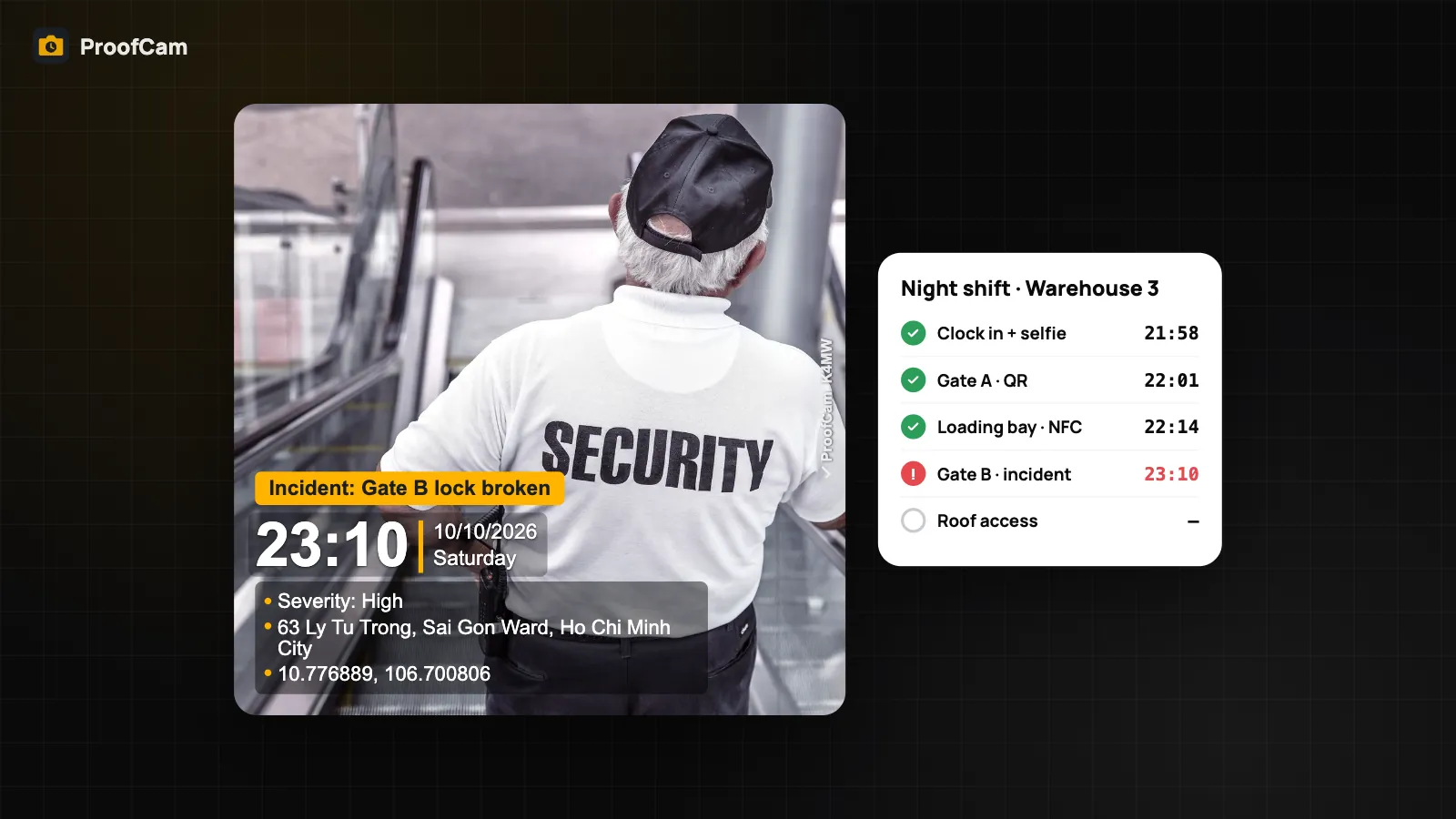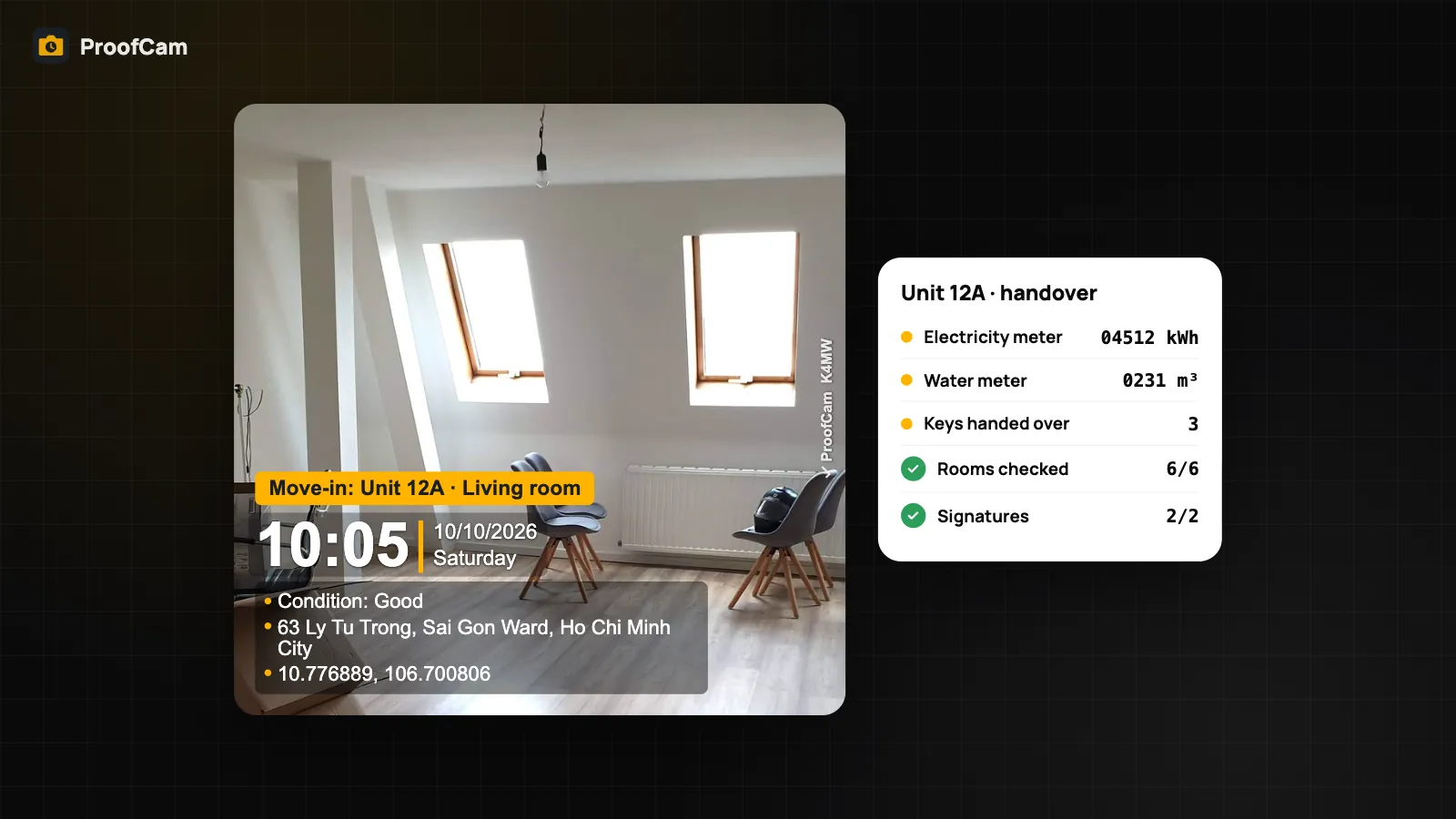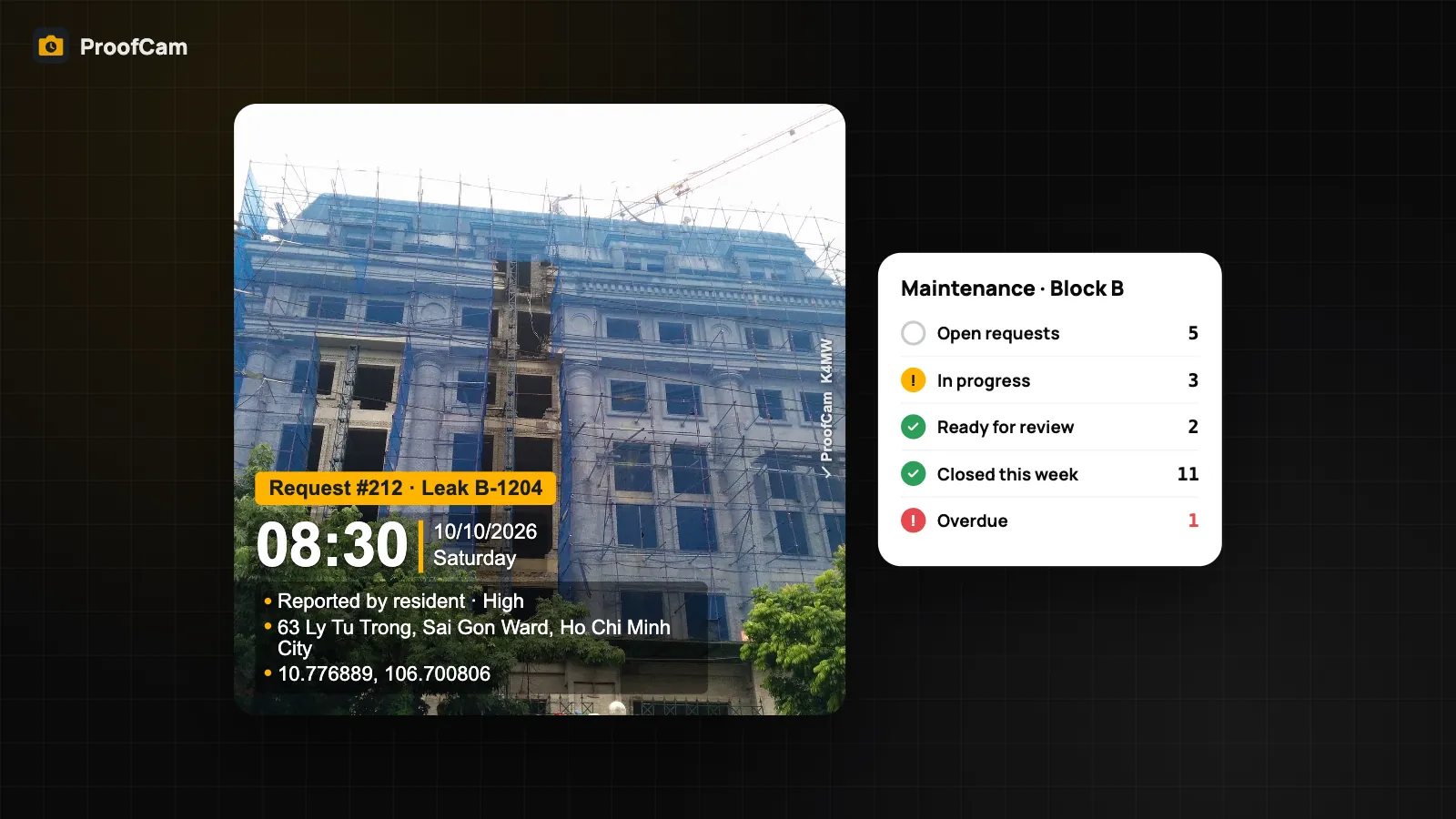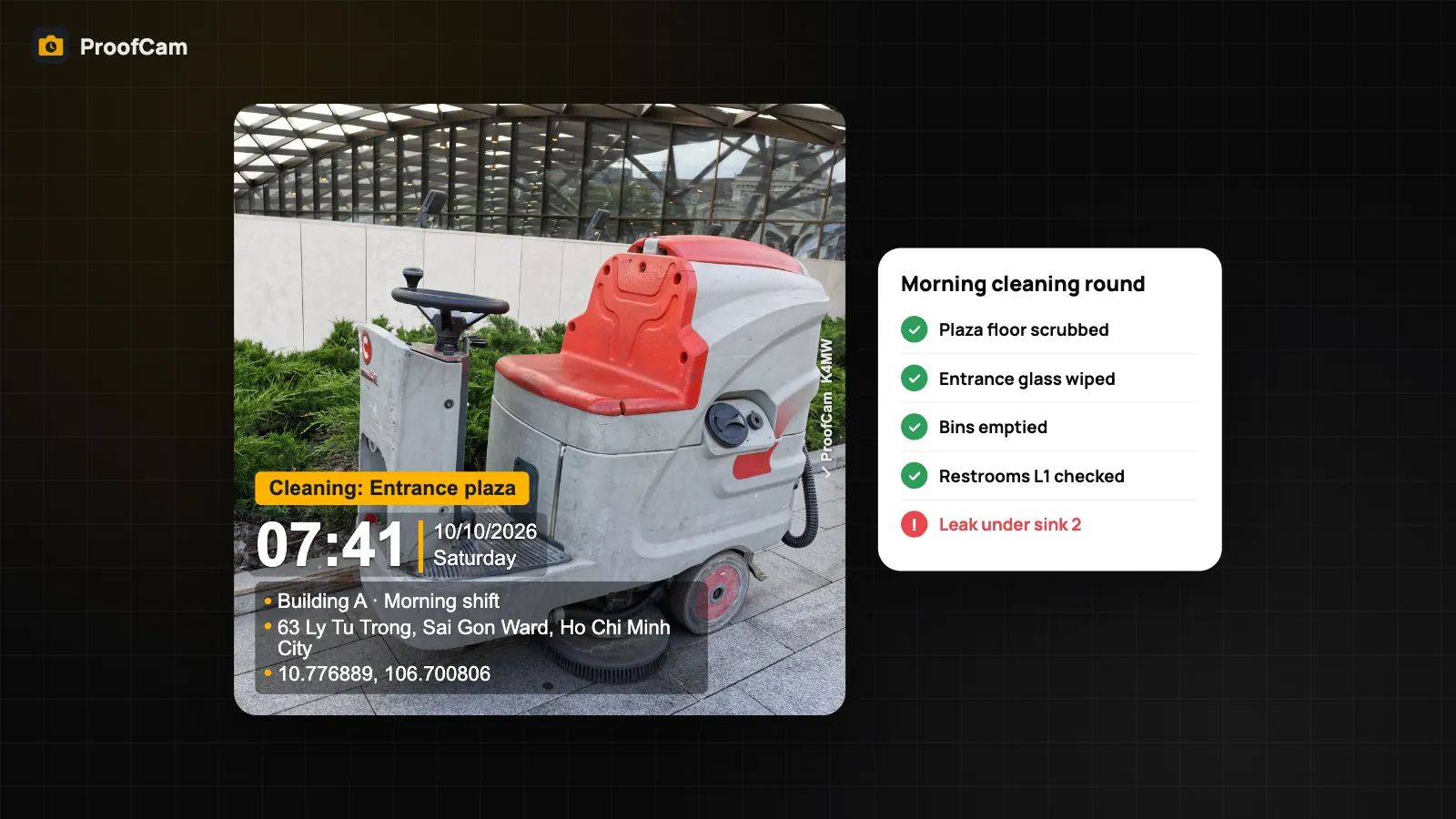
A commercial cleaning contract is judged on things nobody sees happen. The restroom was cleaned at 06:30, the lobby floor was mopped before the tenants arrived, the bins were emptied on every floor. When a building manager says "nobody came this morning", a supervisor's word is not much of an answer. Cleaning before and after photos with a trustworthy time, place and code on every picture are. This guide shows how a cleaning company or facility team can use ProofCam to prove each round, clock in cleaners across many buildings and send the client a tidy report.
What makes cleaning work hard to prove
- The result disappears. A clean floor looks like a clean floor. Without a before photo, there is nothing to compare, and by lunchtime the after photo looks like any other day.
- Many buildings, few supervisors. Crews start at 05:30 in five different sites. A supervisor can't be everywhere, so attendance relies on phone calls and trust.
- Photos lost in chat groups. Cleaners send pictures to a group chat. The time shown is when the message was sent, the place is unknown, and finding last Tuesday's restroom photo means scrolling for ten minutes.
- Quality inspections on paper. Supervisors walk the building with a clipboard, score areas by feel and type it up later. Scores are hard to compare between sites and months.
- Client disputes. "The meeting room wasn't done" arrives a week later, when nobody remembers the shift.
Which ProofCam features help
| Need | ProofCam feature | Plan |
|---|---|---|
| Time, place and code on every photo | Watermark with network time, GPS, address and Photo Code; Cleaning preset | Free |
| Fixes with a matching before and after | Teamspace tasks: after photo over a 30% ghost of the before, location warning | Any Teamspace team (Business lifts the limits) |
| Before/after for routine rounds | Comparison slider in photo details | Free |
| Before/after collage for the client | Collage export | Plus |
| Proof that cleaners arrived at the right building | Photo clock-in with geofence per building | Free (photo clock-in); geofence rules for teams in Business |
| Indoor sites with weak GPS | Company Wi‑Fi check, rotating QR kiosk | Business |
| Right person, not a colleague | Selfie with on-device liveness check | Plus or Business |
| Room-by-room rounds and inspections | Checklists with photo questions, scoring and pass mark | Free (1 template), Plus (unlimited), Business (team templates, review) |
| Hours for payroll | Timesheet export to Excel/CSV | Plus, or Business team members |
| Report for the building client | Share link, PDF export | Teamspace share links; PDF Free up to 10 photos, Plus unlimited |
Cleaning before and after photos that line up
There are two ways to do before/after in ProofCam, and they suit different jobs.
For fixes and one-off jobs, use Teamspace tasks. A supervisor photographs the problem (a stained carpet, a blocked drain, graffiti in the stairwell) and creates a task from the photo with an assignee and a due time. When the cleaner finishes, they tap Take after photo: the camera opens with the before shot laid over the live view at 30% opacity, so the after photo matches the same angle. If the after photo is taken more than 50 m (team-adjustable) from the before, the task shows a red location warning for the reviewer. Details are in the punch list with before and after photos guide.
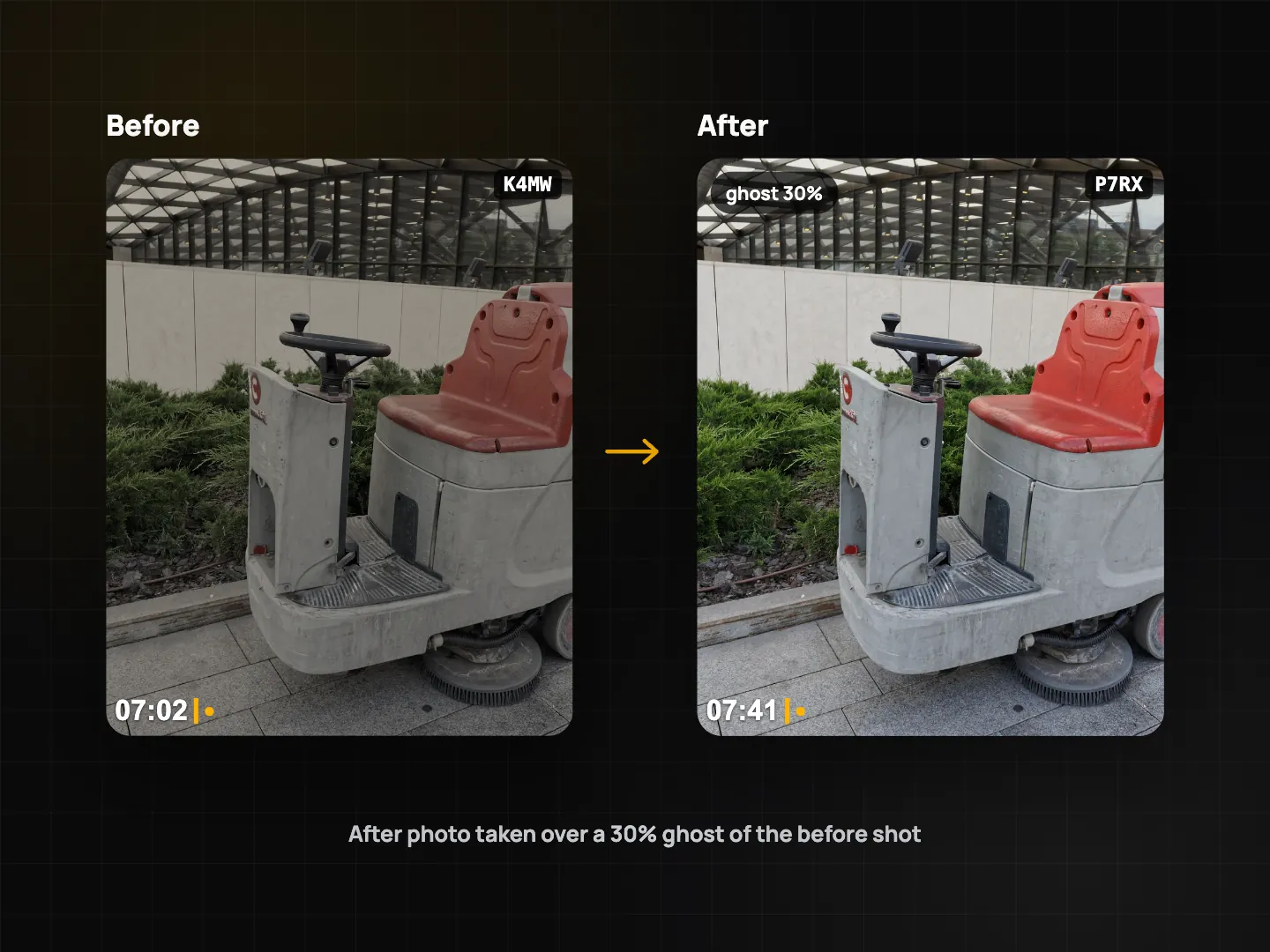
For routine rounds, use checklist photo questions. A daily restroom round doesn't need a task for every sink. Add photo questions to the checklist ("Floor after mopping", "Sinks and mirrors") and the cleaner takes them during the round. To show a change, open any photo in details and use the comparison slider against an earlier one, or export a before/after collage (Plus) for the client.
Step-by-step workflow
- Set up the stamp. Pick the Cleaning watermark preset and add custom fields such as "Building" and "Area" (Free allows 3 custom fields, Plus 10). See watermark templates and custom fields. On a Business team, an admin can make the team template mandatory so every photo looks the same.
- Create a project per building. In the Teamspace portal at /app/, add each building with its address and a geofence (50 m to 1 km). Give members access only to the buildings they work at. The Teamspace web portal guide covers roles and exports.
- Install the starter template. An admin can install Restroom cleaning round from the team starter templates and adjust it, or build a scored inspection checklist for supervisors.
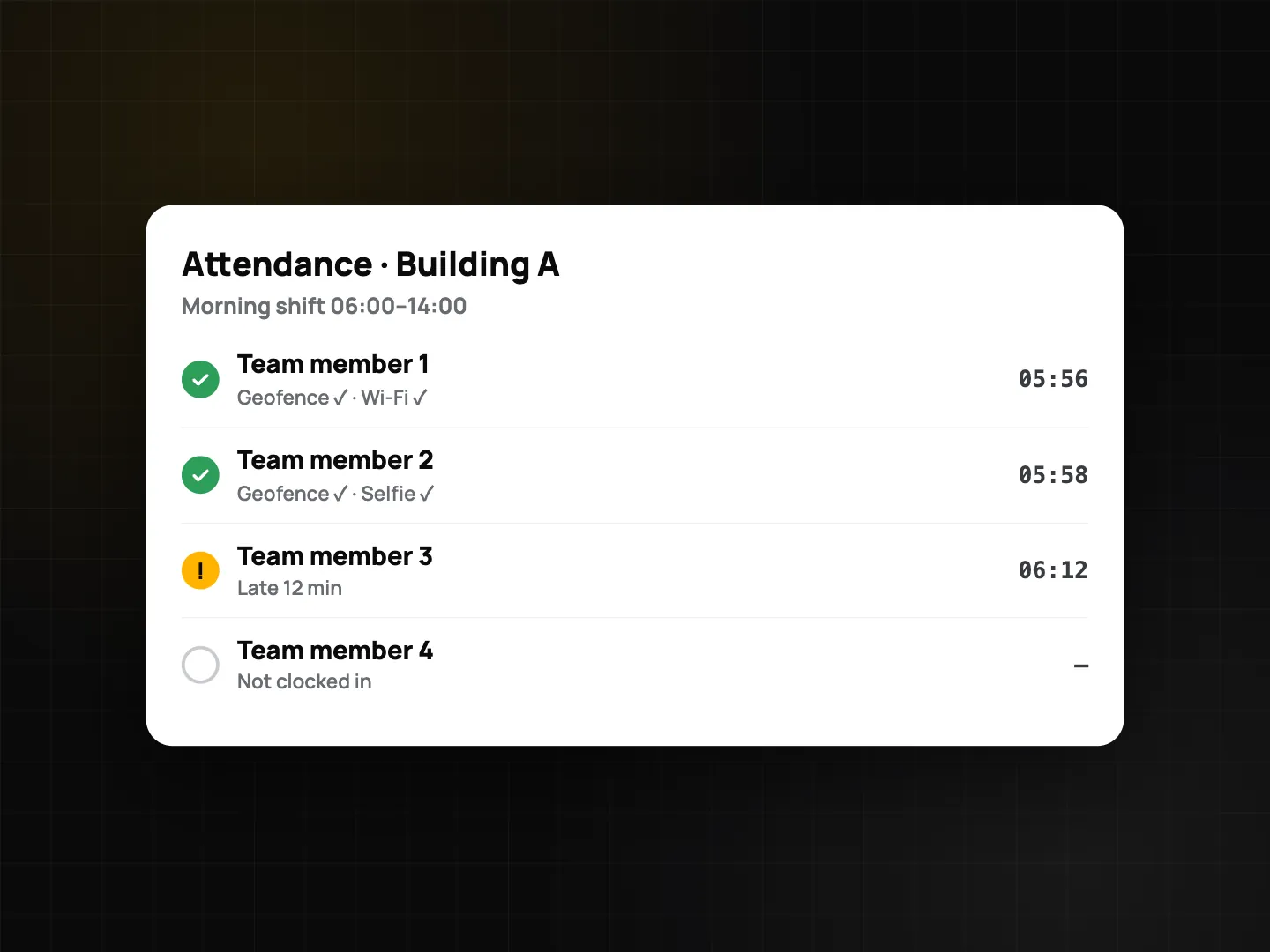
- Clock in at the building. Cleaners open Clock mode and take a stamped clock-in photo. With a Business team you can require being inside the geofence, scanning a rotating QR on a tablet at the service entrance, or connecting to the building's Wi‑Fi, which helps in basements where GPS is weak. Add a selfie with a liveness check (Plus or Business) if buddy clock-ins are a concern. More in photo clock-in with selfie, geofence, Wi‑Fi and QR.
- Let the app pick the project. With auto-select project (Plus), the camera switches to the right building when the phone enters its radius, so photos land in the right folder without menus.
- Do the round. Fill the checklist area by area, taking the required photos. Everything works offline and syncs later.
- Flag problems. A "No" answer on a flagged item (leak under a sink, broken dispenser) can create a task automatically on a Business team, so maintenance gets a photo and a location.
- Supervisor inspection. Run a scored checklist with a pass mark (default 80%) and weights per area. The PDF has a cover, the score, photos with Photo Codes, a signature page and a verify QR.
- Report to the client. Send a share link to the building manager: they see a photo grid and map and can download a ZIP, no account needed. A live project link shows new photos as they arrive; you can set an expiry or revoke it.
- Export hours. At month end, export timesheets to Excel or CSV with overtime and night hours (22:00–06:00) calculated from shift settings. See timesheet export to Excel and CSV.
Checklist template: restroom cleaning round
Start from the bundled starter template and adapt it. A practical version, mapped to Checklist 2.0 question types:
| Item | Question type | Notes |
|---|---|---|
| Restroom / floor | Single choice | Men's, Women's, Accessible |
| Floors mopped and dry | Yes/No + photo (min 1) | Photo after mopping |
| Toilets and urinals cleaned | Yes/No/N/A | |
| Sinks and mirrors | Yes/No + photo | |
| Soap and paper refilled | Checkbox | |
| Bins emptied, liners replaced | Checkbox | |
| Leaks or damage | Yes/No, flagged on "Yes" | Conditional: photo + note if "Yes" |
| Air freshener level | Single choice | Full, Half, Empty |
| Cleaner signature | Signature |
For a monthly quality inspection, add sections per area (lobby, offices, restrooms, kitchen) with weights. Kitchens and restrooms often get a higher weight than corridors. Set the pass mark and let the score do the arguing.
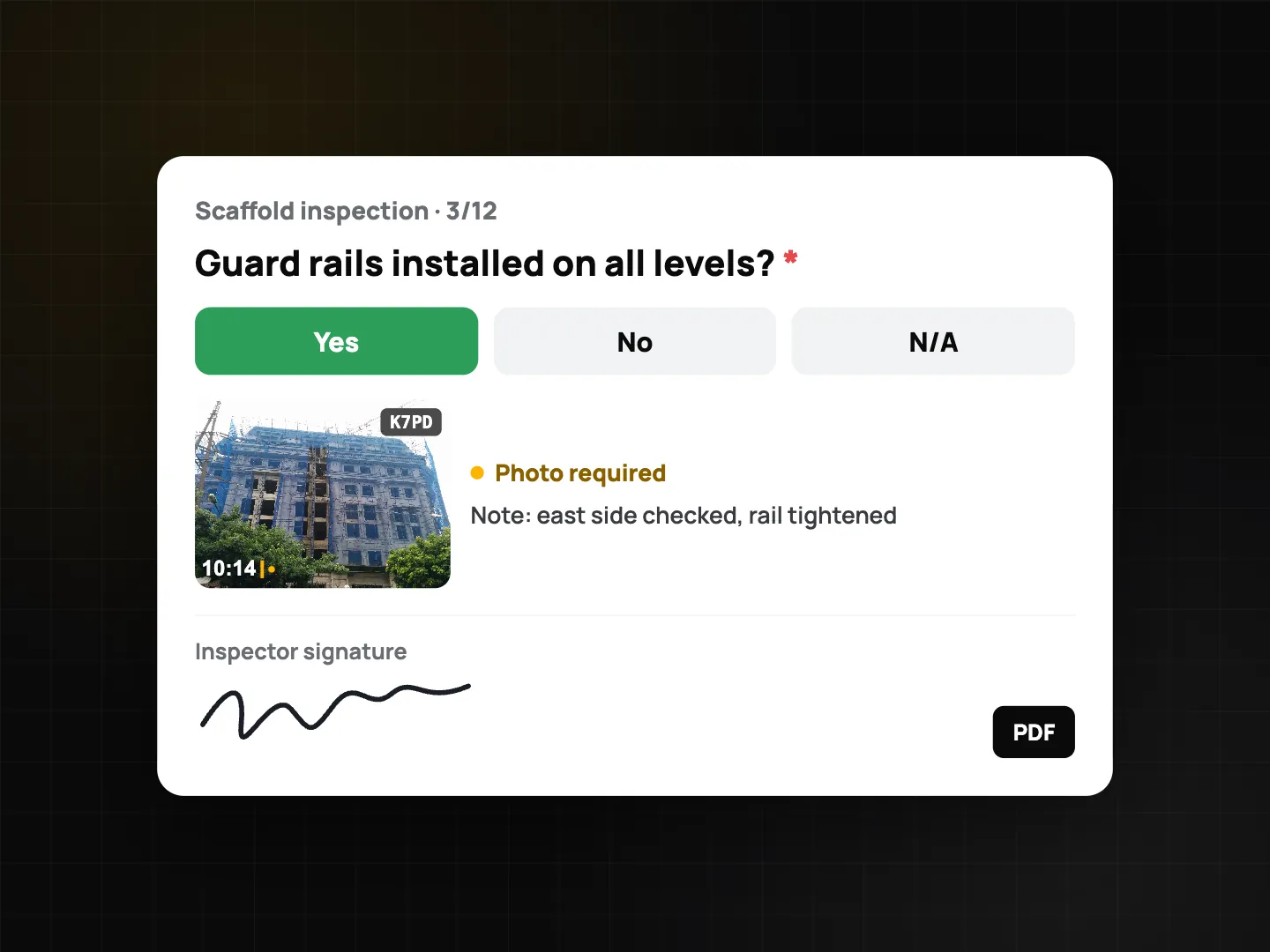
For more question types and the PDF layout, see inspection checklists and PDF reports.
Tips for cleaning crews
- Take the before photo first, always. It's the step that gets skipped on a busy morning, and it's the one that makes the after photo meaningful.
- Stand in the same spot. Doorways and corners are easy to repeat. For tasks, the ghost overlay does the lining up for you.
- Use the quality gate. ProofCam warns when a photo is blurry or dark, which happens a lot in windowless restrooms. The photo is still saved, but retake it.
- Keep chat apps for chatting. If you do share by chat, the stamp stays visible, and the Photo Code still points to the original record, though the compressed copy will show as a modified copy on the verify page.
FAQ
Can a building client check that a photo is real?
Yes. Every photo has a Photo Code. The client can enter it on the verify page and see whether the photo is the original, with its time and place. The photo is not uploaded for this check.
Do cleaners need a paid plan?
No. Stamped photos, photo clock-in, one checklist template and the comparison slider are free. Selfie liveness, unlimited checklists, collages and timesheet exports need Plus or a Business team. Company Wi‑Fi and rotating QR checks are Business.
What if a basement has no signal?
Photos, checklists and clock-ins all work offline and sync later. For clock-in where GPS is weak, a Business team can use the company Wi‑Fi check or the rotating QR kiosk instead of the geofence.
Does ProofCam track cleaners during the shift?
No. There is no live tracking. The portal shows a daily route built only from the photos people take.
Related: building maintenance work order app and move-in move-out inspection app.