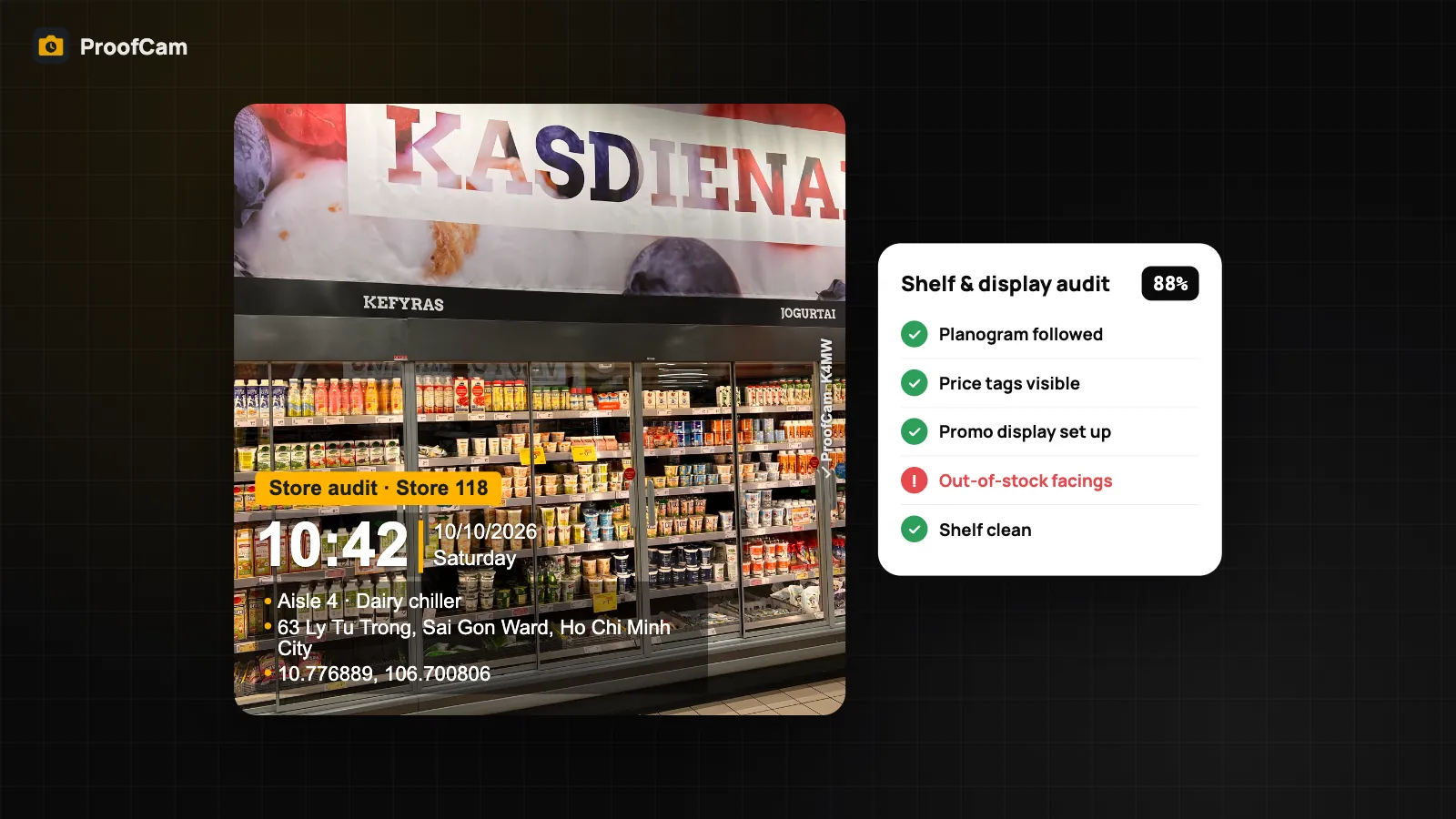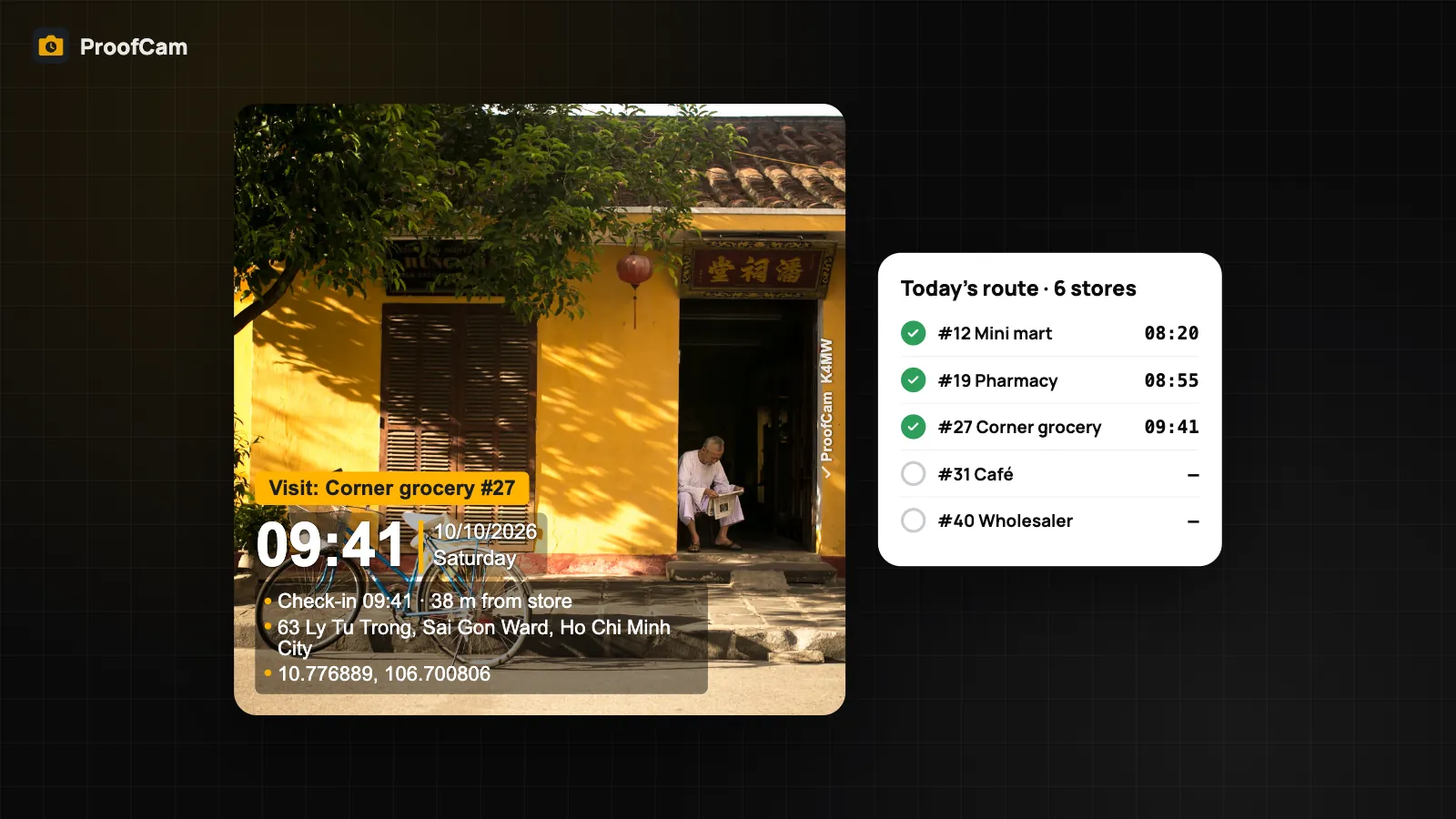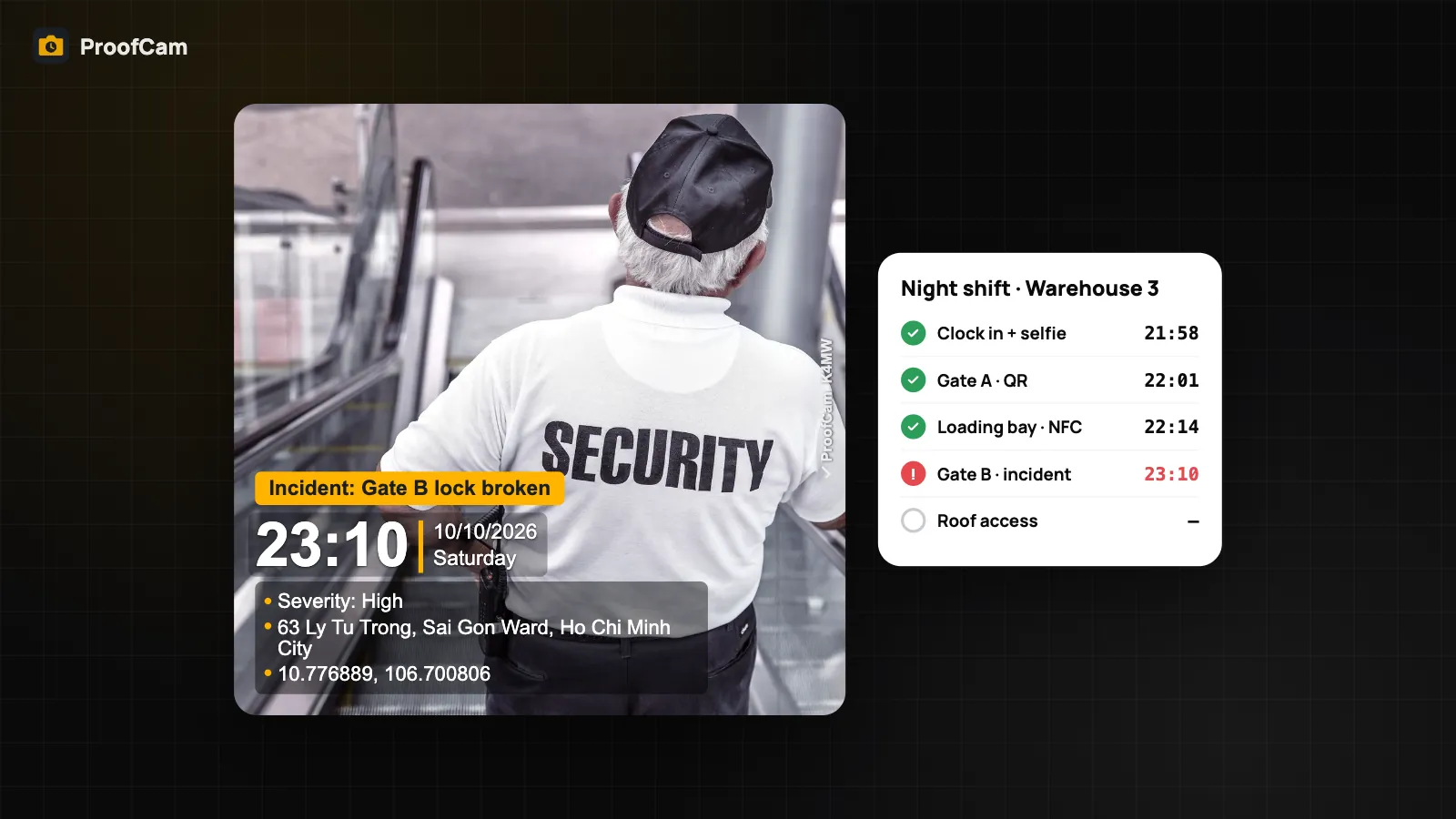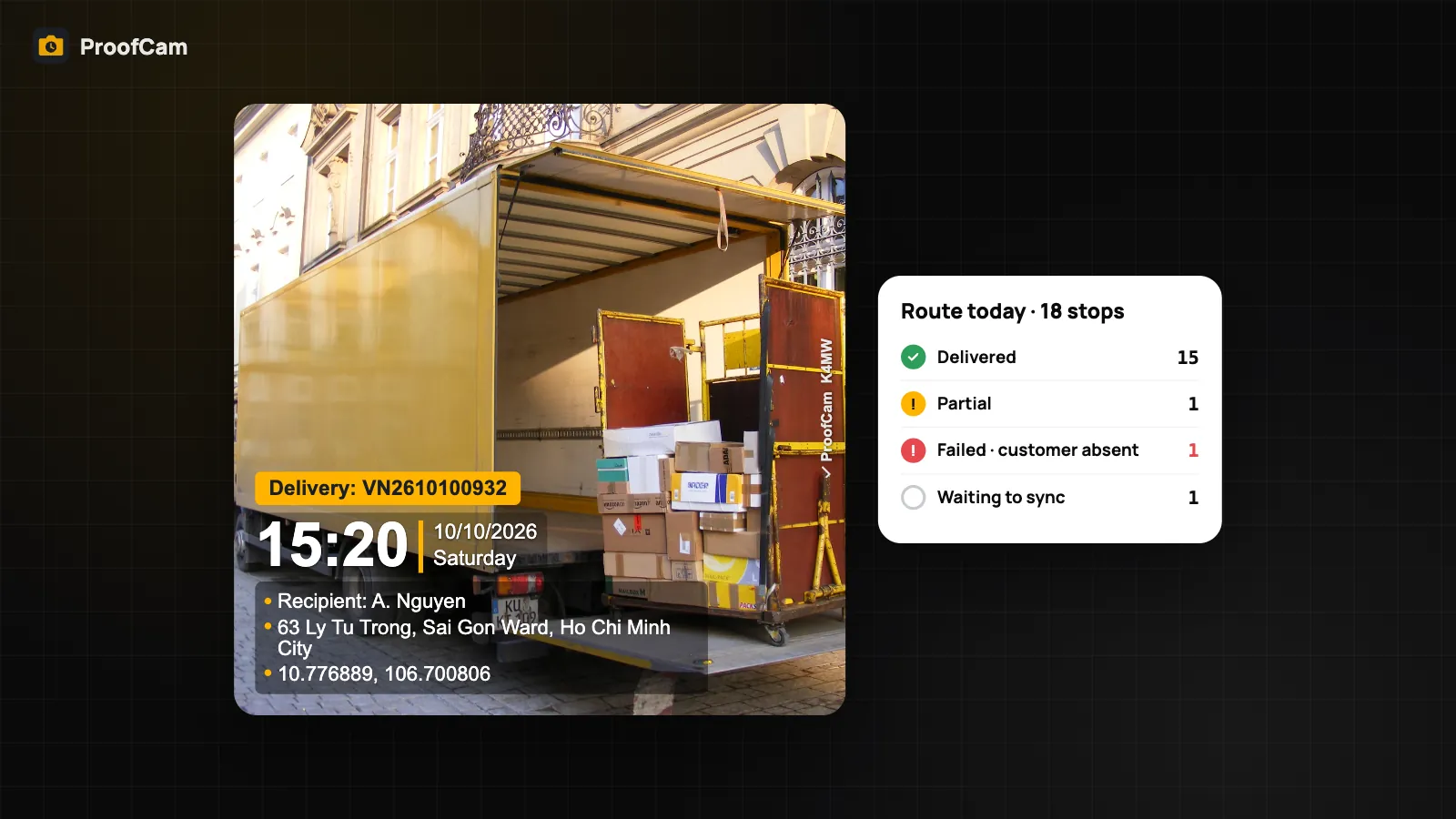
A driver with 18 stops has maybe two minutes per drop. In that time they park, find the door, hand over the parcel and move on. When a customer calls the next day to say nothing arrived, or that the box came half empty, the only thing that settles it is what the driver recorded at the door. Delivery driver photo proof is that record: a stamped photo with the time, the place and the waybill, taken by the person who was there.
This guide is for delivery and logistics managers who run their own drivers or couriers. It covers the day as a whole: clocking in at the depot, completed drops, partial and failed attempts, no signal in basements and on rural roads, and what the dispatcher sees afterwards. For the delivery screen itself (waybill scan, recipient name, signature, /p/ proof link), see our proof of delivery app guide.
What goes wrong on a delivery route
- "I never got it." A driver's word against a customer's rarely settles anything. A photo in a chat app without a reliable time or place doesn't help much either.
- Failed attempts with no evidence. "Customer not home" is the most common exception, and the hardest to check. Was the driver at the right door? Did they call? When?
- Partial deliveries. Two of three boxes handed over, the third damaged or missing. Without a reason and a photo, the gap turns into an argument between the customer, the driver and the warehouse.
- No signal where it matters. Underground car parks, lifts, warehouse yards and country roads. Apps that need a connection fail at exactly the moment the driver needs them.
- Doubtful locations and times. A phone clock can be changed, and fake-GPS apps exist. If a stop looks odd on paper, you want to know whether the record itself can be trusted.
Which ProofCam features help with delivery driver photo proof
| Need | ProofCam feature | Plan |
|---|---|---|
| Time, date, GPS and address on every photo | Watermark with network time, address and Photo Code | Free |
| Completed, partial and failed deliveries with reason, photos, signature and proof link | Delivery mode (POD) | Business add-on (included in the 14-day trial) |
| Start and end of shift with a photo | Clock in / Break / Clock out with stamped photo | Free |
| Selfie with liveness check at clock-in | Selfie clock-in | Plus or Business |
| Clock-in only at the depot | Project geofence (50 m–1 km), company Wi-Fi, rotating QR | Business |
| Spot fake GPS and a changed phone clock | Mock-location detection, location trust grade, network time | Free (Business can block mock location) |
| Work without signal | Offline capture + Sync center | Free |
| Dispatcher overview, export, integration | Deliveries page in the portal, CSV/Excel, delivery.completed webhook |
Business add-on |
ProofCam is not a route planner. It has no route optimisation, dispatch, live GPS tracking or SMS notifications to customers. It records what happened at each stop, and your existing routing or order system keeps doing the planning.
A driver's day, step by step
1. Clock in at the depot
The driver opens ProofCam and taps Clock in. The app takes a stamped photo with network time and GPS, and starts the shift timer. Break and Clock out work the same way, so each shift has a photo at both ends. See photo clock-in with selfie, geofence, Wi-Fi and QR for the options.
On a Business team, you can require clock-in inside the depot's geofence, add a selfie bubble to every clock photo, or use a rotating QR on a screen at the gate. All checks run on the phone, so they work offline too.
2. A completed drop
At each stop the driver opens Delivery mode, scans the waybill and photographs the parcel at the door. Each photo is titled "Delivery:
The proof link (/p/…) is created on the phone, so the driver can share it straight away.
3. A partial delivery
If only part of the order is handed over, the driver marks it partial and enters the reason, for example "1 of 3 boxes damaged, returned to depot". A photo of the damaged box goes in the same record. The customer's proof page then shows Partially delivered instead of Delivered.
4. A failed attempt
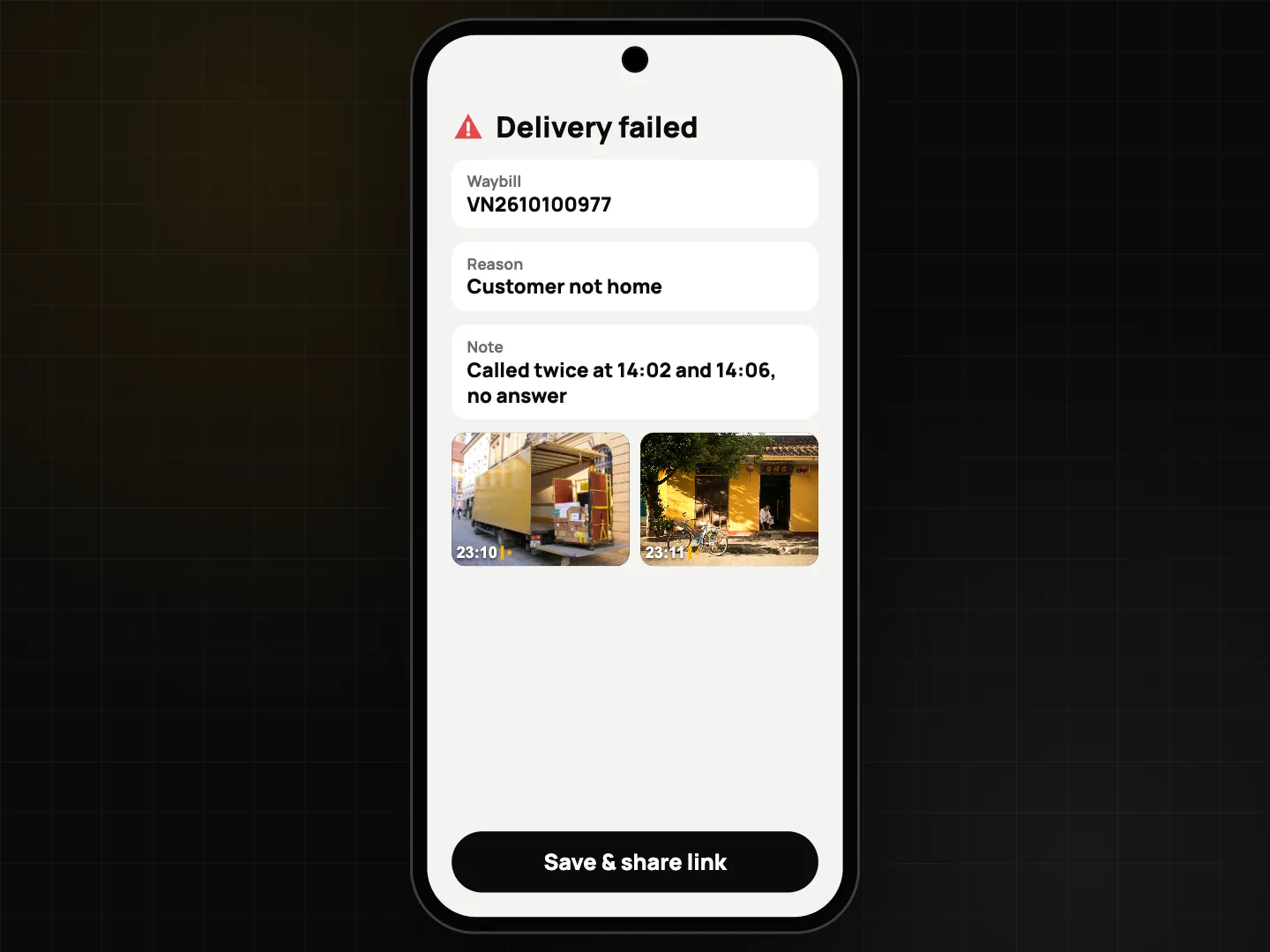
When nobody is home, the driver marks the delivery failed and picks a reason. Good practice is to add:
- a photo of the door or shop front with the house number in frame,
- a second photo showing the street or building entrance,
- a note with call attempts, such as "called twice at 14:02 and 14:06".
The stamp shows when and where the driver stood. The note shows what they tried. Together they turn "customer not home" from a claim into a record your support team can show.
5. No signal? Keep going
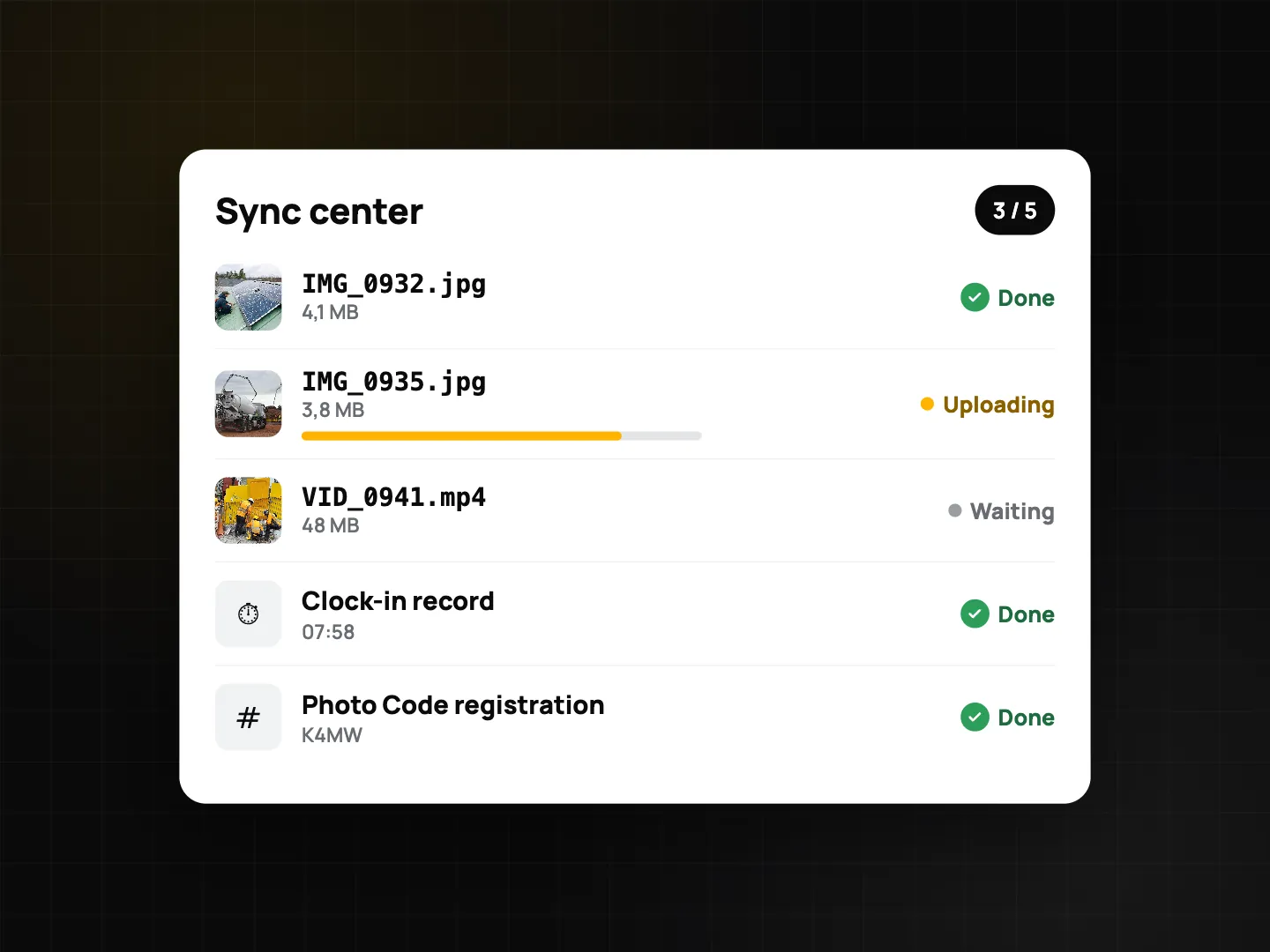
Everything above works offline, including the signature. Records are saved on the phone and marked Waiting to sync. When the phone is back online, photos, signatures and delivery records upload in order. The driver can check progress in the Sync center. Photo Codes come from a pool on the phone, so photos taken in a basement still get their codes. More in offline photo proof without internet.
6. Clock out
At the end of the route, the driver taps Clock out with a photo at the depot. Team members on Business (or Plus users) can export timesheets to Excel or CSV for payroll (ProofCam exports the hours; it does not calculate pay).
7. The dispatcher's view
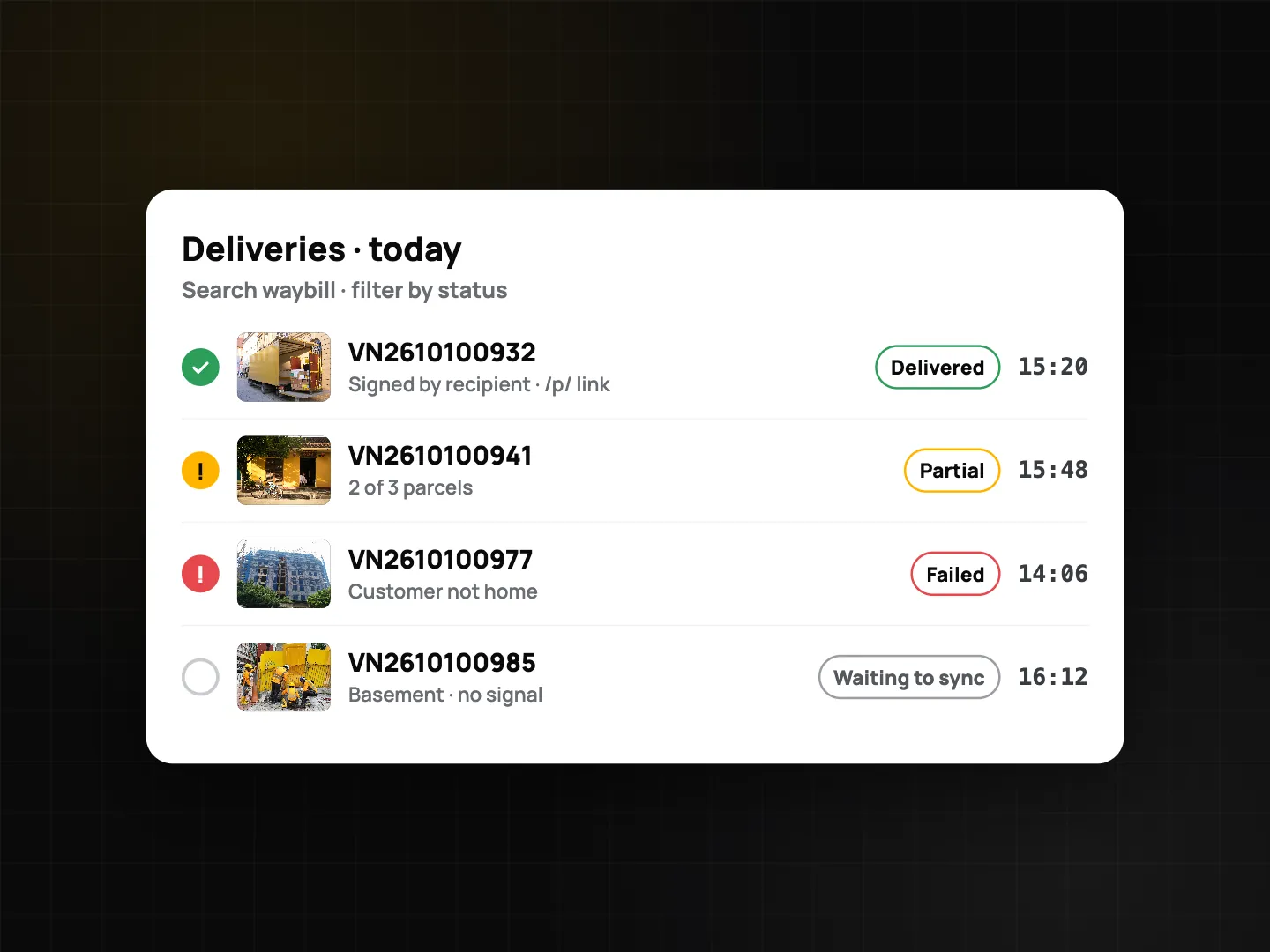
In the Teamspace web portal, the Deliveries page lists every stop. Dispatchers search by waybill and filter by date, status and project. Opening a delivery shows its photos, signature, reason and public link. The list exports to CSV or Excel, and a delivery.completed webhook can notify your own order system.
The portal map can also show a driver's day as a route built from their photos. That route comes from where photos were taken. It is not live tracking.
Checklist: what a driver should record
| Moment | What to record | How |
|---|---|---|
| Start of shift | Clock-in photo at the depot | Clock in (selfie on Plus/Business) |
| Loading | Photo of loaded van or cage, if your process needs it | Normal photo with note "Loaded · Van 3" |
| Completed drop | Parcel at the door with house number in frame | Delivery mode photo |
| Completed drop | Recipient name and signature | Delivery mode |
| Damage at handover | Close-up of the damaged packaging | Extra photo in the same record |
| Partial delivery | Reason + photo of what was not handed over | Mark partial |
| Failed attempt | Door/shop front + street view, call times in the note | Mark failed |
| Returns to depot | Photo of returned parcels with waybills visible | Normal photo, note "Returned" |
| End of shift | Clock-out photo | Clock out |
Tip for managers: agree on a short list of reasons (customer not home, wrong address, refused, closed, access denied) so reports are easy to filter and compare.
Trust: was the driver really there?
Every photo is stamped with network time, so changing the phone clock doesn't change the stamp. ProofCam checks the position with a location trust grade (A–D, full on Android, basic check on iPhone) and detects mock-location apps. On a Business team you can turn on Block mock location, which locks Clock in and Clock out while a fake location is detected. Details in fake GPS and mock location detection.
Each photo also has a Photo Code. If a customer or partner questions a photo, they can check it on the verify page. The photo's fingerprint is computed in the browser and the photo is not uploaded. A photo forwarded through a chat app will show as a "Modified copy" because the app recompresses it. The code still points to the original record.
Tips
- Frame the context, not just the box. House number, shop sign or building name in the shot.
- Photograph damage before the handover, not after the customer complains.
- Keep team upload on so records sync whenever there's signal.
- Review failed attempts weekly. Repeated "customer not home" on one address is worth a call.
FAQ
Do drivers need the Business plan?
The photo stamp, Photo Code and photo clock-in are free. Delivery mode, the Deliveries page and the webhook need a Business team with the POD add-on, or a team in its 14-day trial.
Can a driver record a failed delivery without signal?
Yes. The whole flow works offline. The record waits on the phone and uploads when the phone is back online.
Does ProofCam track drivers live on a map?
No. There is no background tracking. The portal map shows where photos were taken, which builds a route of the day after the fact.
Can customers get an SMS when a parcel is delivered?
ProofCam does not send SMS. The driver can share the proof link through any app on the phone, and the webhook can pass the delivery to your own system.
Related: field sales check-in app and equipment rental check-out and return photos.