Running a guard company means answering the same three questions every morning: was the guard actually at the post, what happened overnight, and can we show the client? A security guard management app should answer all three from the guard's phone, without a paper logbook filled in at 05:55. ProofCam does it with stamped photos: every clock-in, checkpoint and incident carries network time, GPS, address and a Photo Code that anyone can verify later.
This guide is for supervisors and operations managers who run guarded sites (a warehouse, an office tower, a construction yard) and want one record per shift that holds up to a client's questions.
The everyday problems of a guard company
- "Was anyone at the post?" A signature in the logbook says nothing about the time it was written. Buddy clock-ins and a colleague signing for a late guard are hard to spot.
- Fake locations. A guard with a mock-location app can "clock in" from home. A tap-and-GPS attendance app alone can't tell.
- Incidents reported by chat. A blurry photo in a group chat at 23:10, no severity, no link to the gate it happened at. By morning it's buried under 40 other messages.
- Night shifts in the timesheet. A 22:00–06:00 shift split across two dates, night hours counted by hand, overtime argued at month end.
- Reporting to the client. The client wants a daily activity report (DAR). Someone retypes it from notes and photos every morning.
How a security guard management app built on photo proof helps
| Need | ProofCam feature | Plan |
|---|---|---|
| Clock in / break / clock out at the post with a stamped photo | Clock mode, shift timer | Free |
| Prove who is on duty | Selfie with on-device liveness (blink or turn head, no face recognition) | Plus or Business |
| Selfie bubble on every clock photo | Dual selfie | Business |
| Clock in only at the guarded site | Geofence per project (50 m–1 km), "Require inside geofence" | Business |
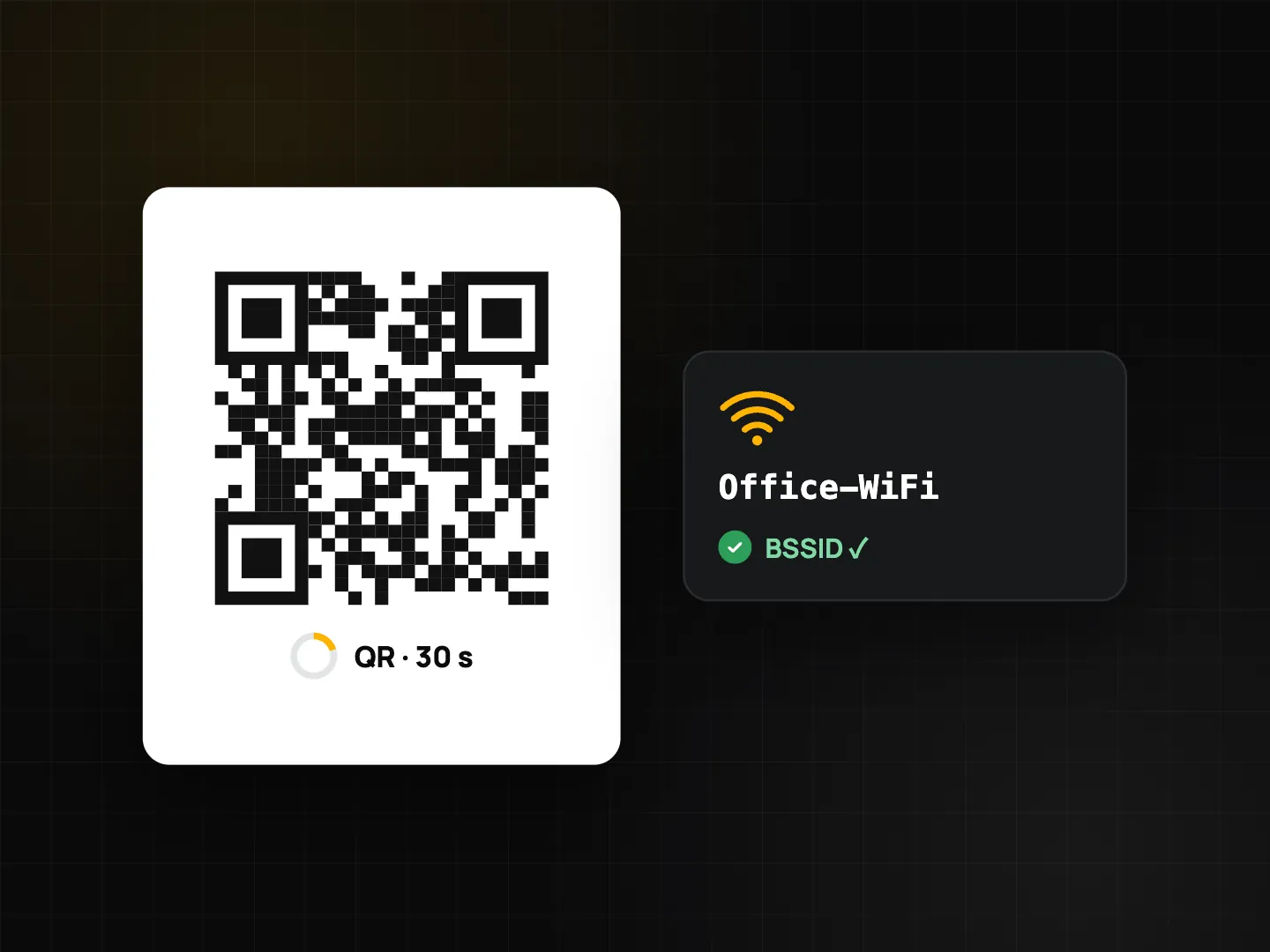
| Clock in at the gatehouse when GPS is weak indoors | Rotating QR (changes every 30 s) and company Wi‑Fi check | Business |
| Stop fake locations | Mock-location detection and trust grade A–D; team policy to block mock location | Detection Free, blocking Business |
| Checkpoint rounds with on time / late / missed | Patrol with signed QR or NFC checkpoints | Business add-on (in trial) |
| Incident reports with type, severity and photos | Patrol Report incident | Business add-on (in trial) |
| Structured round or handover form | Checklists (starter "Security patrol round" template) | Free 1 template, Plus unlimited, Business team templates |
| Daily activity report for the client | Teamspace daily report per project | Business |
| Night hours and overtime, export | Timesheet with shift settings, Excel/CSV export | View Free (7 days), export Plus or Business |
| Break button on the wrist | Wear OS / Apple Watch shift timer + Break | Plus or Business |
Clock checks run on the phone, so they work in a basement guard room with no signal and sync later. See photo clock-in with selfie, geofence, Wi‑Fi and QR for each check in detail.
Step-by-step: one guarded site, one night shift
- Set up the site as a project. In the Teamspace portal at
/app/, create a project for each guarded site ("Warehouse 3"), add the address and draw a geofence. Add the guards who work there. - Choose the clock rules. Turn on selfie clock-in, Require inside geofence and block mock location. For a gatehouse with poor GPS, open the rotating QR on a spare tablet or phone mounted at the entrance and make the QR required. More on location fraud in fake GPS and mock location detection.
- Set the shift. In shift settings, enter 22:00–06:00. ProofCam treats an end time before the start as an overnight shift and attributes it to the clock-in day, so the timesheet shows one row, with night hours (22:00–06:00), late minutes and overtime calculated.
- Install a team template. Add the Security patrol round starter template (start location, checkpoint QR scanned, doors and gates locked, lighting, incident yes/no with follow-up questions, signature) and make the security watermark template mandatory for the team.
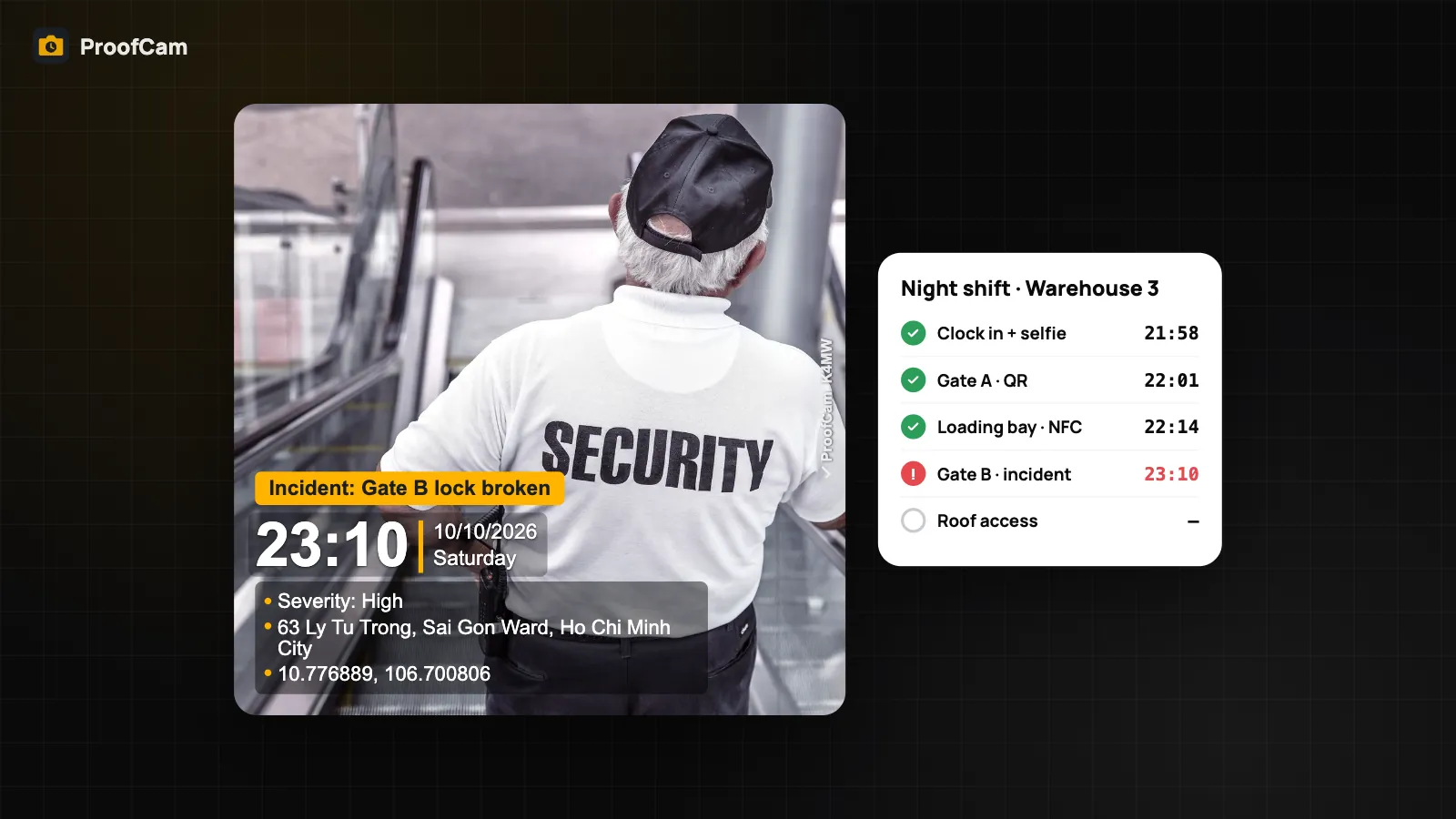
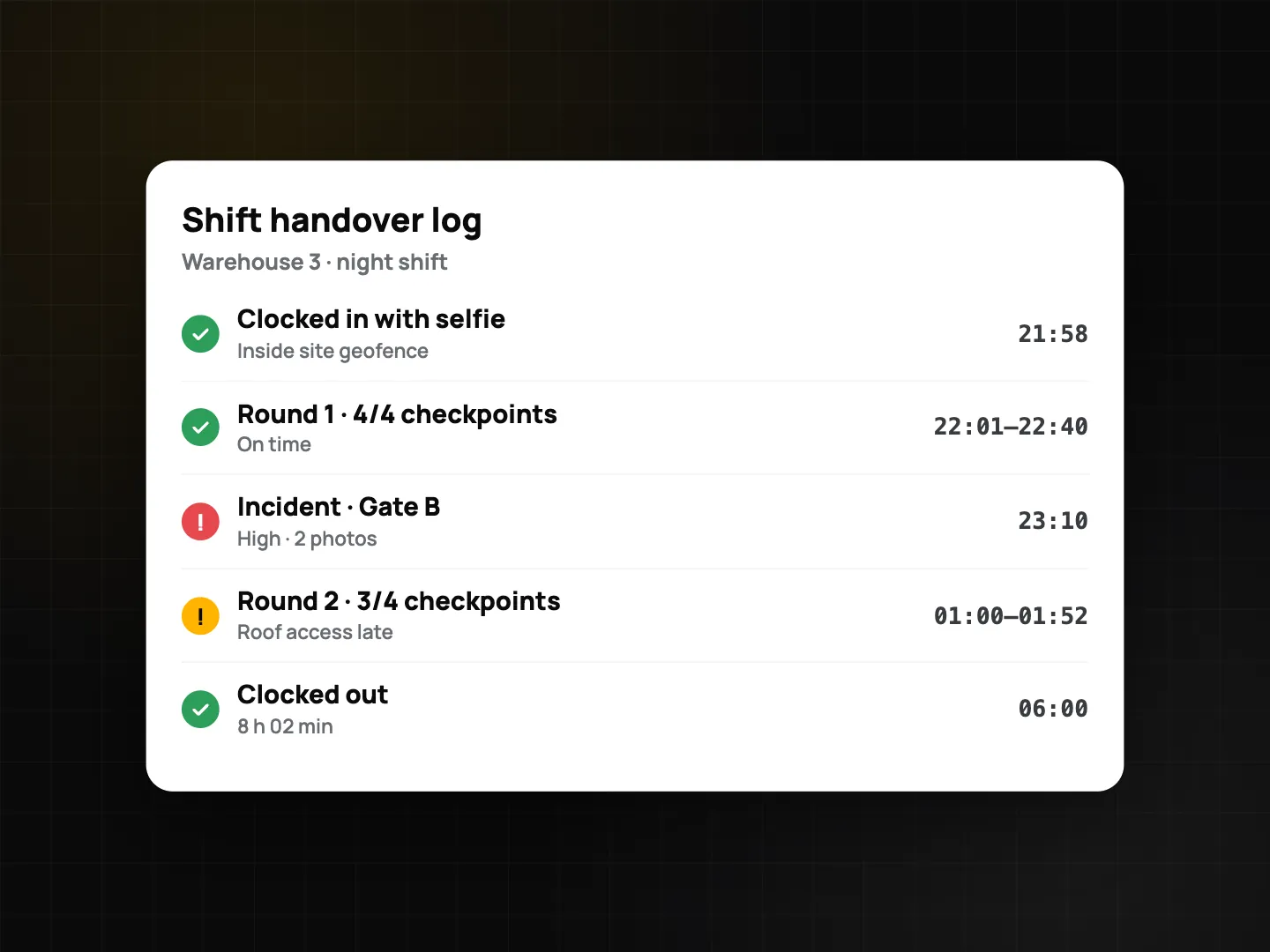
- On duty. The guard clocks in at 21:58 with a site photo and a selfie. If patrol is on, each checkpoint scan produces a photo titled "Checkpoint: Gate A". Breaks go on the watch or phone with one tap.
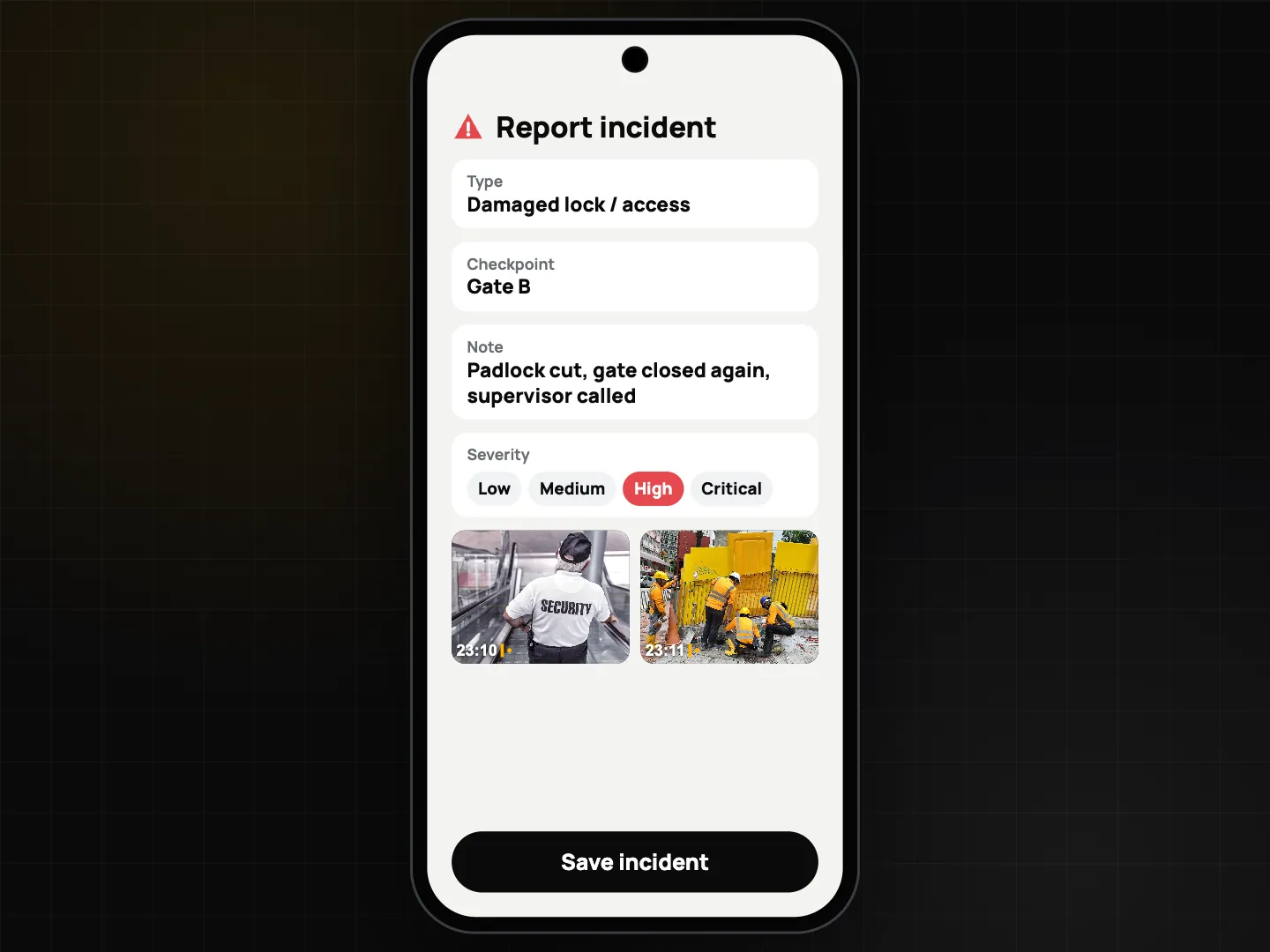
- Something happens. At Gate B the lock is broken. The guard taps Report incident, picks the type and severity (low, medium, high or critical), writes a note and takes two stamped photos. The incident is linked to the checkpoint and route.
- Handover. Before clocking out, the outgoing guard adds a handover note (keys, open incidents, anything the day shift must check) as a short checklist or as the note on the clock-out photo. The incoming guard and the supervisor see it with the rest of the shift.
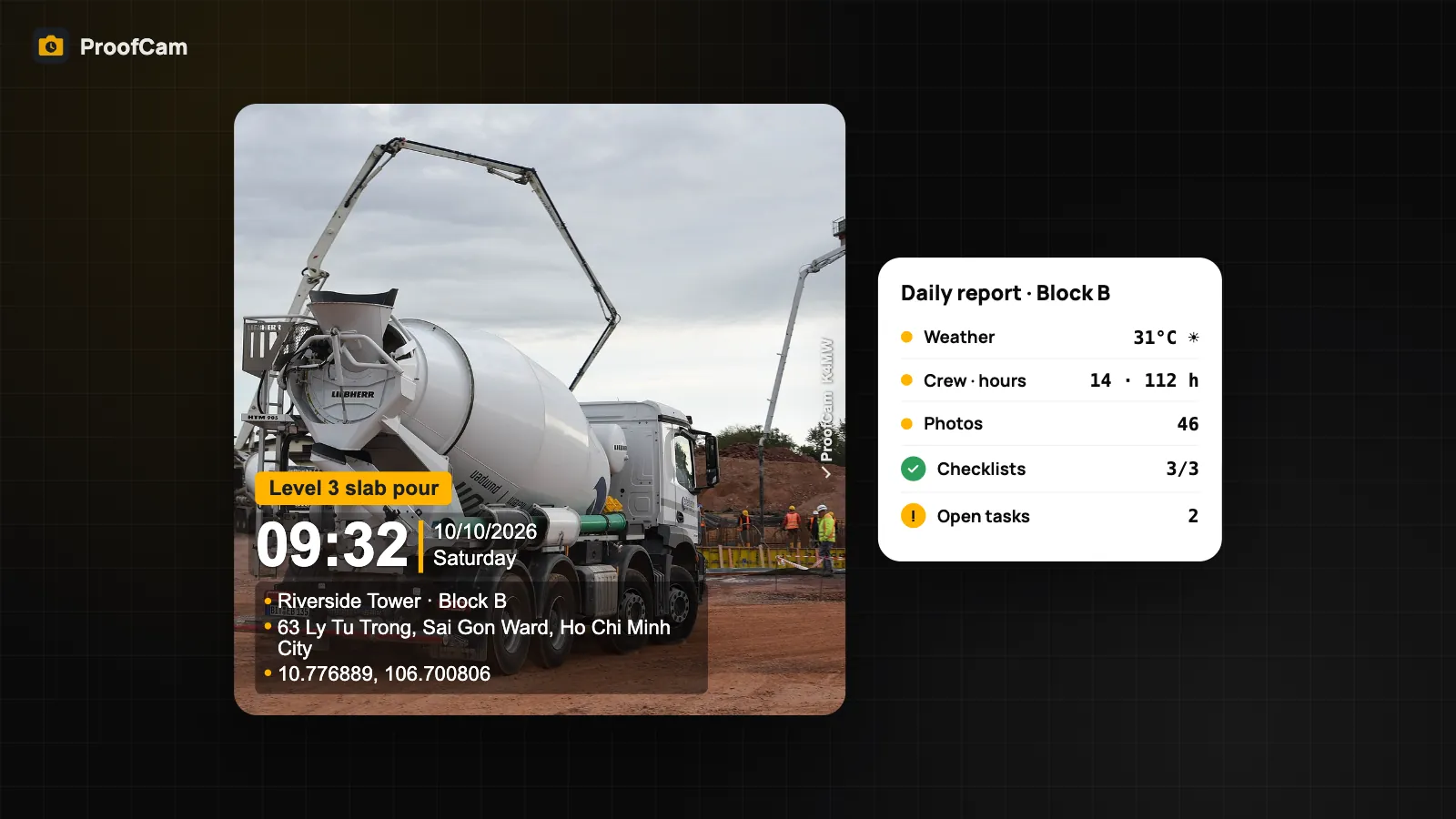
- Morning review. The supervisor opens the portal: who clocked in and where, rounds on time, late or missed, incidents to close. Teamspace builds a daily report for the project with crew and hours, photos, checklists and notes; the manager adds notes, signs and shares the PDF with the client.
Patrol rounds in one paragraph
Patrol is where checkpoints live. You place signed QR stickers or NFC tags at gates, car parks and roof doors, build routes with schedules and a tolerance window, and ProofCam marks each checkpoint on time, late or missed. Scans work offline and are verified when the phone reconnects. The full setup is in security patrol with QR and NFC checkpoints.
Templates and checklist suggestions
A good DAR is mostly structure. Start from the starter template and add your own items:
Start of shift (checklist)
- Post location: GPS location question
- Uniform and equipment checked: yes/no
- Radio / phone charged: yes/no
- Keys received: number with unit "keys"
- Notes from previous shift read: checkbox
Each round (Security patrol round)
- Checkpoint QR scanned: barcode/QR scan
- Doors and gates locked: yes/no, photo required
- Lighting working: yes/no
- Any incident observed? single choice, "Yes" flagged, which reveals description (text + photo) and incident type
End of shift / handover
- Open incidents handed over: text
- Keys returned: number
- Vehicles in yard: number
- Outgoing guard signature, incoming guard signature
Watermark custom fields (up to 3 on Free, 10 on Plus): "Site", "Post", "Shift". They also work in file names, so exports sort themselves.
Timesheets at month end
At month end, open the timesheet and export to Excel or CSV (Plus, or as a Business team member). Each row comes from a stamped clock photo, with night hours and overtime calculated from your shift settings. Payroll itself stays in your payroll system; ProofCam only exports the hours. Details in timesheet export to Excel and CSV.
Tips
- Put the rotating QR screen inside the guard room, not on the outside wall, so it can't be photographed from the street.
- Name checkpoints and projects the way guards say them: "Gate B", not "CP-02".
- Ask guards to keep team upload on. Records still save offline, but supervisors see them sooner.
- Tell staff about selfie and geofence checks before switching them on.
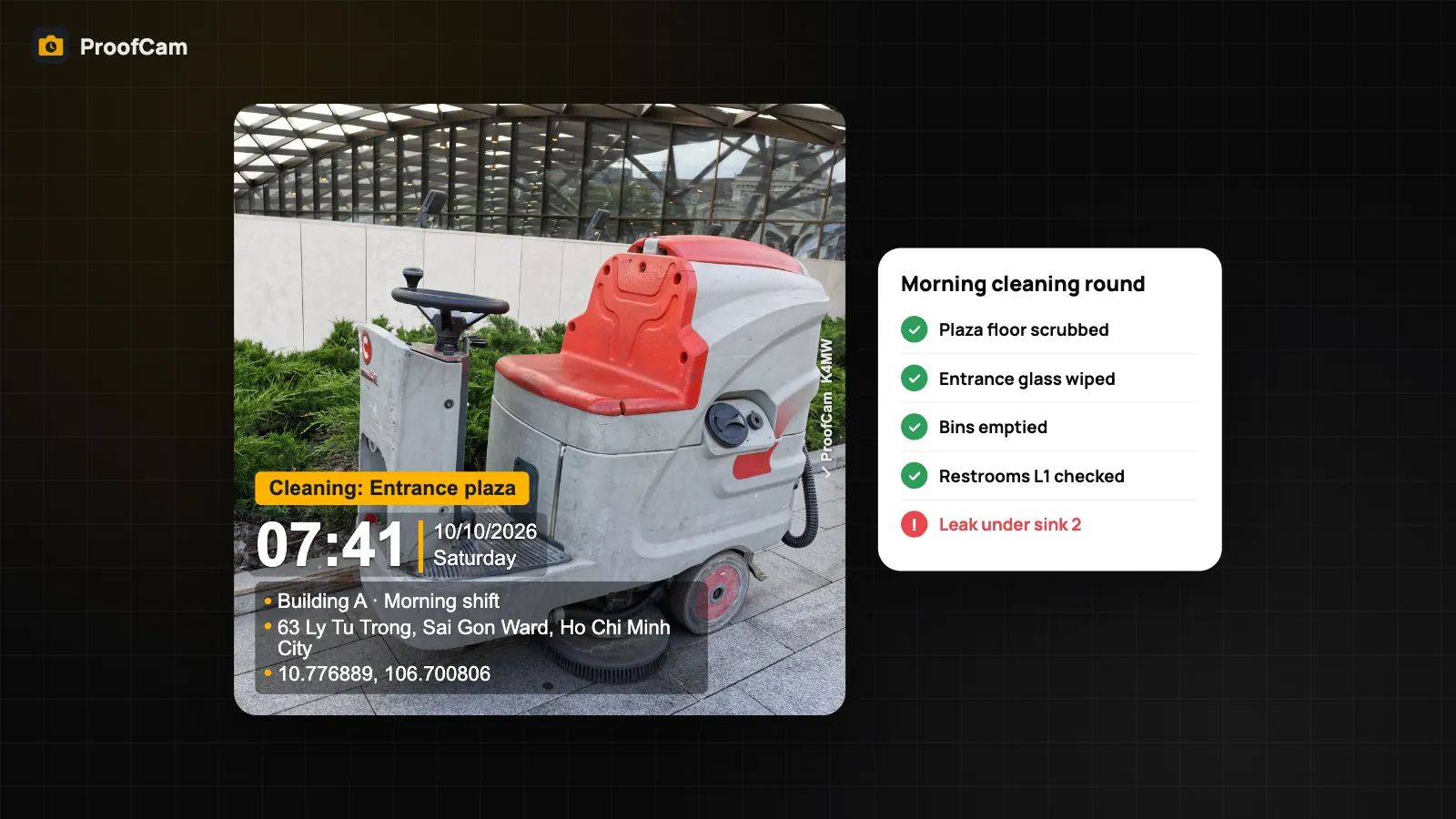
- Cleaning crews on the same site can share the project; see cleaning before and after photos.
FAQ
Can a guard clock in from home with a fake GPS app?
ProofCam flags mock locations and gives every position a trust grade on all plans. A Business team can block mock locations and require clock-in inside the site geofence, so the button locks outside the circle.
Does the selfie check identify the guard?
No. It checks that a live face is present (a blink or head turn) on the phone. It does not recognise people or store face templates.
How are overnight shifts shown in the timesheet?
A shift that ends after midnight is attributed to the day the guard clocked in, so a 22:00–06:00 shift is one row. Night hours between 22:00 and 06:00 are counted from your shift settings.
Do I need the Patrol add-on to report incidents?
The Report incident form is part of Patrol, a Business add-on that is included in the 14-day trial. Without it, guards can still answer an incident question in a checklist with photos.
Is a ProofCam report accepted as evidence?
Stamped photos with Photo Codes help provide evidence of time and place, and anyone can check a photo at the verify page. Whether a record is accepted in a dispute depends on your contract and local rules.
Related: building maintenance work orders with photo proof and the Teamspace web portal for managers.