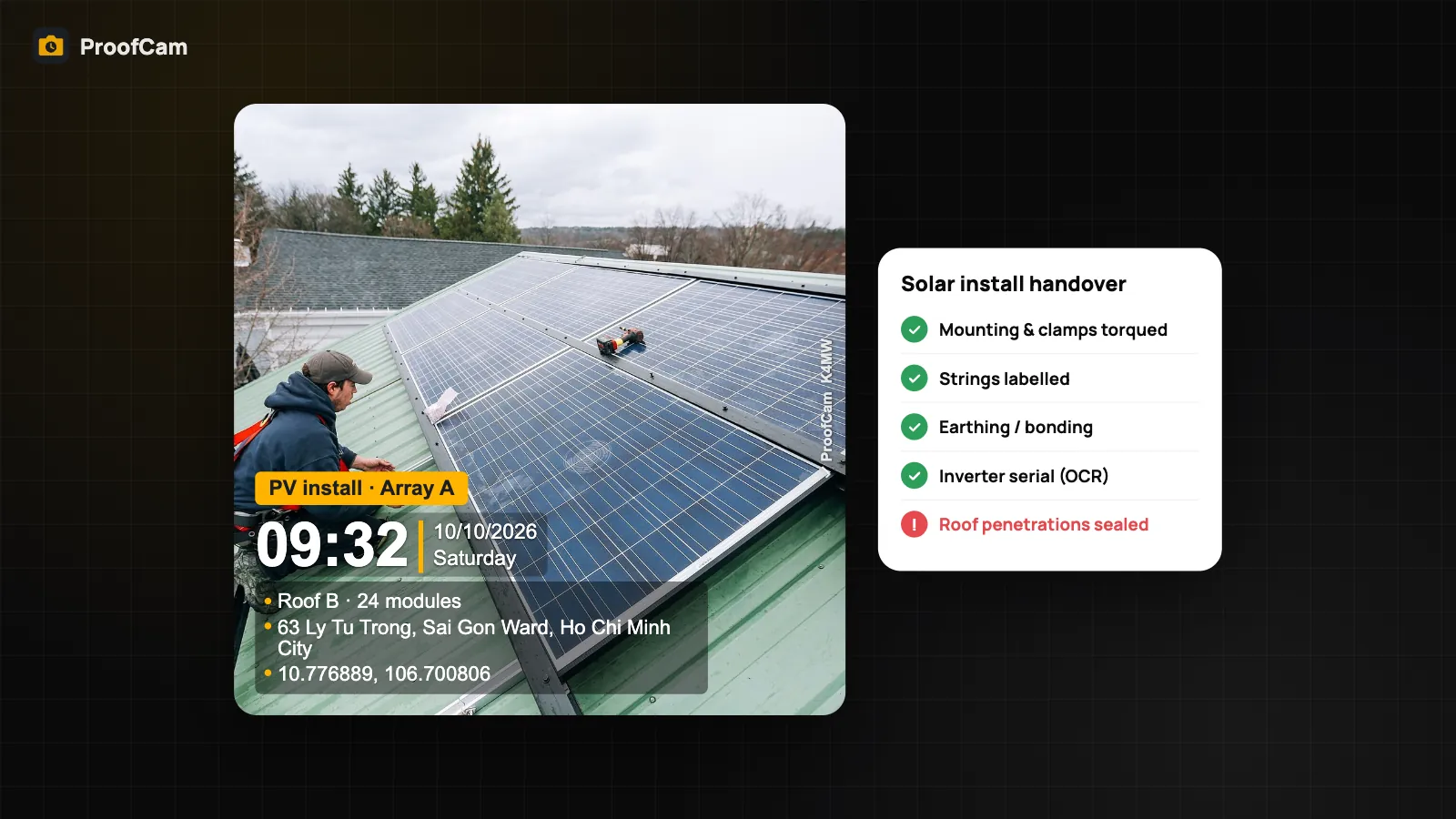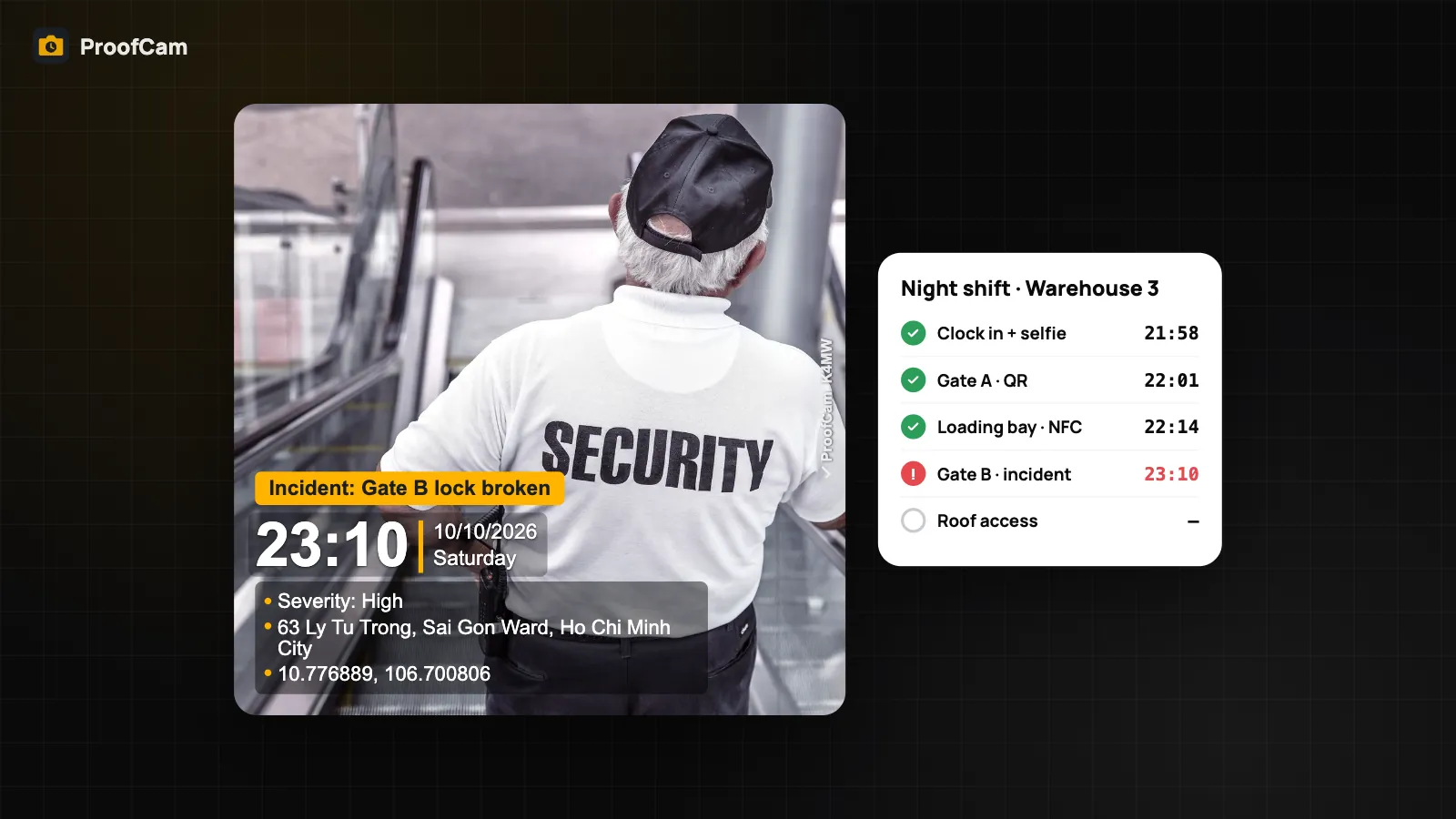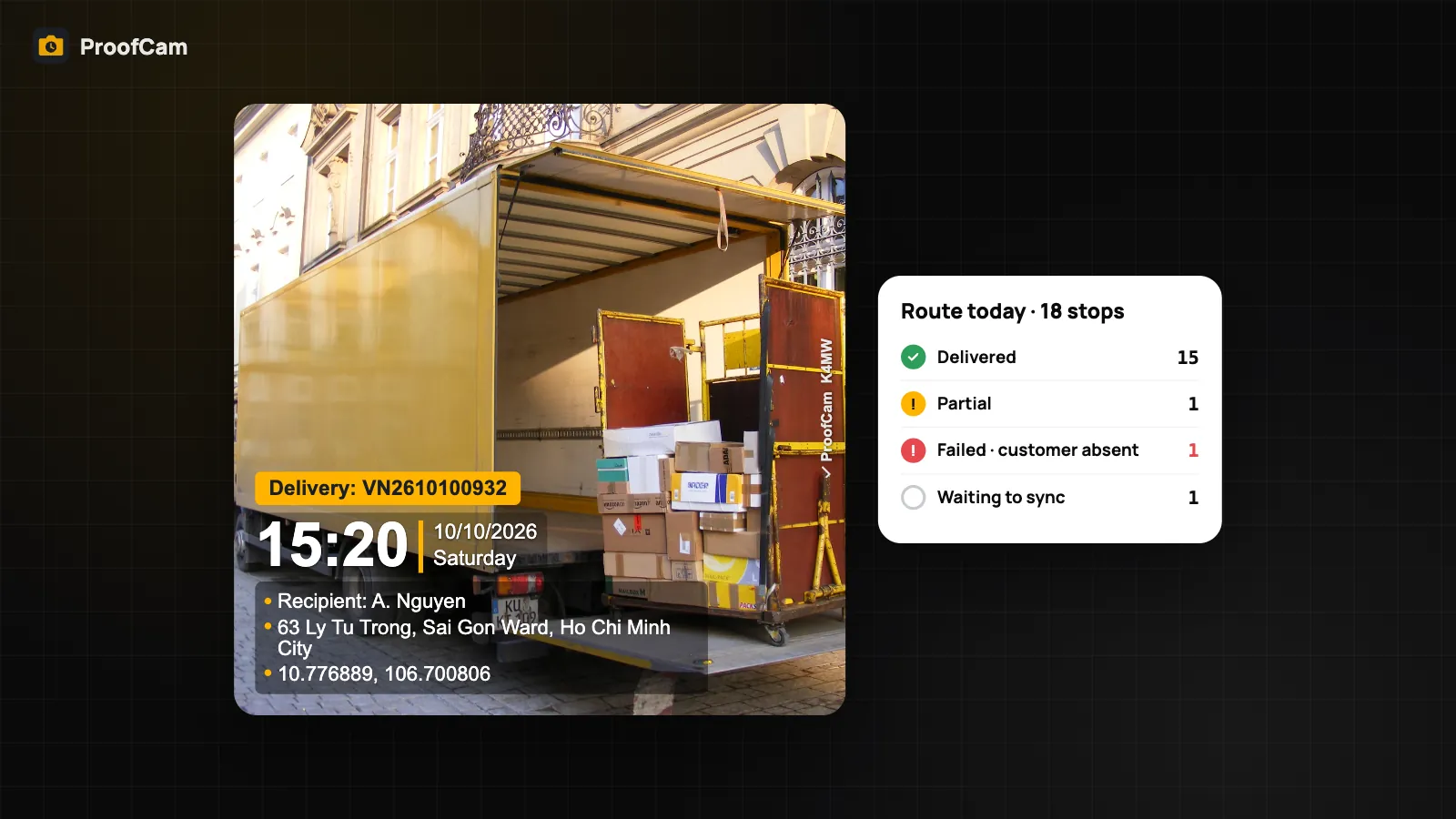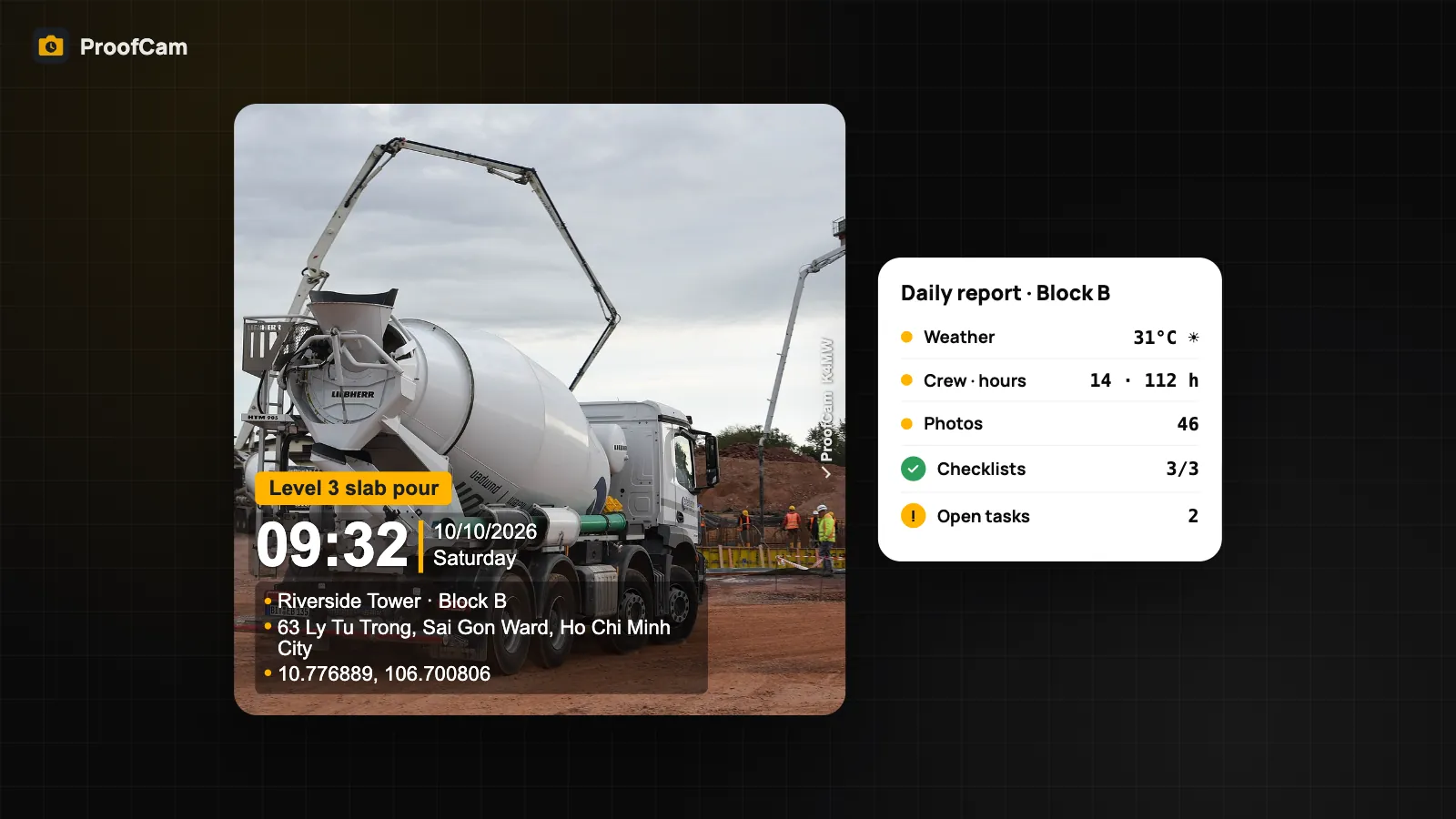
At 5 pm the site manager has to write down what happened today: weather, who was on site, what got poured, what got inspected, what went wrong. Usually it's a paper diary filled in from memory, plus two hundred photos scattered across the crew's chat groups. A construction daily report app should turn the day's real evidence into that record, not ask you to retype it. This guide shows how a site team can build daily logs, acceptance records and handover photos from stamped ProofCam photos.
If you're looking for how to shoot site photos (floor plans, 4-direction sets, 360°), start with the construction photo documentation guide. This one is about the paperwork that those photos feed.
Why site diaries and daily logs go wrong
- Written after the fact. A diary filled in at the end of the day, or on Friday for the whole week, is exactly what gets questioned later. "Rain stopped work at 10:00" carries more weight with a photo taken at 10:00.
- Photos without context. A photo of rebar in a chat group has no reliable date, place or level, and gets recompressed every time it's forwarded.
- Inspections on loose paper. The pre-pour sign-off is on a clipboard, the photos are on a phone, and the two rarely end up in the same file.
- Defects that never close. "Cover blocks missing at grid C4" is noted, then lost. Nobody can show when it was fixed.
- No signal where the work is. Basements, cores and remote sites mean the app has to work offline and sync later.
ProofCam as a construction daily report app: features and plans
| Need | ProofCam feature | Plan |
|---|---|---|
| Stamped site photos (network time, GPS, address, notes, custom fields like "Floor / area") | Timestamp camera + Construction watermark preset | Free |
| Check a photo is the original | Photo Code, verify on the web or offline | Free |
| Daily report per project: weather, crew & hours, photos, checklists, tasks, notes, manager signature | Teamspace daily report | Business |
| Personal diary for a site engineer or small crew, PDF on the phone | Site diary | Plus |
| Spoken notes while walking the site, matched to photos | Walkthrough note | Plus |
| Pre-pour or acceptance inspection with photos, signatures and scoring | Checklists + PDF | Free (1 template), Plus (unlimited), Business (team templates, review) |
| Defects with before/after proof | Tasks (punch list) | Teamspace team |
| Photos pinned on drawings | Floor plans + annotated PDF | Business |
| Scan signed paper records into a multi-page PDF | Document mode | Plus |
| Work without signal | Offline capture + Sync center | Free |
The Business trial (14 days) unlocks the team features for new teams, so a crew can test the full daily report flow on a real project.
Step-by-step: a day on site
Setup (once per project)
- Create a Teamspace project with the site address and members. Add drawings to the project documents and, on Business, import the floor plans.
- Publish a team watermark template based on the Construction preset. Add custom fields such as "Contractor", "Block" and "Floor / area", and make the template required so every photo carries them.
- Turn on "require a project" and "block gallery uploads", so only photos taken in the ProofCam camera, sorted by project, reach the report.
- Install checklist templates: the team starter "Site daily safety check", "Scaffold safety", "Electrical installation acceptance", or your own pre-pour and acceptance forms. Have an old paper form? Form import (Plus) turns a photo or PDF of it into a draft checklist.
On site
- Clock in with a photo. Crew hours flow into the daily report.
- Shoot progress as it happens. Write short notes on the stamp ("Level 3 slab, bay 2, pour start"). Pin key photos on the floor plan.
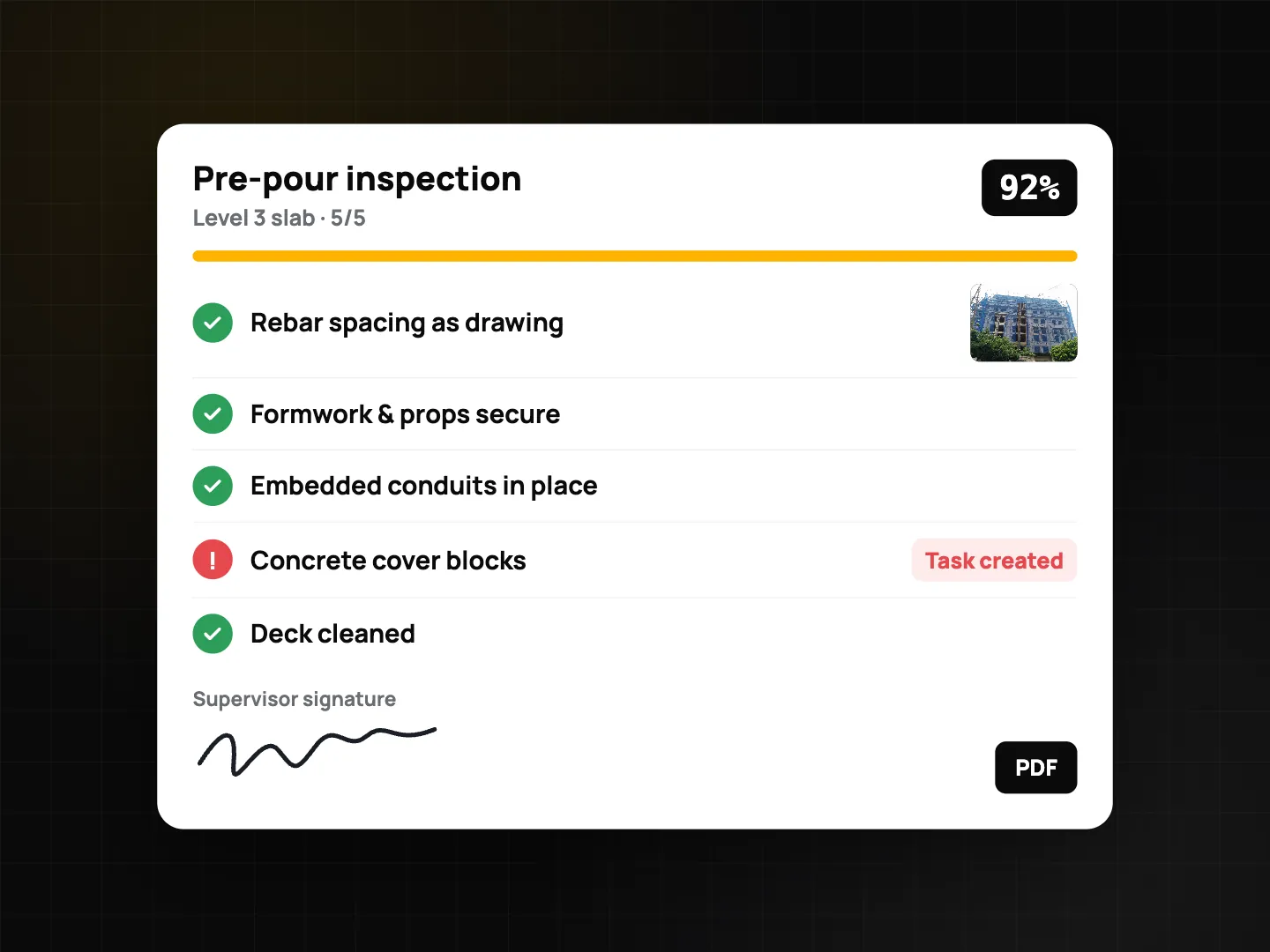
- Run inspections in the app. Each photo question uses the ProofCam camera, so every inspection photo has its own Photo Code. The supervisor signs on screen.
- Log defects as tasks. Flagged checklist answers can create tasks automatically, with the inspection photo as the "before". See punch lists with before/after photos.
- No signal? Keep working. Photos, checklists and signatures are saved on the phone and sync later, as explained in offline photo proof.
End of day
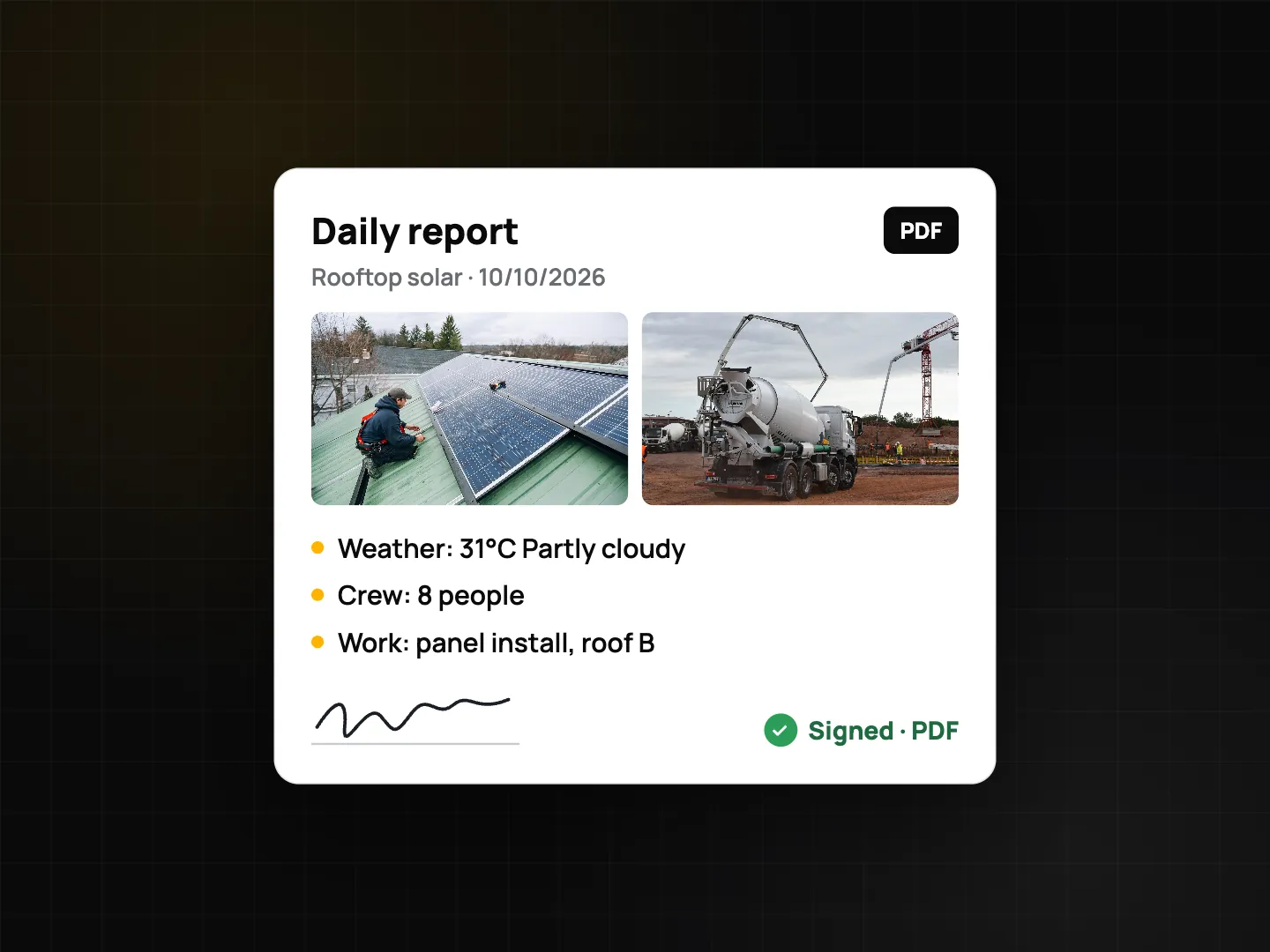
- Review the daily report for each active project in Teamspace: weather, crew and hours, the day's photos, completed checklists, opened and closed tasks, notes.
- Add remarks, sign and share the PDF with the client or main contractor.
- Working alone or as a small subcontractor? The site diary (Plus) builds a similar PDF on your phone from today's photos and your own clock-ins; you add equipment, materials and issues. A walkthrough note (Plus) lets you talk through the site while shooting; speech recognition runs on the device, no audio is saved, and you edit the summary before the PDF.
For acceptance and handover
The checklist PDF has a cover with the score, all answers, photos with their Photo Codes, a signature page and a QR code to verify the submission online. That makes a clean acceptance record per element: slab, wall, MEP rough-in. If the client still signs paper, scan the signed sheets with document mode (Plus); each page gets its own Photo Code and the pages go into one PDF.
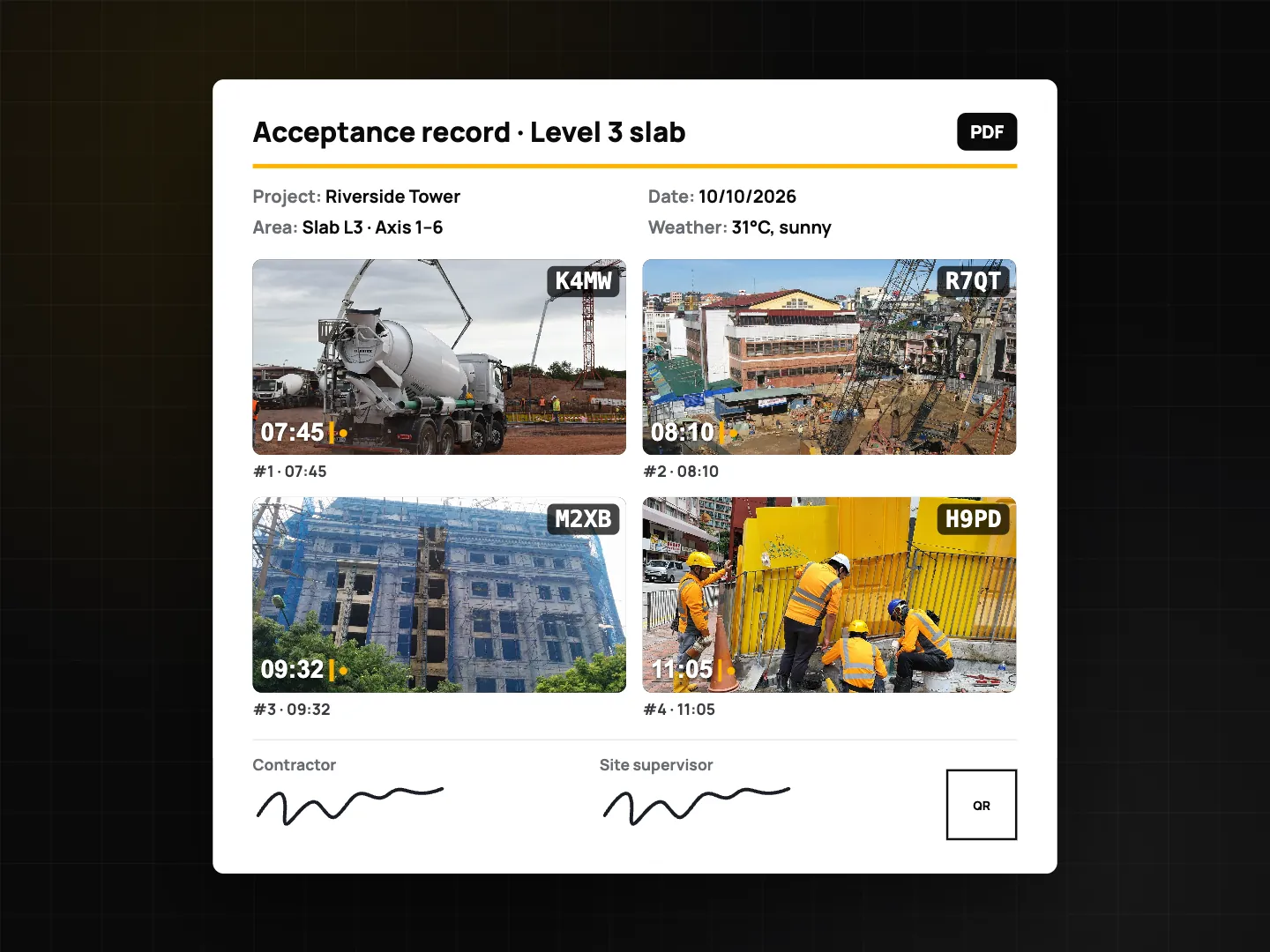
Anyone who receives the PDF can enter a Photo Code on the verify page to check it against the original record. Photos forwarded through chat apps are recompressed and show as a "Modified copy", which is expected: the code still points to the original.
Daily report and acceptance checklist template
Use these as a starting point. Question types refer to Checklist 2.0.
| Item | Question type |
|---|---|
| Weather and work stoppages | Single choice (Dry / Rain / Stopped) + text |
| Crew on site by trade | Number with unit (persons) |
| Work completed today (location / grid) | Text + photo (min. 2) |
| Materials delivered, with delivery note | Photo + barcode/QR scan |
| Equipment on site | Multiple choice |
| Rebar spacing and laps as per drawing | Yes / No / N/A + required photo |
| Formwork level and propping | Yes / No + photo |
| Embedded conduits and sleeves | Yes / No / N/A + photo |
| Concrete cover blocks in place | Yes / No (flag "No" → task) |
| Deck cleaned before pour | Checkbox |
| Slump or test values from your instruments | Number with unit and min/max |
| Location of defect | GPS location |
| Contractor and supervisor sign-off | Signature (×2) |
Turn on scoring with a pass mark (default 80%) and weights for structural items, so the PDF cover shows at a glance whether the element passed.
Tips
- Shoot before it's covered. Rebar, conduits and waterproofing disappear under concrete and finishes. One stamped photo per bay is cheap insurance.
- Keep notes short and consistent: area, element, activity. Search covers notes, addresses and tags.
- Let the report collect, don't retype. If the information is in a photo, checklist or clock record, it lands in the daily report automatically.
- Use the same rules for every subcontractor via the required team template.
The same approach works on other build sites: see the solar installation photo documentation guide, or road defect reporting for maintenance crews.
FAQ
What's the difference between the daily report and the site diary?
The daily report is a Teamspace (Business) report per project that collects the whole team's photos, hours, checklists and tasks and is signed by a manager. The site diary is a Plus feature for one person, built on the phone from your own photos and clock-ins.
Can a client check that report photos weren't edited?
Yes. Each photo has a Photo Code, and the checklist PDF includes a verify QR. Verification checks the file against the original record without uploading the photo.
Does it work without mobile data on site?
Yes. Capture, checklists, signatures and PDFs work offline. Team uploads wait in the Sync center until there's a connection.
Is the PDF an official site diary?
ProofCam helps provide evidence and supports your records. Whether a particular format is accepted as the project's official diary depends on your contract and local requirements, so check with the client or authority.
Related: inspection checklists and PDF reports and document scanning with OCR.