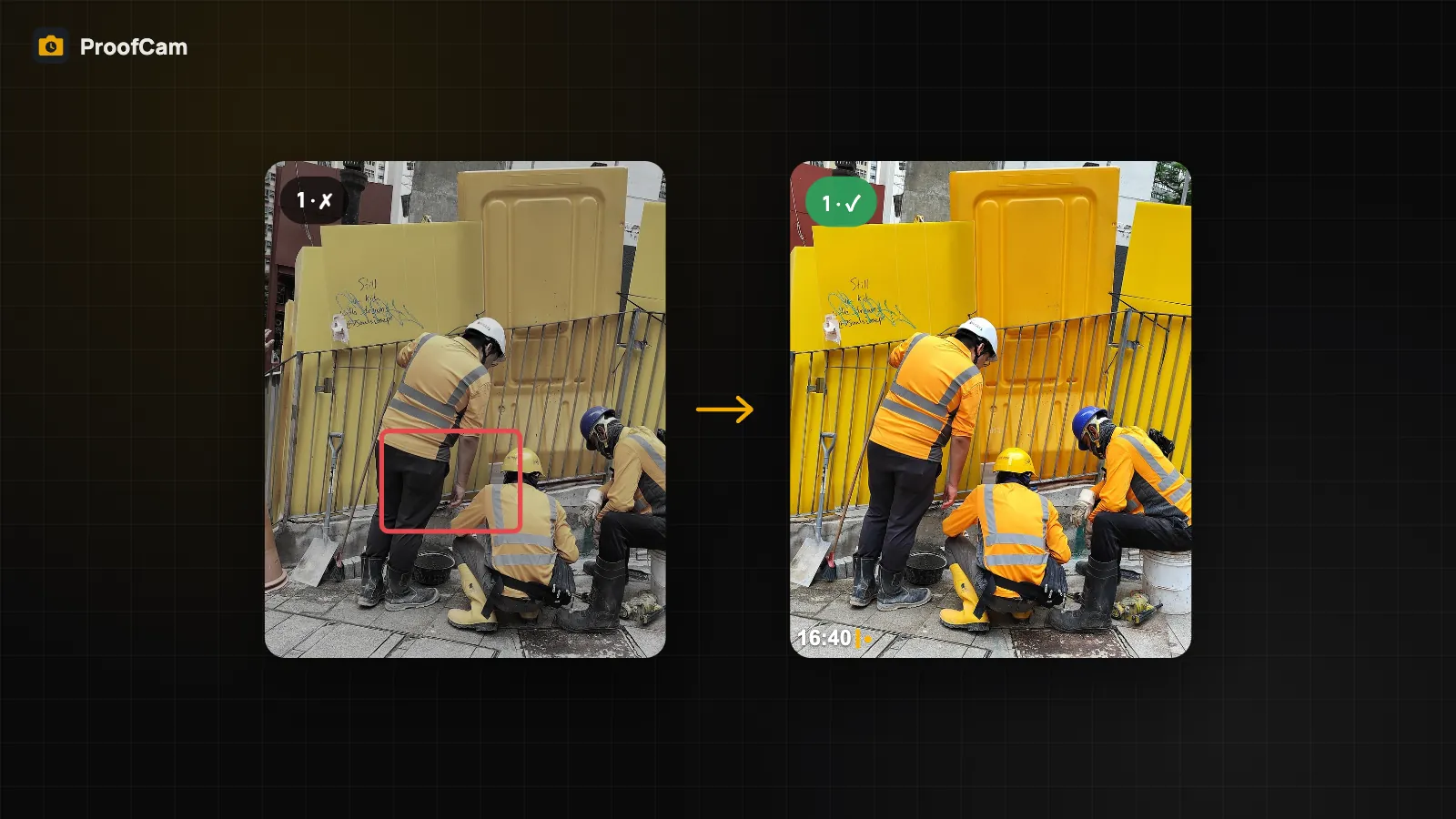
A punch list only works if everyone agrees on two things: what was wrong, and whether it is really fixed now. Text notes like "touch up paint near stairwell" leave too much room for debate. ProofCam ties every task to a stamped photo of the problem and closes it with a stamped photo of the fix, taken from the same spot, so the before and after can be compared side by side.
Tasks live in Teamspace, ProofCam's shared space for teams, on Android, iPhone and the web portal.
How tasks work in ProofCam
Every task belongs to a team project and has a title, description, assignees, a due date, a priority (low, normal, high or critical) and a status:
| Status | Who sets it |
|---|---|
| Open | Created by a manager |
| In progress | The assignee, when work starts |
| Ready for review | The assignee, after adding at least one after photo |
| Closed or rejected | A manager, after checking the result |
Managers are members whose role has the manage tasks permission. They create, edit and close tasks. Assignees can only move a task to "in progress" or "ready for review" and add after photos. A task can't go to review without an after photo, so "done" always comes with evidence.
Create a task from a photo
The fastest way to log a defect is from the photo itself:
- Take the photo with ProofCam. It gets the time, GPS position, address and a Photo Code on the stamp.
- Open the photo and choose Create task.
- Add a title, pick the assignee, due date and priority, and save.
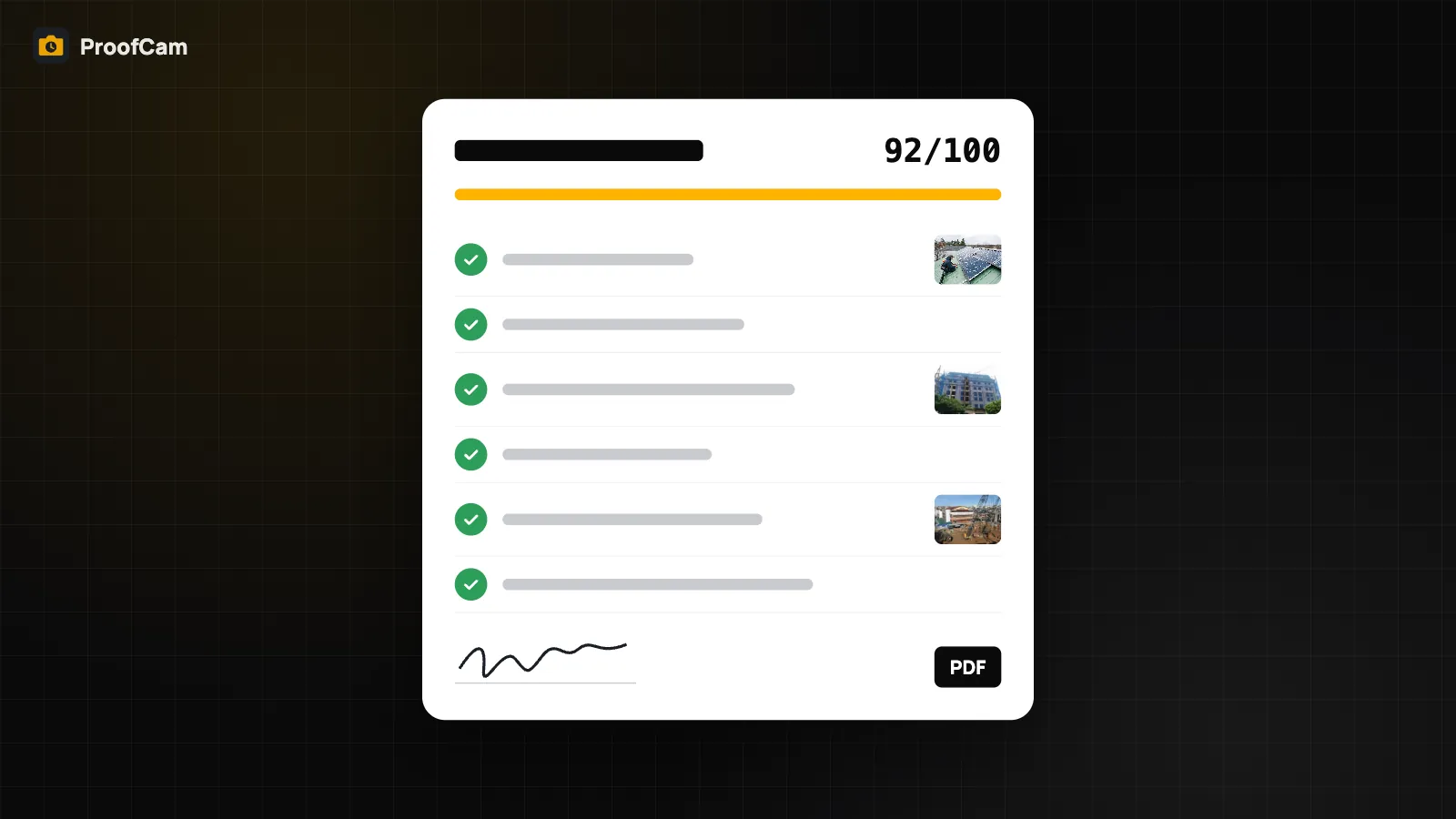
The photo becomes the task's before photo. Checklist inspections can also create tasks: when a checklist template has automatic tasks turned on, each flagged answer becomes a task linked to that inspection.
Mark up the problem, keep the original
A wide site photo often needs a pointer. In the photo's Markup editor you can draw on a copy of the photo:
- Free: arrow, box and text.
- Plus, or a Business / trial team: also ellipse, freehand pen, numbered badges and blur (for faces, plates or anything private).
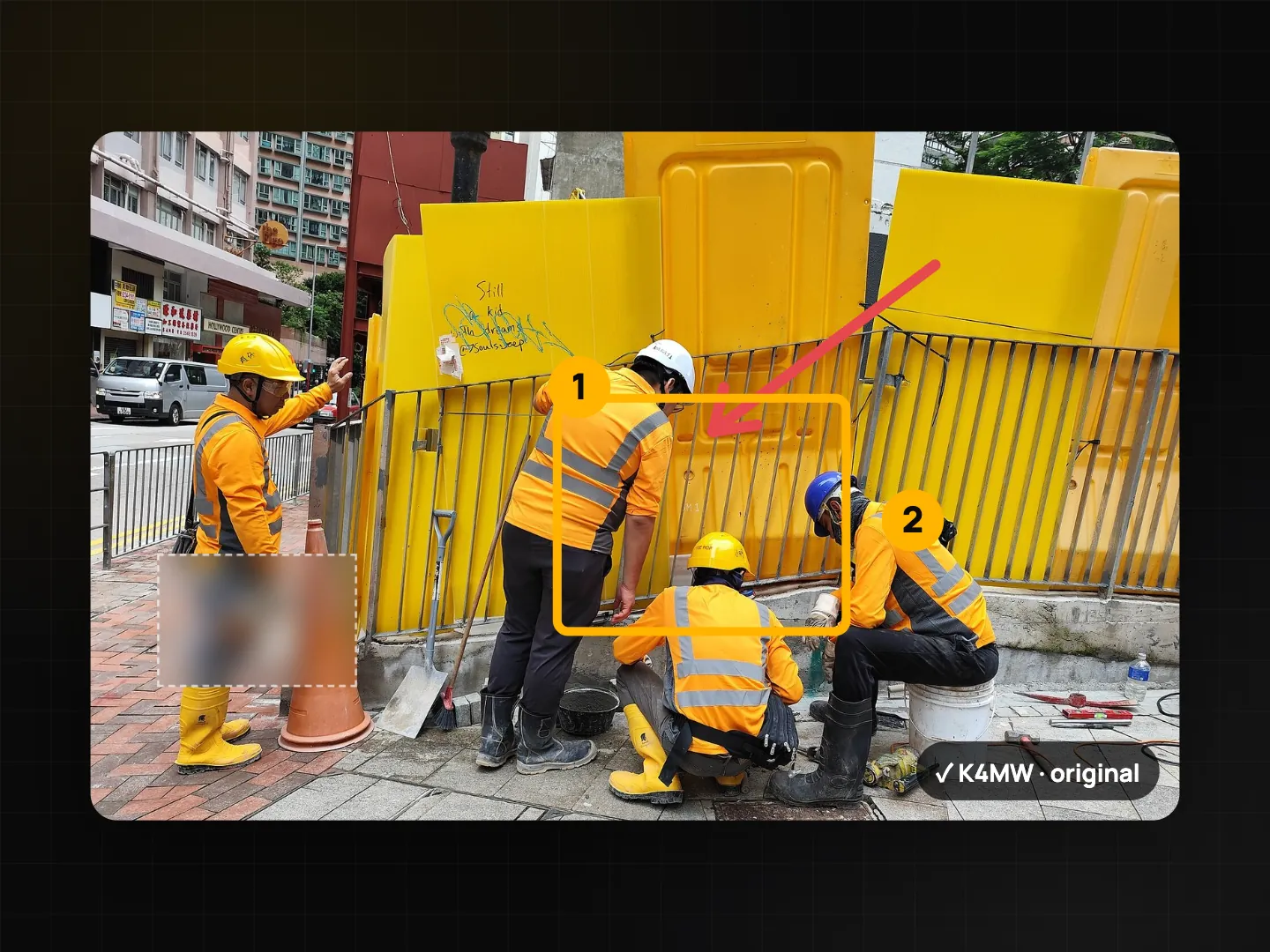
Markup is stored as a separate layer. The original file with its Photo Code is never changed, and shares, PDFs and exports use the marked-up copy, so a blurred area stays blurred wherever the photo goes.
Take the after photo with a ghost overlay
When the fix is done, the assignee opens the task and taps Take after photo. The camera opens with the before photo laid over the live view at 30% opacity. Line up the ghost with the real scene and shoot. Same angle, same framing, and the difference is obvious at a glance.
A few things happen automatically:
- The after photo is stamped and gets its own Photo Code, like any ProofCam photo.
- It is uploaded to the task's team and project, even if you have another team selected.
- No signal? It waits in the queue and attaches itself to the task once it uploads.
- On Android, the task detail shows a before/after slider to compare the two.
Location mismatch warning
Teamspace compares where the before and after photos were taken. If the after photo is farther away than the team's limit (50 m by default, adjustable by the team), the task shows a red location warning with the distance. The task can still be submitted, because GPS can drift indoors, but the reviewer sees the warning before closing it. It's a simple check that makes "fixed it, here's a photo from somewhere else" much easier to spot.
Kanban board, filters and reminders
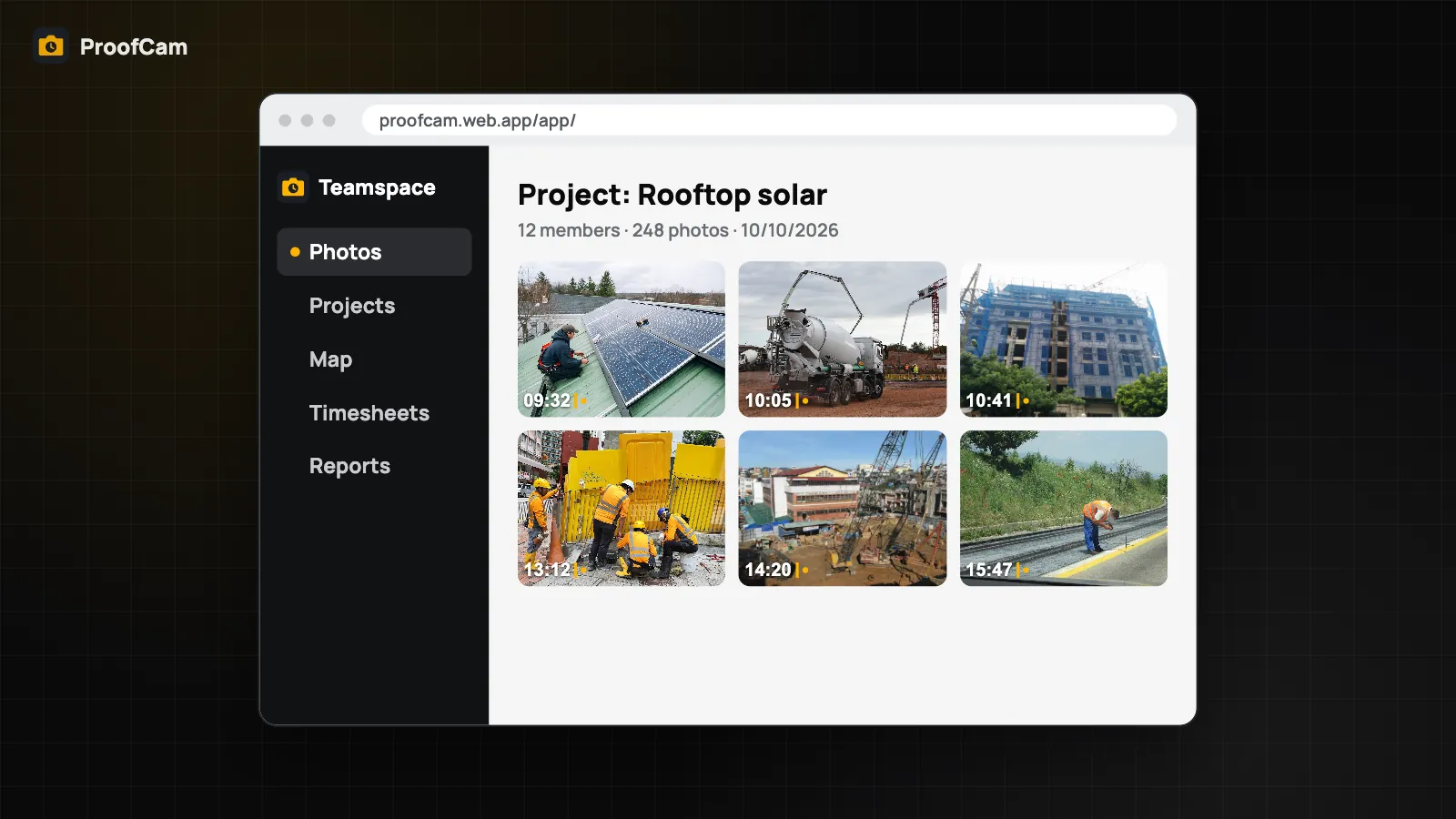
The task list can be filtered by mine, overdue, status and project. For a visual overview, switch to the Kanban board: on the phone, long-press a card and drag it to the next column. Only moves your role is allowed to make are accepted. The web portal at /app/ has the same Kanban and list view, task detail with before/after and comments, and a punch list PDF.
Reminders run on the device, so they work without a server push:
- one hour before the due time for tasks assigned to you;
- a daily 9:00 reminder for overdue tasks.
Tasks also have comments with @mentions, so questions stay with the photo they refer to.
Before/after collages for reports
For a client update, pick a before and after photo in the gallery and export a before/after collage, one image with both stamps visible. Collages are a Plus feature.
Which plan do you need?
| Feature | Plan |
|---|---|
| Tasks, Kanban, ghost overlay, location warning, reminders | Any Teamspace team (Free teams are limited to 100 photos and 3 projects; Business lifts the limits, with a 14-day trial) |
| Markup: arrow, box, text | Free |
| Markup: ellipse, pen, badges, blur | Plus, or a Business / trial team |
| Before/after collage | Plus |
Tasks work on Android, iPhone and the web portal.
FAQ
Can the assignee close their own task?
No. Assignees can mark a task "in progress" or "ready for review" and add after photos. Closing or rejecting is done by someone with the manage tasks permission.
What if I'm offline when I take the after photo?
The photo is saved on the phone and queued. Once you're back online it uploads to the task's project and attaches to the task automatically.
Does markup change the Photo Code?
No. The original photo and its Photo Code stay as captured. Markup is a separate layer, and the marked-up copy is what gets shared.
Why did my task get a red location warning?
The after photo was taken farther from the before photo than your team allows (50 m by default). Check that you photographed the right spot. Indoors, weak GPS can also cause it, and the reviewer can still accept the task.
Read more: how managers follow tasks in the Teamspace web portal, and how inspections can create tasks in inspection checklists with PDF reports.