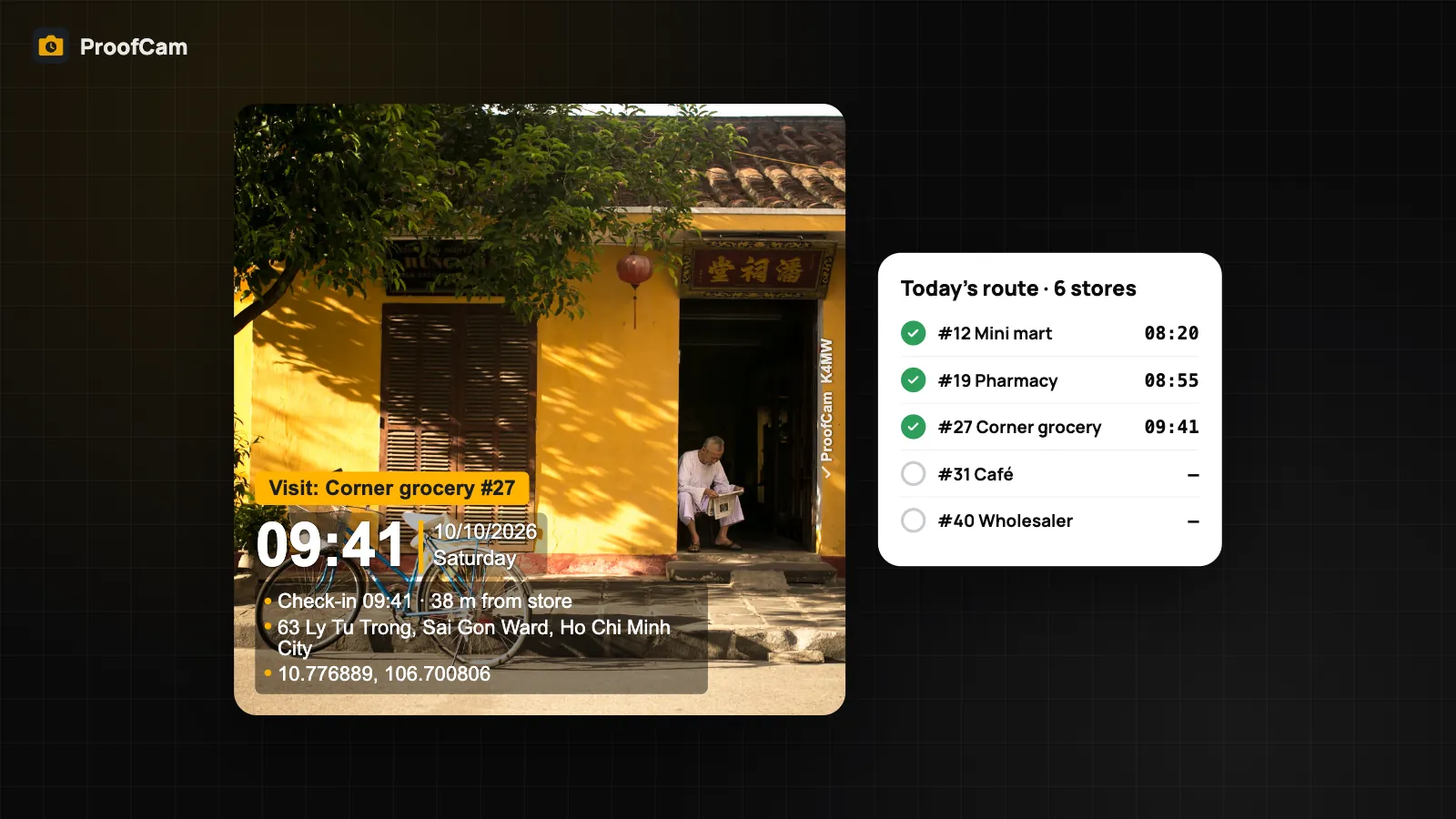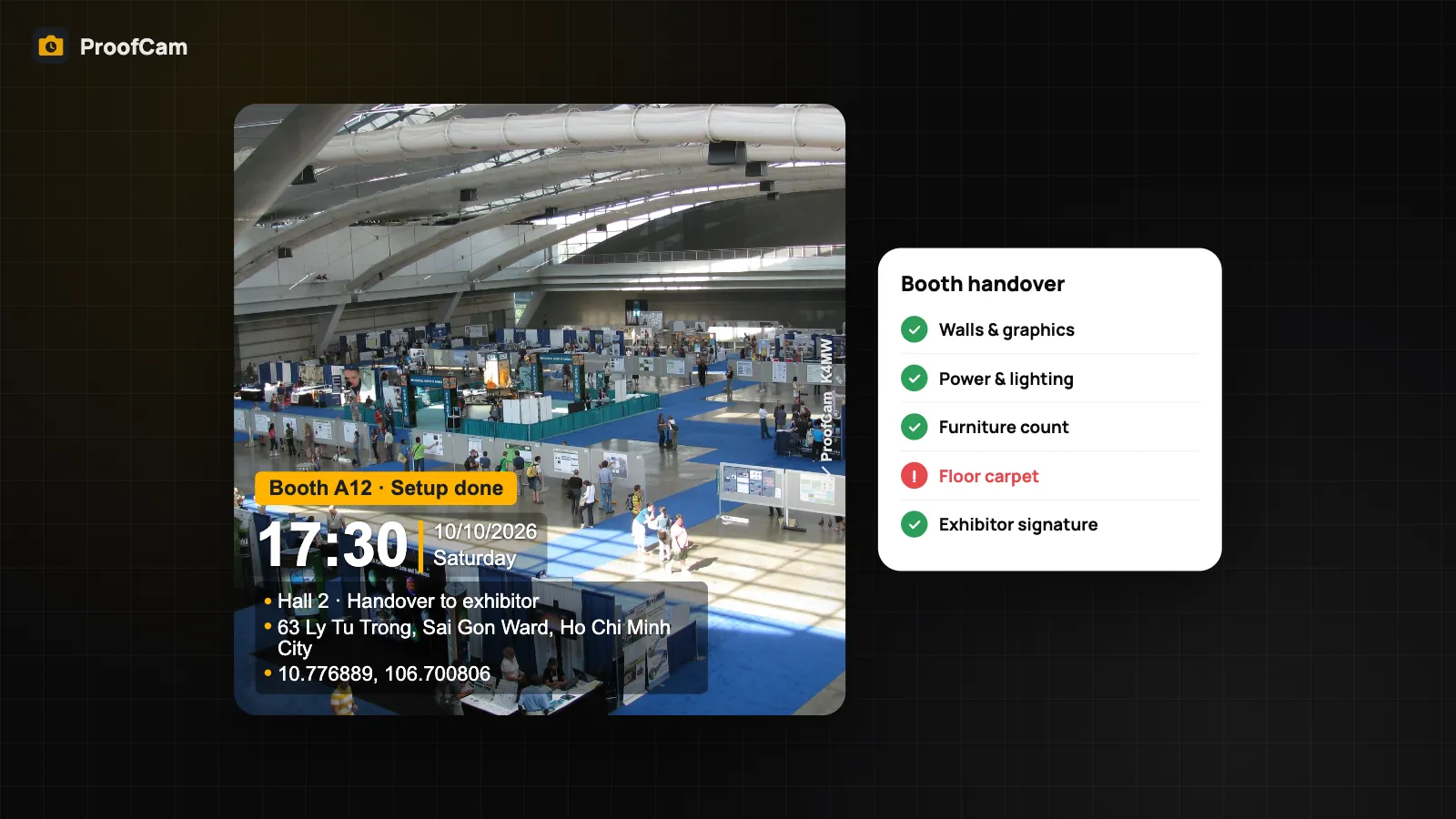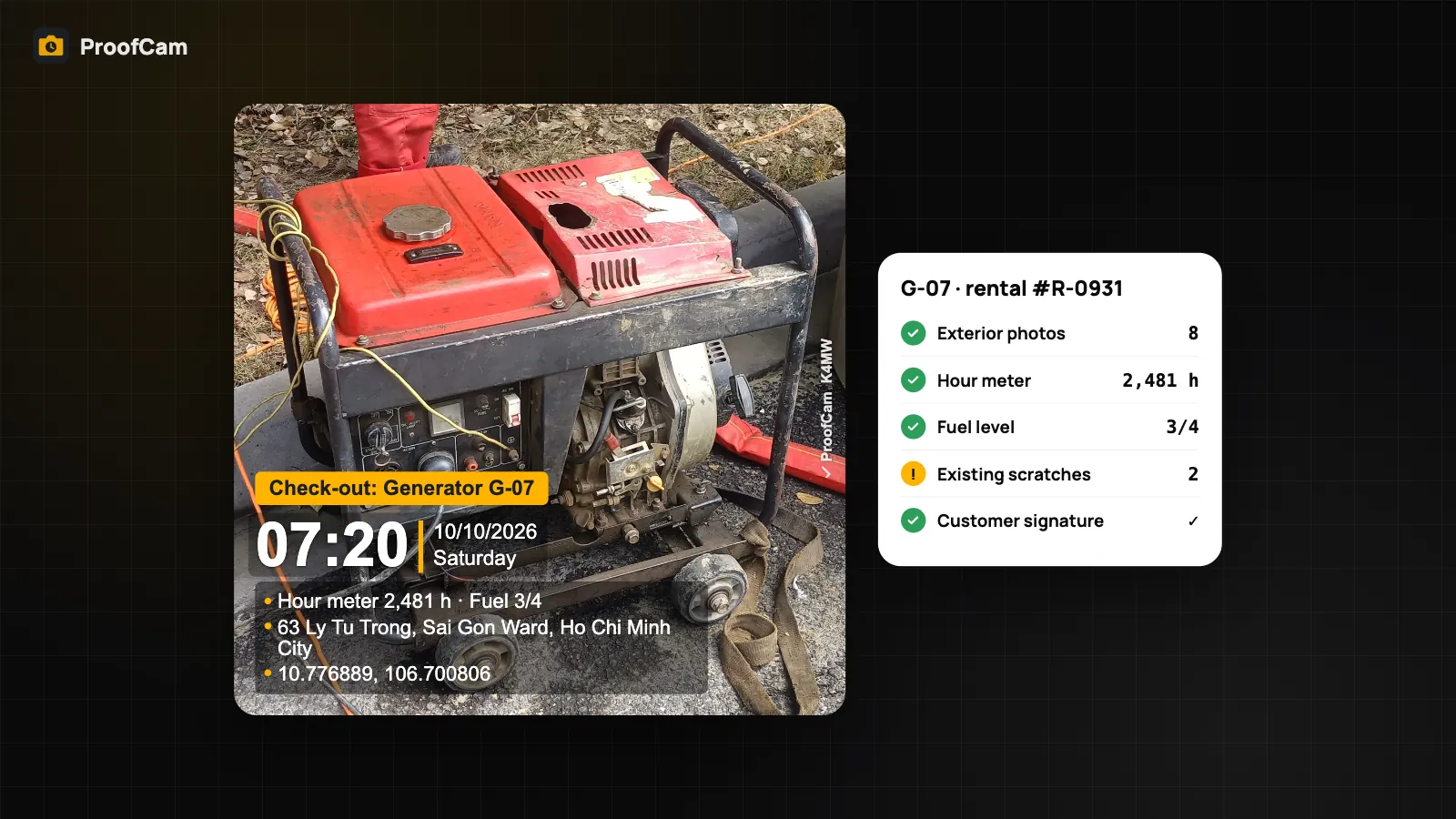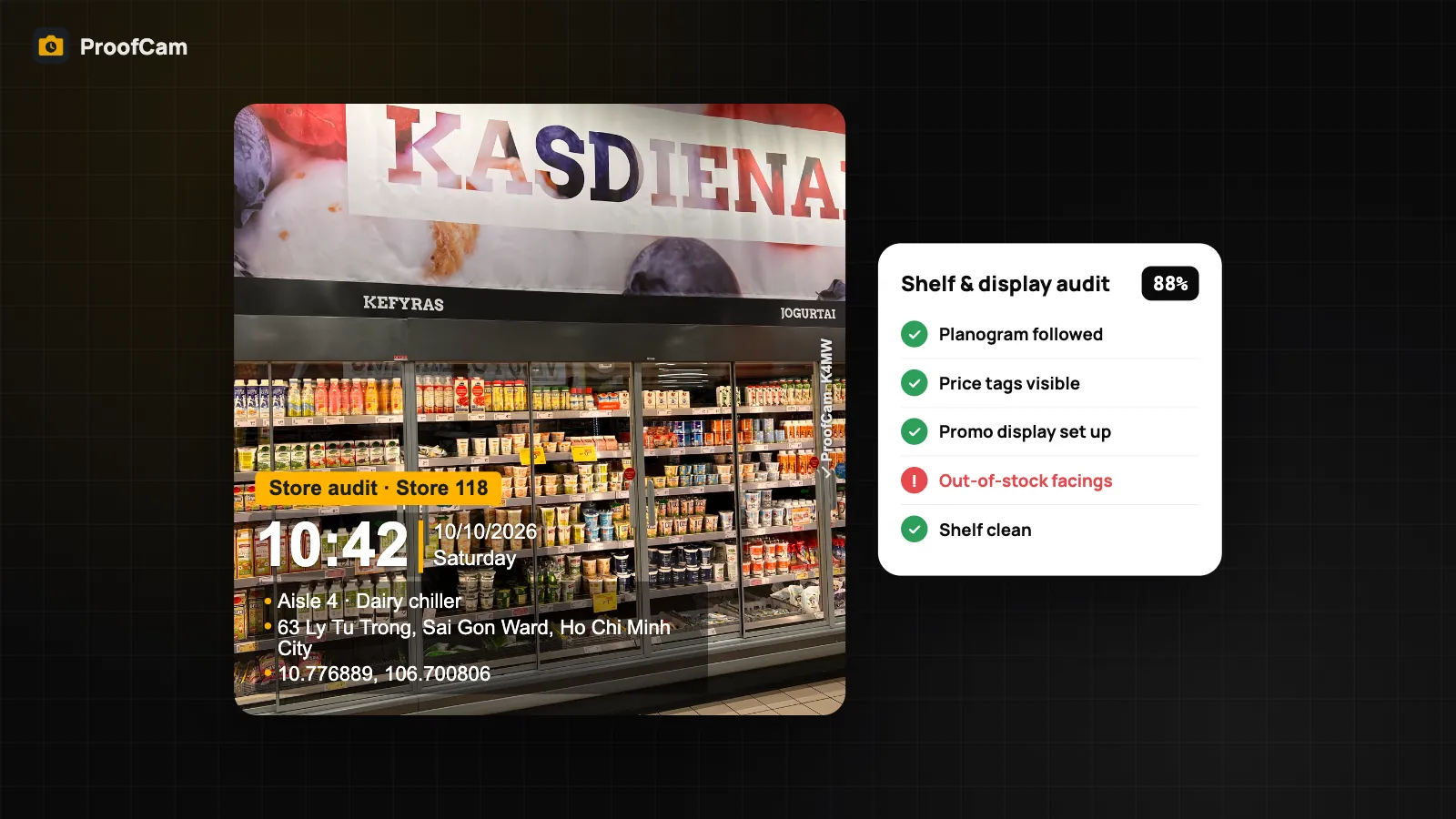
A brand pays for a promo end-cap in 40 stores. A week later, the merchandising lead gets a chat thread with 300 shelf photos, some from today, some from last month, a few that look suspiciously like the same shelf twice. Nobody can say which store is compliant, which price tags were wrong or who fixed the gaps. A retail store audit app should turn each store visit into a scored record: the right photos, taken on the spot, tied to the store and aisle, with every problem turned into a follow-up.
This guide shows how to run shelf, planogram and POSM audits with ProofCam: scored checklists, stamped photos, a side-by-side comparison against the reference shelf and reports your client or head office can check.
Why store audits are hard to trust
- Photos without context. A shelf photo doesn't say which store, which aisle or which day. Ten stores of the same chain look identical.
- Old or recycled photos. A merchandiser behind on visits can send last week's photo, or photograph an old photo on another phone's screen.
- Checklists without proof. "Price tags OK" ticked on paper or in a spreadsheet tells you nothing if there is no photo next to it.
- Problems that never get fixed. An out-of-stock facing or a missing wobbler is noted, then forgotten until the next audit finds it again.
- Reports take an evening. Someone copies photos into slides, store by store, before the weekly meeting.
Which ProofCam features help with a retail store audit
| Need | ProofCam feature | Plan |
|---|---|---|
| Time, address and GPS on every shelf photo | Watermark with network time (phone clock ignored after sync) | Free |
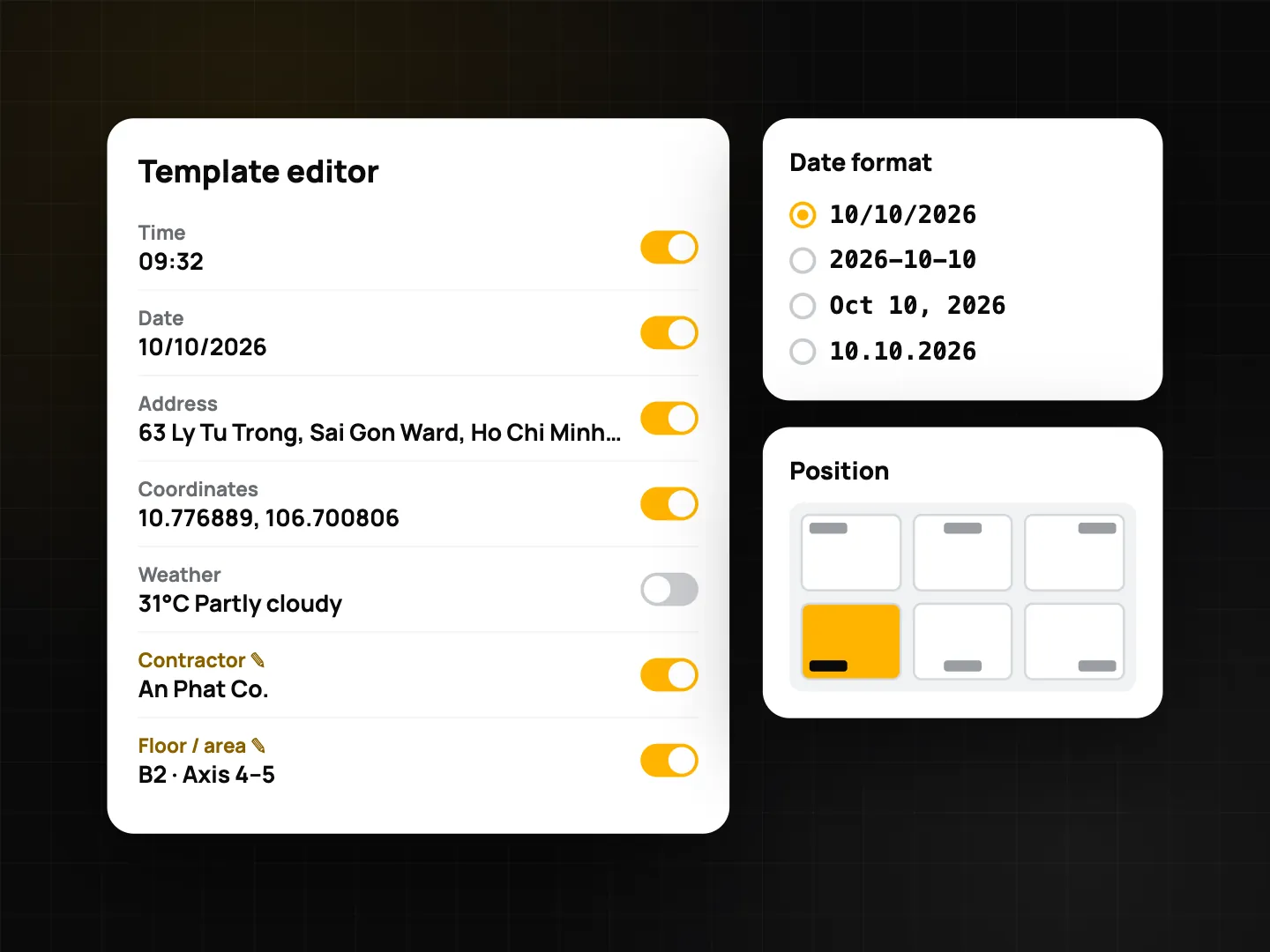
| Store code and aisle printed on the photo | Custom watermark fields (also usable in file names) | Free 3 fields · Plus 10 |
| Same layout for every merchandiser | Team template, can be made mandatory | Business |
| Scored shelf and display audit | Checklist with weights, pass mark, required photos | Free 1 template · Plus unlimited · Business team templates |
| Gaps and wrong tags fixed, not just noted | Flagged items become tasks automatically | Business team |
| Only fresh photos | Checklist photos use the ProofCam camera only; team policy Block gallery uploads | Free (camera-only) · Business (policy) |
| No photos of an old photo on a screen | Screen recapture detection | Warning on all plans · Business can block |
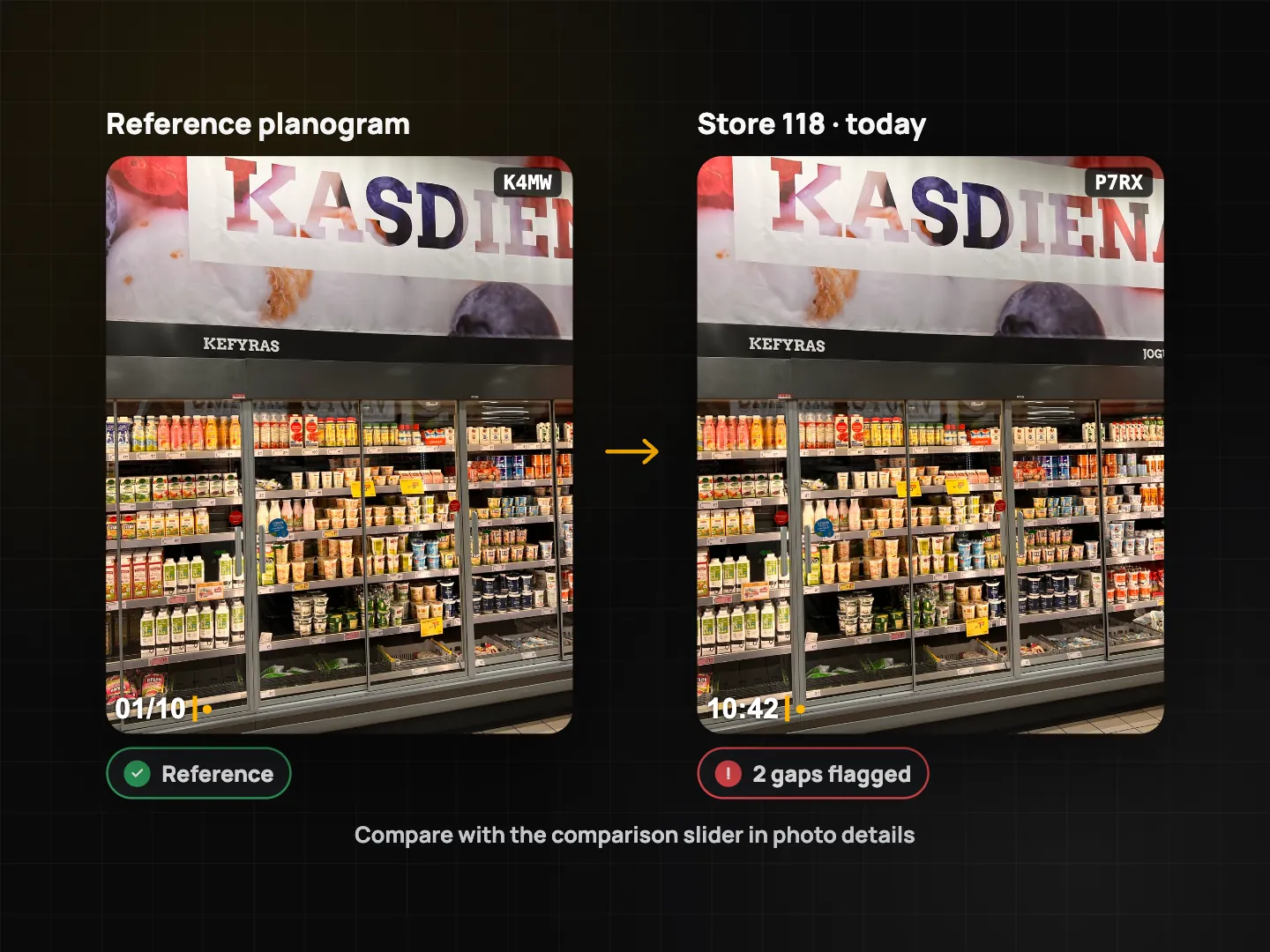
| Today vs the reference shelf | Comparison slider in photo details | Free |
| Proof a photo is the original | Photo Code + web verify page | Free |
| Every store in one place | Teamspace: one project per store, photos by project, member and day | Free team: 3 projects · Business unlimited |
| Weekly client report | Report builder, Quick PDF report; PDF, Excel, ZIP exports | Report builder: Plus or Business team · exports Free up to 10 photos |
ProofCam doesn't analyse shelf images or count products automatically. The auditor answers the questions and takes the photos; ProofCam makes sure the photos are genuine, organised and easy to report on. On supported phones, Plus can suggest notes and tags on the device, applied only when you accept them.
Step-by-step workflow
- One project per store. In Teamspace, create a project for each store (for example "Store 118") with its address and radius. Upload the planogram or the promo brief as a project document so merchandisers can open it on site.
- Set up the watermark. Make a template with custom fields Store code, Aisle / bay and Campaign, and choose the title "Store audit". In a Business team, make it the required team template and turn on Require project and Block gallery uploads. See watermark templates and custom fields.
- Build the audit checklist. Create sections (shelf, price, promo, cleanliness), give the important questions higher weights and keep the default pass mark of 80% or set your own. Mark a photo as required on every item that needs proof.
- Take the reference photo. After a reset or a new planogram, photograph the correct shelf. It becomes the reference for later visits.
- Audit on site. Open the checklist, answer each item and take the required photos from inside it. If someone points the camera at a screen, ProofCam warns that it looks like a recaptured photo; a Business team can block it. The score updates as you go.
- Compare with the reference. In photo details, pick the reference photo and drag the comparison slider to see what moved, what's missing and which facings are empty.
- Flag and assign. A "No" on out-of-stock or price tags is flagged. In a team, each flagged item becomes a task with the audit photo as the "before"; the store or the merchandiser fixes it and adds an after photo. More in punch lists with before/after photos.
- Report. Generate the checklist PDF on the phone (cover, score, photos with Photo Codes, signature page, verify QR). For the weekly client pack, select photos and use Quick PDF report, or build one with your logo and 2 or 4 photos per page.
For the merchandising manager
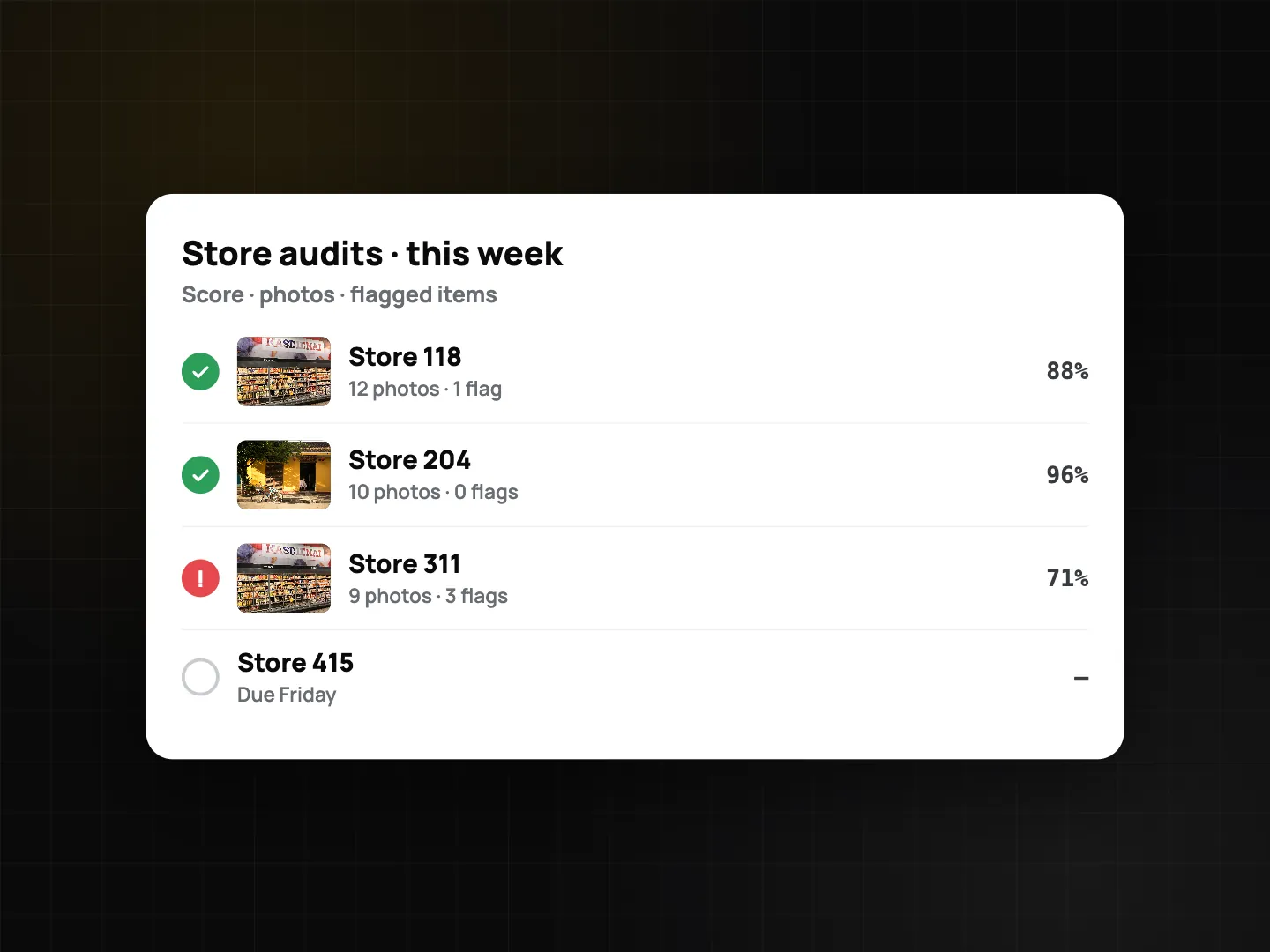
In the Teamspace web portal at /app/, photos are filtered by project (store), member and day, so you can open "Store 311, this week" in two clicks. Checklist submissions arrive for review: approve them or reject with a note. Tasks from flagged items sit on a Kanban board until they are closed. Export a store or a campaign to PDF, Excel or ZIP, or send the client a share link. Details are in the Teamspace web portal for managers.
If the client doubts a photo, give them its Photo Code. The verify page checks the file in their browser without uploading it. A copy forwarded through a chat app shows as "Modified copy", which is expected; the code still points to the original record. Read more in Photo Code: verify original photos.
Shelf and display audit checklist (template)
| Section | Item | Question type |
|---|---|---|
| Store | Store code | Text, required |
| Store location | GPS location | |
| Shelf | Planogram followed (position, facings, shelf level) | Yes / No / N/A + photo, weight 3 |
| Number of facings for the main SKU | Number (min/max) | |
| Out-of-stock facings | Yes / No + photo, flagged on "Yes" | |
| Price | Price tags present and matching the promo | Yes / No / N/A + photo, weight 2 |
| Promo & POSM | Promo display / end-cap built as briefed | Yes / No / N/A + photo (min. 2) |
| POSM in place (wobbler, shelf strip, poster) | Multiple choice + photo | |
| Competitor activity seen | Yes / No, then text and photo if Yes (conditional) | |
| Closing | Shelf clean, no damaged packs | Yes / No + photo |
| Store manager signature | Signature |
Tips for the template:
- Put the photo on the item it proves, not in a "photos" section at the end.
- Use conditional questions for competitor notes so a clean visit stays short.
- Barcode / QR scan questions are useful for a specific SKU or a fixture label.
Tips
- Shoot the whole bay, then the detail. One wide photo for context, one close-up of the price tag or gap.
- Keep the reference current. After each planogram change, take a new reference photo so comparisons stay fair.
- Audit offline if the store has no signal. Photos, Photo Codes and the checklist work offline and sync from the Sync center later.
- Separate audits from visit check-ins. If your reps also sell and take orders, see our guide to the field sales check-in app for visit proof and route reviews.
FAQ
Can ProofCam check planogram compliance automatically from the photo?
No. ProofCam doesn't do image recognition on shelves. The auditor answers each question, and ProofCam supplies stamped, verifiable photos and the comparison slider to check against the reference.
Can a merchandiser upload a photo from the gallery instead?
Photo questions in a checklist only accept the ProofCam camera. A Business team can also turn on Block gallery uploads for all team photos.
What happens if someone photographs an old photo on another screen?
ProofCam warns that the shot looks like a screen recapture on every plan, and a Business team can block it.
How do flagged items reach the store?
In a team, each flagged answer can create a task automatically, with the audit photo attached. It stays open until someone adds an after photo and a manager closes it.
Related: inspection checklists with PDF reports and screen recapture detection.