When a crew of ten sends photos through chat apps, the manager ends up scrolling, saving and renaming files every evening. Teamspace is ProofCam's shared space for teams: photos taken in the app upload to the team automatically, and managers see everything in one place, on the phone or in the browser at /app/.
This guide walks through what the web portal does and how to set up a team.
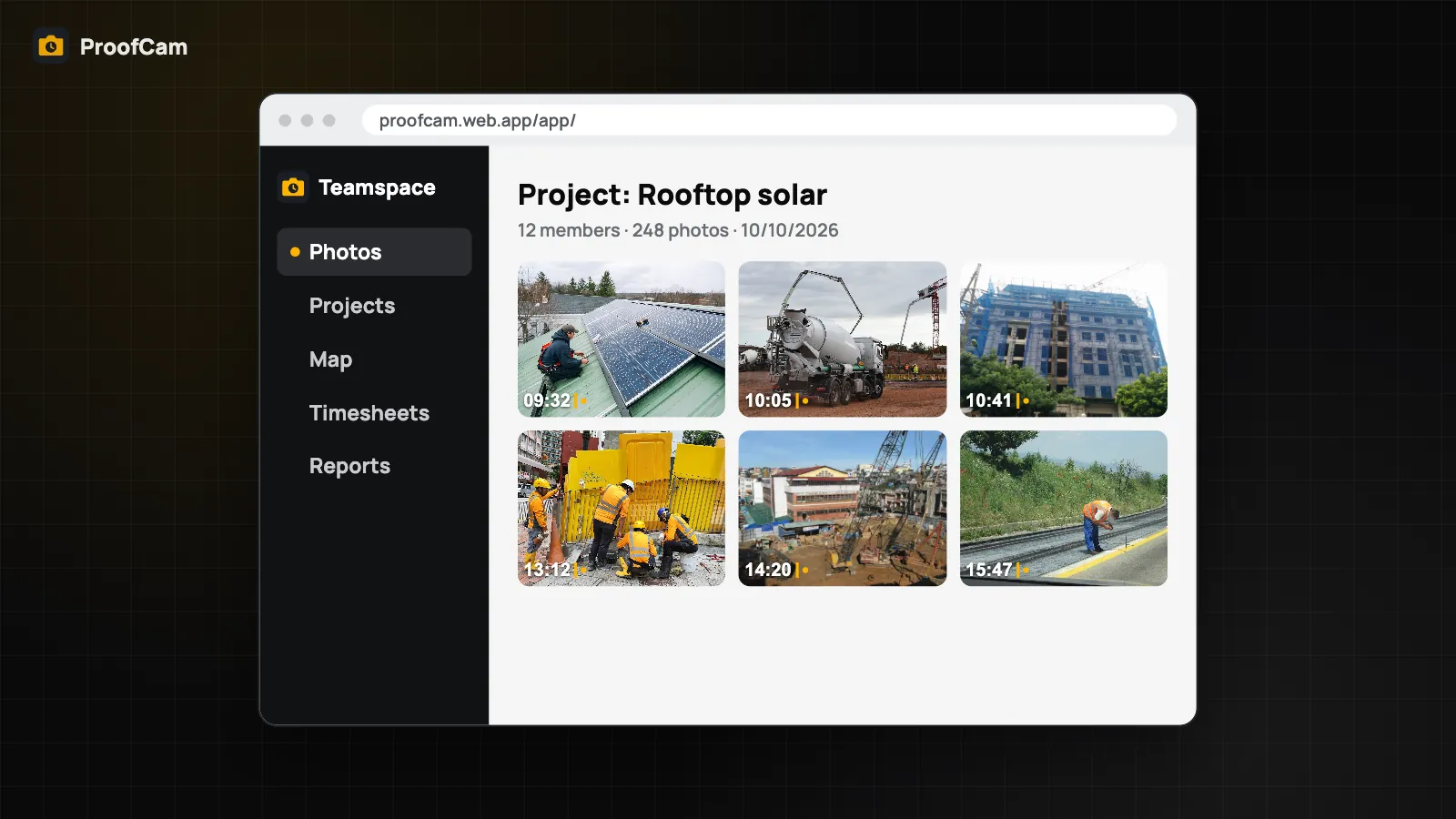
What managers see in the portal
The portal is built for the person at the desk, not the person on the ladder.
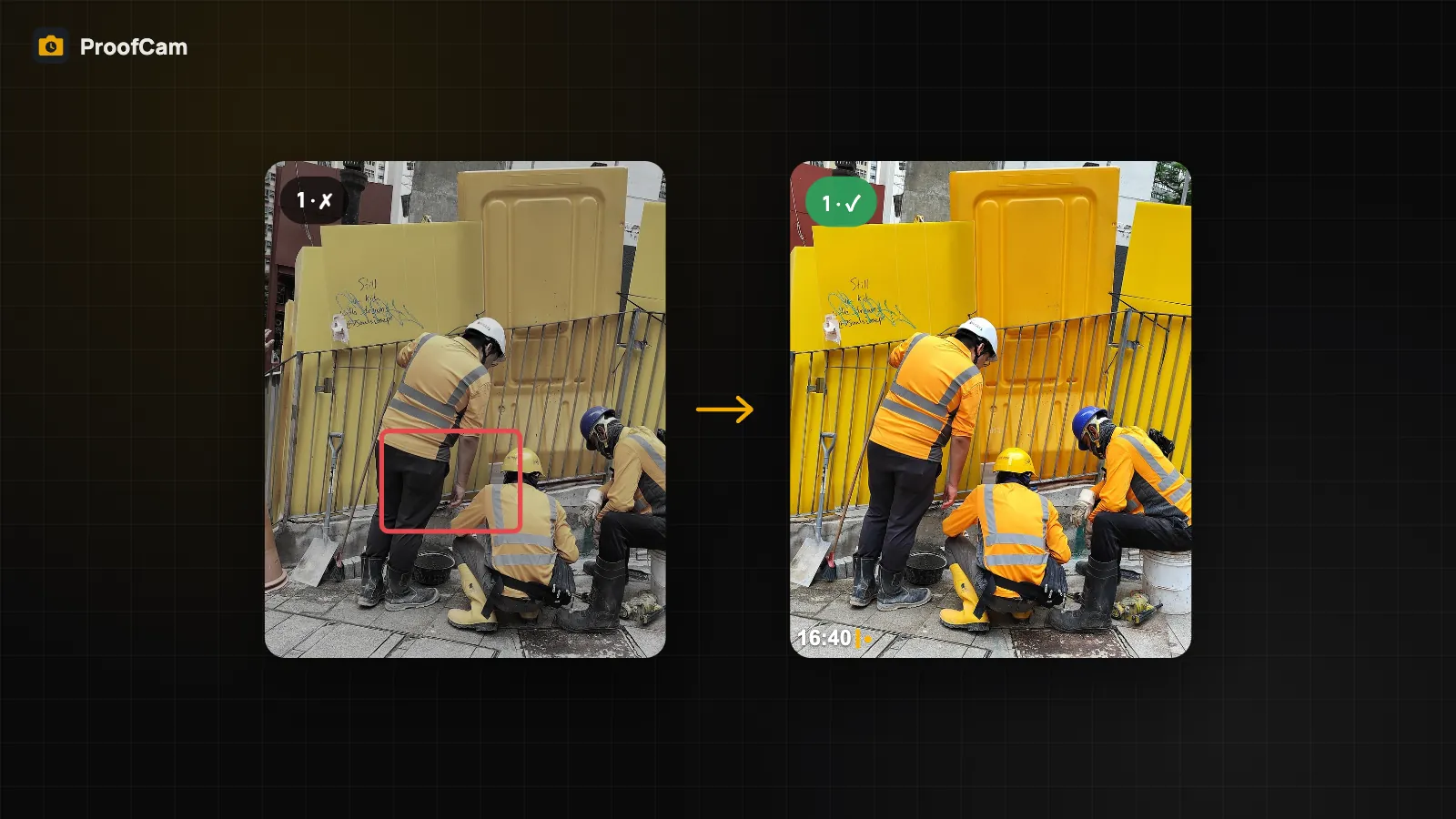
- Photos by day, member or project. Every team photo arrives with its stamp, time, GPS position, address, notes, tags and Photo Code. Filter by date, member, project, type or tag, and open a photo for full detail and comments.
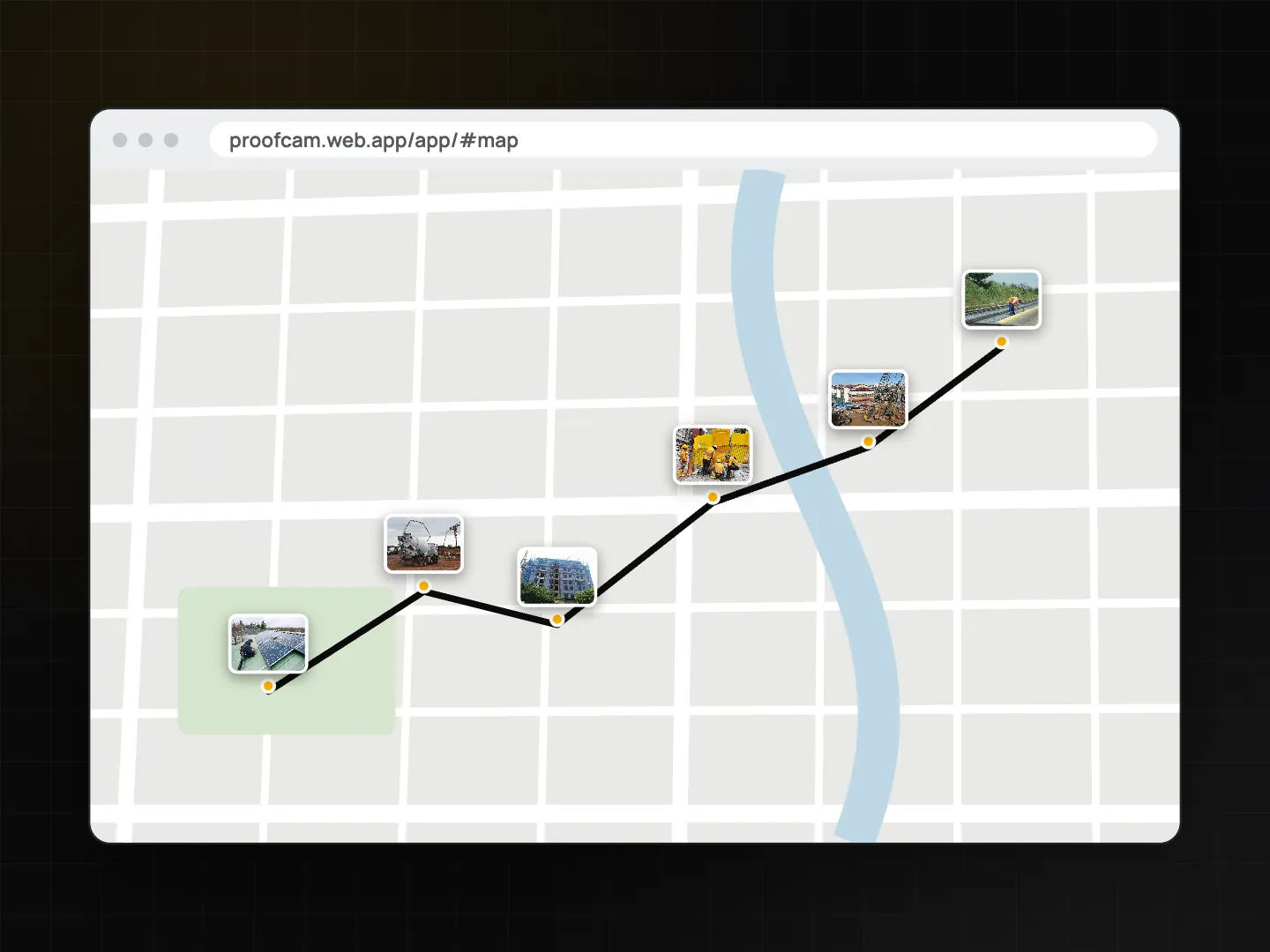
- Map and routes. Photos appear as pins on a map. Pick a member and a day to see their route, the photos in the order they were taken, which shows where the work actually happened without background location tracking.
- Projects. Each project has an address, its own member access list and documents (drawings, specs) the crew can open on site.
- Clock. Clock-in, break and clock-out photos land in the time clock view, so you can see who is working now and check shifts.
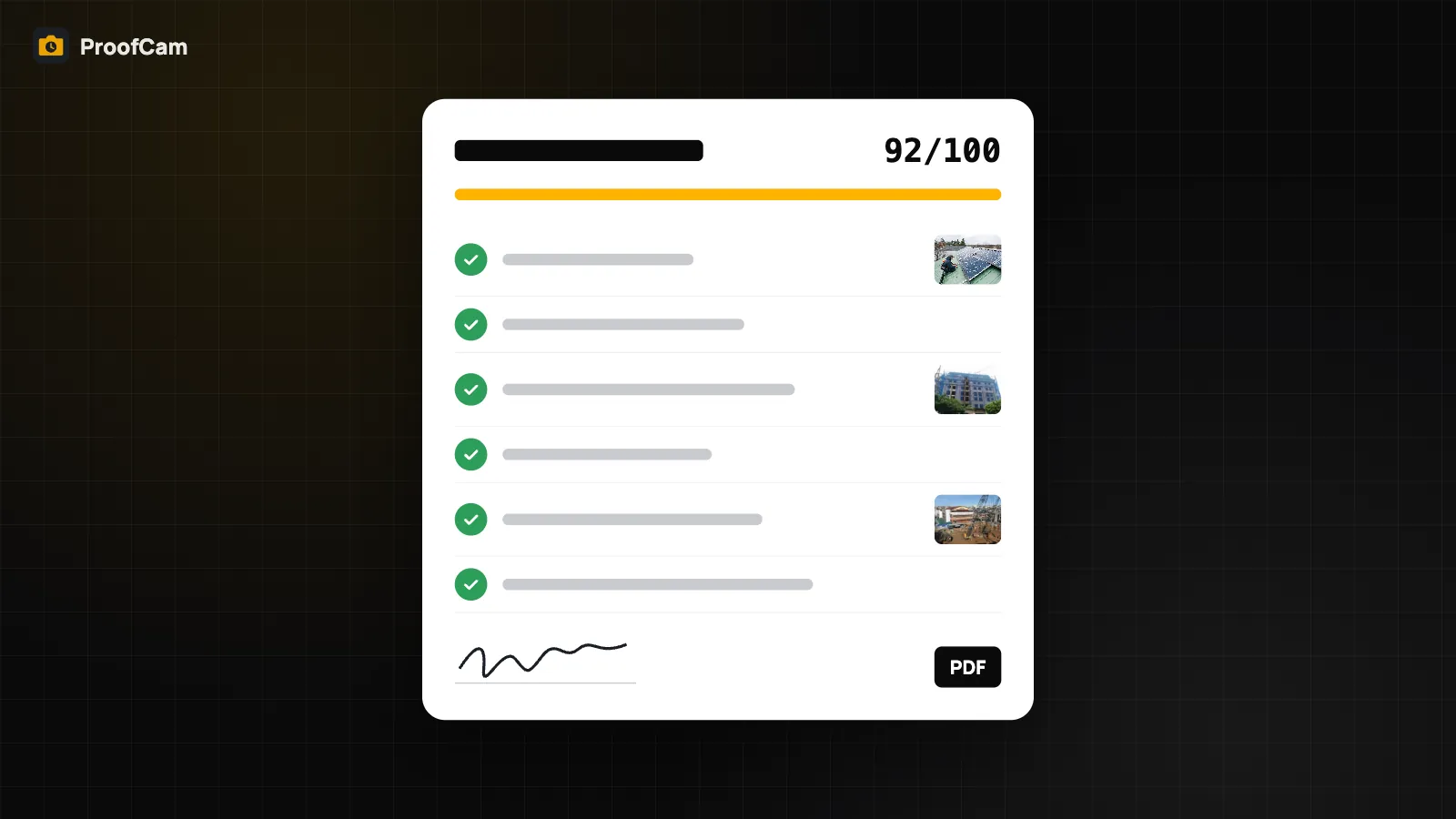
- Checklists and tasks. Review checklist submissions, approve or reject them, and follow tasks on a Kanban board.
Roles, including custom ones
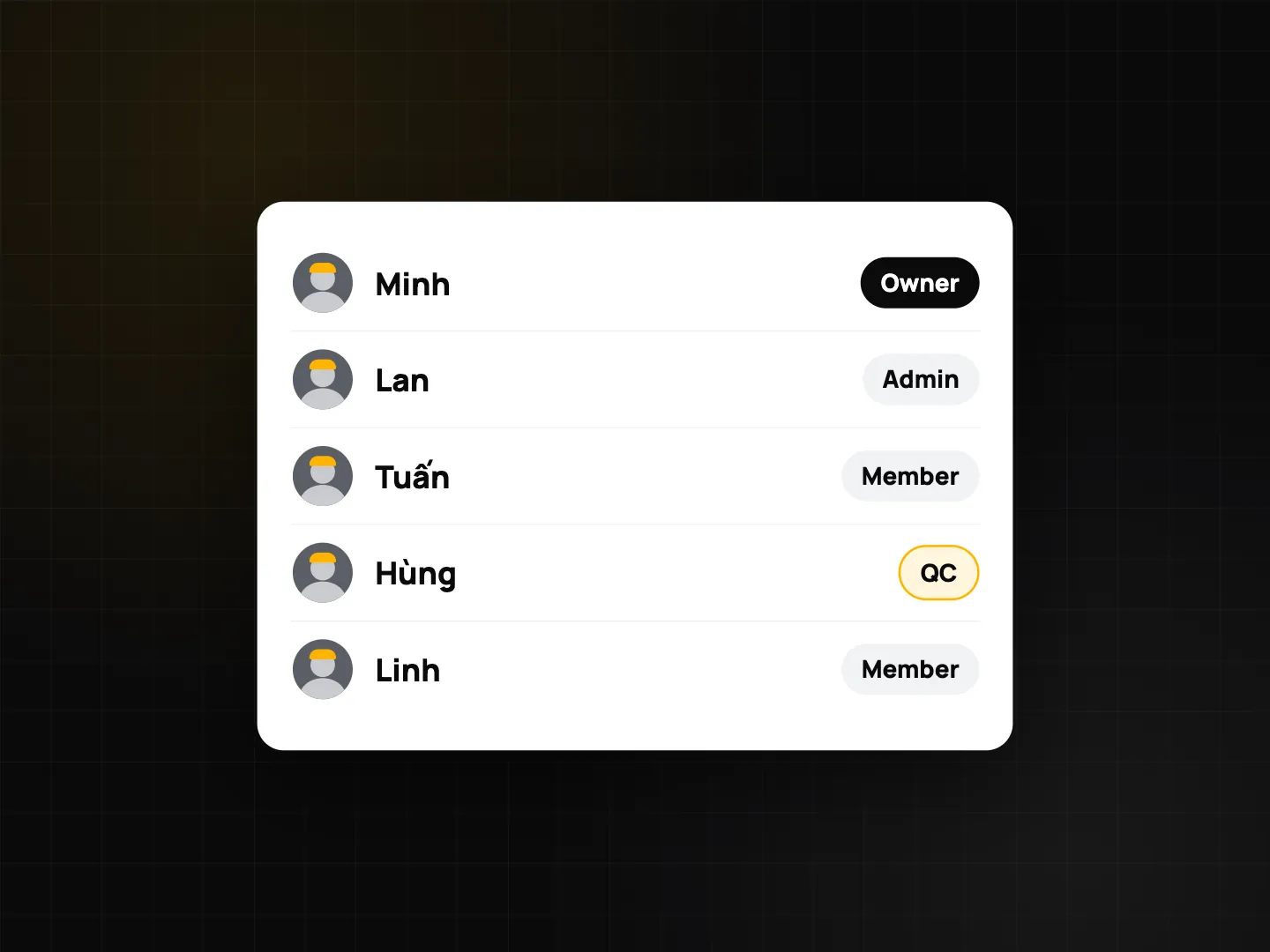
Every team has three built-in roles: Owner, Admin and Member. Owners and admins can do everything. Members by default see only their own photos and shifts, can't export, and only see projects they've been added to.
If that doesn't fit, create a custom role, for example "QC" or "Site lead", and choose its permissions: view all photos or only their own, delete photos, manage projects, members, templates, tasks or settings, export, see everyone's clock records, and access all projects.
Team templates and rules
Consistency is easier when the app enforces it:
- Team watermark templates, optionally required, so every photo carries the same fields (company logo, project, contractor and so on).
- Require a project before taking photos, so nothing lands unsorted.
- Block gallery uploads, so only photos taken in the ProofCam camera reach the team.
- Default camera mode (photo, video or clock) for the crew.
- Checklist templates built in the portal and filled in the app.
Exports, share links and webhooks
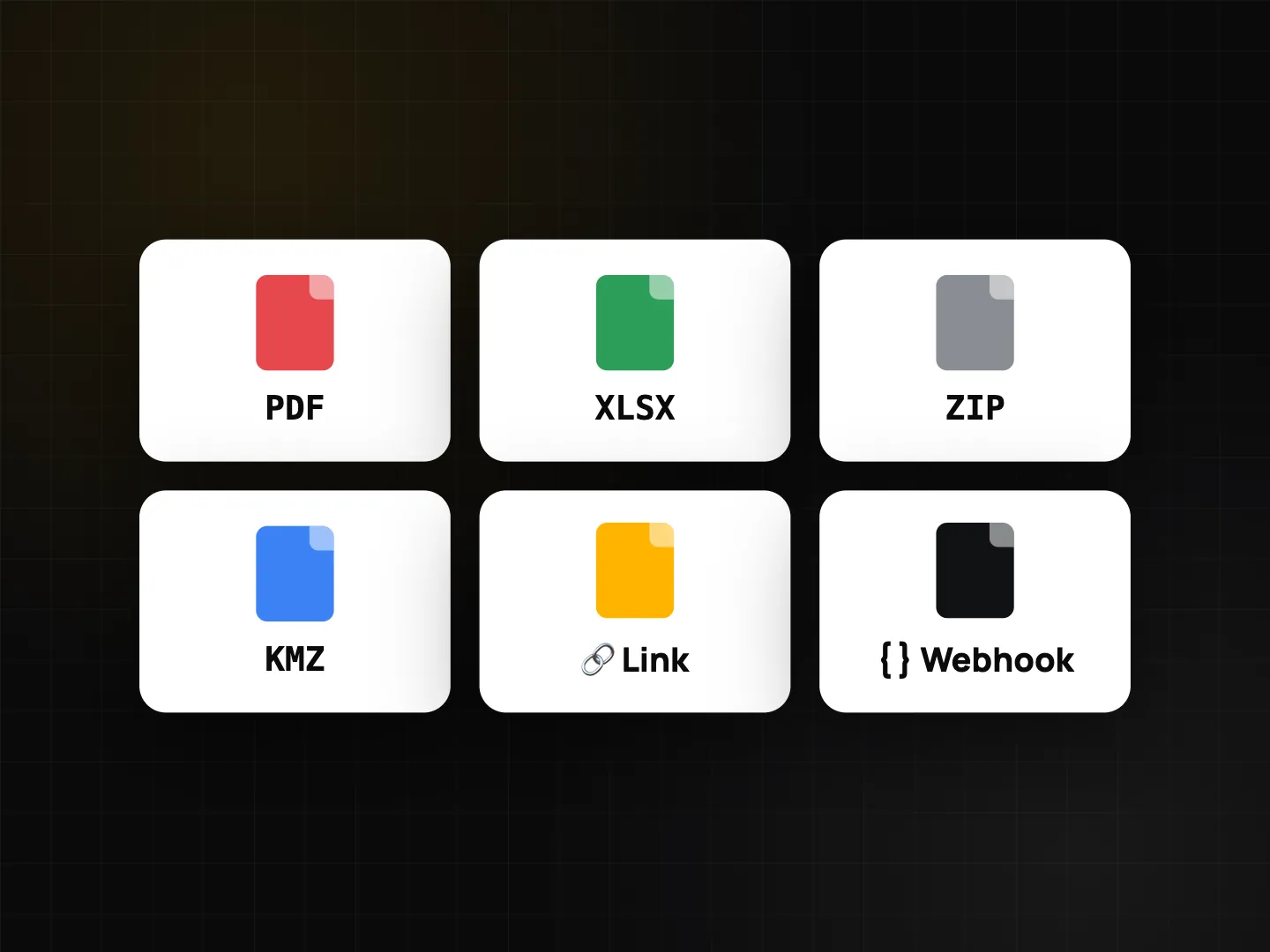
- PDF reports with photos and stamps, Excel (.xlsx) lists, ZIP of the original files, and KMZ to open photo locations in Google Earth.
- Share links (
/s/…) let a client view a photo grid and map and download a ZIP without an account. A link can be a fixed selection or a live project link that shows new photos as they arrive. You can set an expiry so the link stops working. - Webhooks (Business) send signed events such as
photo.created,clock.in,checklist.completedand task updates to your own system.
How to set up a team
- In the app, sign in and create a team in Teamspace. New teams start a 14-day Business trial.
- Invite members with an invite code or link, and choose the role each code gives.
- Create projects and add members to them.
- Optionally publish a team watermark template and turn on the rules you need.
- Open
/app/in a browser and sign in with the same account.
Members just keep taking photos. Uploads queue on the phone when there's no signal and continue when it's back.
Plans and billing
| Free team | Business | |
|---|---|---|
| Team photos | 100 | 300,000 |
| Projects | 3 | Unlimited |
| Webhooks | No | Yes |
Business is billed per user on the web, and adding or removing members is prorated automatically. Patrol and proof-of-delivery are separate Business add-ons, included during the trial. Personal Plus (bought in the app) is about your own camera features: hiding the logo, more templates and exports. It doesn't replace Business for a team.
The portal works in any modern browser in English or Vietnamese. The team app works on Android and iPhone.
FAQ
Do members need a Business seat to take photos?
Every member uses the normal ProofCam app. Business is billed per team member; during the 14-day trial the whole team gets Business features.
Can a client see photos without signing up?
Yes. Send a share link. The client sees the photos, stamps and map and can download a ZIP. Set an expiry when you create the link if access should end.
Does the map track my workers all day?
No. Routes are drawn from the photos people take. ProofCam doesn't record continuous background location for the route view.
What happens to photos taken without signal?
They're saved on the phone with their stamp and Photo Code, queued, and uploaded to the team when the connection returns.
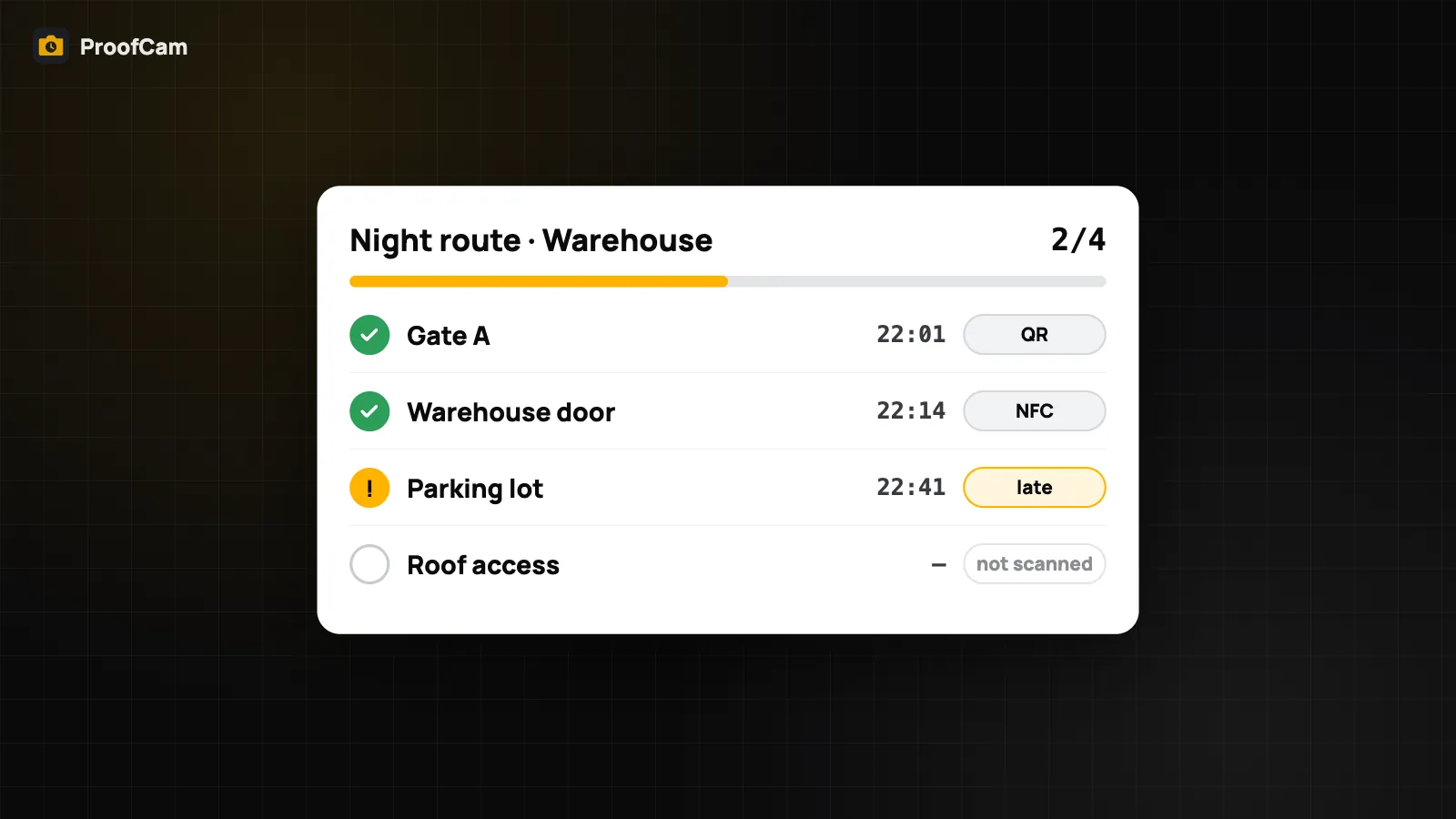
Related: punch lists with before/after photos and photo clock-in with selfie, geofence, Wi-Fi and QR.