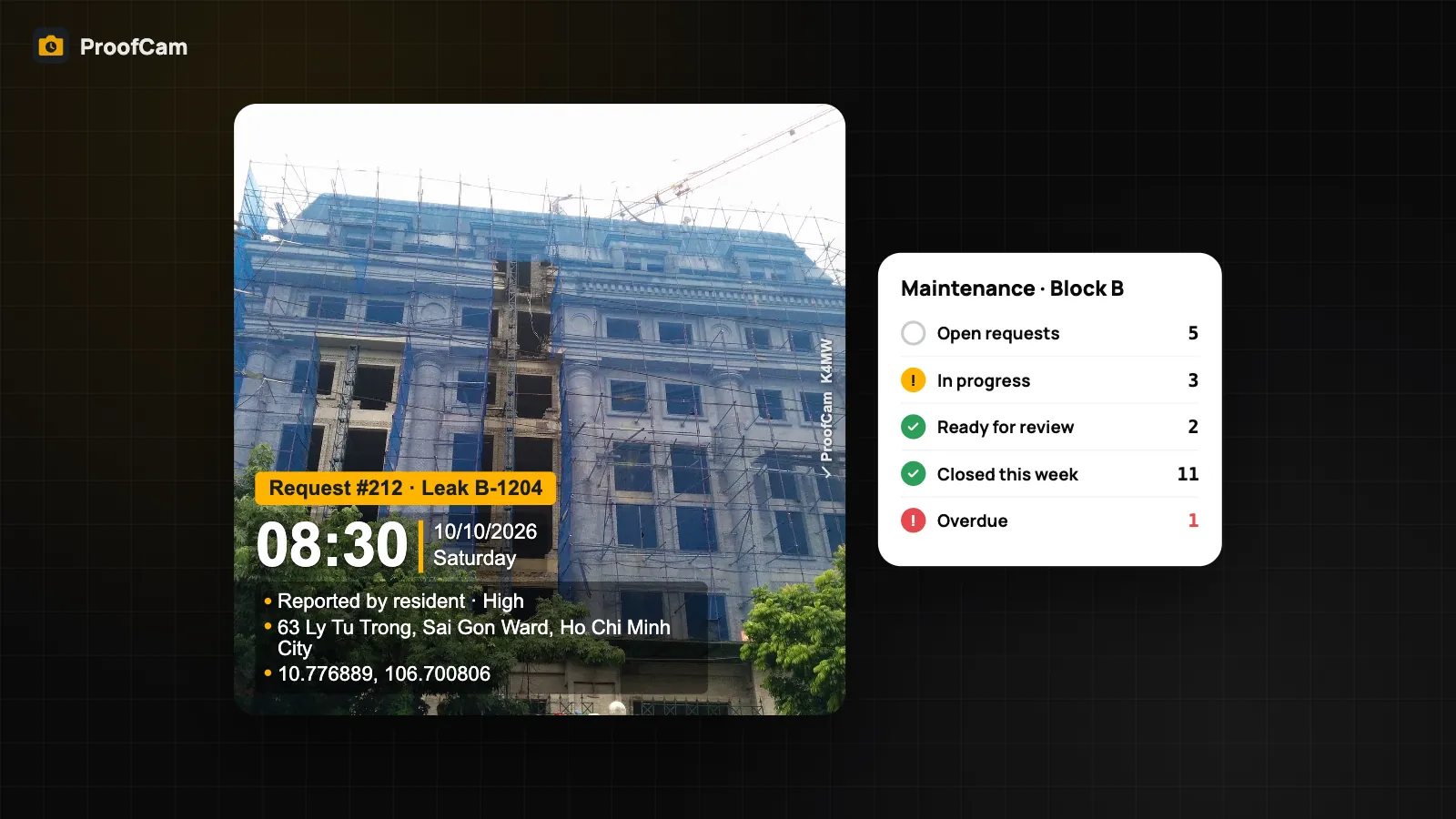
A resident calls the front desk: water is dripping from the bathroom ceiling in B-1204. The receptionist writes it on a sticky note, a technician hears about it in the lift, and three days later the owner asks who fixed it and when. A building maintenance work order app should turn that call into a task with a photo, an owner, a due date and a clear "fixed" moment. ProofCam does it from the maintenance team's side: stamped photos of the problem, tasks on a Kanban board, and an after photo taken from the same spot.
This guide is for building managers, chief engineers and in-house maintenance teams in apartment blocks, office towers and mixed-use buildings.
The everyday problems of a maintenance team
- Requests arrive everywhere. Phone calls, chat messages, a note at reception, a word in the corridor. Nothing has a number, so nothing can be chased.
- "It's fixed" without proof. A technician replies "done" with a photo that could be from any floor. The resident says the leak is still there.
- Which floor was that? In a 30-storey block, a close-up of a pipe or a light fitting looks the same on every level.
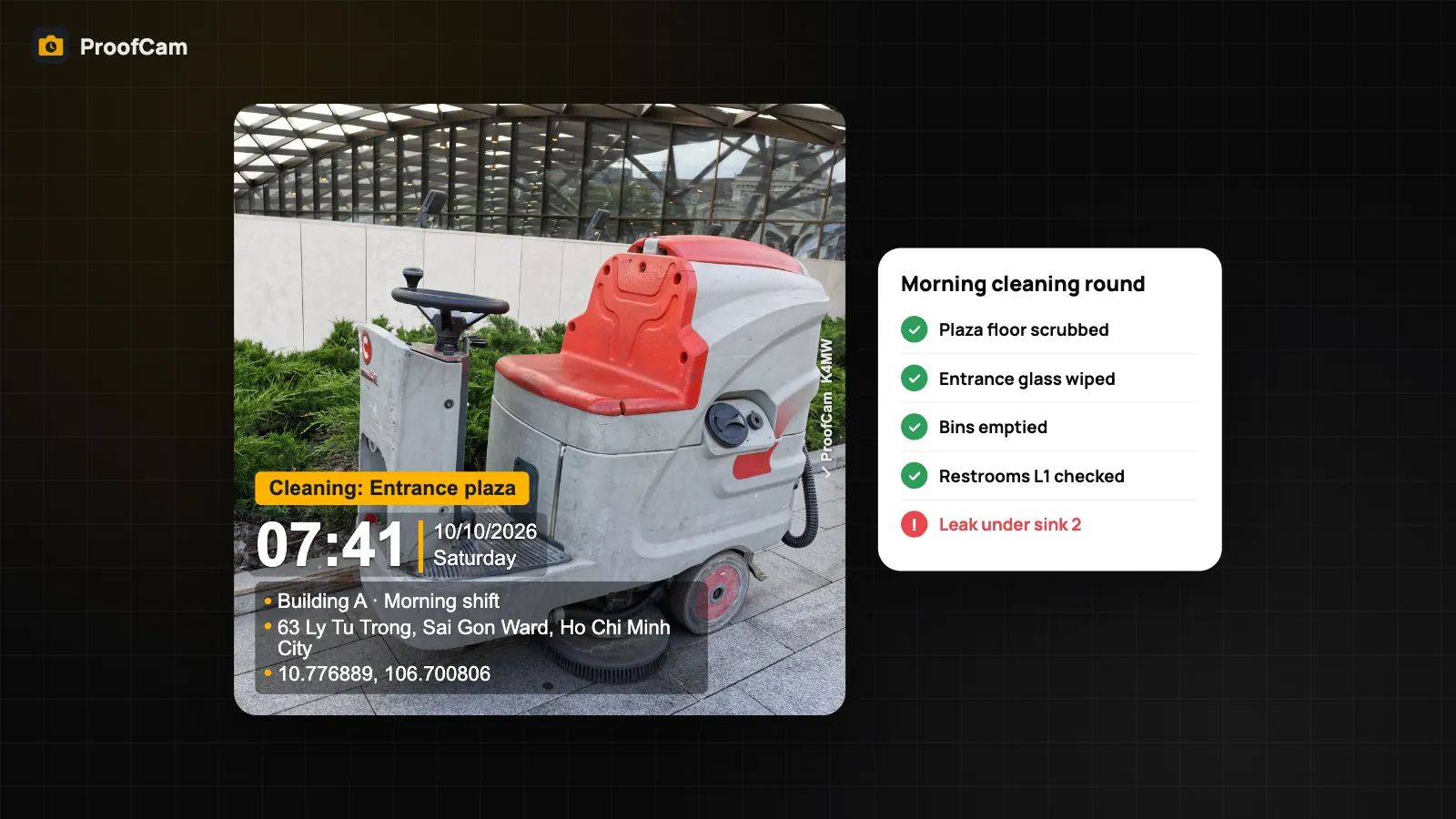
- Preventive maintenance on paper. Fire extinguisher checks and pump room rounds are ticked in a binder that nobody reads until an audit.
- Owners and residents want to see it. Forwarding ten photos in a chat app loses the time, place and order.
Which features help: a building maintenance work order app in practice
ProofCam has no resident portal. Requests still reach you by phone, chat or the front desk; the team logs them as tasks.
| Need | ProofCam feature | Plan |
|---|---|---|
| Stamped photo of the reported problem (time, GPS, address, Photo Code) | Camera with watermark, custom fields like "Request #" and "Unit" | Free (3 custom fields; Plus 10) |
| Turn the photo into a work order | Create task: assignee, due date, priority, status | Any Teamspace team (Free team: 100 photos, 3 projects; Business lifts limits) |
| See every job at a glance | Kanban board on phone and in the portal /app/ |
Teamspace |
| Prove the fix at the same spot | After photo with 30% ghost overlay, red warning if > 50 m away | Teamspace |
| Point at the exact defect | Markup on a copy: arrow, box, text; badges, blur | Free; extras Plus or Business |
| Talk about the job next to the photo | Comments with @mentions | Teamspace |
| Know which floor | Barometer floor estimate "Floor ~7 (±1)" | Plus, phones with a barometer |
| Pin photos on the floor plan | Floor plans with photo pins, annotated PDF | Business (or trial) |
| Preventive maintenance rounds | Checklists with photos, scoring, auto tasks from flagged items | Free 1 template, Plus unlimited, Business team templates |
| Show the owner or resident | Share link /s/… with photos and map; punch list PDF |
Teamspace |
| Before/after in one image | Before/after collage | Plus |
Step-by-step: from a resident's call to a closed task
- Set up the building. In Teamspace, create a project per building or block ("Block B"), add the address and a geofence, and invite the technicians. Make your maintenance watermark template mandatory with custom fields such as Request # and Unit.
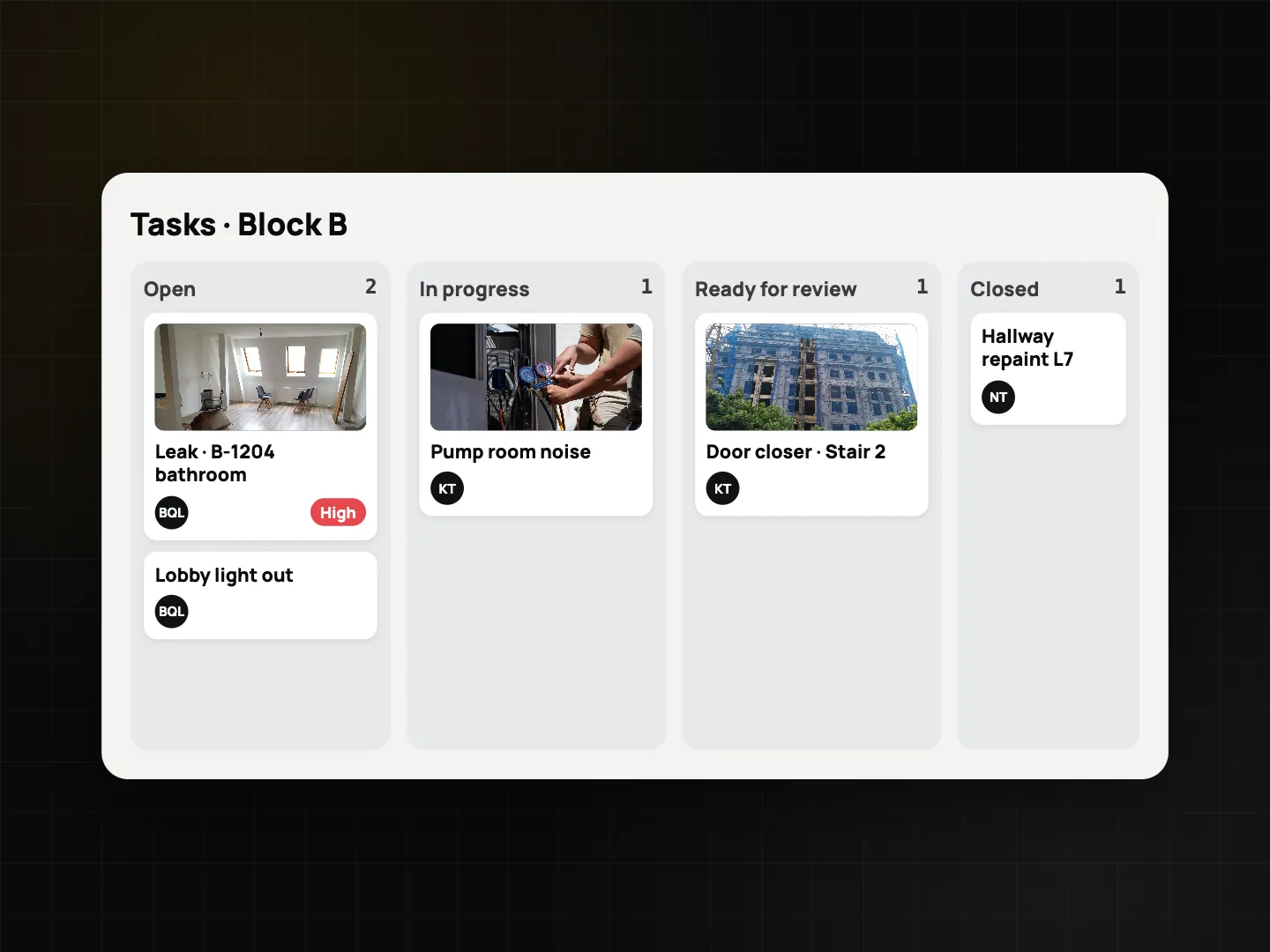
- Log the request. Reception notes the call. Whoever checks first (a technician or the supervisor) photographs the problem with ProofCam, then opens the photo and taps Create task: title "Leak B-1204 bathroom", assignee, due date, priority High. That photo becomes the task's before photo.
- Mark it up. On a wide shot, add an arrow or box on a copy of the photo. The original and its Photo Code stay untouched.
- Know the floor. On Plus, phones with a barometer can print an estimated floor ("Floor ~7 (±1)") on the stamp. On a Business team, pin the photo on the floor plan so the next technician walks straight to it. Details in the construction photo documentation guide.
- Work the board. The team sees every request on the Kanban: open, in progress, ready for review, closed. Assignees move their own cards; questions go into comments with @mentions, next to the photo.
- Fix and prove it. When the repair is done, the technician opens the task and taps Take after photo. The before photo appears over the live view at 30% opacity; line it up and shoot. A task can't move to review without an after photo, and if it was taken more than 50 m (team-adjustable) from the before photo, the reviewer sees a red location warning.
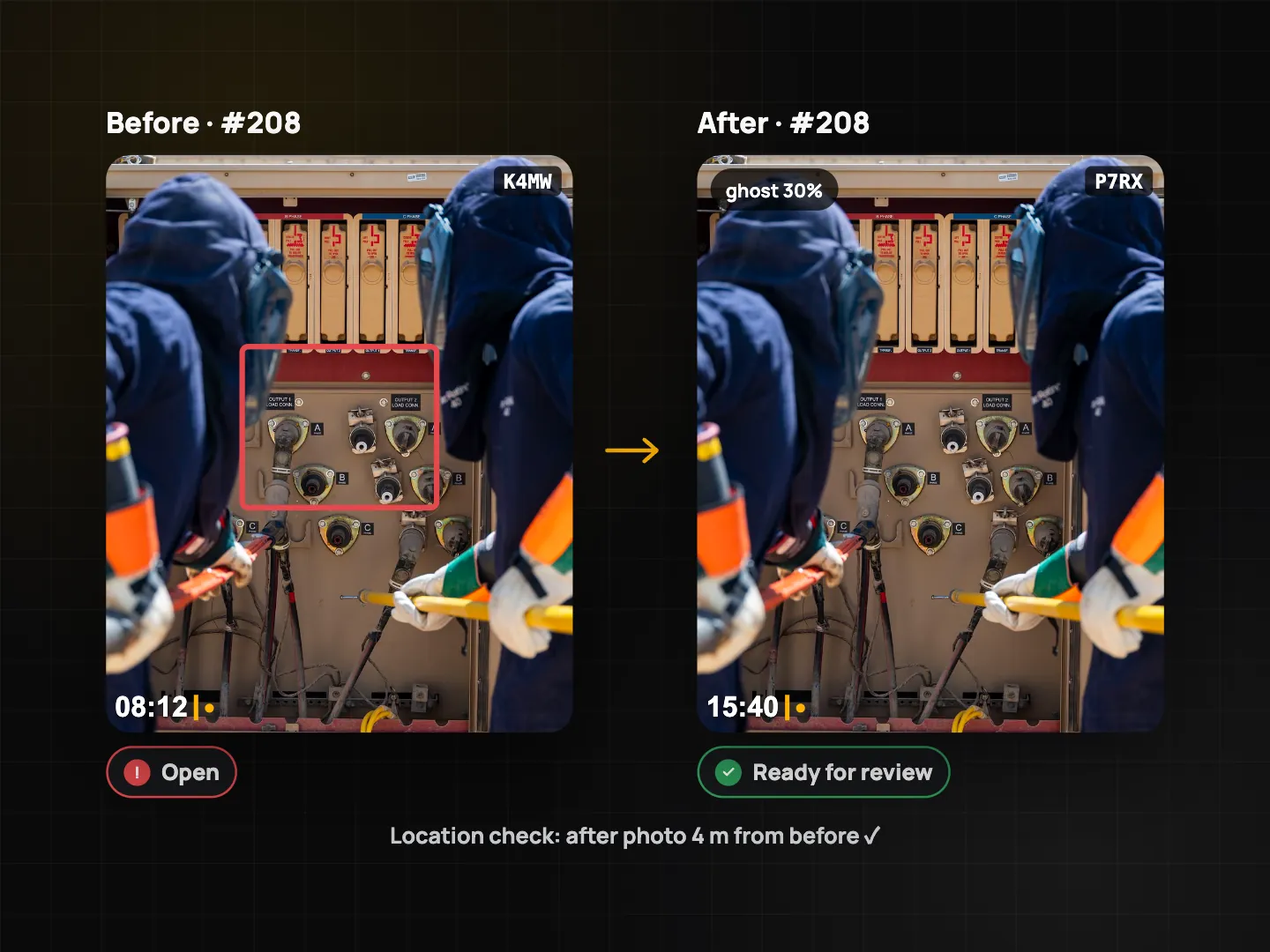
- Review and close. The supervisor compares the two photos and closes or rejects the task. Only members with the manage tasks permission can close.
- Tell the resident or owner. Send a share link: they see the photos, stamps and map in a browser without an account, and the link can expire or be revoked. For the owners' committee, export the punch list PDF from the portal. Full detail in punch lists with before/after photos.
Preventive maintenance checklists
Reactive jobs are half the work. The other half is the round you do every week so the call never comes. A team admin can install starter templates and adapt them:
- Fire safety (PCCC) check: extinguishers present (photo), pressure gauge in the green zone, number checked, exits unobstructed, exit signs and emergency lights, alarm tested this week, flammables stored safely, signature. Pass mark 90%.
- Electrical installation acceptance: breakers labelled (photo), RCD trip test, earth and insulation resistance as numbers with units, panel serial by QR scan, signature.
- Equipment pre-use inspection: useful for lifts, pumps and generators before use.
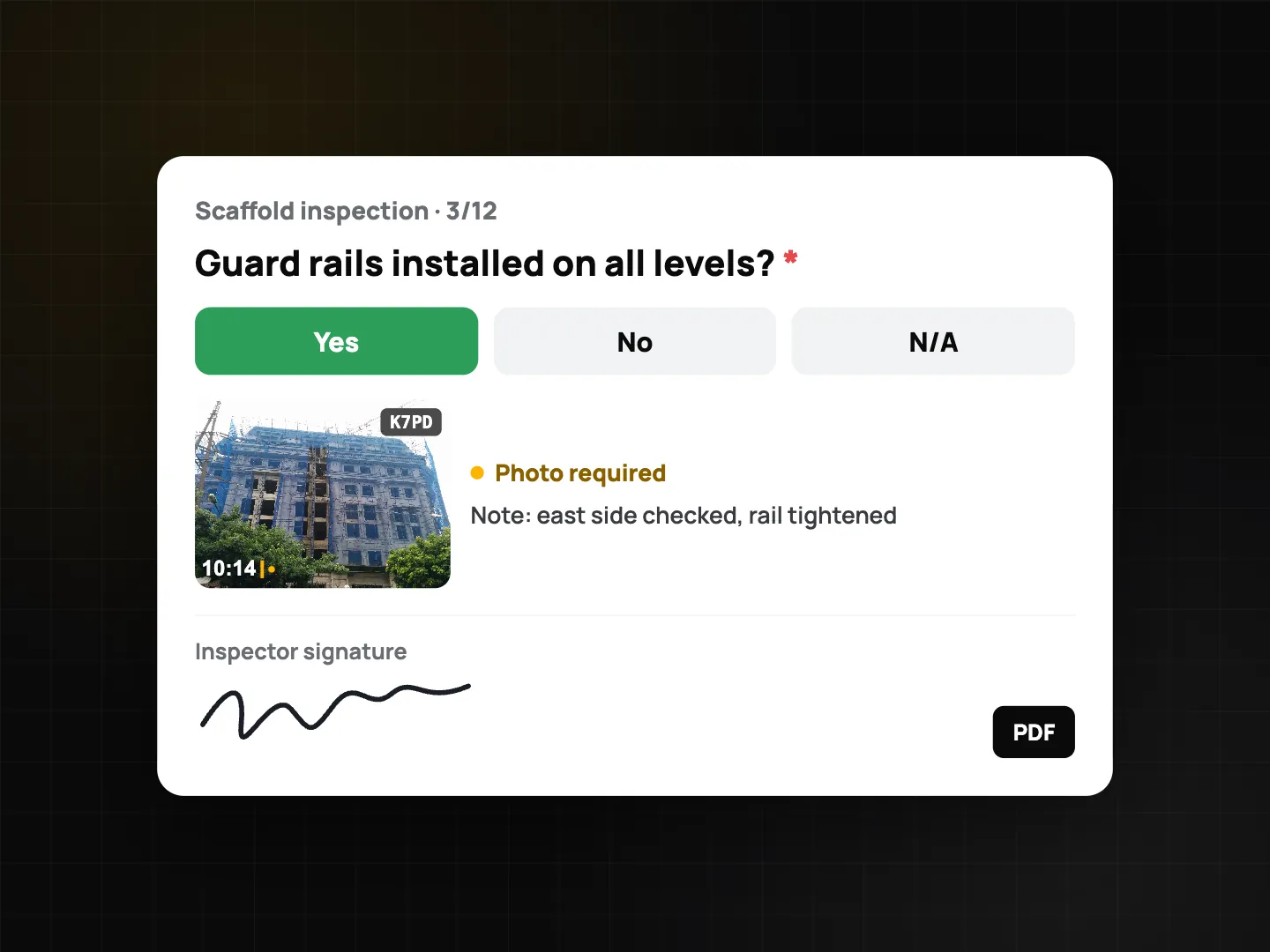
Flagged answers can create tasks automatically, with the inspection photos as before photos. Submissions go to review in the portal, and each PDF carries the Photo Codes and a verify QR. See inspection checklists with PDF reports.
Suggested work order template
Use these as custom fields on the watermark and as checklist items:
| Item | Type |
|---|---|
| Request # | Custom field (also in file names) |
| Unit / area (e.g. B-1204, Pump room) | Custom field |
| Reported by (resident, front desk, round) | Single choice |
| Category (plumbing, electrical, lift, common area) | Single choice |
| Before photos, min. 2 | Photo with min count |
| Equipment serial | Barcode/QR scan |
| Cause found | Text |
| Parts used | Text |
| After photo | Task after photo (ghost overlay) |
| Resident satisfied | Yes/No/N/A |
| Technician and resident signature | Signature |
Electrical and fire safety work is regulated; check the requirements of your local authority and building rules for what a valid record must contain.
Tips
- Give each request a number at reception and put it in the photo's custom field. Search then finds every photo of that job.
- Photograph the unit door number first, then the problem, so the series tells the story.
- Keep Kanban columns honest: "Ready for review" means the after photo is there, nothing else.
- Security guards on night rounds often spot leaks and broken lights first; see the security guard management app guide for how guards document what they find on a shift.
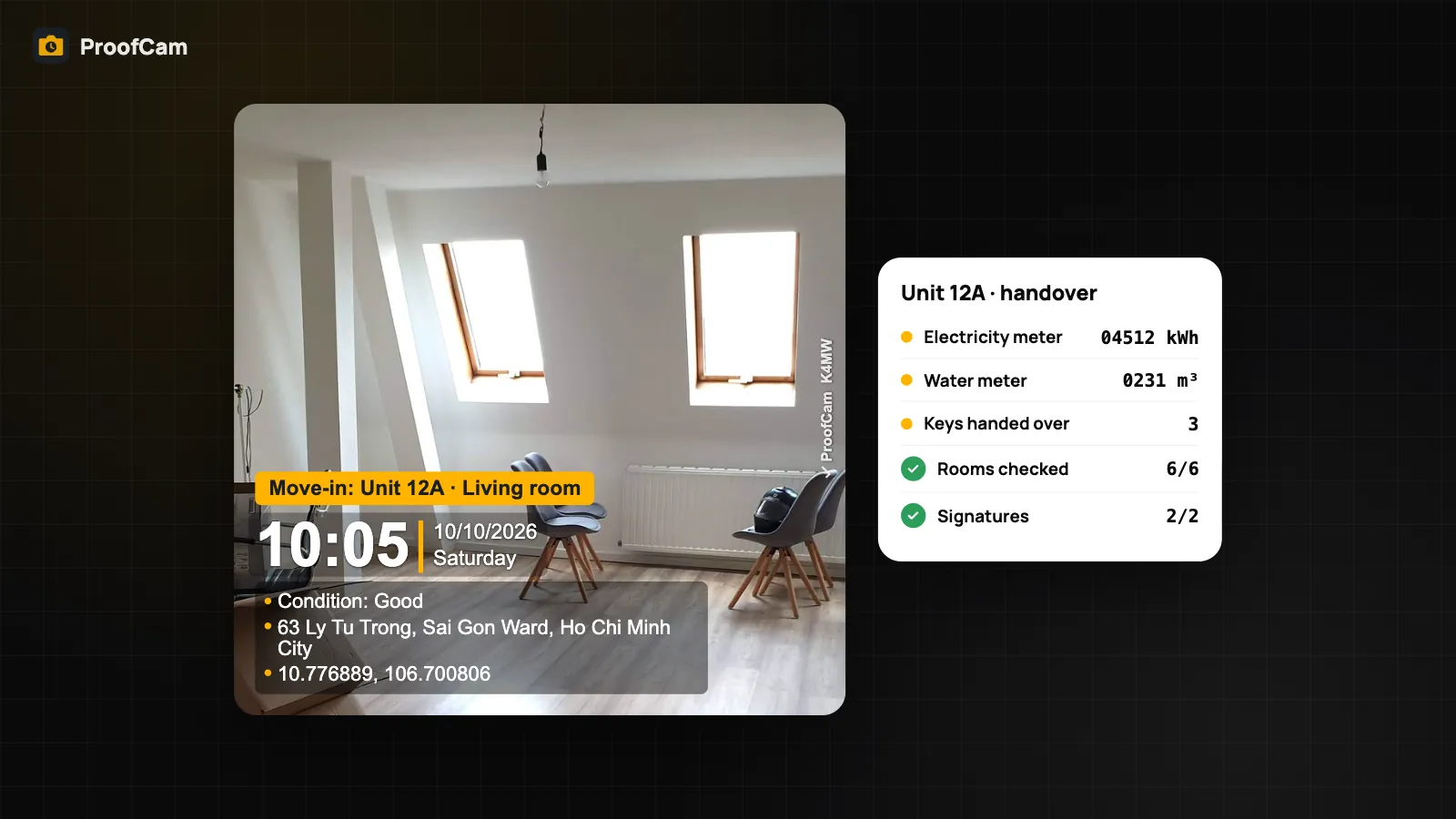
- At move-out, the same photo habits support a move-in move-out inspection.
FAQ
Can residents submit requests directly in ProofCam?
No. ProofCam has no resident portal. Requests arrive by phone, chat or the front desk, and your team turns them into tasks from a stamped photo.
How does the resident see that the job is done?
Send a share link. It opens in any browser with the photos, stamps and map, and you can set an expiry or revoke it. Anyone can also check a photo's Photo Code on the verify page.
Does the floor estimate work on every phone?
No. "Floor ~7 (±1)" needs a phone with a barometer and a Plus subscription. It is an estimate; for exact positions use floor plans with photo pins on a Business team.
Can a technician close their own work order?
No. Technicians move a task to in progress or ready for review with an after photo. A supervisor with the manage tasks permission closes or rejects it.
Related: the Teamspace web portal for managers and Photo Code: verify original photos.