Field work produces paper: signed handover forms, delivery notes, inspection sheets, equipment labels. A regular scanner app turns that paper into a PDF, but nothing in the file shows when and where the page was scanned, or whether a page was swapped later. ProofCam's document mode treats every scanned page like a ProofCam photo: it gets a time and location stamp, its own Photo Code and the same evidence data as any other shot. The pages are then joined into one PDF.
This article covers document mode, on-device text recognition (OCR) for serial numbers and labels, and the Night/HDR options for dark sites.
How document mode works
Document mode is a Plus feature on Android and iOS. You can scan a single page or a whole stack:
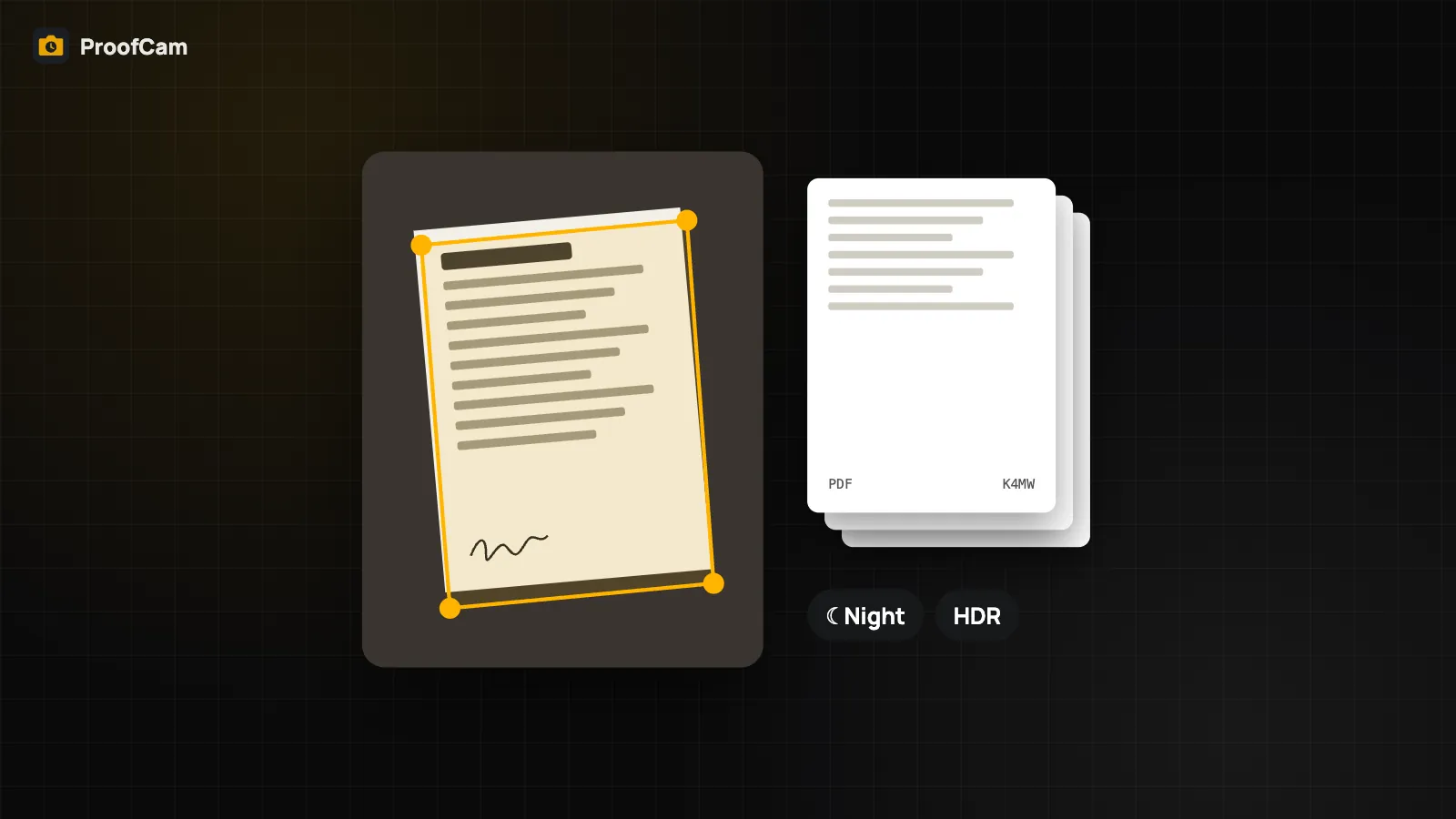
- Scan the pages. On Android, ProofCam uses the system document scanner when it is available. Importing from the gallery is turned off, so every page comes from the camera. Without it, ProofCam's own camera opens and you crop the page yourself. On iPhone, the system document camera is used, or ProofCam's camera with automatic edge detection and perspective correction.
- Each page is processed like a photo. It gets a smaller watermark (60% of the normal size, so it doesn't cover the content), its own Photo Code, and embedded evidence data that records the page number, the total number of pages and the source (system scanner or ProofCam camera).
- Export one PDF. The pages are combined into one A4 PDF, and each page shows its own code. On iPhone the footer reads like "Page 2/5 · Photo Code".
Because every page has its own code, anyone can look up the code printed on a page to see when and where it was scanned, and the original page photo can be checked against its record. A page that was swapped in later has no matching code, which makes the swap much easier to spot. See how Photo Codes verify original photos for how the check works.
Corner crop: what differs by platform
When the system scanner isn't used, the page has to be straightened:
- Android: you drag the four corners of the page by hand, and ProofCam flattens the page to a rectangle.
- iPhone: ProofCam finds the four corners automatically and corrects the perspective. Dragging corners by hand isn't available on iOS yet; it is being added. If the automatic crop misses an edge, the system document camera usually gives the cleanest result.
Close-ups of small labels
Labels and nameplates are often smaller than a business card. If the main lens can't focus that close, ProofCam on Android switches to 2× zoom so you can shoot from a little further back. On iPhones with several lenses, the camera switches lenses automatically for close focus. Other iPhones show a "Close-up" chip that does the same thing with 2× zoom.
On-device OCR for serial numbers and labels
Text recognition runs on the phone (ML Kit on Android, Apple Vision on iOS), so the photo isn't uploaded for it.
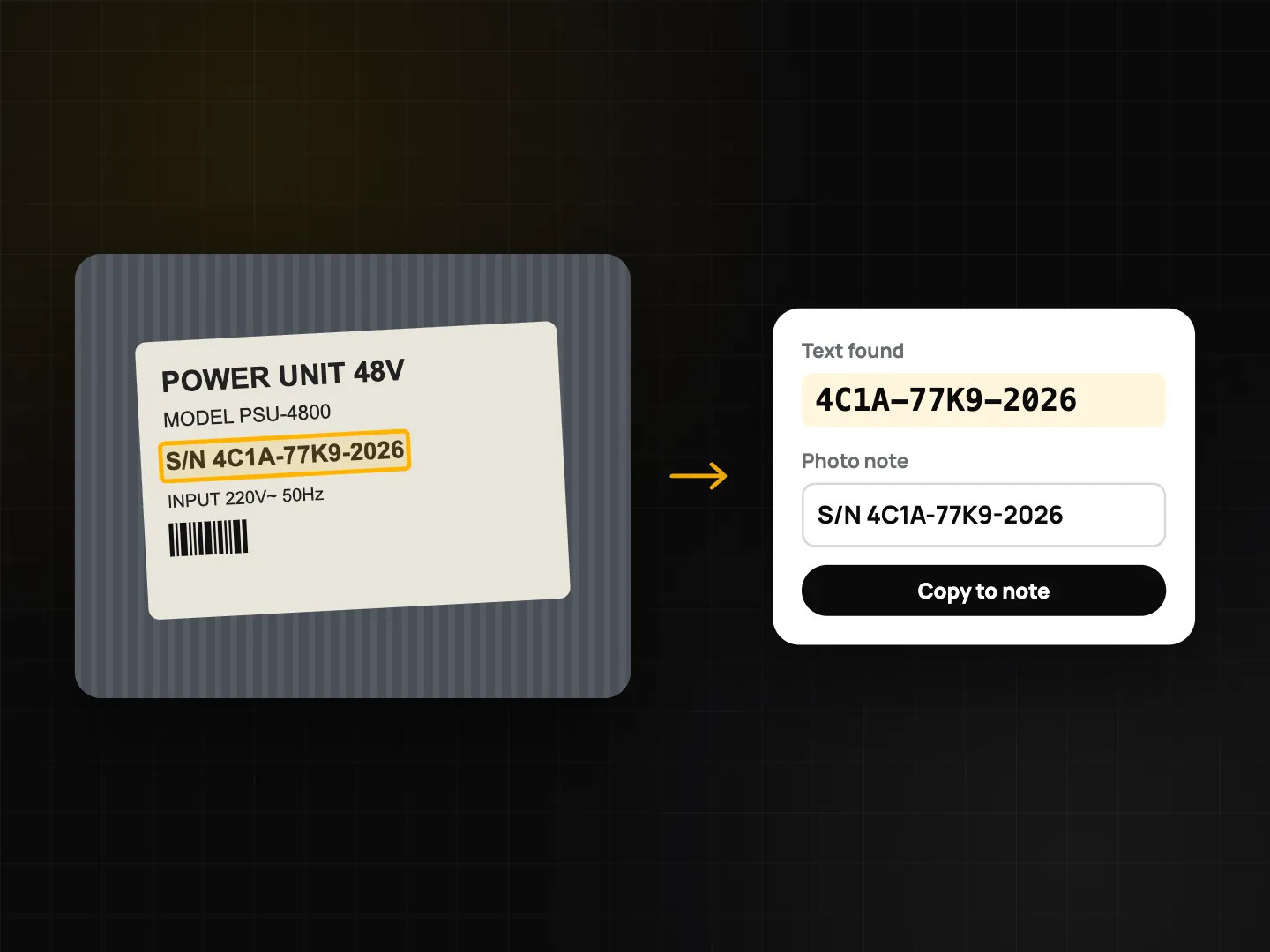
- In document mode, the recognized text (up to 500 characters per page) and any barcodes, QR codes or DataMatrix codes are saved in the page's evidence data. Lines that look like serial numbers are picked out.
- From a photo's details, tap the text-recognition button. ProofCam lists the lines it found and puts likely serial numbers first. Tap a line to add it to the photo's note.
- In search, recognized text is indexed with notes, addresses and tags. Typing part of a serial number finds the photo of that label.
OCR works best on printed, high-contrast text. Worn stickers, reflections and handwriting can produce wrong characters, so check the result before you rely on it.
Night and HDR for dark sites
Basements, ceiling voids and switch rooms are often too dark for a clear photo. Night/HDR is also a Plus feature:
- Android: a button cycles through Off → Auto night → Night → HDR. ProofCam only shows the modes your phone's camera supports. It turns them off for video and Live proof.
- iPhone: iOS has no direct Night mode switch for apps. When you choose a mode, ProofCam asks the camera for its highest-quality processing, and the system picks Night mode or Smart HDR. Night also uses low-light boost, and Auto turns on when the preview is dark.
Multi-frame shots take a moment, so a "Hold steady" countdown appears while the frames are combined. The photo's evidence data records that a Night or HDR mode was used and that the image was built from several frames.
Tips for clean scans
- Use a dark, flat surface under white paper so the edges stand out.
- Avoid flash glare on glossy labels. Tilt the phone slightly instead.
- Scan the whole set in one session so the pages stay in order in one PDF.
- Check OCR before you share it, especially confusable characters like 0/O and 1/I.
Which plan and platform
| Feature | Plan | Android | iOS |
|---|---|---|---|
| Multi-page scan → PDF with a Photo Code per page | Plus | ✓ | ✓ |
| Manual corner crop | Plus | ✓ | Coming (automatic crop available) |
| OCR + barcode/QR/DataMatrix in document mode | Plus | ✓ | ✓ |
| Night / HDR | Plus | ✓ (modes your phone supports) | ✓ (the system picks the mode) |
If you use scans in inspections, see inspection checklists with PDF reports.
FAQ
Can I import an existing PDF or gallery photo as a document?
No. Document mode only takes pages from the camera, so each page gets a real capture time, location and Photo Code.
Is the scanned text sent to a server?
No. Recognition runs on the phone. The text is stored in the page's evidence data and only leaves the phone if you share or sync the page.
Why does each page have its own Photo Code?
So pages can be checked one at a time. A page added or swapped later won't have a matching code, even if the rest of the PDF is original.
Does Night mode change the time or location on the photo?
No. The time and location are recorded at capture, as for any photo. Night/HDR only changes how the image is processed, and that is noted in the evidence data.