On site, your hands are often full and your phone is in a pocket. ProofCam reaches beyond the phone screen so you can check your shift, start a break or get to the camera faster: from a watch, a home screen widget, a shortcut or the lock screen. On tablets and iPad, the layout uses the extra space.
One rule doesn't change: every clock-in and clock-out is a stamped photo taken with the phone. Watches and widgets are remote controls. They don't replace the photo.
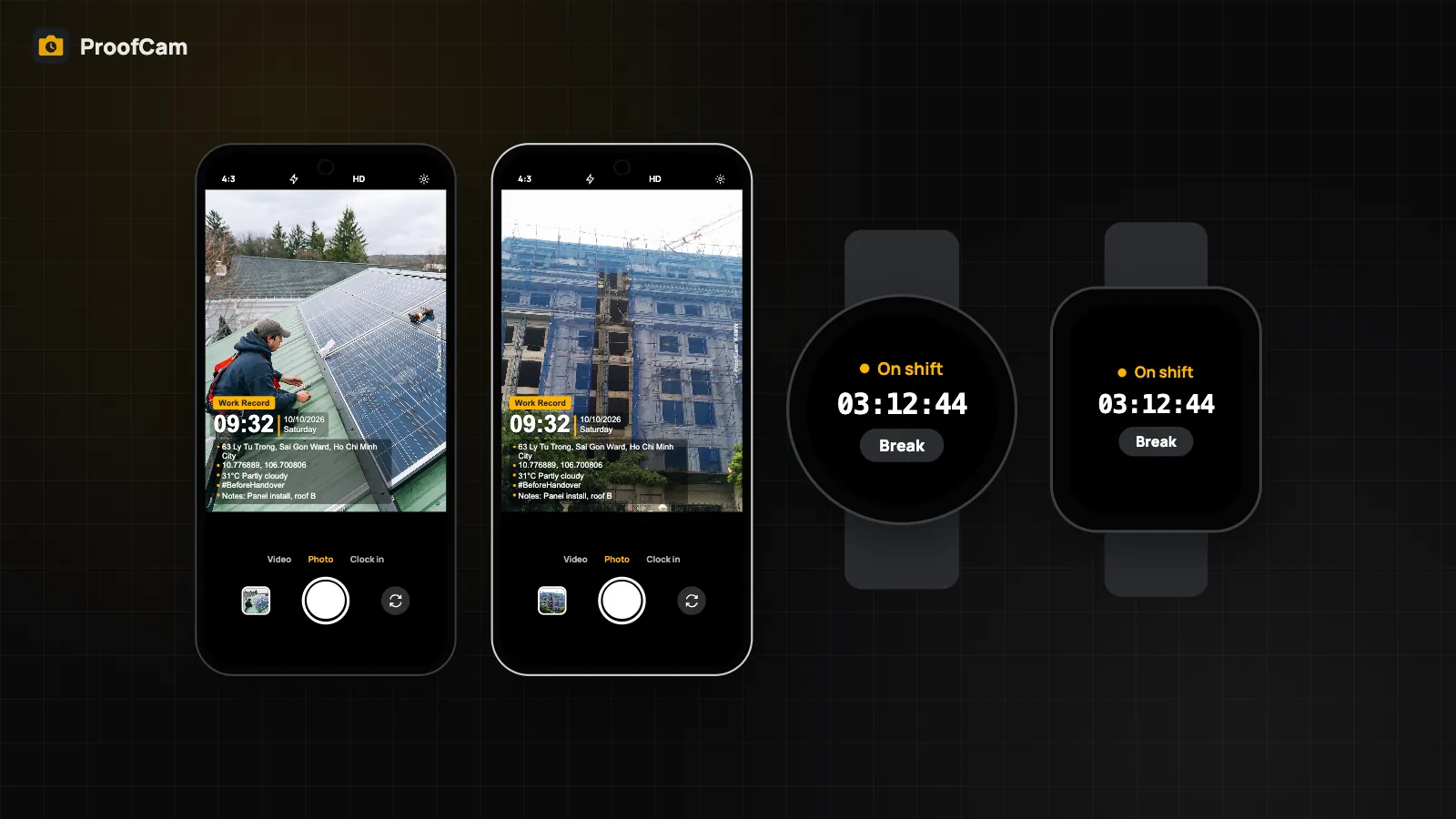
Wear OS watch
The Wear OS app is included with ProofCam for Android. It needs Plus or a Business team (including the trial). On Free, the watch shows that the feature is locked.
- Tile "Today's shift": time worked, current status and a Break button.
- Complications: add a shift timer to your watch face, as a short counter or a progress ring.
- Break button: start or end a break from the wrist. The phone records it with network time, even if ProofCam is in the background.
- Clock in / Clock out on phone: opens the ProofCam camera on your phone in the right mode, so you only need to take the photo.
- Ongoing Activity: while a shift is running, it stays on the watch with a timer that pauses during breaks. Tap it to open the app. It ends when you clock out.
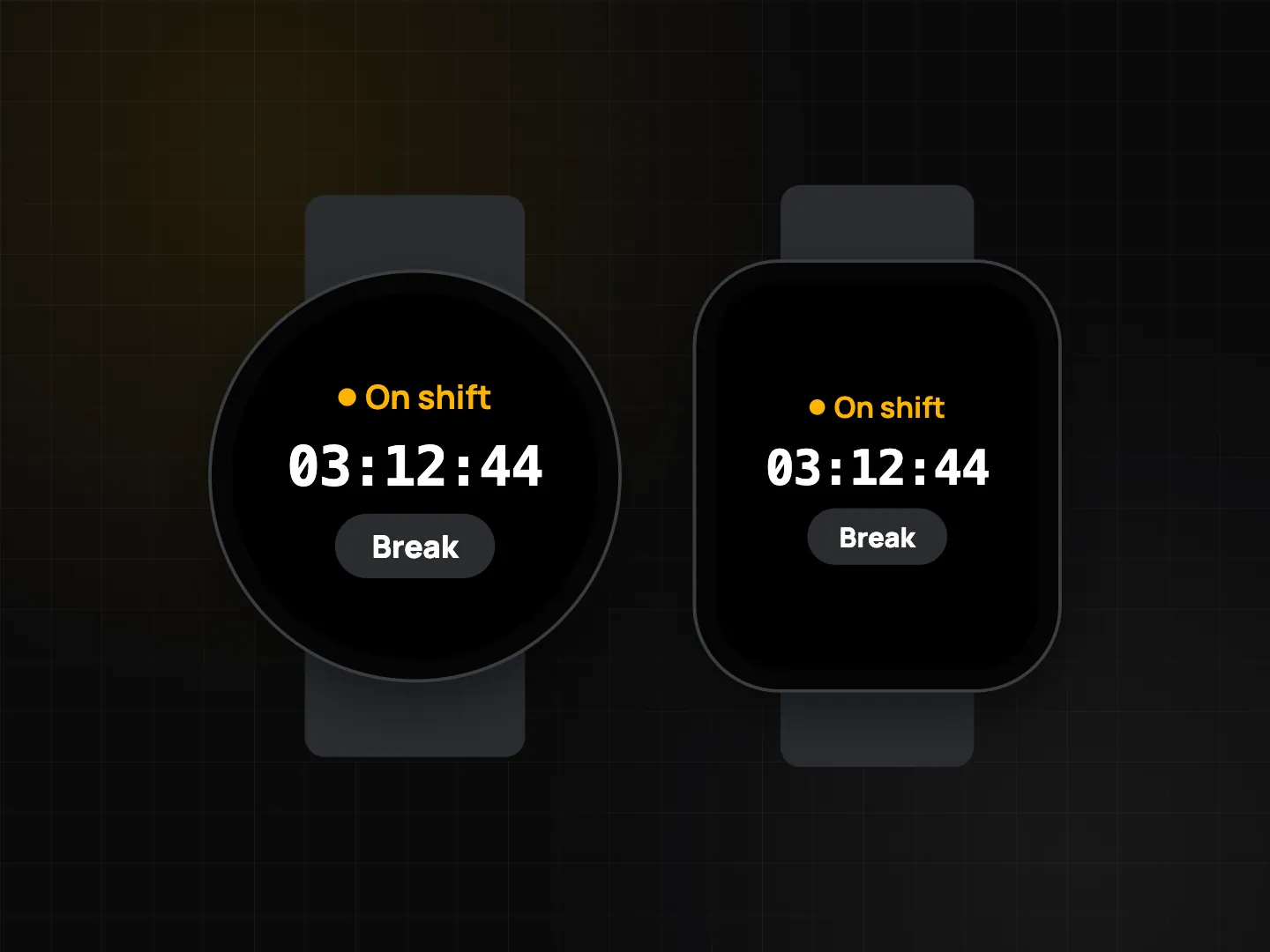
Apple Watch
For iPhone users, ProofCam includes a small Apple Watch app (watchOS 10 or later), also for Plus or a Business team:
- shift status, a running shift timer and today's total,
- a Break button, which the iPhone records with network time,
- Clock in / Clock out on iPhone, which sends a time-sensitive notification and uses Handoff to open the camera on your iPhone. The photo is still required.
The shift Live Activity also appears in the Smart Stack on Apple Watch (iOS 18 with watchOS 11), with a compact layout and the same timer as your iPhone.
Not available yet: watch face complications on Apple Watch are in development. On Wear OS, complications are already available.
iPhone: Lock Screen, Dynamic Island and Control Center
On iPhone, the shift shows up where you already look:
- Live Activity and Dynamic Island show the running shift and break time on the Lock Screen. On iOS 17 and later, you can start or end a break, or clock out (which opens the camera), right from the Live Activity.
- Widgets on the Home Screen and Lock Screen show today's shift, photos waiting to upload and quick capture buttons.
- Control Center (iOS 18) has a ProofCam control to open the camera.
- Lock Screen camera (iOS 18) takes stamped photos while the iPhone is locked, without showing your gallery.
- Siri and Shortcuts: actions like "Clock in with ProofCam" or "Take a proof photo" open the camera in the right mode.
Android: widgets, shortcuts and Quick Settings
On Android, these are all free:
- Three home screen widgets: Today's shift (live timer, Break button that works without opening the app, Clock in / Clock out), Waiting to sync (opens the Sync center) and Quick capture (Photo / Clock in / Clock out).
- App shortcuts: long-press the ProofCam icon for Take photo, Clock in, Clock out, Scan checkpoint and Capture into your recent project.
- Quick Settings tile: add "ProofCam" to the pull-down panel to open the camera from anywhere.
- Lock screen capture: if you set ProofCam as your default camera, you can take photos while the phone is locked. Only photos from that session are shown, and your gallery, Teamspace and settings stay hidden.
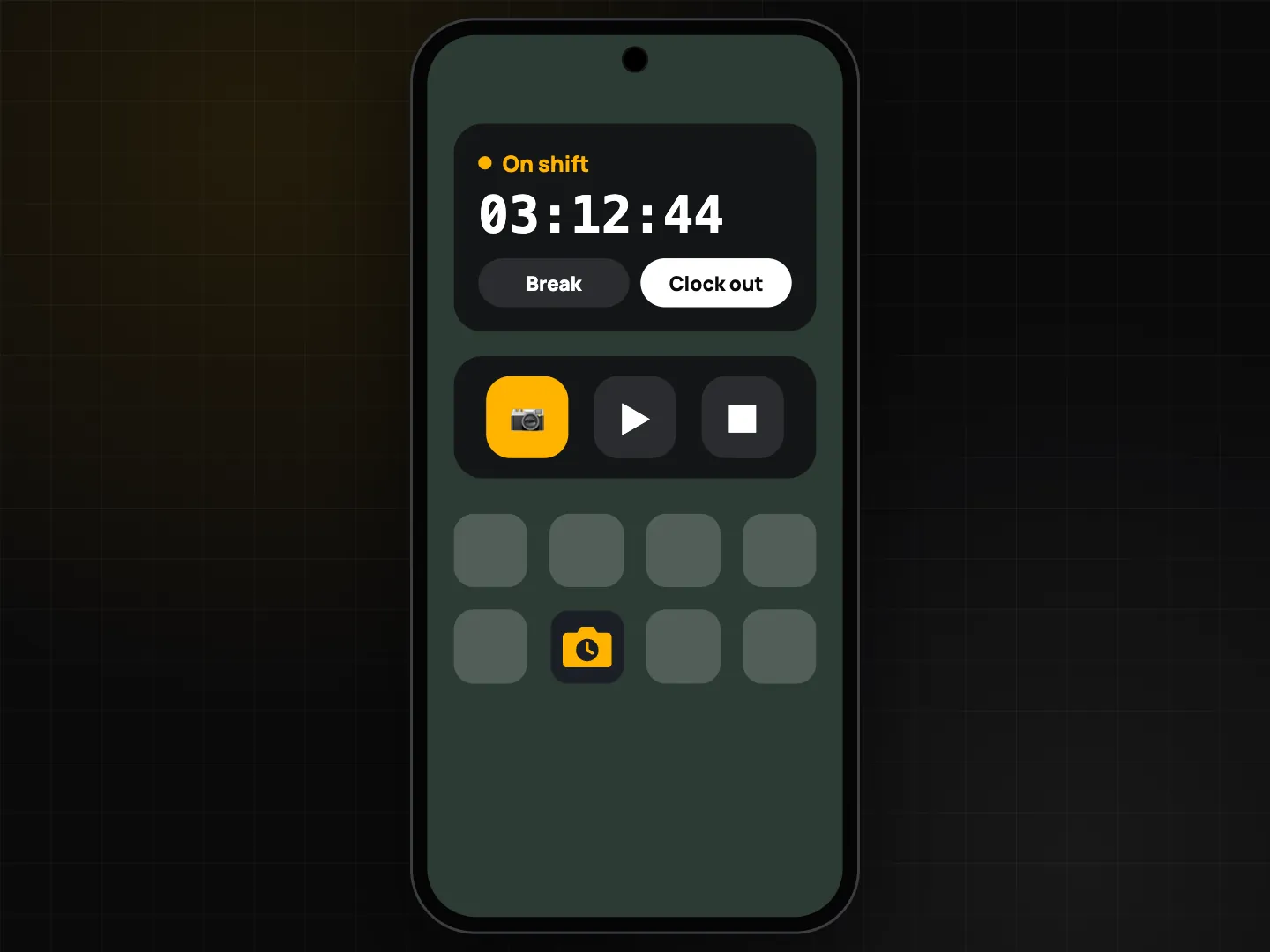
Android widgets update when something happens, like a clock-in or a change in the upload queue, instead of refreshing on a timer. That saves battery.
Tablets, foldables and iPad
- Android tablets and foldables: on wide screens the gallery shows the photo grid and the selected photo side by side. Your selection is kept when you rotate or fold. On a half-folded phone in tabletop posture, the viewfinder stays above the hinge.
- iPad: a sidebar (Camera, Gallery, Timesheet, Checklists, Team, Templates, Settings), drag and drop of stamped photos and videos to Files, Mail or other apps, keyboard shortcuts (for example Space or Return to take a photo) and camera support in Split View. A two-pane gallery like the one on Android tablets isn't available on iPad yet. Today, photo details open from the sidebar layout.
Which plan and platform
| Feature | Plan | Platform |
|---|---|---|
| Home screen widgets, app shortcuts, Quick Settings tile, lock screen capture | Free | Android |
| Live Activity, widgets, Control Center, Lock Screen camera, Siri | Free | iPhone (iOS version as noted) |
| Wear OS tile, complications, Break button, Ongoing Activity | Plus or Business team | Wear OS |
| Apple Watch app + Smart Stack Live Activity | Plus or Business team | Apple Watch |
| Tablet / foldable / iPad layouts | Free | Android, iPad |
For clocking in itself, see photo clock-in with selfie, geofence, Wi‑Fi and QR.
FAQ
Can I clock in from my watch without a photo?
No. The watch opens the camera on your phone. Every clock-in and clock-out is a stamped photo, which is what makes it proof.
Does the watch need its own internet connection?
No. The watch talks to your phone. The phone records breaks with network time and handles syncing.
Will private projects show up on widgets?
Widgets don't show photos. On iPhone, private projects are also hidden from widgets and Live Activities. See privacy, app lock and C2PA.