A GPS stamp on a photo is only as honest as the location the phone reports. On Android, anyone can install a "fake GPS" app from the store, turn on developer options and make the phone believe it is standing at the job site while it is actually at home. For a manager reviewing attendance or site photos, that is the weak spot. ProofCam checks for these tricks at the moment the photo is taken, records what it found with the photo, and lets a Business team stop a suspicious clock-in before it happens.
No single check can promise to catch every trick, and ProofCam does not claim to. What it does is combine several signals so that faking a location becomes harder, and leaves a record that a manager can look at later.
What ProofCam checks when you press the shutter
Every photo and every clock record carries a small set of integrity signals:
- Mock location. Android reports when a position comes from a mock-location provider rather than the real GPS chip. On iOS, ProofCam reads Apple's flag for locations that were simulated by software (iOS 15 and later).
- Rooted or jailbroken phone. A simple heuristic check looks for signs that the phone has been rooted (Android) or jailbroken (iPhone). It can say "unknown", for example on a simulator.
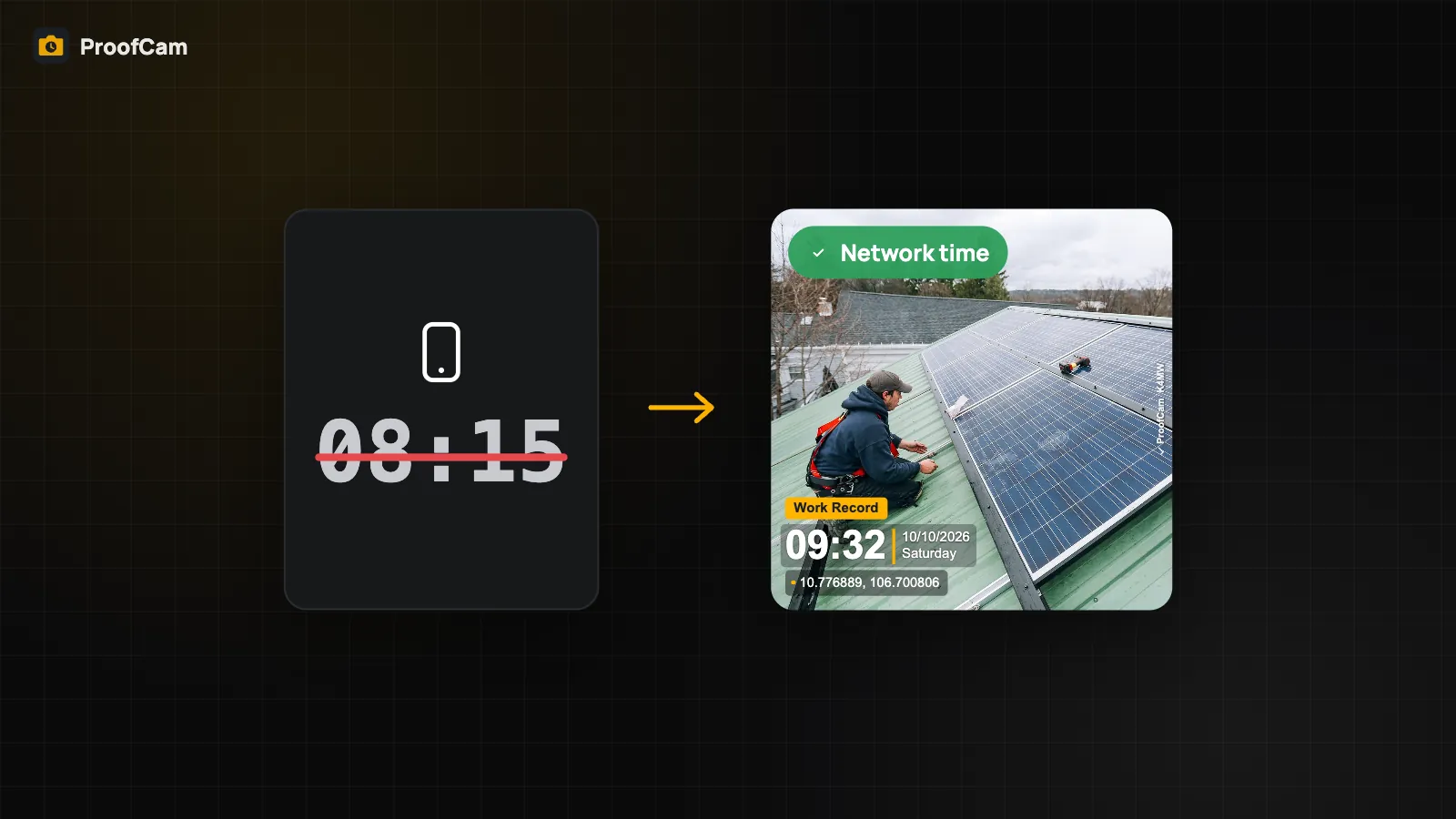
- Time source. Whether the stamp used network time, satellite time or only the phone clock. See network time vs the phone clock.
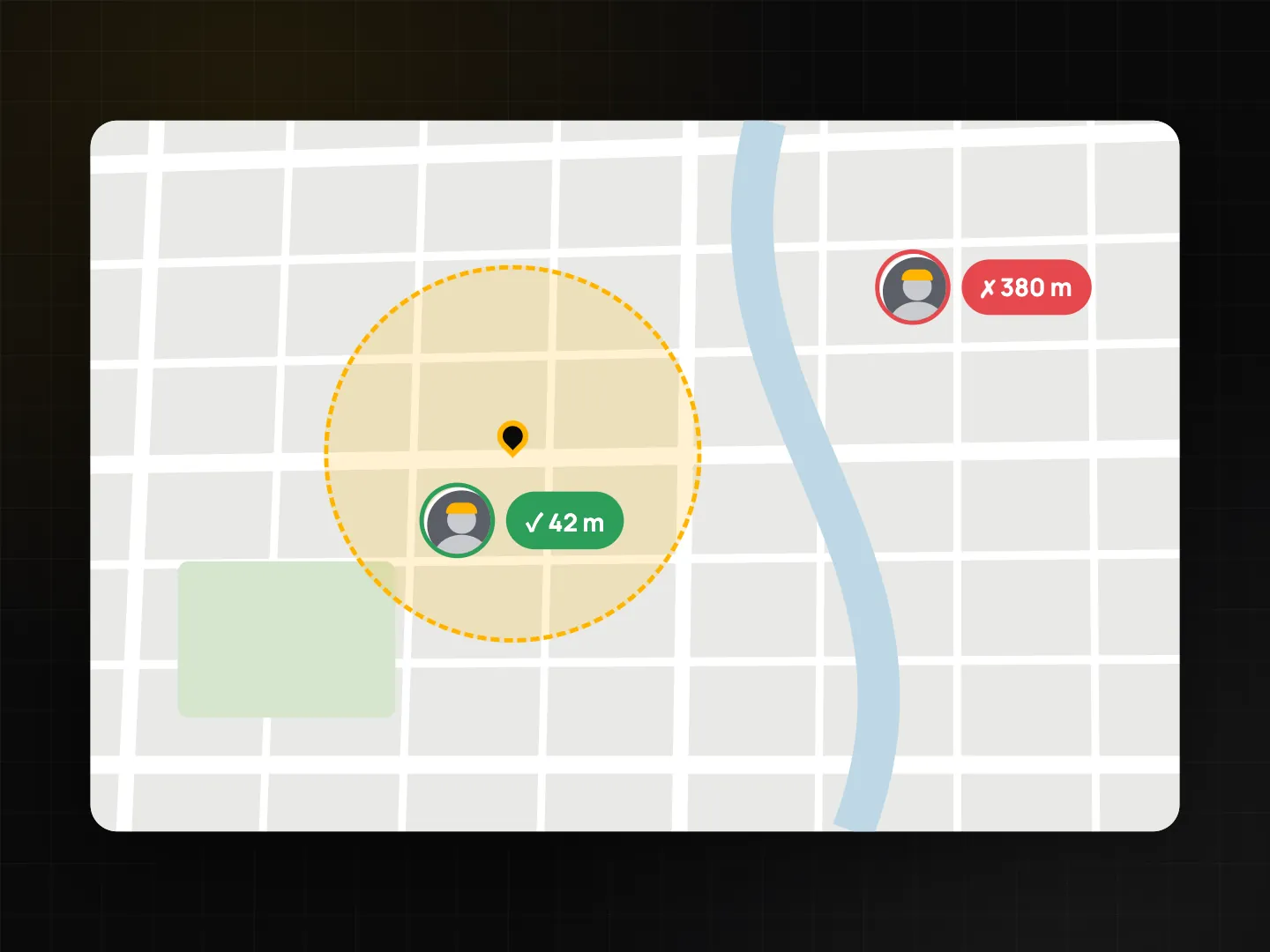
- Project geofence. If your team has drawn a circle around the project site, ProofCam records whether you were inside it and how far you were from the centre.
These signals are saved with the photo or shift and travel with it when it syncs to Teamspace. When a Photo Code is registered online, they are stored with it too, so the verify page can show notes such as "Mock location suspected" or "Taken outside the site zone".
The location trust grade adds a second layer
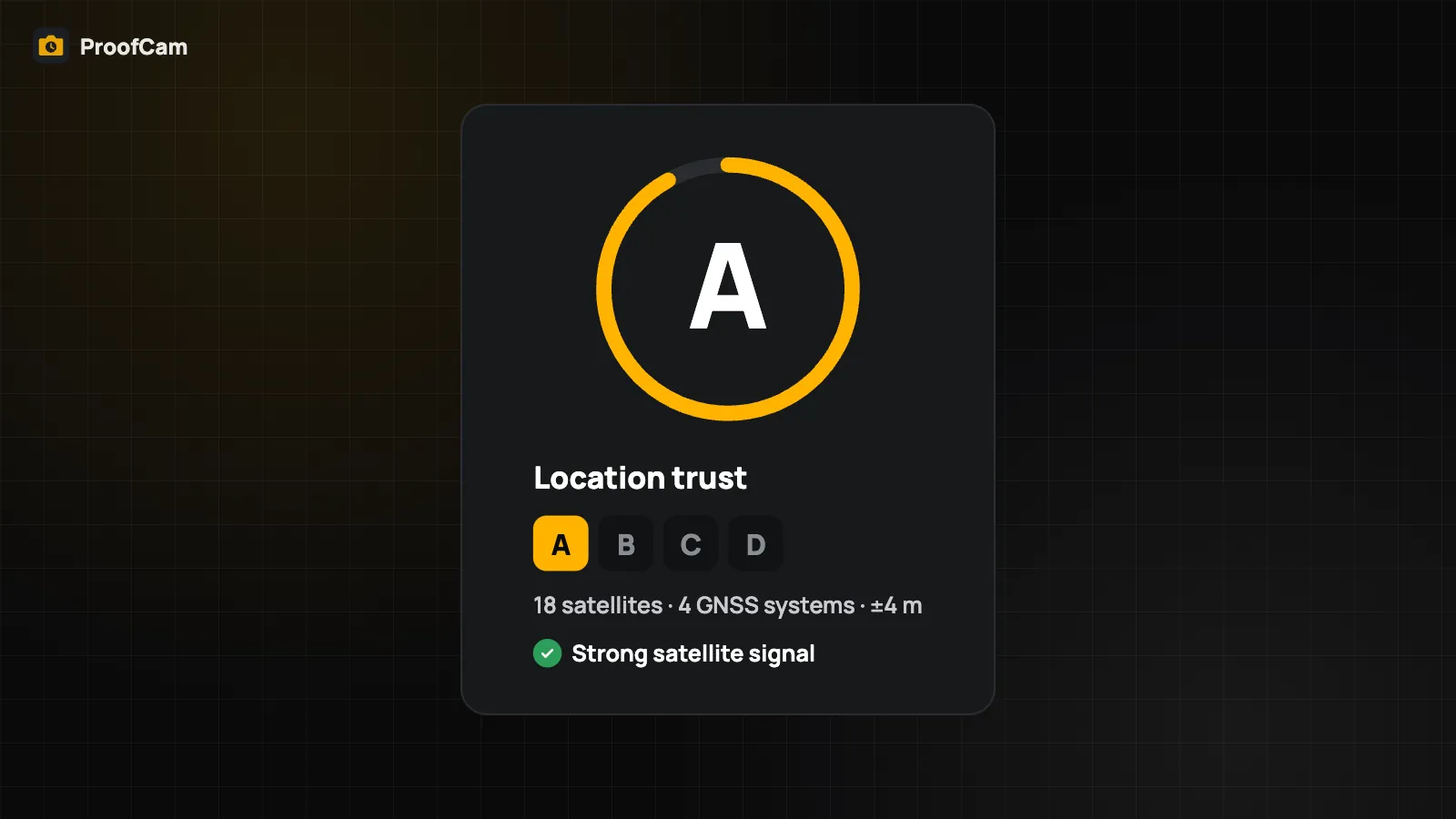
Some fake-GPS setups try to hide the mock flag. That is why ProofCam also gives every position a location trust grade from A to D. On Android it looks at many signals from the satellite receiver: how many satellites and systems are in view, whether signal strengths look natural, whether the receiver gain is stable, whether satellite time agrees with network time, sudden position jumps, and whether GPS altitude agrees with the barometer. A position that looks artificial drops to grade D even when no mock flag is set.
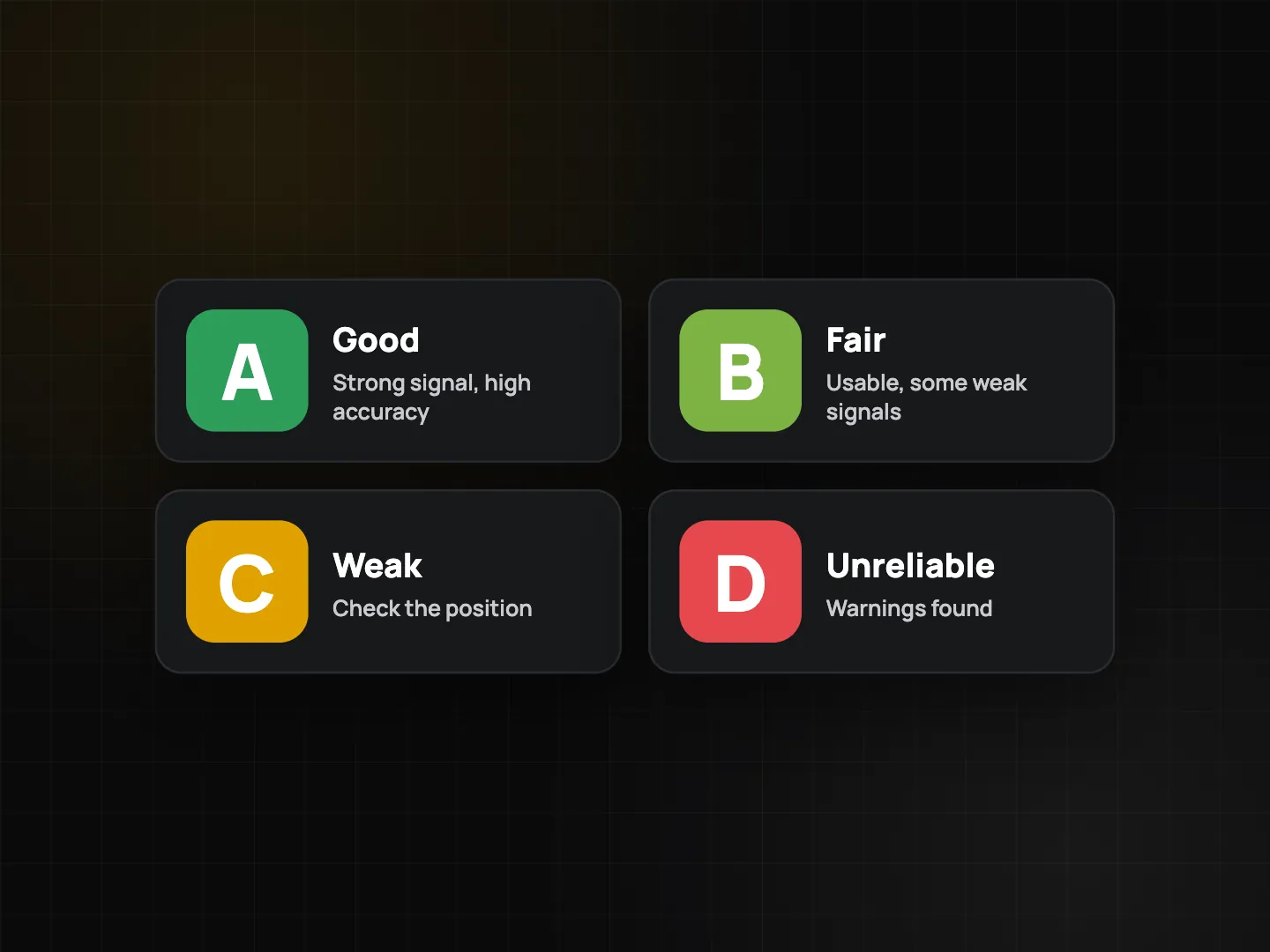
The grade is a warning, not proof. Indoors, in tunnels or between tall buildings it can drop without anyone cheating. The full explanation is in GPS accuracy and the location trust grade.
Team policies: warn, or lock the clock-in button
For a person working alone, ProofCam shows a warning chip on the camera and records the signals. For a Business team, an admin can turn warnings into rules. In Teamspace (in the app or in the web portal at /app/), under the anti-fraud and clock settings, you can switch on:
| Policy | What happens on the phone |
|---|---|
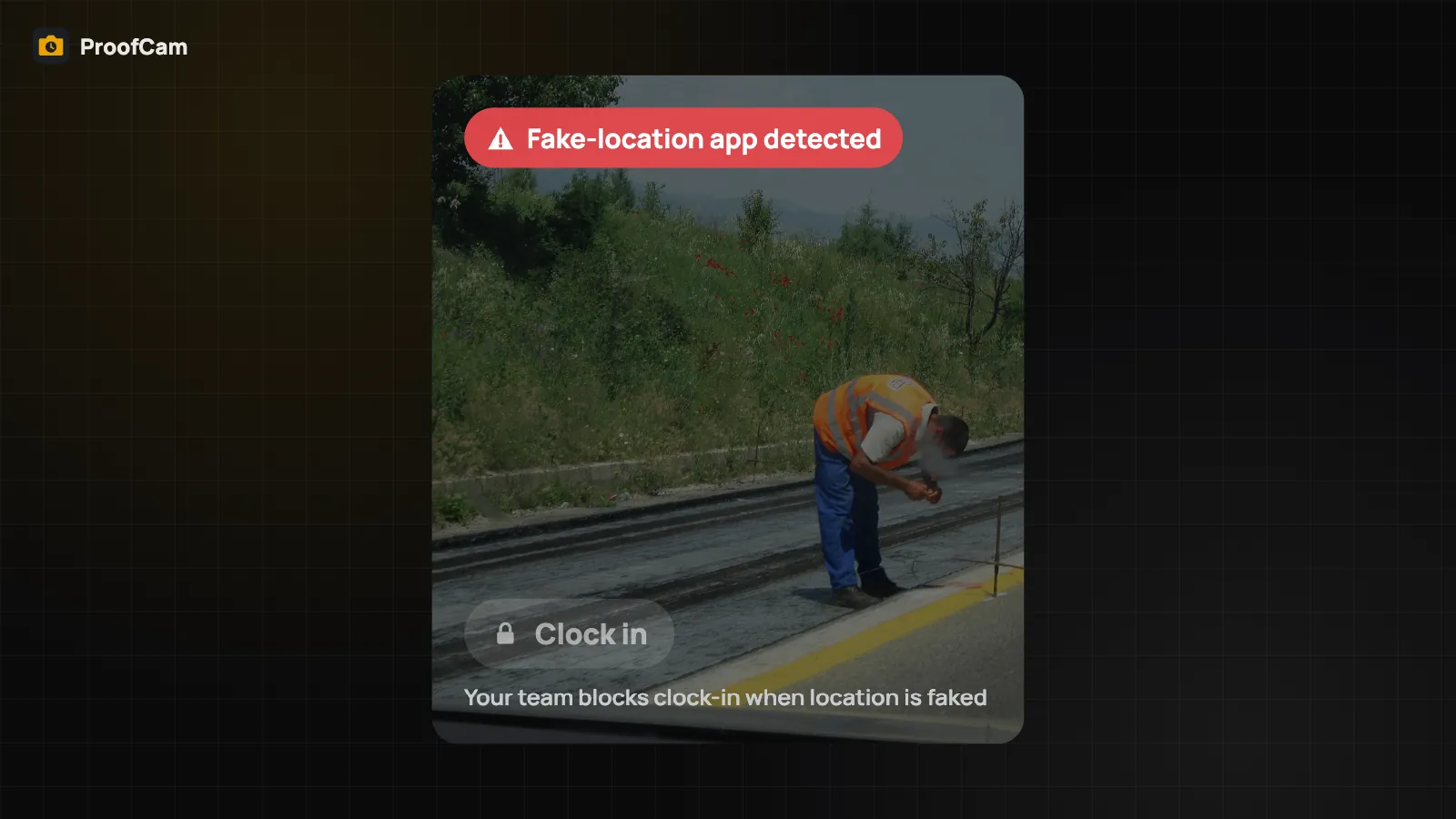
| Block mock location | When a mock location is detected, the Clock in / Clock out button locks and the worker sees why. |
| Require inside geofence | Clocking in is only possible inside the project's geofence circle. Outside, the button locks and shows the distance. |
| Minimum location trust grade | If the current grade is below the team minimum (for example B), the button locks with the hint "go outside or wait for a better fix". |
Team records are also checked when they sync: a shift flagged as mock location, or outside the geofence, is rejected when the matching policy is on. The phone simply tells the worker earlier, before they walk away.
How to set it up, step by step
- Create the project and its geofence. In Teamspace, open the project, set its location and choose a radius (from 50 m up to 1 km). Pick a radius that fits the site: a small shop needs much less than a large construction yard.
- Choose the policies. Turn on Block mock location first. Add Require inside geofence once you know the circle is right. Add a minimum grade only after watching real grades on your site for a few days.
- Tell your team. Explain what is checked and why. Workers who see "mock location detected" should turn off any fake-GPS app and developer mock settings, then try again.
- Review flags. In Teamspace, look at photos and shifts with flags and talk to the person before drawing conclusions.
Android and iPhone are not identical
- Android gives ProofCam much more detail: the mock flag, raw satellite data for the full trust grade, and root checks. When Google Play Integrity is set up for the service, the Android app also attaches an integrity token when it registers a Photo Code, and the server decides the verdict. Until then the verdict is simply recorded as unavailable.
- iPhone does not expose raw satellite data, so the trust grade on iOS is a basic check (simulated-location flag, accuracy, precise location, position jumps and altitude against the barometer). The app says so in the grade sheet.
Tips that avoid false alarms
- Start with warnings and look at your data before you start blocking.
- Make the geofence a little larger than the site boundary, because GPS drifts by several metres.
- If your crews work underground or inside large buildings, do not set a strict minimum grade. Use the geofence and the photo itself instead.
- Ask workers to allow Precise location for ProofCam. Approximate location lowers the grade.
FAQ
Does ProofCam scan my phone for fake-GPS apps?
No. It does not list the apps on your phone. It reads the signals the operating system provides with each position, plus the satellite and sensor checks described above.
Can a worker still cheat?
Determined people can find ways around any single check, which is why ProofCam combines several of them and keeps the record with the photo. The goal is to make faking harder and easier to spot, not to promise it is impossible.
Which plan do I need?
The signals and warning chip work on every plan, including Free. Locking the clock-in button by team policy needs a Business team (or a team on trial). See photo clock-in with selfie, geofence, Wi‑Fi and QR for the other clock-in checks.