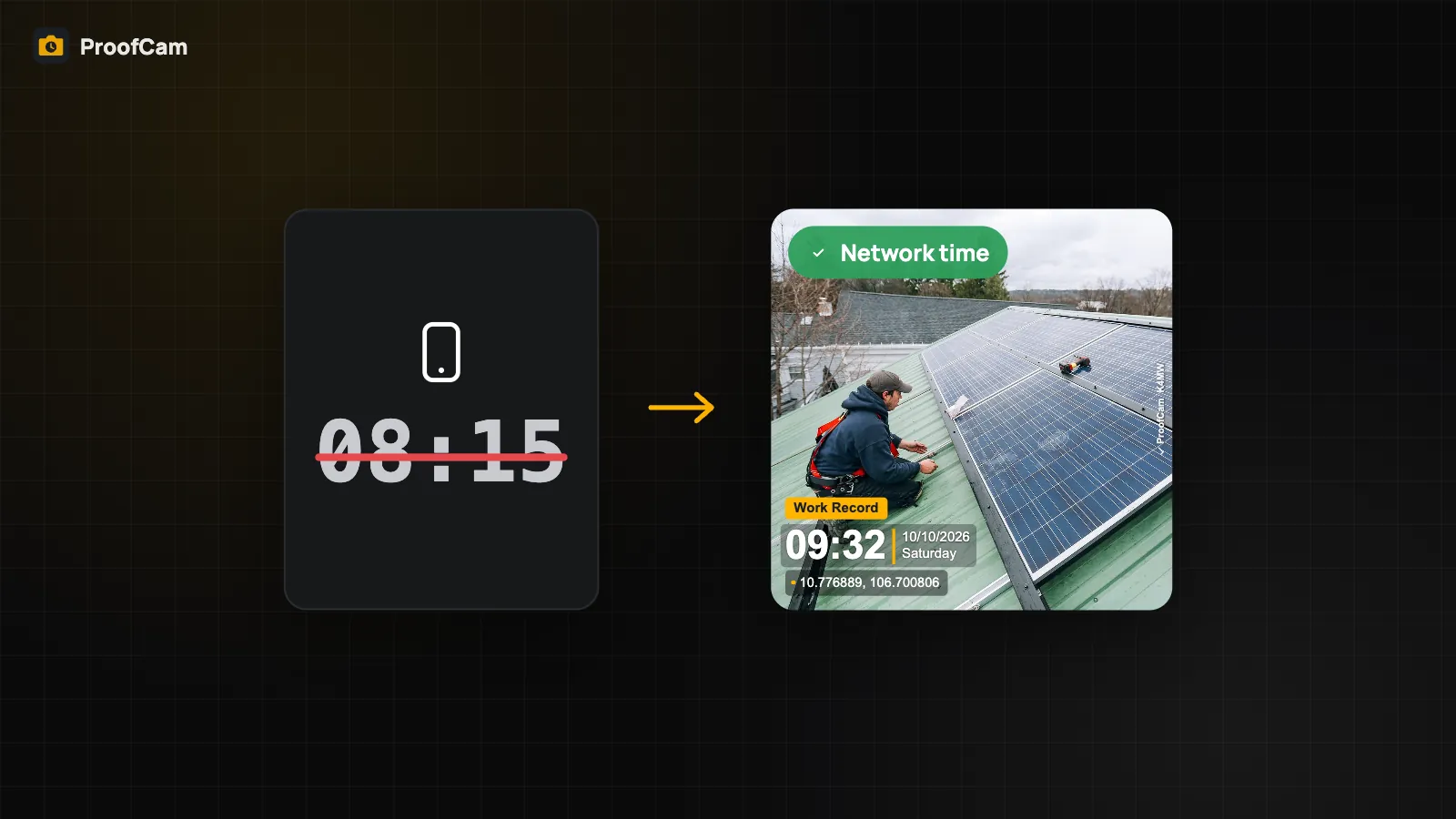
Here is the weak spot of most timestamp apps: they print whatever time the phone says. Open Settings, switch off automatic time, set the clock back two hours, and a photo taken at 10:40 now says 08:30. For anyone who relies on photos as proof of attendance, delivery times or work progress, that makes the stamp close to meaningless.
ProofCam takes a different approach. The time on the stamp comes from network time, and on Android also from satellite (GNSS) time, not from the phone's clock setting. This article explains how it works, what happens when there is no signal, and how a photo is flagged when the time could not be confirmed.
How ProofCam gets the time
- Network time. When the app has internet, it asks public internet time servers for the exact time (the same kind of servers computers use to stay in sync).
- Satellite time (Android). GPS and other satellite systems broadcast very precise time. On Android, ProofCam can use the time from a satellite fix when no time server is reachable.
- An internal counter the user can't adjust. Once the true time is known, ProofCam keeps counting from it using the phone's internal "time since start-up" counter. That counter can't be changed in Settings, so moving the phone clock forward or back has no effect on stamped photos.
So the phone's clock setting is simply ignored once network or satellite time is known. You can even keep shooting offline: after one successful check, the stamp stays correct without internet until the phone is restarted.
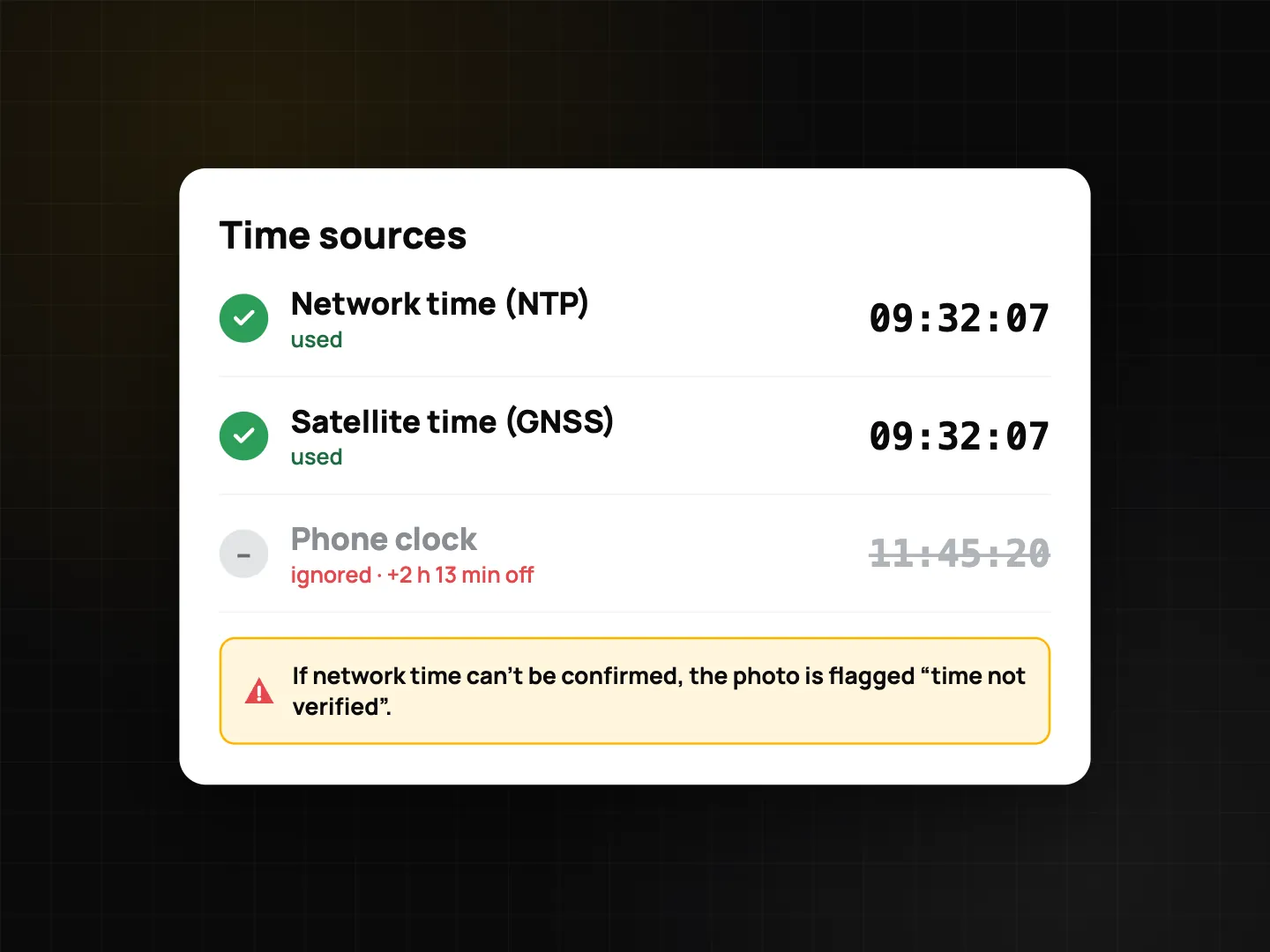
What if the time can't be confirmed?
Sometimes there is no way to check: the phone was just restarted, there is no internet, and (on Android) no satellite fix yet, for example deep inside a basement. ProofCam does not hide this. The photo is still saved, but it is marked as device time:
- the camera shows a Device time chip instead of Network time before you shoot,
- the photo details show the same label,
- PDF exports and the verify page show the capture time as device time, not network-verified,
- for team photos the record carries a "device clock" flag that managers can see.
The fix is easy: move somewhere with internet or open sky for a moment, and the chip switches to Network time. You can check the current status in Settings, which shows when the clock was last synced and from which source.
How it looks to the person checking the photo
When someone verifies a photo on the ProofCam verify page, the result card shows whether the capture time was verified by network or is only device time, next to the place and the fingerprint result.
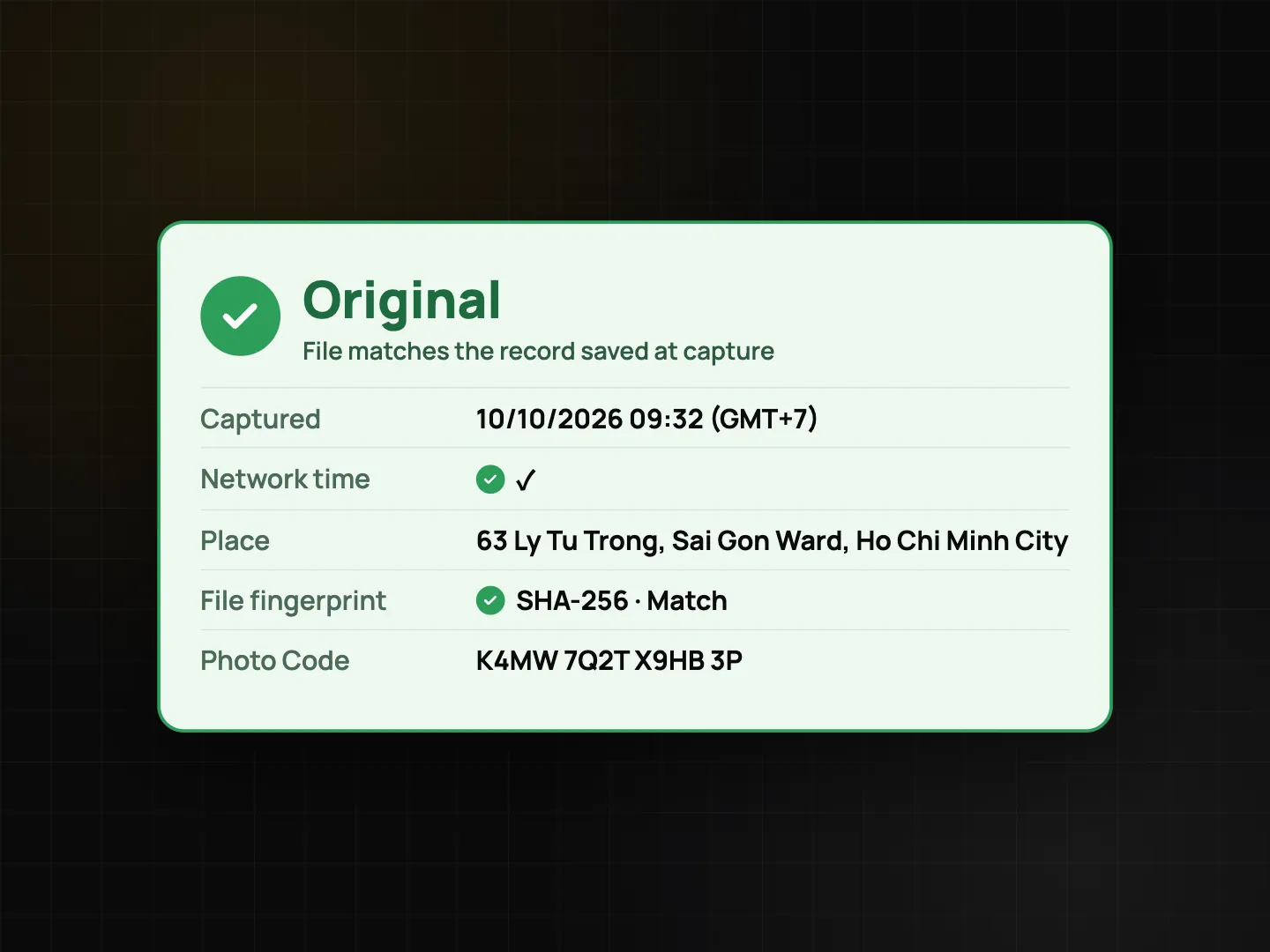
That gives the reader an honest picture: a network-verified time is much harder to fake than a phone clock, and a device-time photo is clearly labelled as such instead of silently passing. See Photo Code: verify original photos for how verification works.
Android and iPhone: what's different
| Android | iPhone | |
|---|---|---|
| Network time | Yes | Yes |
| Satellite (GNSS) time used as a trusted source | Yes | No: iOS doesn't give apps raw satellite time, so only network time counts as verified |
| Phone clock setting ignored after sync | Yes | Yes |
| Satellite time cross-checked against network time | Yes, as part of the location trust grade | Not available |
On iPhone, this means a photo taken after a restart with no internet will be marked as device time until the app can reach a time server once.
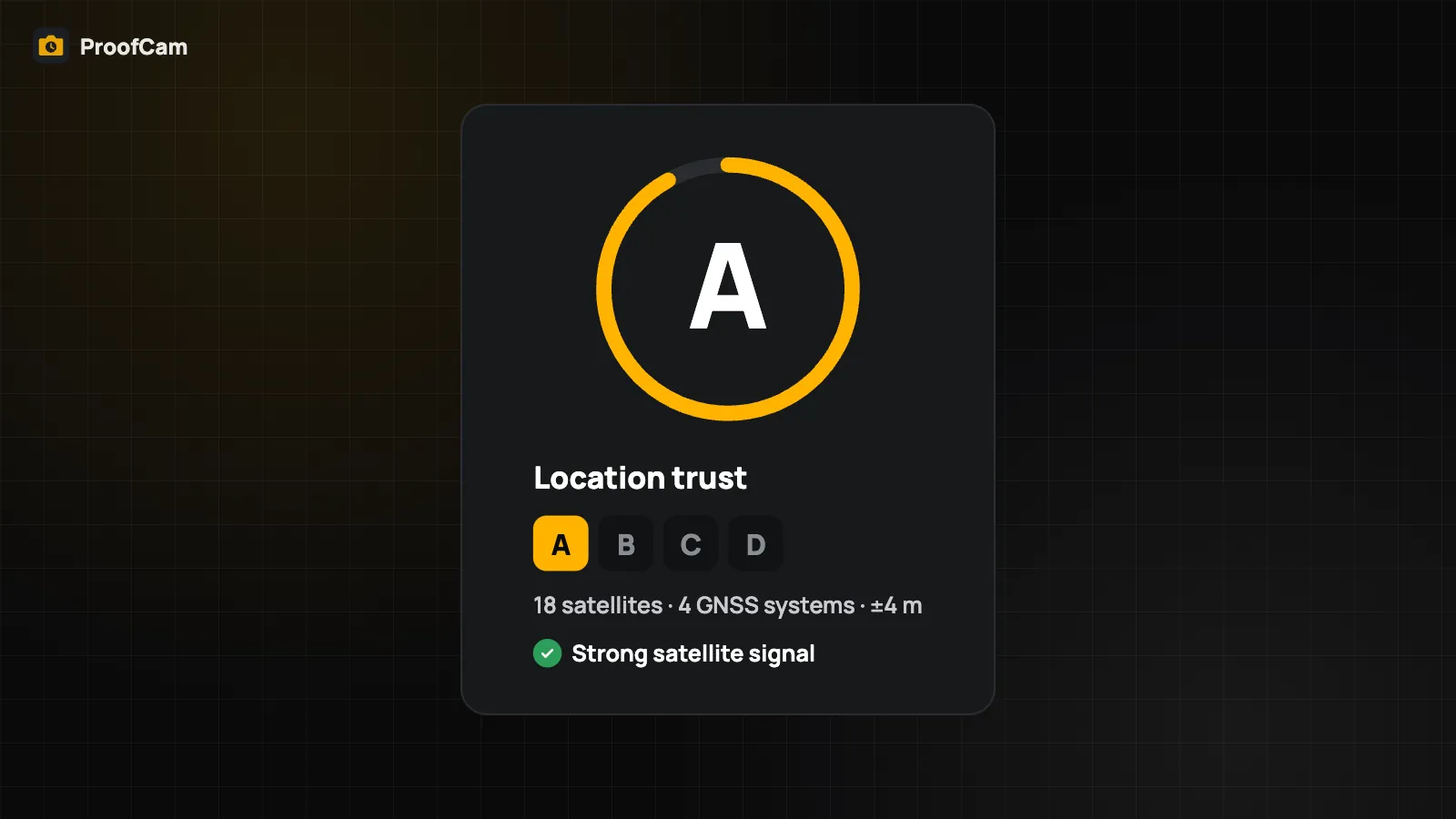
On Android, ProofCam also compares satellite time with network time as one of the checks behind the location trust grade. A large mismatch is a hint that something is wrong with the location signal. More in GPS address, accuracy and location trust grade.
Which plan includes network time?
All of them. Network time, the device-time flag and the Photo Code are part of Free, Plus and Business. Trustworthy time isn't a paid add-on.
Tips for reliable times
- Open ProofCam once with internet at the start of the day or shift, especially after restarting your phone. One sync is enough for offline shooting afterwards.
- Check the chip next to the shutter. Green "Network time" means you're good.
- Don't fight the clock. Changing the phone's time or time zone won't change the stamp; it only makes your other apps wrong.
- For clock-in photos, the same rules apply: clock-in and clock-out photos carry the same network time, so attendance records hold up better. See photo clock-in.
FAQ
If I change the time on my phone, does the stamp change?
No. Once ProofCam has synced with network time (or satellite time on Android), the phone's clock setting is ignored.
Can I take photos with no internet at all?
Yes. If the app synced earlier since the last restart, photos still get the correct time. If it never synced, photos are saved and marked as device time.
Why does my photo say "device time"?
The app couldn't confirm the time when you took it, usually right after a restart with no internet. Connect once and later photos will show network time; already-taken photos keep their honest label.