A client calls about the leaking pipe you fixed three weeks ago and wants to see the photo. You know you took it. But it is somewhere among two thousand shots of ceilings, meters and corridors, and scrolling back through the gallery while the client waits on the phone is nobody's idea of a good afternoon.
ProofCam lets you search job photos on the phone the way you remember them: by a word from the note, part of the address, a tag, the project name, or the Photo Code printed on the stamp. The search runs on the device, so it works in a basement with no signal, and on iPhone you can also type a plain sentence like "photos from last week".
What you can search by
Open the gallery and tap Search. ProofCam keeps a full-text index of the information attached to each photo, on Android and iPhone alike:
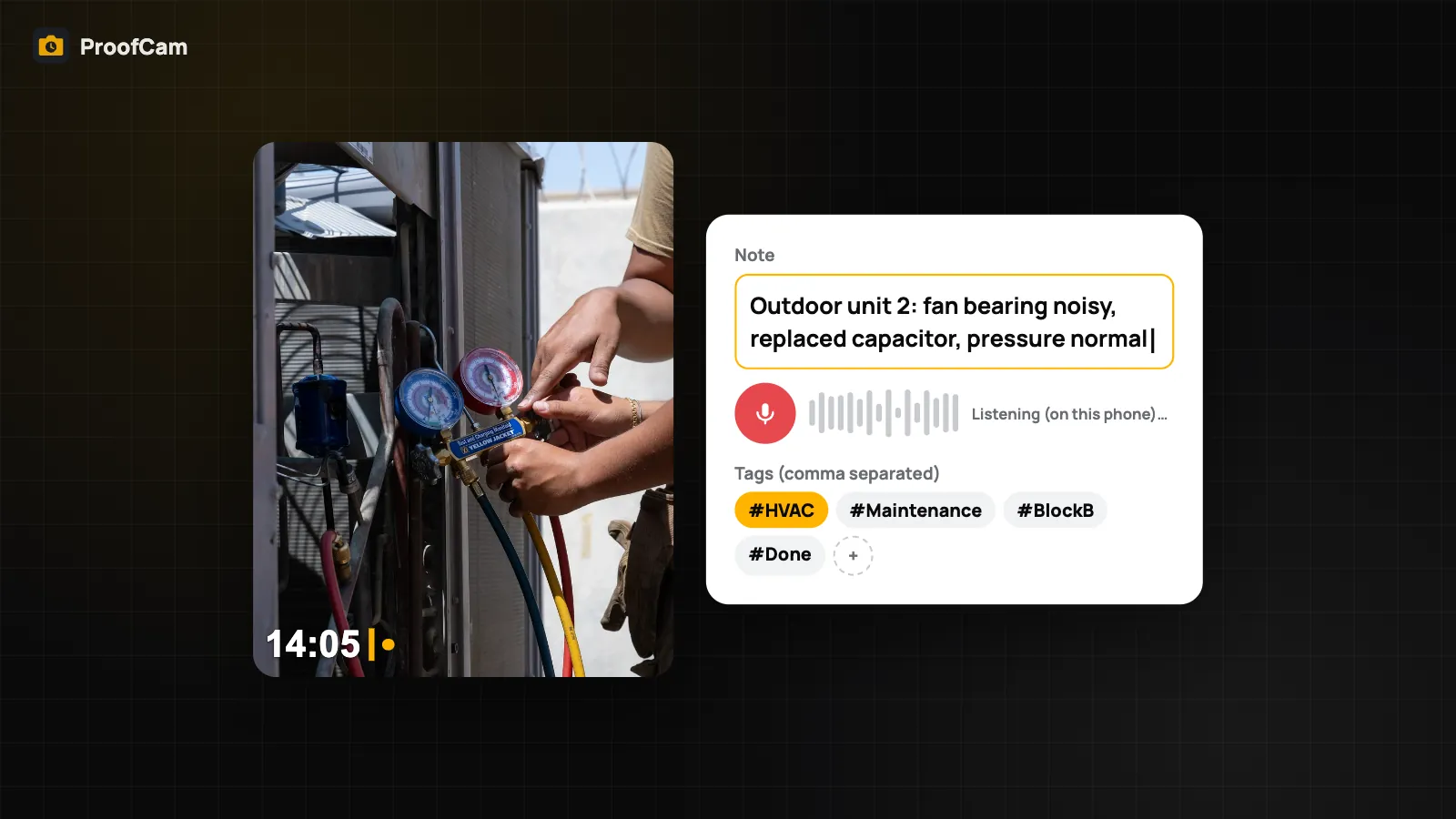
- Notes you typed or dictated on the photo;
- Address from the stamp (street, ward, district, city);
- Tags from your watermark template, such as "Before" or "Leak";
- Project name;
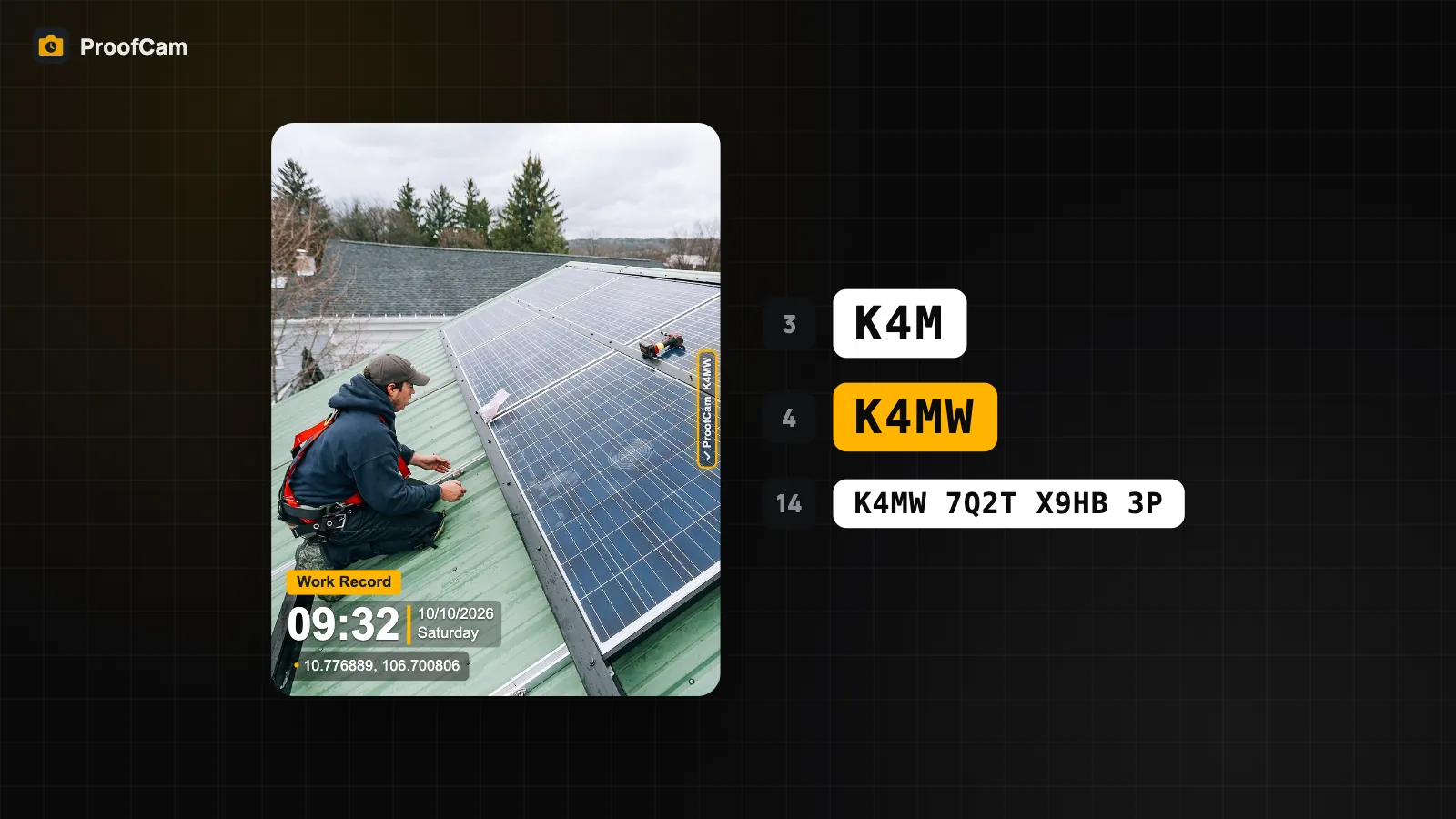
- Photo Code, the short code printed on every stamp;
- Text read from documents you captured in document mode (OCR), so a serial number or invoice number on a scanned page can be found too. See document scanning with OCR.
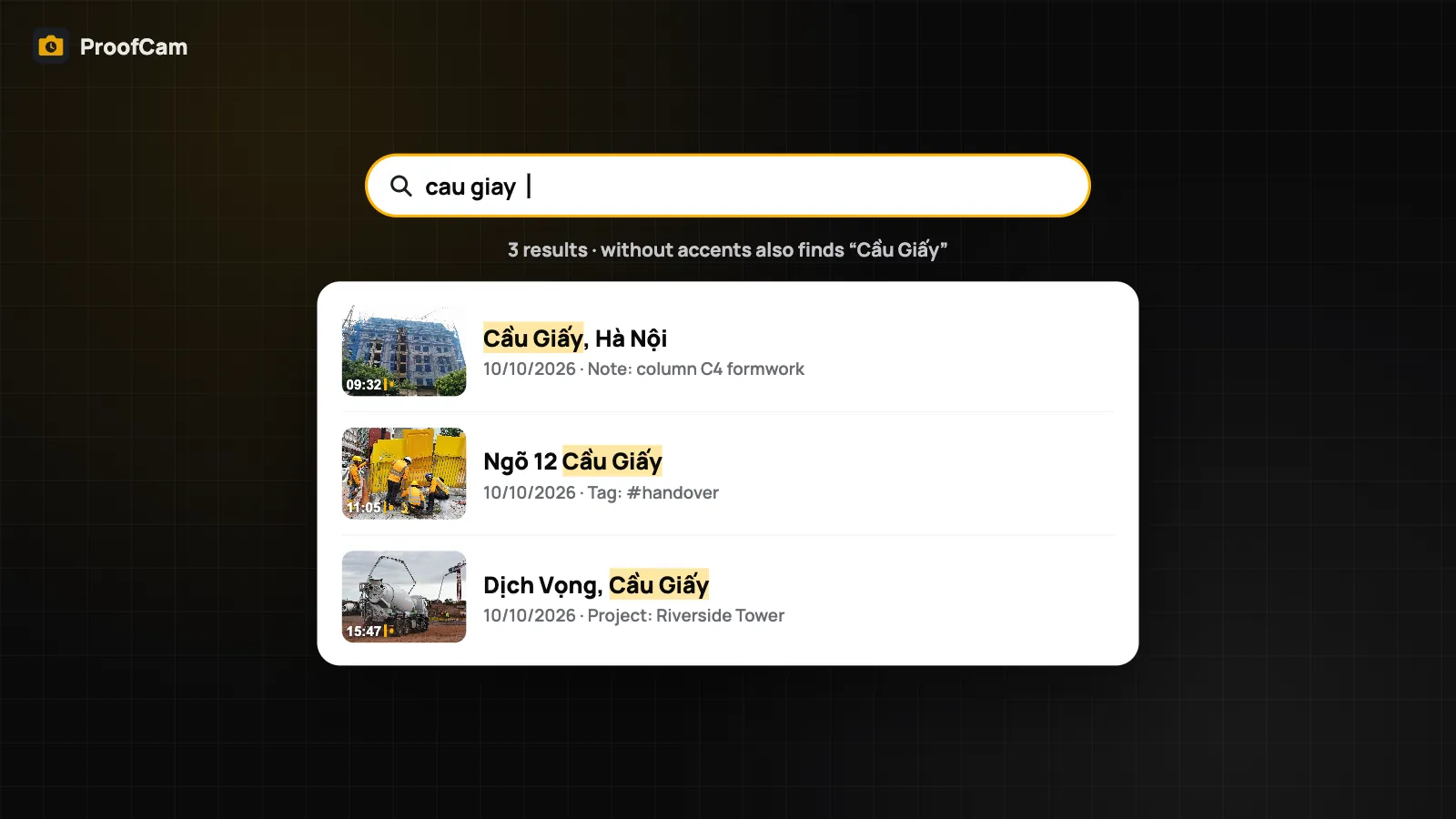
Matching is forgiving. Each word you type matches the start of a word in the photo data, so "pip" finds "pipe" and "pipes". It also ignores Vietnamese accents: "nut tuong" finds "Nứt tường", and "cau giay" finds "Cầu Giấy". That matters on a phone keyboard with gloves on, or when an English-speaking manager searches a Vietnamese crew's notes.
Photos in the private folder are left out of search results.
Narrow it down with filter chips
Under the search box are quick filters: All, Today, 7 days, Videos and Clock. Combine them with a word: type "boiler" and tap 7 days to see only this week's boiler photos, or tap Clock to pull up clock-in photos without the job shots around them.
For a tidy result, good notes and tags at capture time help more than anything else. Two or three words like "unit 12B leak" make a photo easy to find months later. The watermark templates guide shows how to add tags and custom fields to the stamp.
Search by Photo Code
Every ProofCam photo carries a Photo Code on its stamp. When someone sends you a screenshot, a printed report or a message that mentions a code, type it into search, for example K4MW, and the original photo opens on your phone.
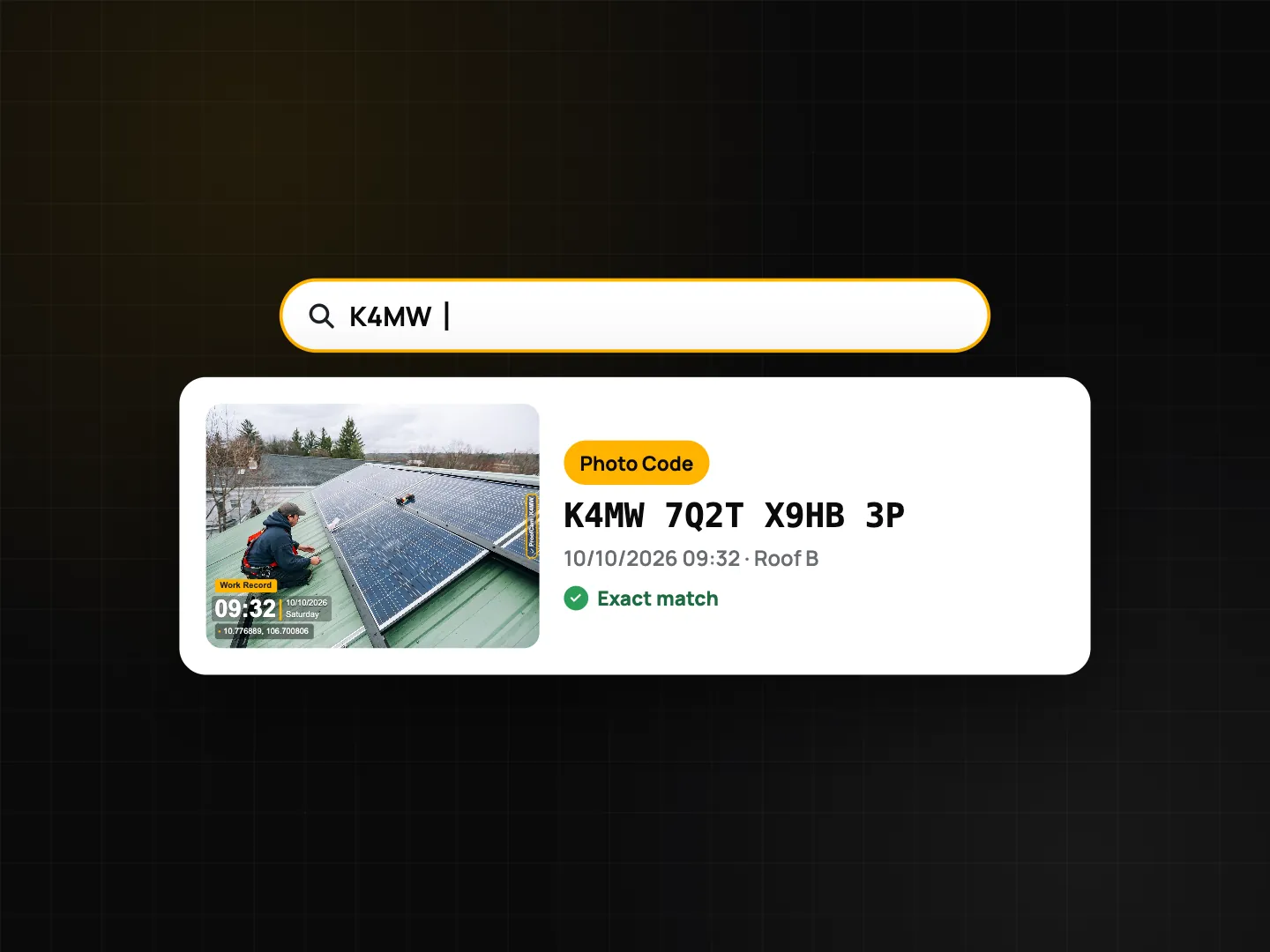
This is the fastest way to answer "which photo is this?" in a dispute. Once you have the original, you can check it on the verify page or share the verify link. Photo Code: verify original photos explains what the code proves and how anyone can check it.
Natural-language search on iPhone
On iPhone you can also type what you remember in plain words, in English or Vietnamese:
- "today", "last week", "tháng 3" (March);
- "#leak" for a tag;
- a project name;
- "videos" or "clock photos".
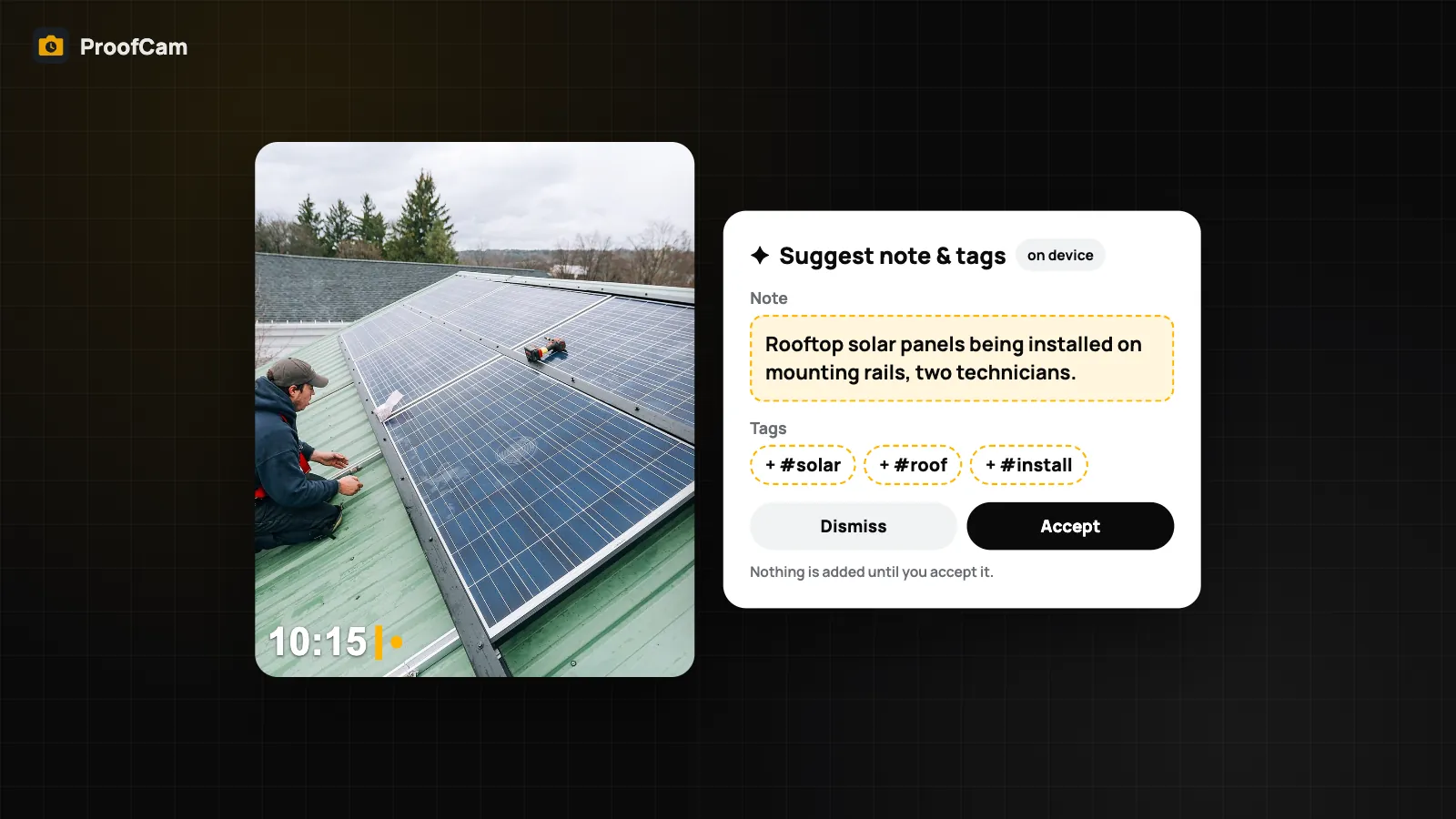
ProofCam turns the sentence into filter chips you can see and edit (date range, tag, type), then shows the results. This rule-based parser works on every supported iOS version.
On iOS 26 with Apple Intelligence turned on, and with the AI setting on in ProofCam, longer sentences are interpreted by Apple's on-device model. Either way the query is processed on the phone; nothing is sent to a server.
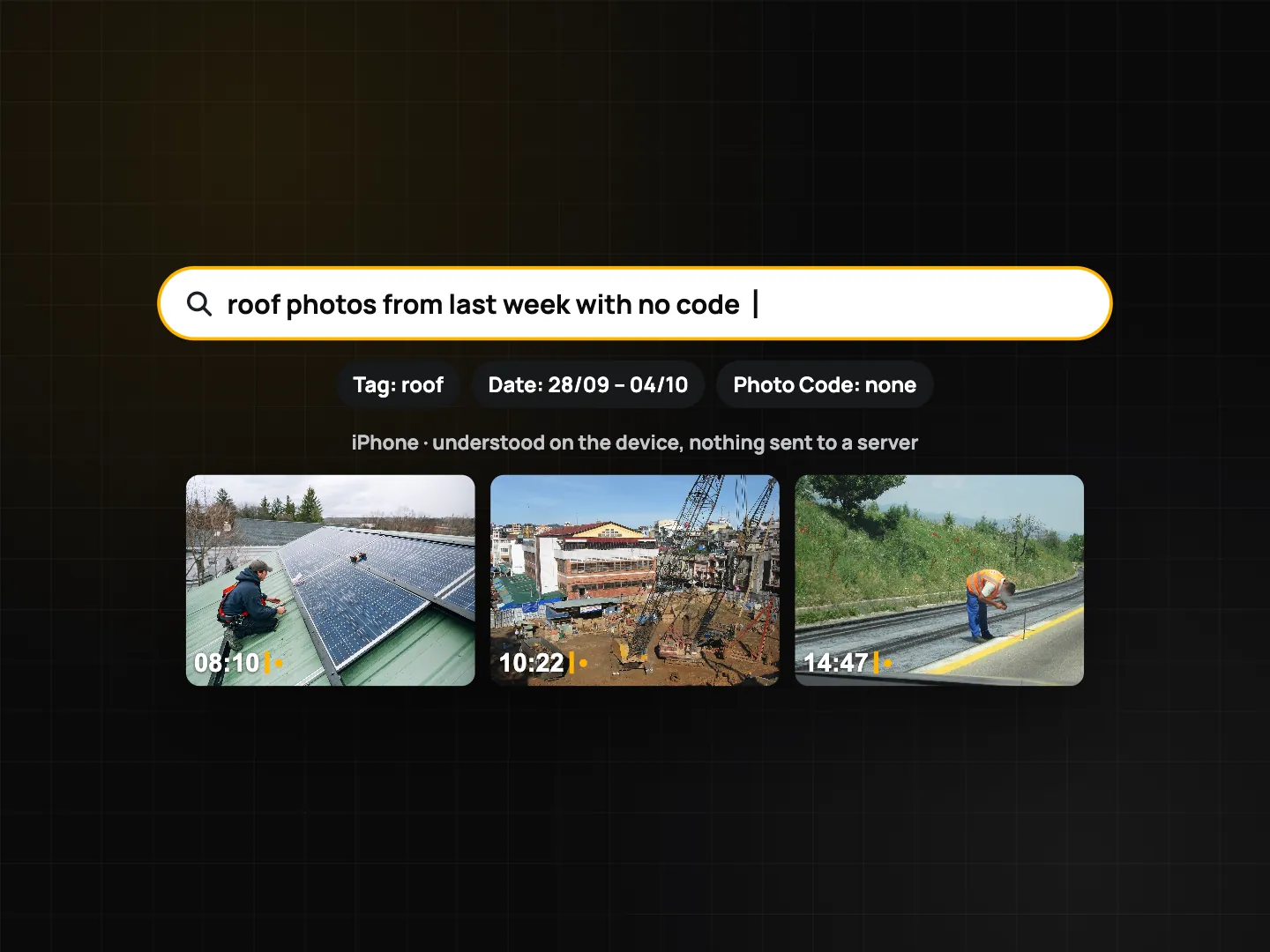
Android does not have natural-language search. On Android, use keywords plus the filter chips; in practice that covers most searches.
Search job photos from the web portal
Managers working at a desk can search team photos in the Teamspace web portal. The portal has filters by member, project, date range and type, plus a text search over notes, address, member, Photo Code, template and tags.
Two differences to know:
- Web search is not accent-insensitive. Type Vietnamese words with their accents on the web ("Cầu Giấy", not "cau giay").
- There is no AI or natural-language search on the web portal.
Tips for photos you can find again
- Write one short note per job: unit, room or asset plus the problem. "Room 304 AC drain" beats "fixed".
- Use the same words every time. Agree on a few tags with your team (Before, After, Leak, Crack) instead of everyone inventing their own.
- Pick the project before you shoot, so the project name is searchable.
- Keep the Photo Code visible on reports and messages; it is your shortest search key.
- Scan paperwork in document mode so the text becomes searchable.
These habits pay off for building maintenance work orders and insurance claim photos, where you often have to find one photo among hundreds weeks later.
Which plan and platforms
| Feature | Android | iPhone | Web portal | Plan |
|---|---|---|---|---|
| Search notes, address, tags, project, Photo Code, OCR text | Yes | Yes | Text search (no OCR) | Free |
| Accent-insensitive, prefix matching | Yes | Yes | No | Free |
| Filter chips (All, Today, 7 days, Videos, Clock) | Yes | Yes | Own filters (member, project, dates, type) | Free |
| Natural-language search | No | Yes (rule-based; Apple Intelligence on iOS 26) | No | Free |
| Works offline | Yes | Yes | Needs internet | – |
FAQ
Do I need internet to search my photos?
No. On Android and iPhone the search index lives on the phone, so it works with no signal. The web portal needs a connection.
Why does "cau giay" work on my phone but not on the web portal?
The phone search ignores Vietnamese accents; the web portal's text search does not yet. On the web, type the words with their accents.
Can I search for something in the photo itself, like a red car?
Not by recognising objects in the picture. Search works on the text attached to the photo: notes, address, tags, project, Photo Code and text read from documents.
Are private-folder photos included in search?
No. Photos in the private folder are excluded from search results.
Related: share job photos with clients and export geotagged photos to PDF, Excel, ZIP and KMZ.