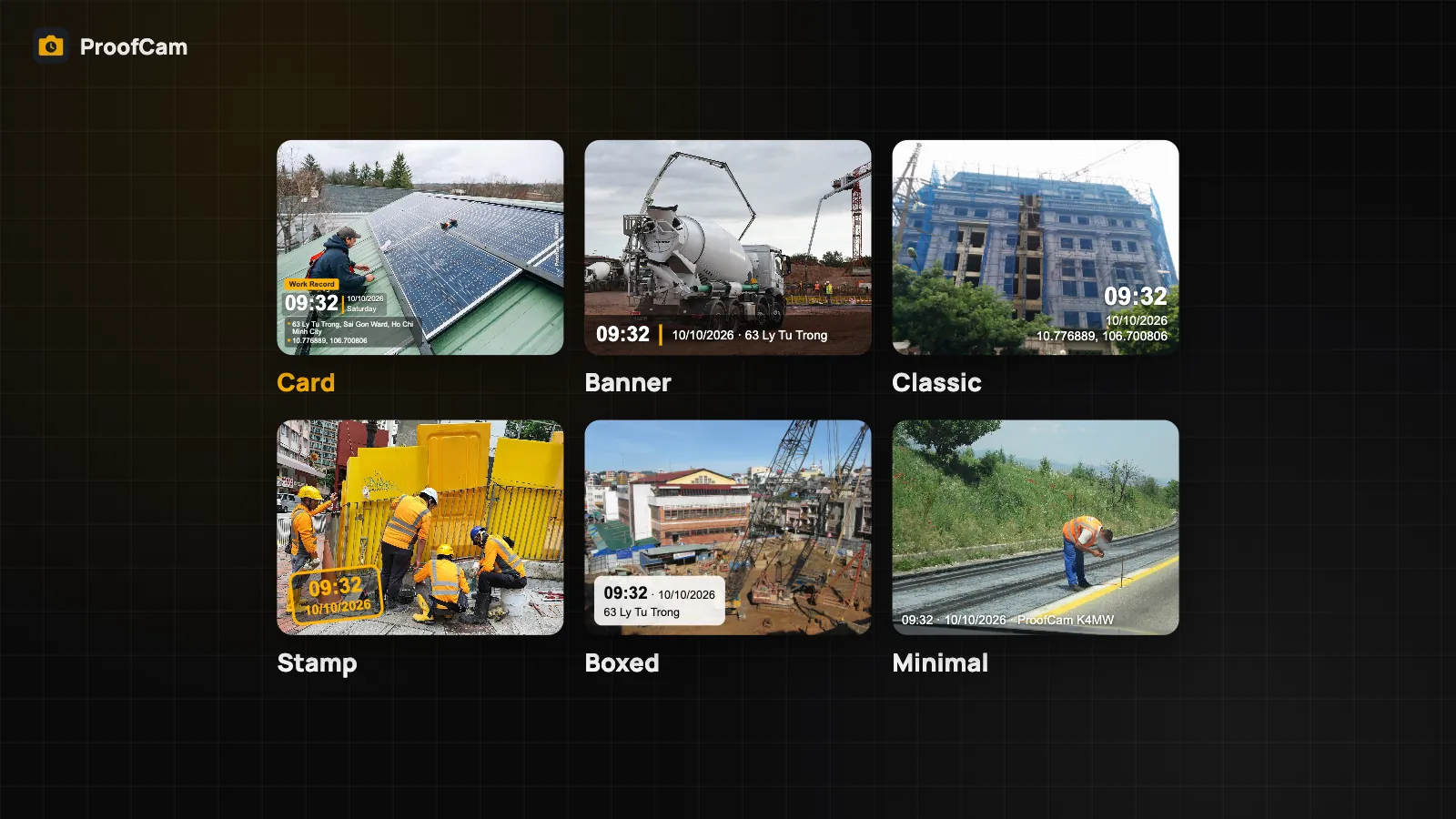
Ask ten people on a crew to set up their own photo stamp and you get ten different watermarks. One leaves out the address, one still shows last month's project, one uses a 12-hour clock, and someone switched the date format by accident. The office then spends the afternoon working out which photo belongs where.
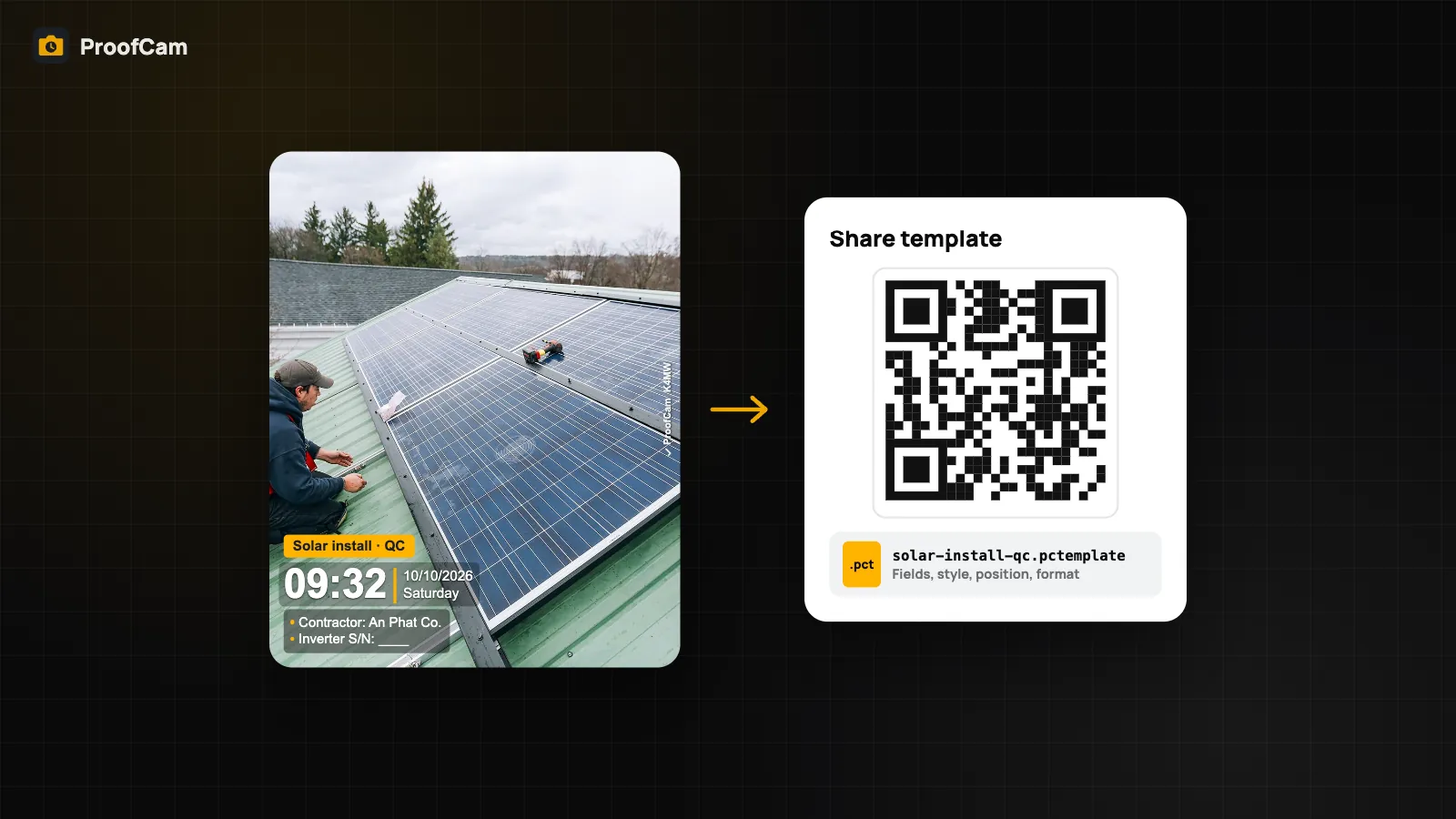
ProofCam fixes this at the source. You build the template once, then share the watermark template as a small file or a QR code, and everyone imports the exact same setup on Android or iPhone. If you run a Teamspace, you can go one step further and lock the crew to the team's templates from the web portal.
Why one shared watermark template matters
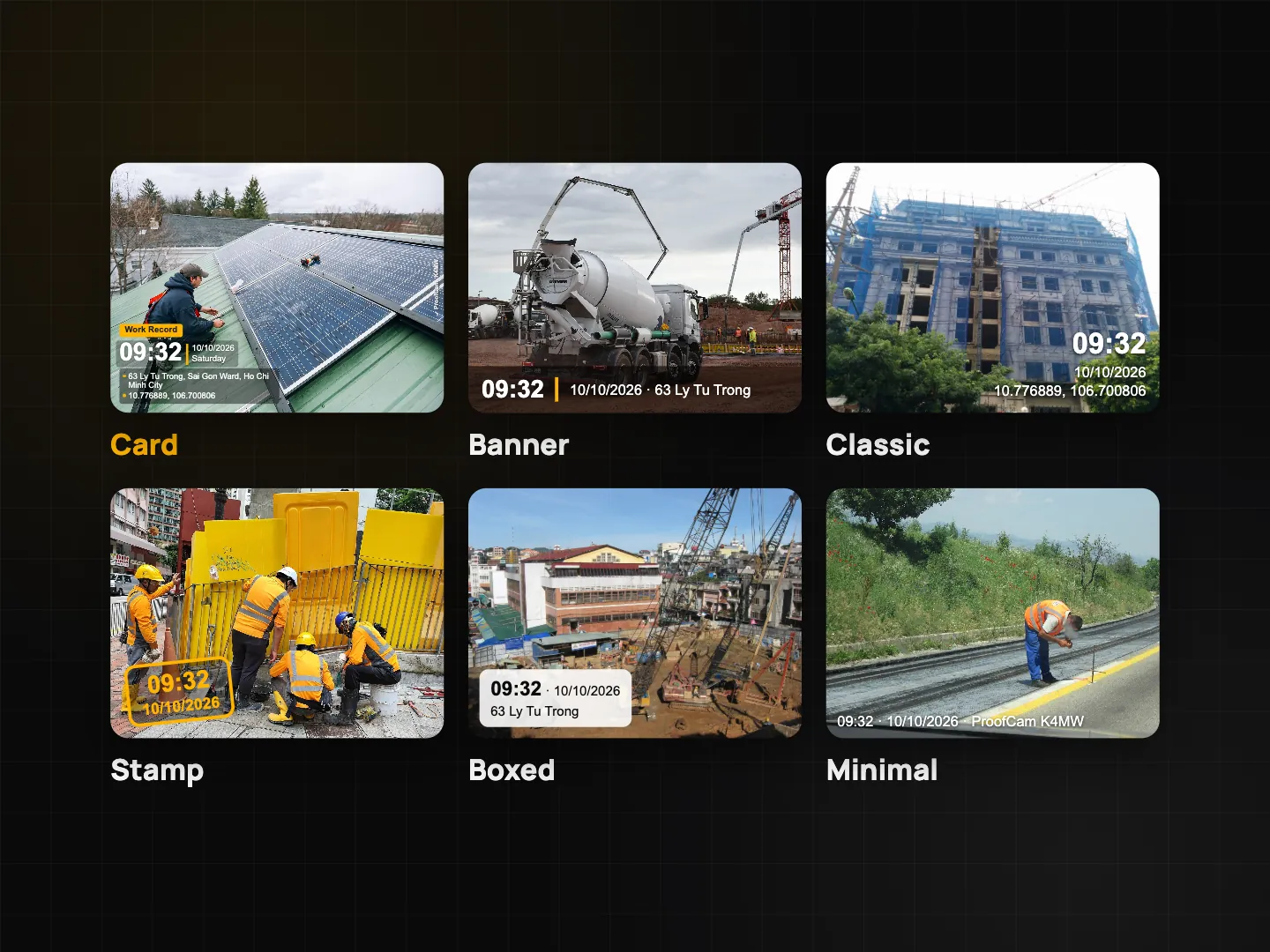
A watermark is only useful if the people reading it know where to look. When every photo in a report shows the same fields in the same place, a manager can scan fifty photos and spot the one with the wrong address in seconds. A shared template gives you:
- The same fields on every photo: time, date, address, coordinates, project, and your own custom fields such as "Contractor" or "Store ID".
- One date format and one style across Android and iPhone.
- Less setup for new hires: they scan a code on day one instead of copying settings by hand.
- Cleaner exports: notes, tags and custom fields land in the same columns in PDF and Excel.
If you haven't built a template yet, start with the guide to watermark templates, styles and custom fields, then come back here to roll it out.
How to share a watermark template
Open the template you want to share and tap Share template. You get two options:
- Share as file (.pctemplate). ProofCam creates a small template file that includes your logo (a PNG up to 100 KB) if the template has one. Send it any way you like: a chat app such as Zalo, email, Files, AirDrop. The receiver opens the file and ProofCam takes over.
- Show as QR. The phone shows a QR code that a colleague scans with their own phone, standing next to you. The QR holds only the settings that differ from the defaults, and no logo. If a template has too many changes to fit, ProofCam tells you: "Too many settings for a QR – share it as a file".
| Share as file (.pctemplate) | Show as QR | |
|---|---|---|
| Includes logo | Yes (PNG up to 100 KB) | No |
| Best for | Sending to remote staff, keeping a master copy | Toolbox talks, induction day, two phones side by side |
| Limit | None in practice | Large templates don't fit; use a file |
A practical habit: keep the .pctemplate file as your "master" in a shared folder, and use the QR for quick hand-offs on site.
Importing a template on another phone
On the receiving phone, go to the template list and tap Import template, then choose From file or Scan QR. A few things to know:
- Import always creates a new custom template. It never overwrites one the person already has, so nothing gets lost by accident.
- It works across platforms. A template made on Android imports on iPhone and the other way round.
- No account is needed to share or import.
- Free plan limits still apply. Free users can keep 3 custom templates, and an imported template counts toward that limit. Settings that need Plus (for example a logo, extra custom fields or fonts) are downgraded on Free, and the rest of the template is kept.
After importing, take one test photo and check the stamp before heading out. If the photo will be sent through a chat app, the template editor's "View as sent on Zalo" preview shows how the stamp reads once the image is compressed.
Lock templates for the whole team
Sharing is enough for a small crew that follows instructions. For a larger team, or a client who expects every photo to look the same, Teamspace can enforce it.
In the Teamspace web portal, open Templates and turn on Enforce team templates. You need the settings permission for your team to change it. From then on:
- members only see the team's templates in the app; their personal templates are hidden while they work in that team;
- the app shows the banner "Your team requires its own templates.";
- when an admin changes a team template, the change reaches members' phones, so you fix a typo once instead of chasing twenty people;
- members keep only a few per-device values: their own notes, tags and photo counter.
Members who have the template permission can also publish a template from the app to the team, which is handy when the person who designs the stamp works in the field rather than at a desk.
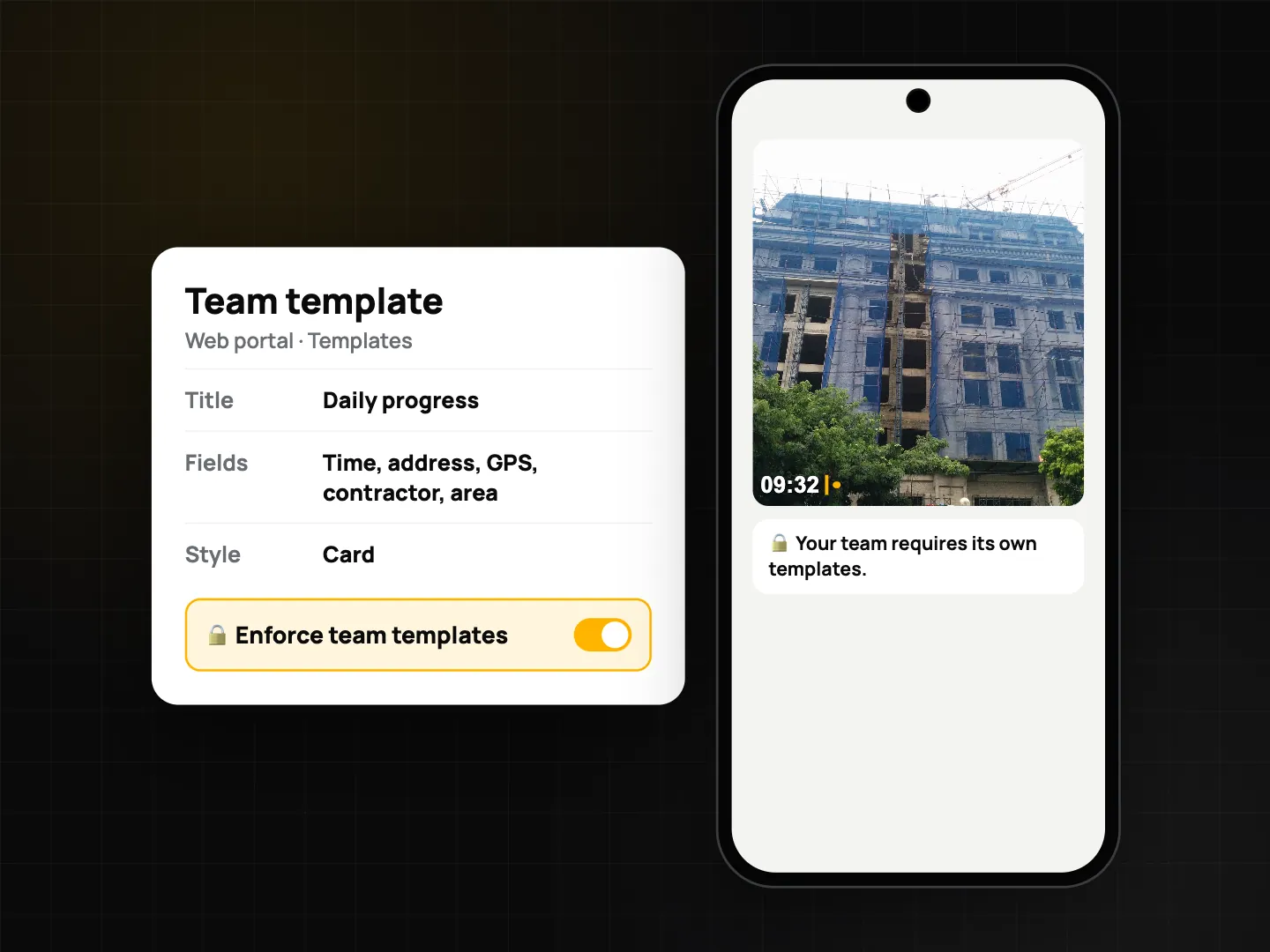
This is a Teamspace setting. It pairs well with the Photo Code on each stamp, which lets anyone check a photo later on the verify page, as described in Photo Code: verify original photos.
Tips for rolling out a company watermark template
- Name templates by job, not by person: "Store audit", "Night patrol", "Handover". People pick the right one faster.
- Keep the stamp short. Time, address and two or three custom fields read better than ten lines on a small photo.
- Use custom fields for what the client asks about: store number for retail store audits, room or area for cleaning before/after photos, post name for security guard shifts.
- Print the QR and pin it at the site office or induction desk. Since it carries no logo, it is safe to post.
- Test on both platforms. Import the template on one Android phone and one iPhone and compare a test photo before you send it to everyone.
- Update centrally. With team templates enforced, edit in the portal instead of sending a new file around.
Which plan and platforms
| Feature | Android | iPhone | Web portal | Plan |
|---|---|---|---|---|
| Share as file / Show as QR | Yes | Yes | – | Free |
| Import from file / Scan QR | Yes | Yes | – | Free (counts toward 3 custom templates) |
| Logo and other Plus settings in a template | Yes | Yes | – | Plus |
| Enforce team templates | Applied in the app | Applied in the app | Turn on under Templates | Teamspace setting |
| Publish a template to the team from the app | Yes | Yes | – | Teamspace, template permission |
FAQ
Does the receiver need a ProofCam account to import a template?
No. Sharing and importing a .pctemplate file or QR code works without an account, between Android and iPhone.
Why is my logo missing after scanning the QR code?
The QR code only carries settings, not images. Share the template as a .pctemplate file to include the logo, and note that the logo itself is a Plus setting.
Will importing overwrite my current template?
No. Every import creates a new custom template. On Free it counts toward the limit of 3 custom templates, so you may need to delete an old one first.
Can team members still change the watermark when templates are enforced?
They only see the team's templates, so the layout stays fixed. They can still type their own notes and tags and keep their own photo counter on their device.
Related: organize job site photos by project and share job photos with clients.