A technician visits three sites a day. At the first one he remembers to switch the project in the camera. At the second he forgets, and forty photos of a rooftop land in the wrong project. At the end of the week someone in the office spends an hour moving photos around, and still isn't sure which belong where.
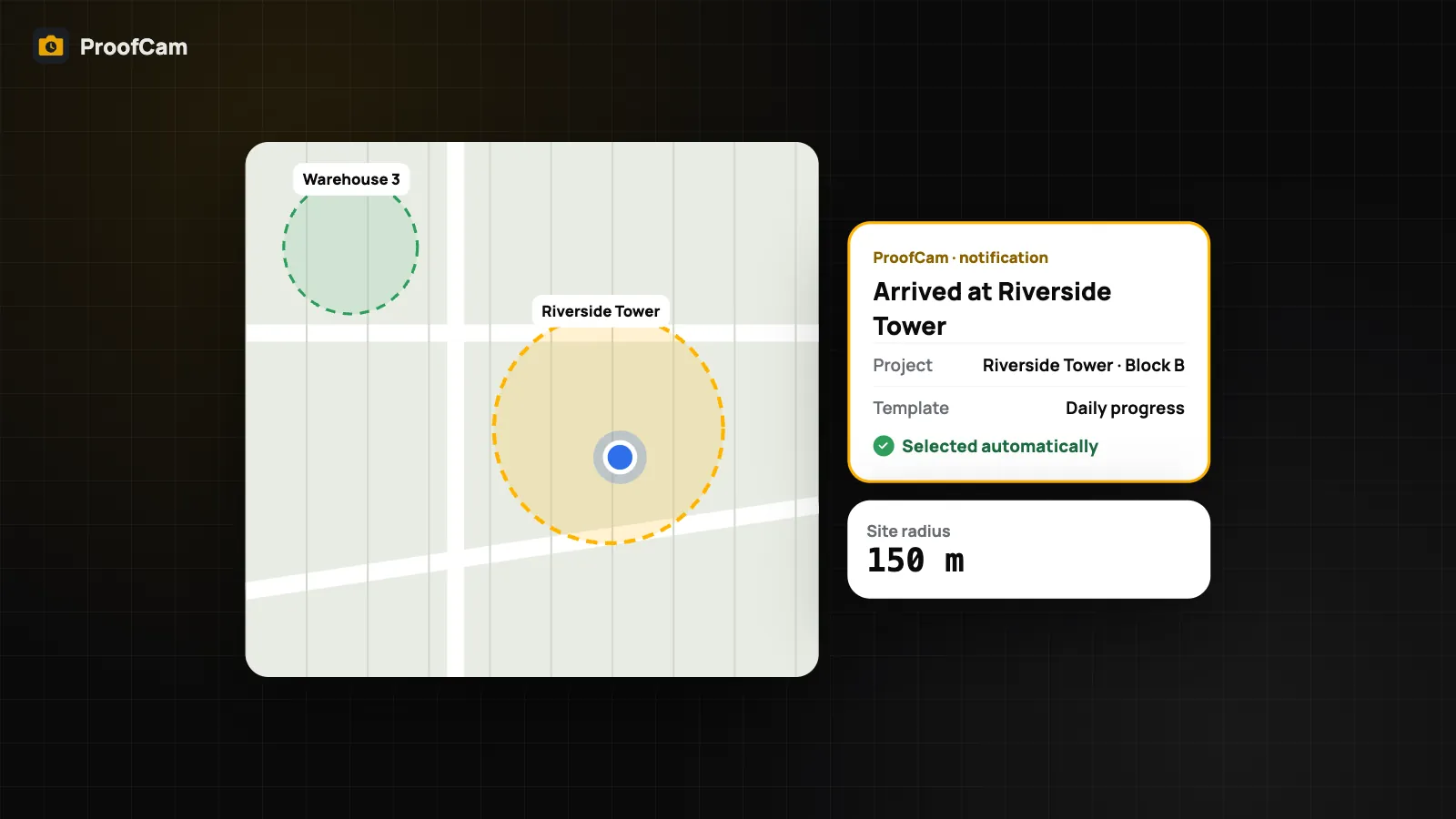
ProofCam helps you organize job site photos by project automatically. You draw a circle around each site once. When a phone enters that circle, ProofCam selects the right project and the right watermark template and sends a small "Arrived at…" notification. Photos taken there land in the right project without anyone thinking about it. It works offline, and the location check stays on the phone.
Photos by project in Teamspace
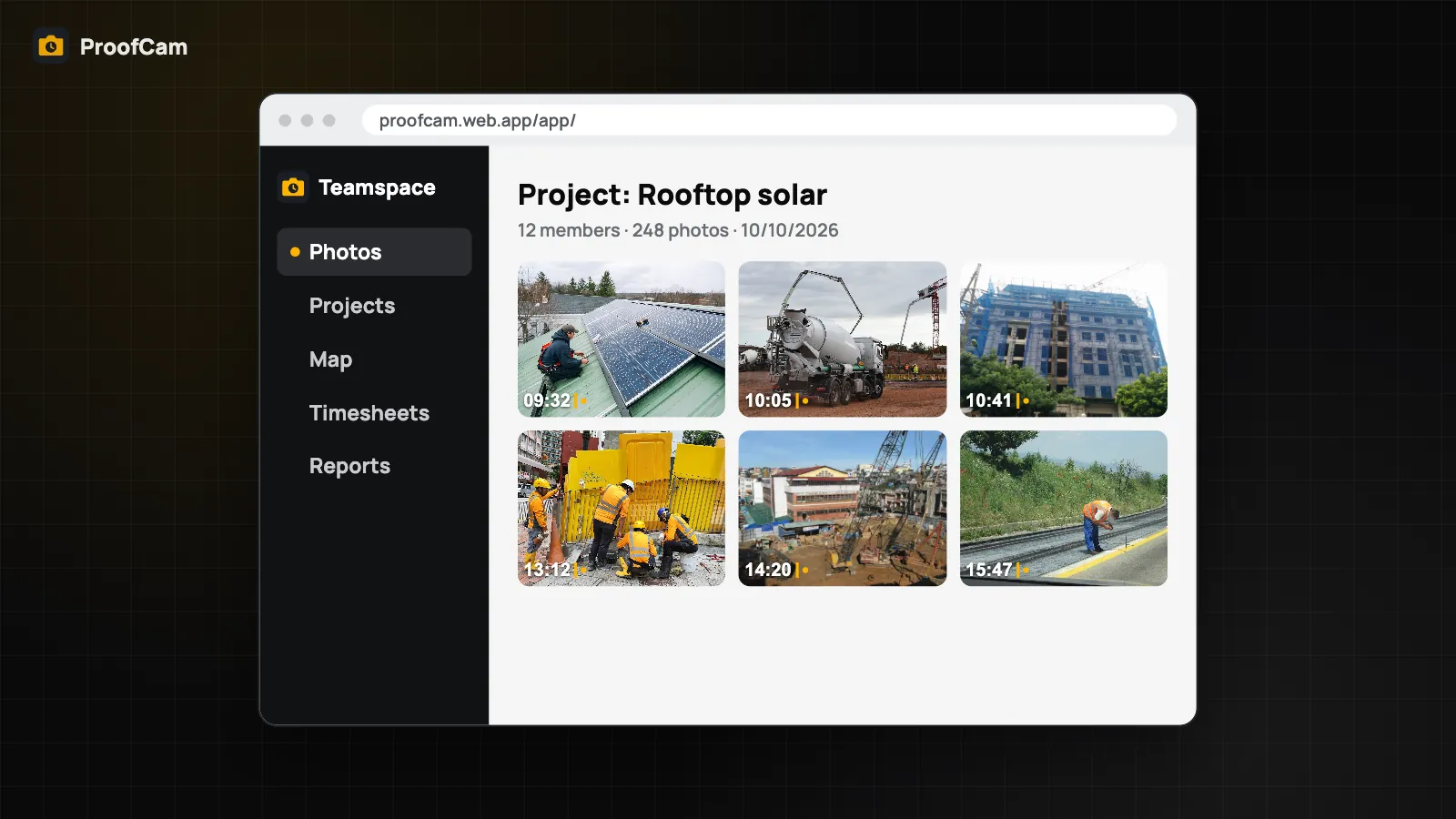
In Teamspace, every team photo can belong to a project: a building, a street, a solar plant, a client's office. Managers then filter photos in the web portal at /app/ by project, member, date range or type, export one project's photos as a report, and share them with that client.
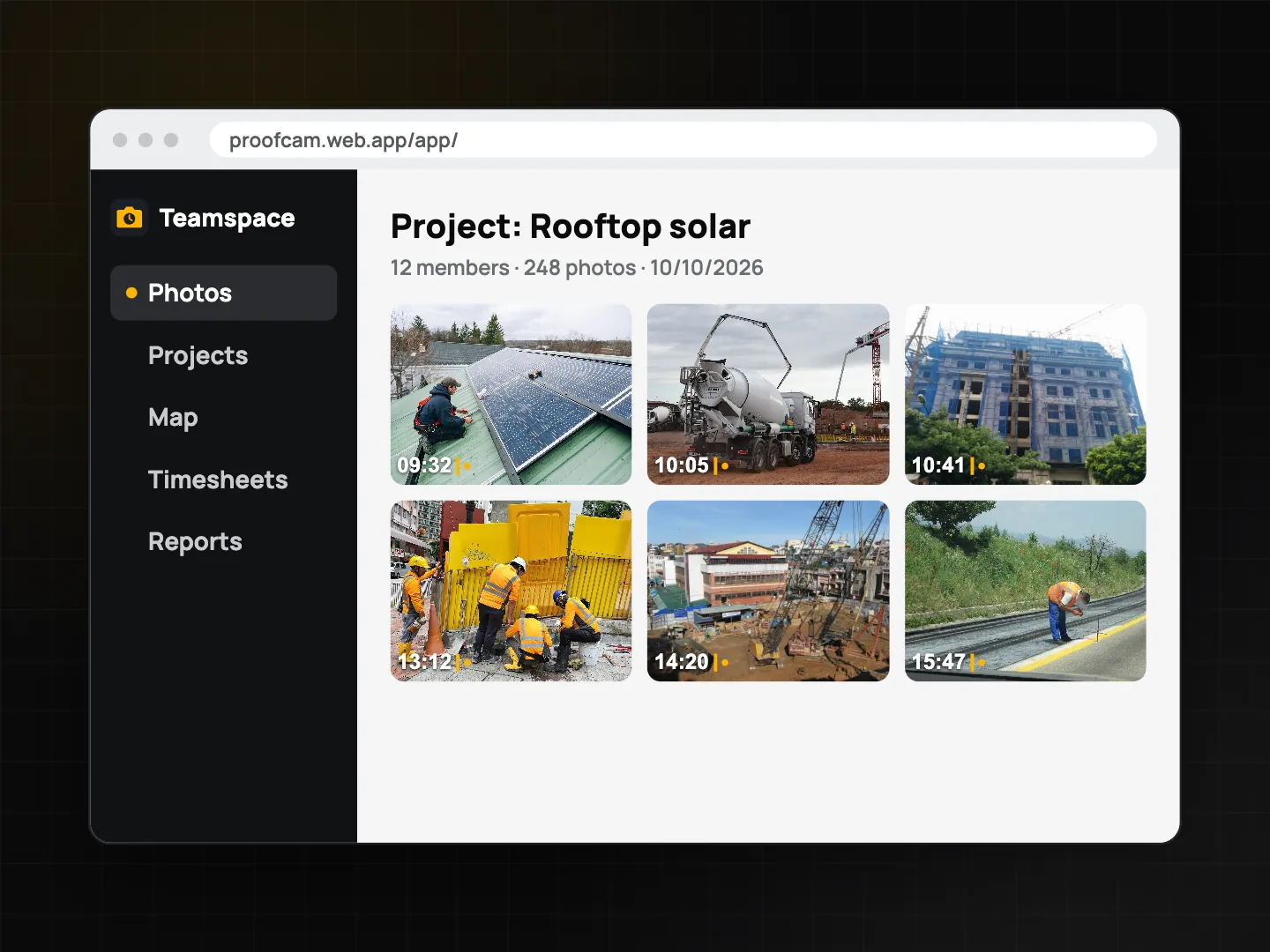
The weak point has always been the phone: the project has to be selected before the photo is taken. Auto-select at site removes that step.
Projects themselves are a Teamspace feature. A Free team can have 3 projects; the Business plan has unlimited projects, and new teams get a 14-day Business trial. See the Teamspace web portal for managers for how projects, members and roles fit together.
How auto-select at site works
Each site is a point with a radius. When your phone enters that radius:
- ProofCam sets the active project to the site's project, as long as it belongs to the team you have selected.
- It switches to the site's watermark template, if one is set.
- A local notification, "Arrived at Riverside Tower", lets you open the camera in one tap.
If two sites overlap, the one with the smallest radius wins, so a single building inside a larger campus still gets its own project.
All of this happens on the phone. Sites are cached on the device, the check works without a signal, and your location is not sent anywhere for it.
Where sites come from
There are two kinds of sites in the Auto-select at site list:
- Team projects with a geofence. In the web portal, a manager gives a project a geofence (or a pin with the default radius). Phones in the team download these and keep them for offline use. This is where projects and project geofences are created; auto-select itself happens on the phone.
- Local sites you add yourself. Standing at the site, tap Add site here. The site is saved at your current position. On Android you pick a radius with a slider from 50 to 1,000 m (150 m by default); on iPhone you choose 50, 100, 150, 300, 500 or 1,000 m.
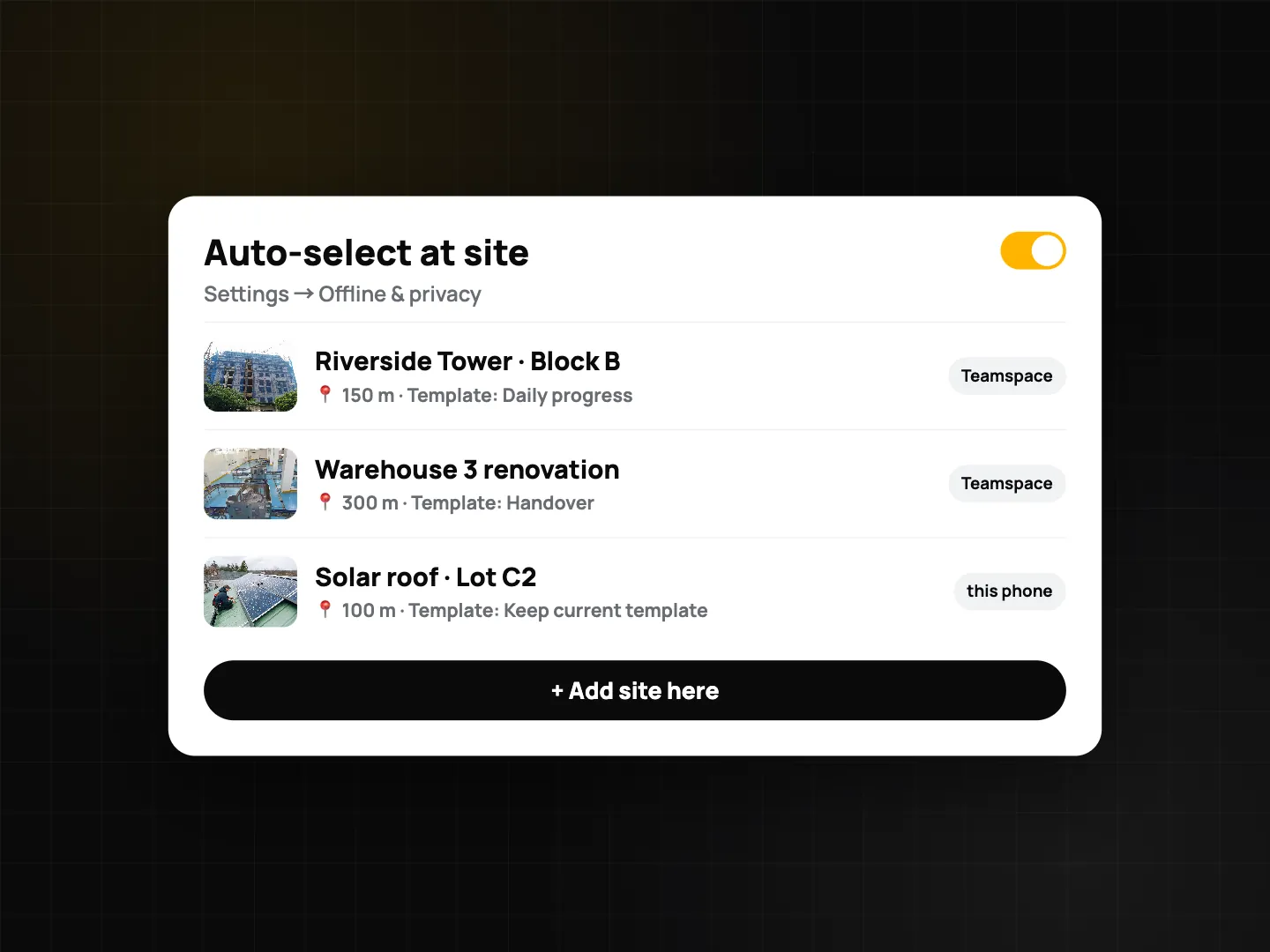
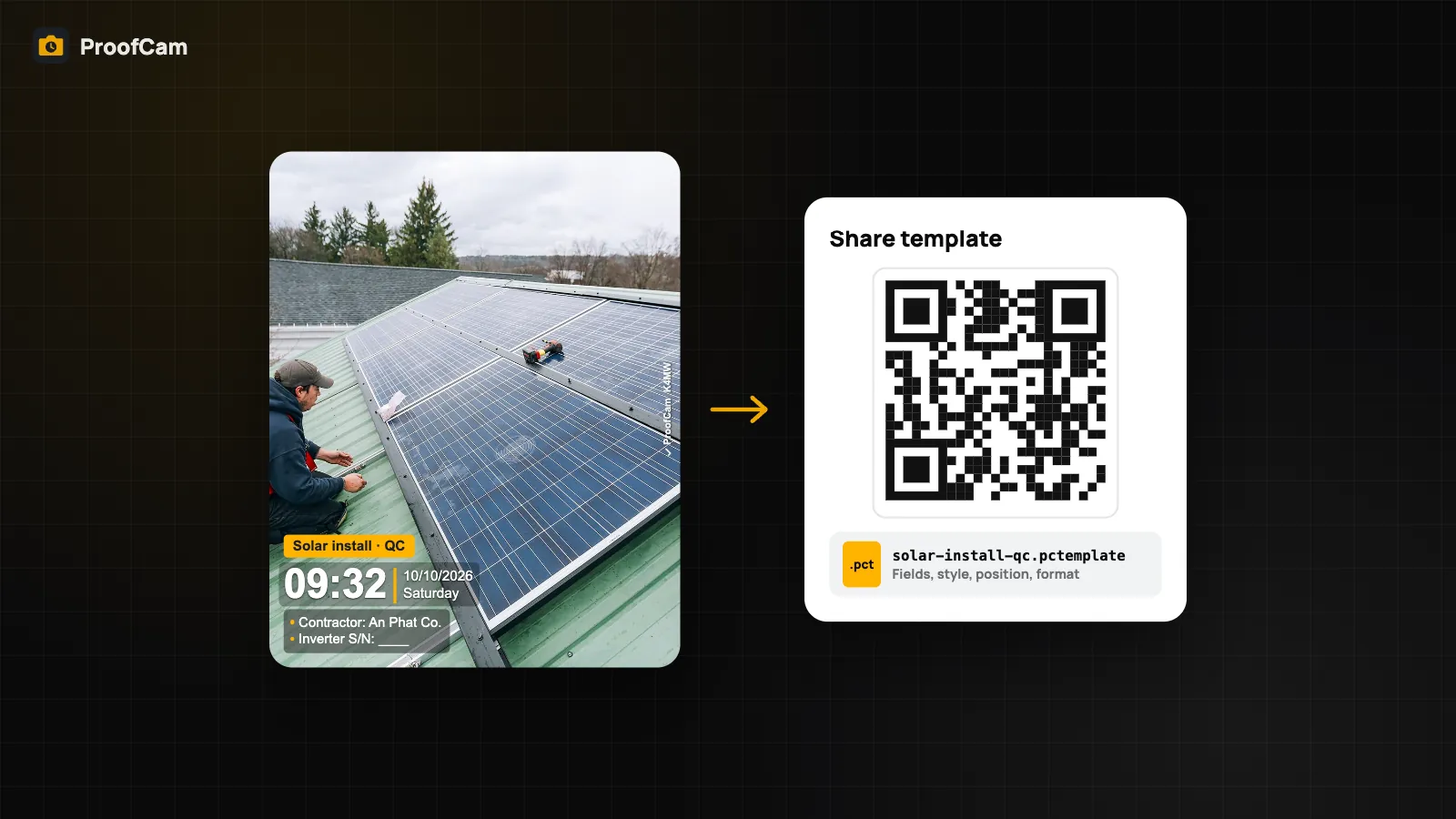
Each site can have its own watermark template. Pick one in Template, or choose Keep current template if you only want the project to switch.
Set it up step by step
- Create the projects in the web portal and give each a geofence. Keep the circle tight around the work area, not the whole neighbourhood.
- Pick a template per project if clients need different fields or logos. A shared team template is covered in share watermark templates.
- On the phone, open Settings → Offline & privacy → Auto-select at site.
- Turn on Auto-select project / template.
- Allow location "Always" (background location). Without it, the phone can't notice you arriving while the app is closed.
- Optional: add local sites with Add site here for places that are not team projects.
On iPhone, the system lets an app watch a limited number of areas, so ProofCam watches the 10 nearest sites to you at any time.
Tips that keep projects clean
- Choose radii that match the site. 50–150 m suits a house or a small building; a solar farm or a road section may need 500 m or more.
- Avoid big overlaps. If two projects sit next to each other, keep their circles small. The smallest radius wins when they overlap.
- Glance at the notification. "Arrived at…" tells you which project is active. If it is wrong, change the project before you start shooting.
- Keep it modest on day one. Auto-select is new; try it on a few sites before rolling it out to every crew, and check in the portal that photos land where you expect.
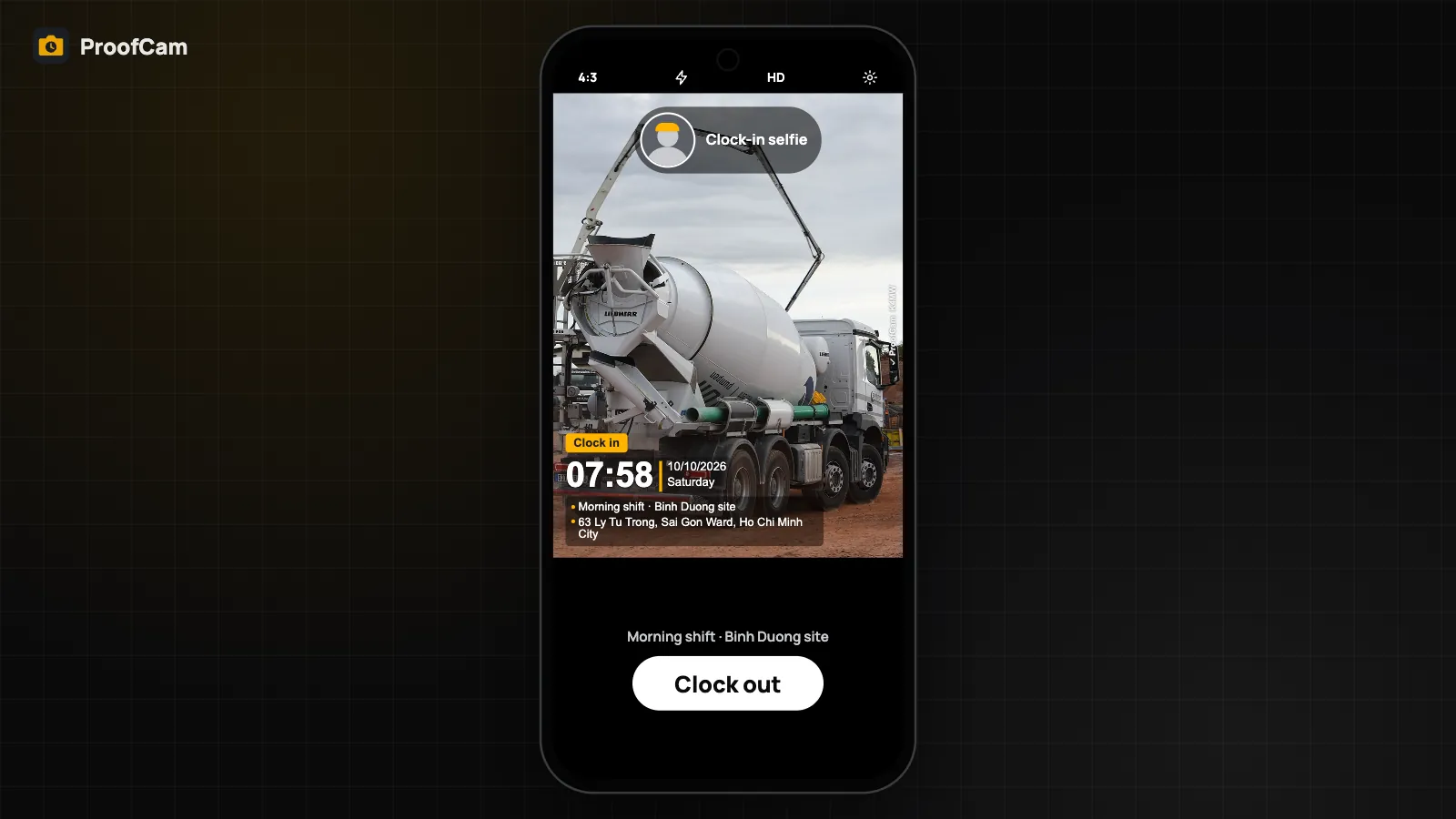
Auto-select only chooses the project and template. It doesn't clock you in. Location-checked clock-in with selfies and site geofences is a separate feature, described in photo clock-in with selfie, geofence, Wi-Fi and QR.
Where it helps most
- Construction: subcontractors moving between blocks or sites; each block's photos land in its project and feed the construction daily report.
- Building maintenance: technicians covering several buildings in a day. See building maintenance work orders.
- Solar: installers moving between rooftops, with a client-specific template on each. See solar installation photo documentation.
Which plan and platforms?
| What | Android | iPhone | Web portal | Plan |
|---|---|---|---|---|
| Projects and filtering photos by project | Yes | Yes | Yes | Any Teamspace team (Free: 3 projects; Business: unlimited) |
| Project geofence | Used by the phone | Used by the phone | Created here | Teamspace |
| Auto-select project / template at site | Yes (radius 50–1,000 m) | Yes (fixed radii, 10 nearest sites) | No | Plus |
| Local sites with Add site here | Yes | Yes | No | Plus |
FAQ
Does auto-select work without a signal?
Yes. Sites are cached on the phone and the location check happens on the device. Photos taken offline upload to the right project once you are back online.
Why does ProofCam ask for "Always" location?
To notice that you arrived at a site while the app is in the background. Without background location, auto-select can't switch the project for you.
Can it pick a project from another team?
No. The project is only selected if it belongs to the team that is active on your phone.
Is this the same as geofence clock-in?
No. Auto-select only chooses the project and watermark template. Clock-in with a site geofence is a separate feature with its own rules.
Related: Teamspace web portal for managers and share watermark templates with your team.