The job is done, the photos are on your phone, and the client wants to see them now. So you drop twenty photos into a chat. The app shrinks them, the fine print on the stamp turns to mush, and a week later the client asks whether the photos were "really taken that day". The proof you collected so carefully got weaker on the last step.
ProofCam gives you three ways to share job photos with clients that keep the proof checkable: send the stamped photos through a chat app with a ready-made message and verify links, send a share link to a web page with photos, map and a ZIP download, or, for teams, keep a live link to a whole project. Every option points back to the original through its Photo Code.
What happens when you send photos through a chat app
Chat apps are built to send pictures quickly, not to preserve evidence. Many of them recompress images and strip the data embedded in the file. For a ProofCam photo, that embedded evidence (time source, location trust, fingerprint) may be gone in the copy your client receives.
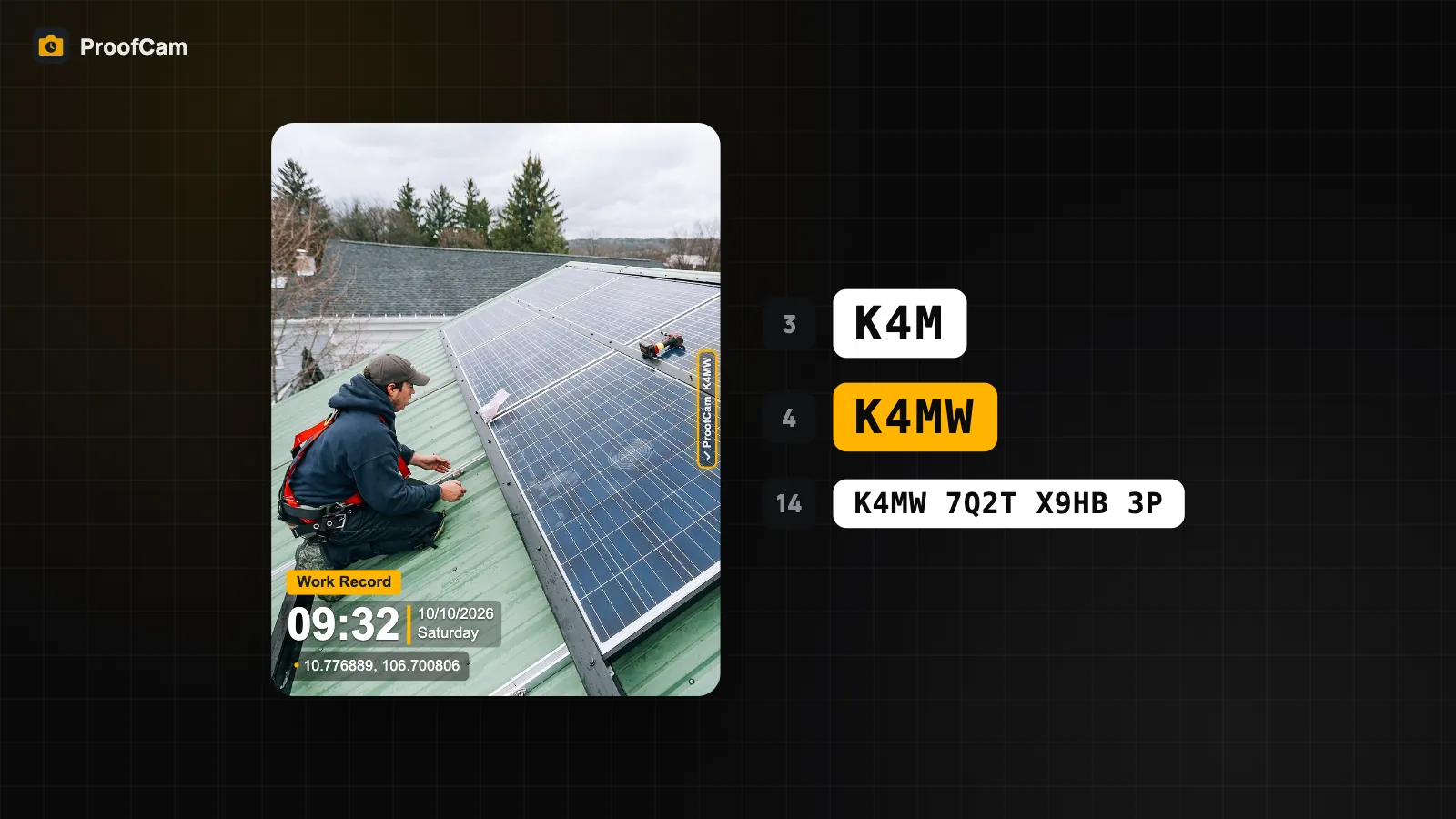
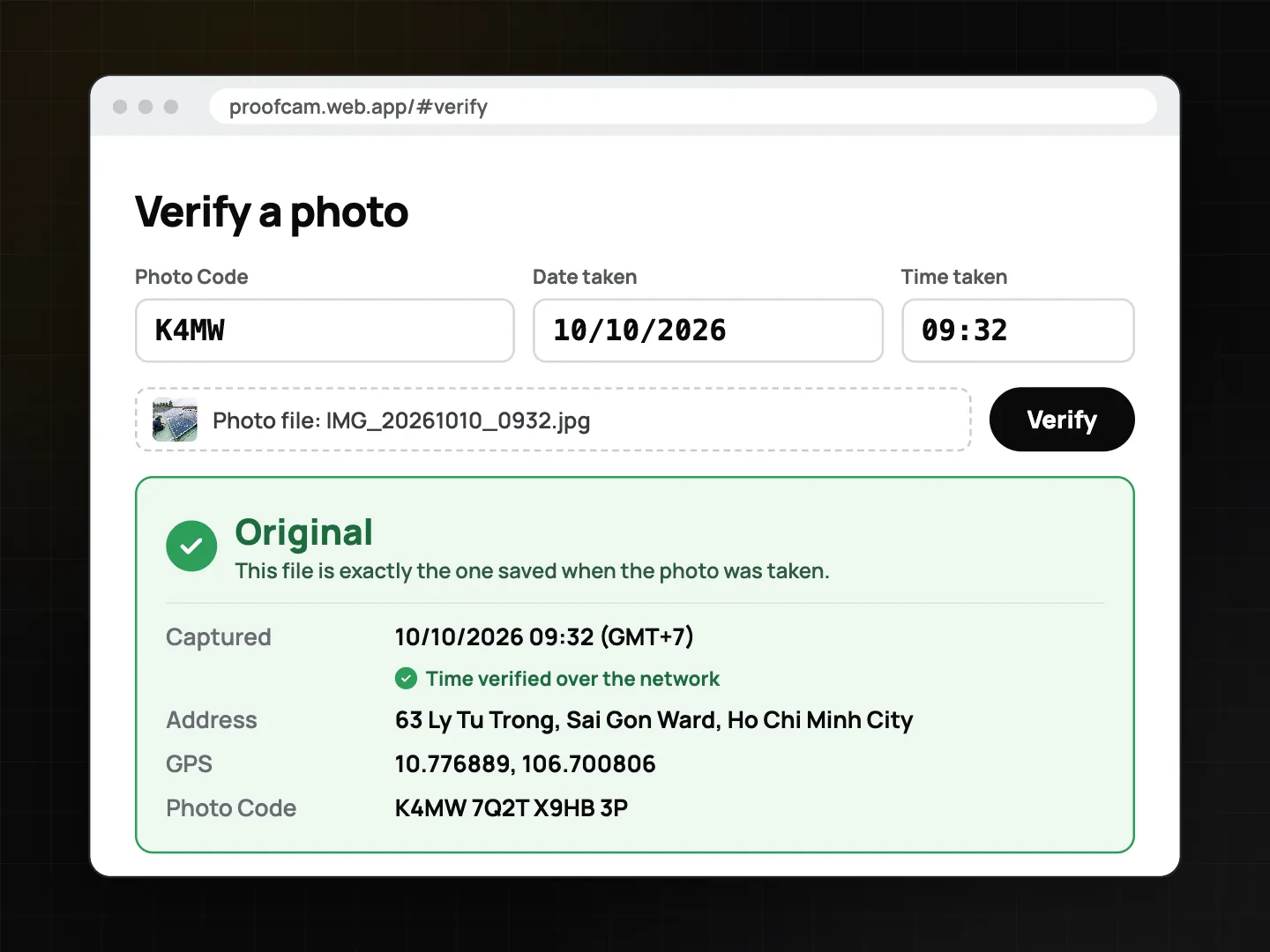
What survives is what is printed on the photo: the stamp with time, place and the Photo Code. That code is the link back to the original record. Anyone can type it, or tap a verify link, and see the original capture time and place on the verify page. This is why ProofCam adds verify links to the message it prepares for you. Photo Code: verify original photos explains the check in detail.
So the rule is simple: send photos however is convenient for the client, but always send the verify link with them.
Sending to Zalo and other chat apps
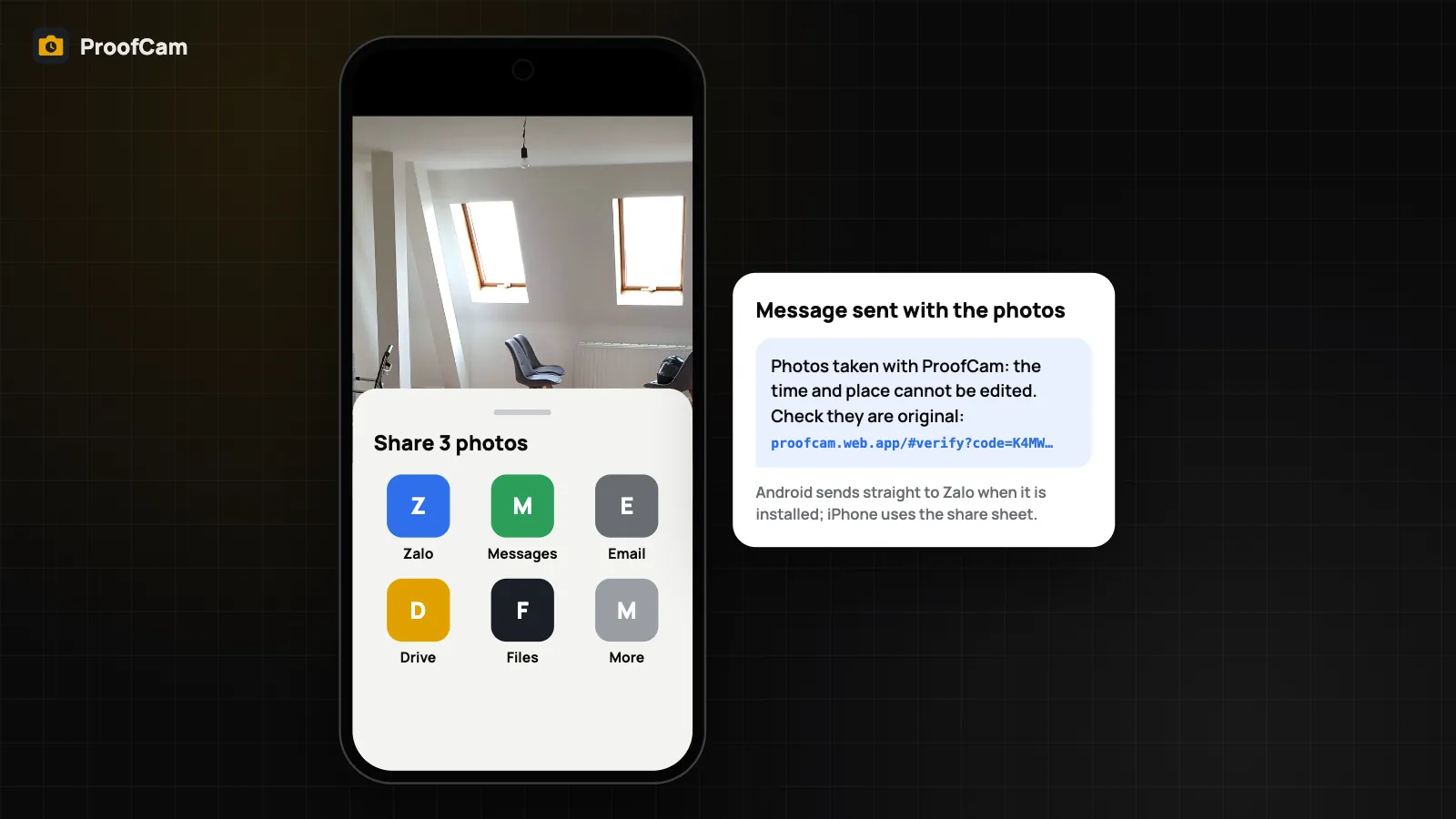
Zalo is the most widely used chat app in Vietnam, so ProofCam has a dedicated Send to Zalo button. You find it in the gallery after selecting several photos, in photo detail, and in the share-link dialog.
- On Android, the stamped photo files go straight to the Zalo app if it is installed; otherwise the normal share sheet opens.
- On iPhone, the share sheet opens and you pick Zalo from its share extension. If you send only text (for example a link), ProofCam copies the text and opens Zalo for you to paste.
For any other app, such as email or another messenger, use the normal share sheet. The message ProofCam prepares is the same: "Photos taken with ProofCam: the time and place cannot be edited.", followed by "Check they are original:" and verify links, one per photo, up to 10.
Before you send a lot of photos this way, open the template editor and use the View as sent on Zalo preview. It shows your stamp at 1280 px with compression, the way it often arrives in a chat, so you can check the text and Photo Code are still readable. If they are not, make the stamp text larger or shorter.
Sending to Zalo is free on every plan.
Share links: one link, a page of photos
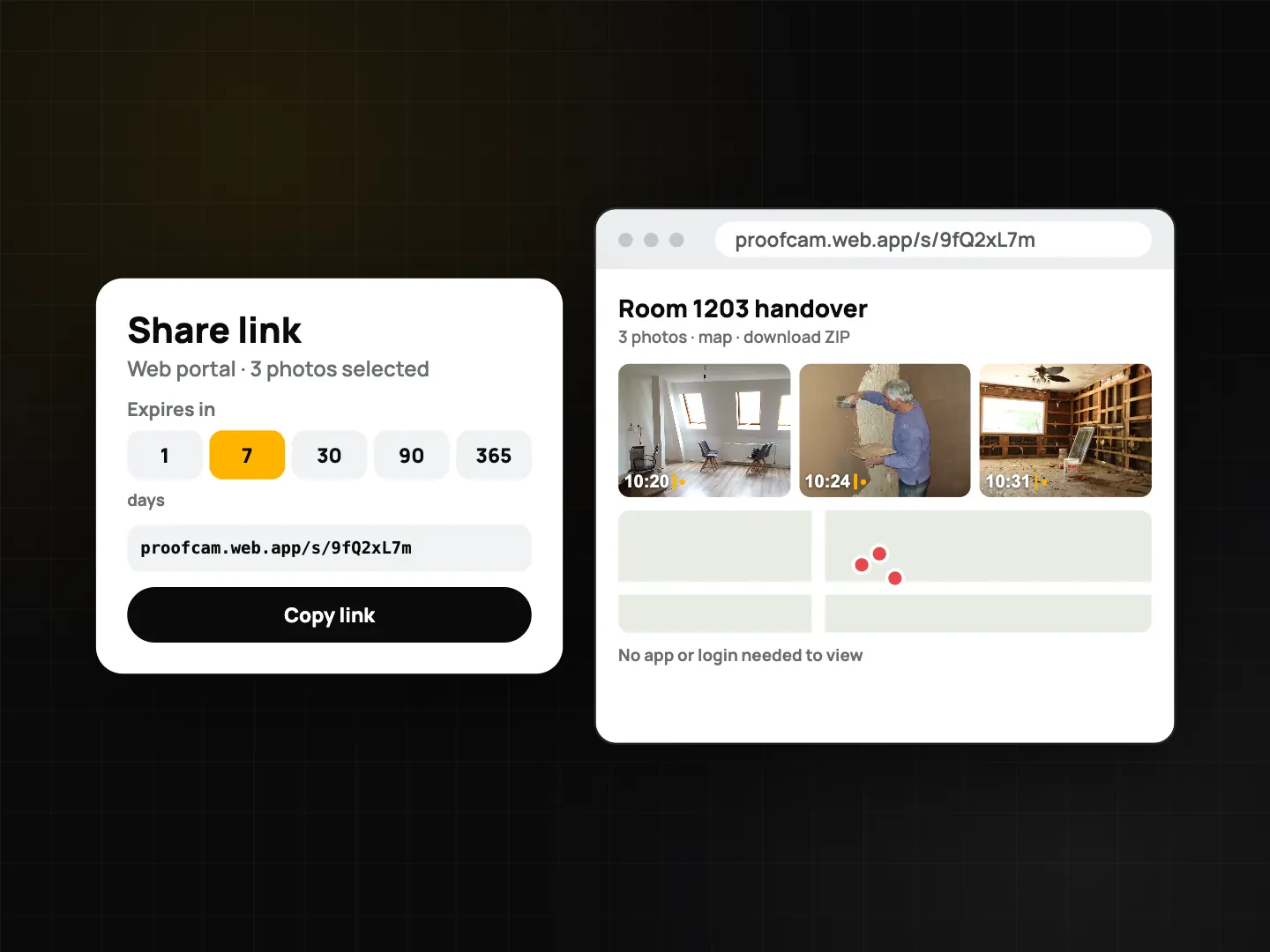
When you have more than a handful of photos, or the client should be able to download the originals, a share link works better than a chat. A share link opens a public page with:
- a grid of the photos;
- a map of where they were taken;
- a ZIP download of the files.
The person you send it to needs no app and no login. You need to be signed in to create a link.
From the phone apps, links always expire after 30 days. Links you create from the app for your own (non-team) photos skip videos.
From the Teamspace web portal, you choose the lifetime under Expires in: 1, 7, 30, 90 or 365 days. A one-day link suits a quick check; a year suits a warranty file.
Be aware that there is no button to revoke a share link, in the app or on the web. It stops working when it expires. Choose a short lifetime for anything sensitive.
Live project link for teams
On the web portal, a team member with export permission can create a Live share link for a project. Instead of picking photos one by one, you share the project itself, so a client or site owner can keep one link for the whole job. It suits long jobs where the client wants to follow progress without calling the site manager every day. See the Teamspace web portal guide for permissions and projects.
Protect privacy before you share
Job photos often show more than the job: a neighbour's face, a car plate, a home address. Two things help:
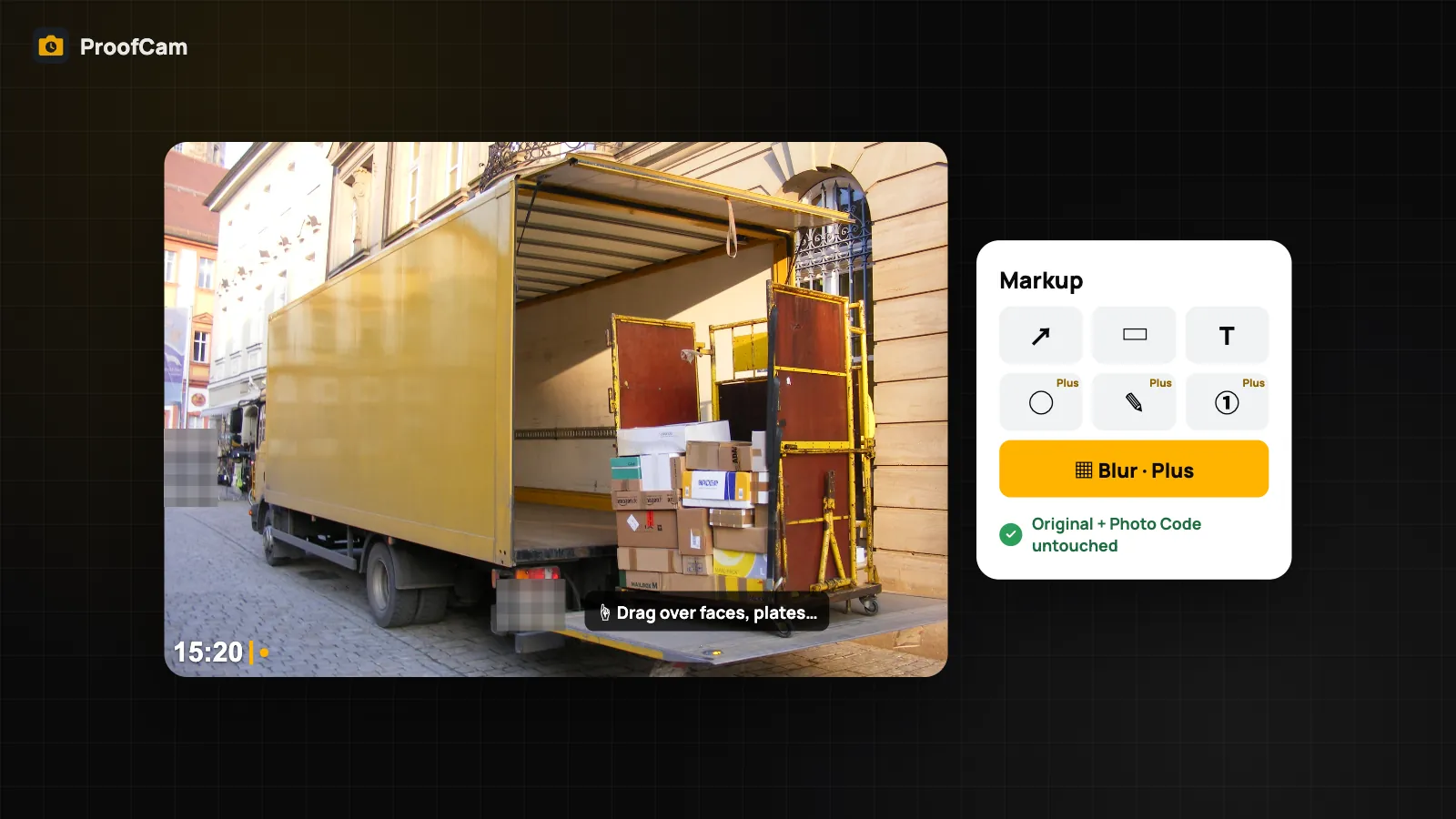
- Markup with blur. If you marked up a photo, the share, the share link and the ZIP always use the marked-up copy, so blurred areas are blurred for the recipient too. The original stamped file and its Photo Code stay untouched. See blur faces and license plates.
- Share without exact location creates a new copy with GPS and coordinates removed and the address cut to district level, while the Photo Code still points to the original. More in the privacy guide.
Which way to share job photos with clients
| Situation | Best option | Where | Plan |
|---|---|---|---|
| A few photos, client lives in a chat app | Send to Zalo / share sheet + verify links | Android, iPhone | Free |
| Many photos, client needs the files | Share link (30 days from the app) | Android, iPhone (signed in) | Signed-in account |
| Link with a custom lifetime | Share link, Expires in 1–365 days | Web portal | Teamspace |
| Client follows a project over weeks | Live share link | Web portal | Teamspace, export permission |
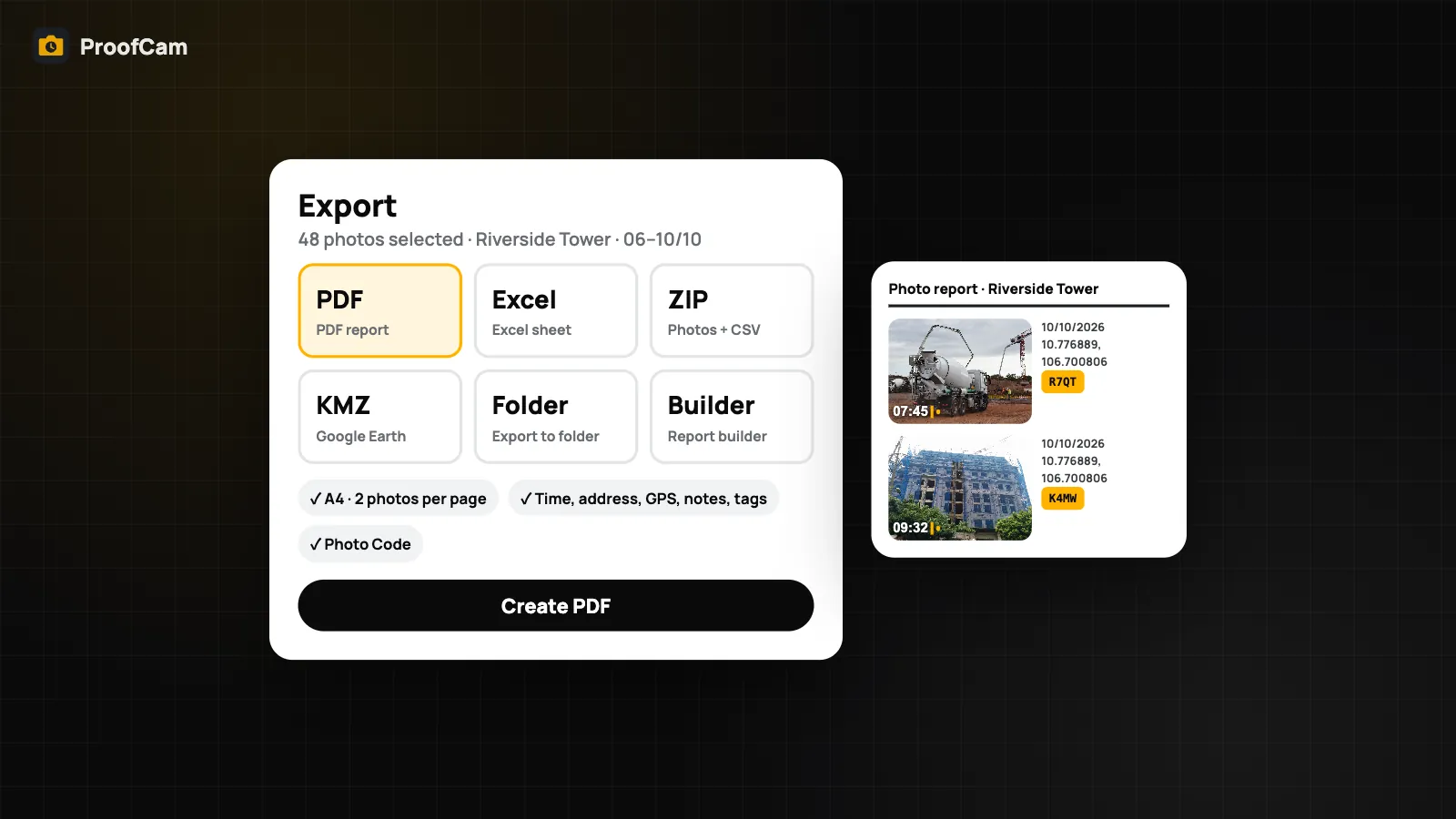
| Paperwork or archive | PDF, Excel, ZIP or KMZ export | Phone and web | See export guide |
For handovers such as move-in and move-out inspections or proof-of-work photos for contractors, a share link plus a PDF from the export guide is a common pair.
FAQ
Will my client see full-quality photos in Zalo?
Not necessarily. Chat apps can recompress images and remove embedded data. The stamp and Photo Code stay visible, and the verify link lets your client check the original online. For full-size files, send a share link with its ZIP download.
Does the client need ProofCam to open a share link?
No. The share page opens in any browser with no app and no login, and includes the photos, a map and a ZIP download.
Can I cancel a share link after sending it?
Not at the moment. There is no revoke button in the app or on the web portal; the link stops working when it expires. Links from the app last 30 days; on the web you can pick as little as 1 day.
Are videos included in share links?
Links created from the app for personal photos skip videos. To deliver a video, send the file directly through the share sheet.
Related: search job photos fast and share watermark templates with your team.