A delivery photo at a doorstep shows the neighbour walking past. A road defect report catches three parked cars and their plates. An insurance photo of a damaged car park includes a stranger's face. The photo is good evidence, but sending it as-is to a client, a group chat or a public report shares more than it should.
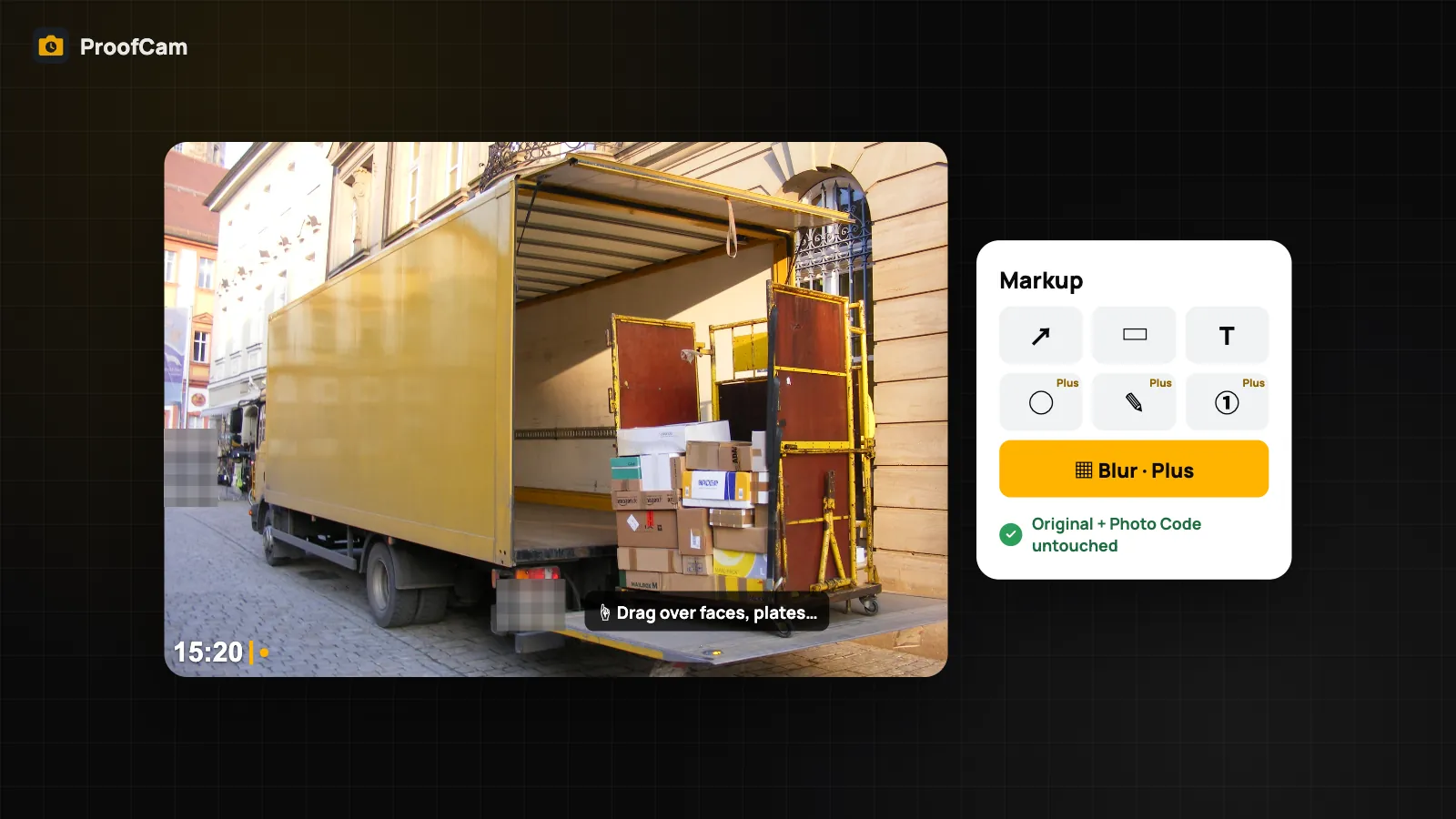
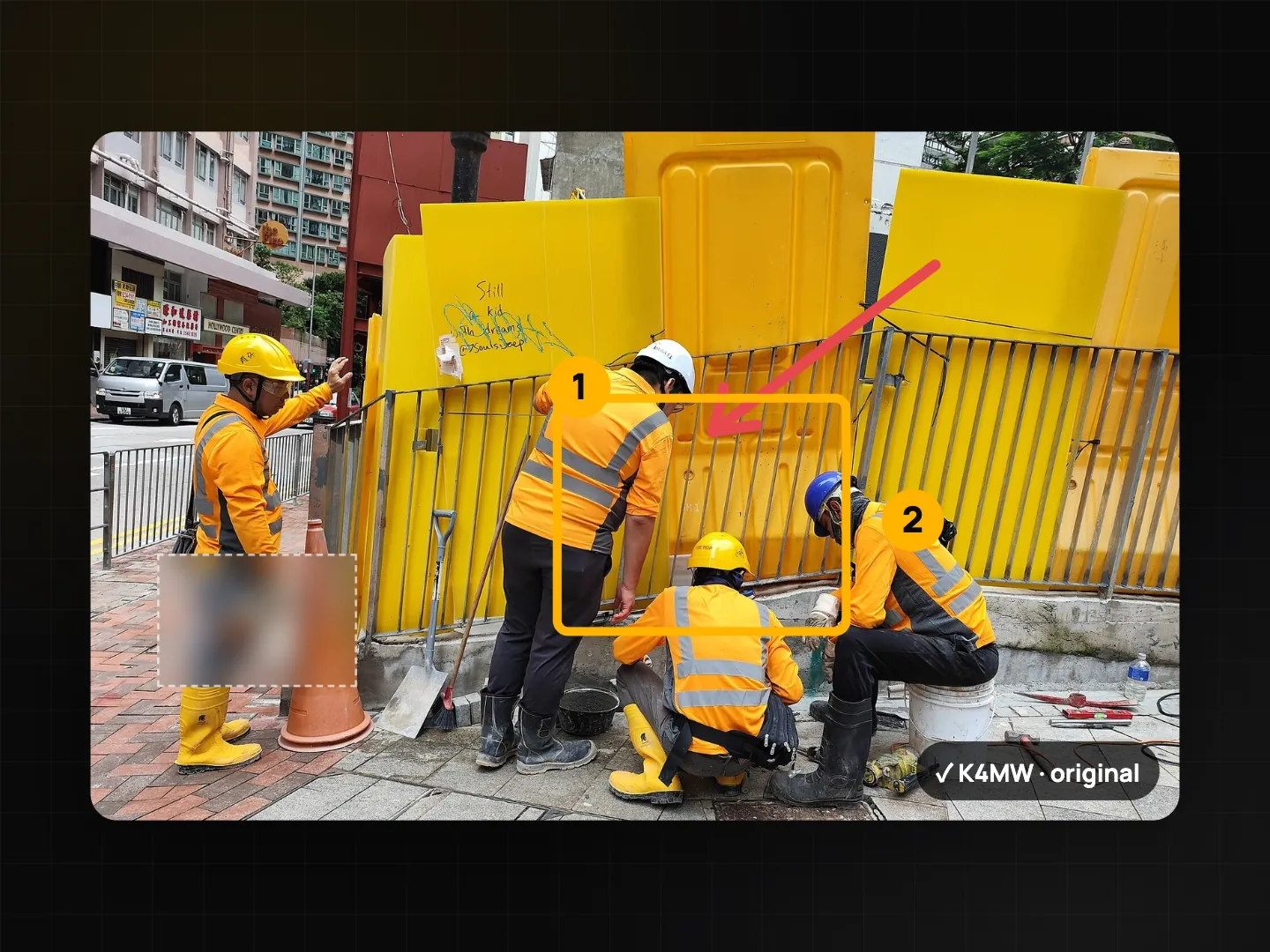
ProofCam lets you blur faces and license plates before you share, by dragging over them in the photo's markup editor. You can also add arrows, boxes and text to point at the problem, and send a copy that hides your exact location. The original stamped photo and its Photo Code are never touched, and the marked-up copy is what goes out everywhere.
How to blur faces and license plates
Blurring in ProofCam is manual. There is no automatic face or plate detection: you decide what to hide.
- Open the photo and tap Markup.
- Choose Blur. The hint reads "Drag over faces, plates…".
- Drag your finger over each face, plate, house number or document. The area turns into pixel blocks.
- Use undo or redo if you go too far, or Clear all to start over.
- Save. The photo now has a marked-up copy alongside the original.
Because you drag by hand, zoom in on small plates and faces in the background so nothing slips through. A face half-hidden behind a pillar still counts.
Point at the problem: arrows, boxes, text
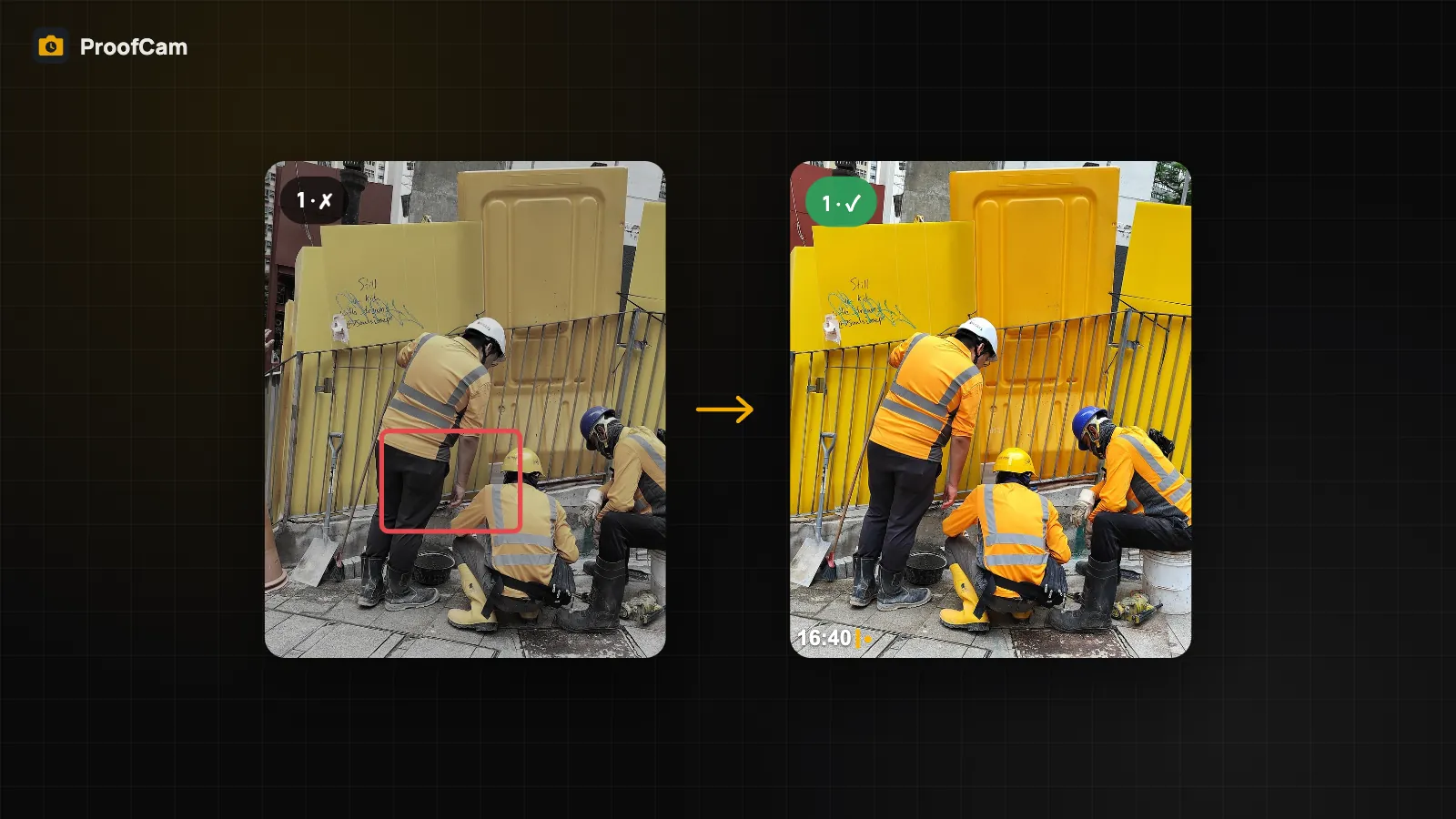
The same editor is where you show what the photo is about. A wide shot of a stairwell means little until there is an arrow on the crack.
| Tool | Plan |
|---|---|
| Arrow, Box, Text | Free |
| Ellipse, Pen, Number badges, Blur | Plus, or a Business / trial team |
Every tool has six colours, and undo/redo works across all of them. Number badges are handy when one photo shows several defects that match items in a task list or report.
The original stays intact
Markup is stored as a separate layer. The original stamped file, with its time, place and Photo Code, stays exactly as it was captured. ProofCam renders a marked-up copy and adds that copy's fingerprint to the Photo Code record, so the copy is tied to the original.
What that means in practice:
- Shares, PDFs, ZIP, KMZ, collages and share links always use the marked-up copy. You don't have to remember to pick the redacted version; a blurred plate stays blurred wherever the photo goes.
- Team photos work the same way. When a team photo is shared from the server, the marked-up copy is used there too.
- You can still prove what was captured. The original and its Photo Code are kept, so the photo can be checked on the verify page if there is ever a question.
Markup works on photos only, not on video.
Redact the photo's location too
Faces and plates are not the only private detail. A stamped photo of someone's home carries the exact coordinates, an address and sometimes a map. When you send it to someone who doesn't need that, use Share without exact location (Free).
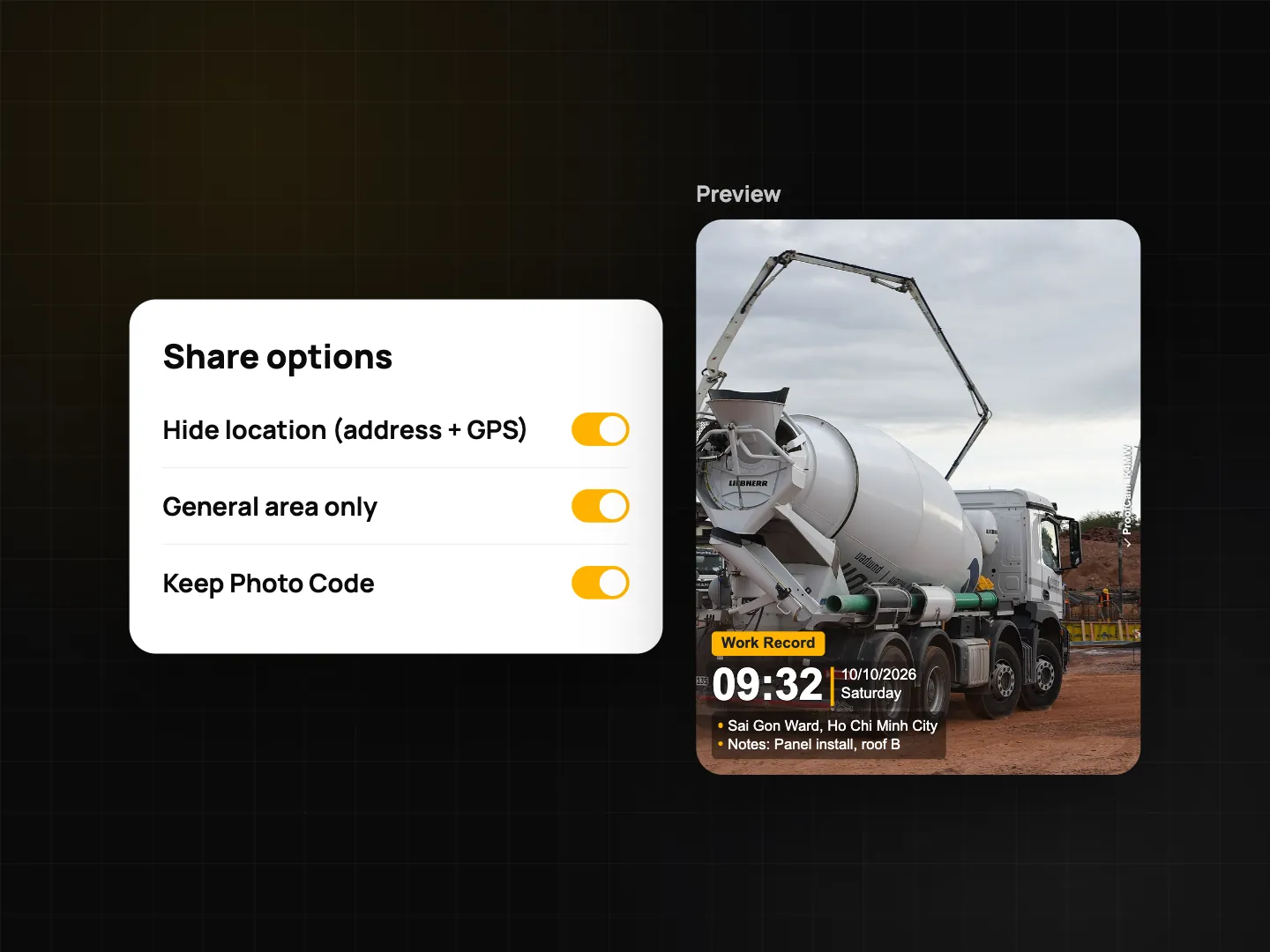
This creates a new file:
- EXIF GPS and the embedded evidence data are removed;
- coordinates, altitude, Plus Code, the map and the crosshair are removed from the stamp;
- the address is cut down to district level;
- the stamp shows "Shared copy · location reduced to district".
The Photo Code and verify QR still point to the original, so the recipient can see it is a genuine ProofCam photo without seeing where you live. This option is for photos only. More on privacy tools, app lock and Content Credentials in privacy, app lock and C2PA.
Markup in the web portal
Managers can redact team photos without the phone. The Teamspace web portal at /app/ has a markup editor with all seven tools on team photos, for the owner and members whose role allows it. That is useful when a client asks for a report and someone in the office spots a face that needs hiding before export.
When to redact before you share
- Deliveries. Doorstep photos often show residents, neighbours and house numbers. Blur what isn't part of the delivery. See delivery driver photo proof.
- Road and public works reports. Passers-by and parked cars end up in almost every street photo. See road defect reporting.
- Insurance claims. Blur other people's plates and faces, and point at the damage with arrows and numbers. See insurance claim photos.
- Tasks and punch lists. Mark the defect with a box before you assign it. See punch list with before/after photos.
- Sending to clients. Check the photo before it leaves your phone. See share job photos with clients.
Redaction helps you share only what is needed. Whether a photo may be taken or published at all depends on local privacy rules and your contract, so check those for sensitive sites.
Which plan and platforms?
| Feature | Android | iPhone | Web portal | Plan |
|---|---|---|---|---|
| Markup: Arrow, Box, Text | Yes | Yes | Yes (team photos) | Free |
| Markup: Ellipse, Pen, Number, Blur | Yes | Yes | Yes (team photos, with permission) | Plus, or a Business / trial team |
| Share without exact location | Yes | Yes | — | Free |
| Automatic face or plate detection | No | No | No | Not available |
FAQ
Does ProofCam find faces and plates automatically?
No. You drag the blur over each face or plate yourself. That keeps you in control of what is hidden, so zoom in and check the edges of the photo.
Can someone remove the blur from a shared photo?
The shared file is a rendered copy with the area pixelated, not a layer on top. The unblurred original stays on your phone or in your team, with its Photo Code.
Does markup change the Photo Code?
No. The original photo and its Photo Code stay as captured. The marked-up copy's fingerprint is added to the same Photo Code record.
Can I blur part of a video?
No. Markup and blur work on photos only.
Related: privacy, app lock and C2PA and share job photos with clients.