"Is it really different?" is the question every cleaner, gardener, painter and landlord hears. Two photos sent one after the other in a chat are hard to compare: the angle shifts, the lighting changes, and the client has to scroll up and down to spot the difference.
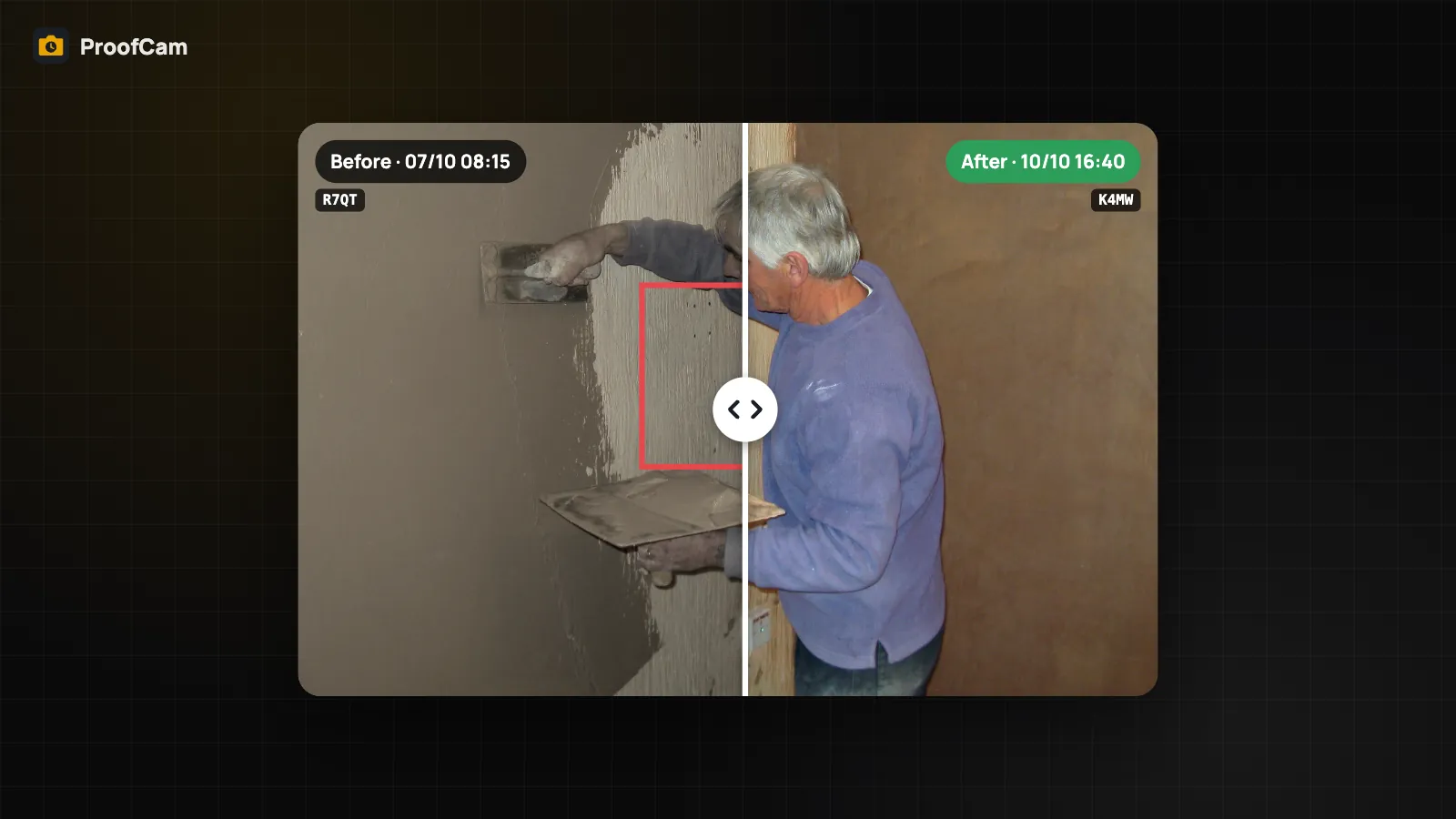
ProofCam gives you a proper before and after photo comparison. On the phone, a slider puts two stamped photos on top of each other so you drag a white line across and see exactly what changed. For reports and clients, a before/after collage puts both photos, with both stamps, into one image. Both start from photos that already carry time, place and a Photo Code, so the comparison is not just pretty, it is checkable.
Compare two photos with the slider
The slider works on photos stored on your phone, on every plan.
On Android:
- Open a photo and tap Compare before / after.
- Choose Compare with… and pick the other photo. Photos from the same project are listed first, but you can pick any photo.
- Drag the white line to compare.
On iPhone:
- Open a photo and tap Before / after. The screen is described as "Slide between two photos of the same spot".
- Tap Pick the other photo. You can choose photos from the same project or taken within 100 m.
- Drag the line left and right.
On both, the older photo is always placed as Before, and the date of each photo is shown, so nobody can swap the order by accident. The slider is view-only: it doesn't create a new file or change either photo.
Before/after pairs inside tasks
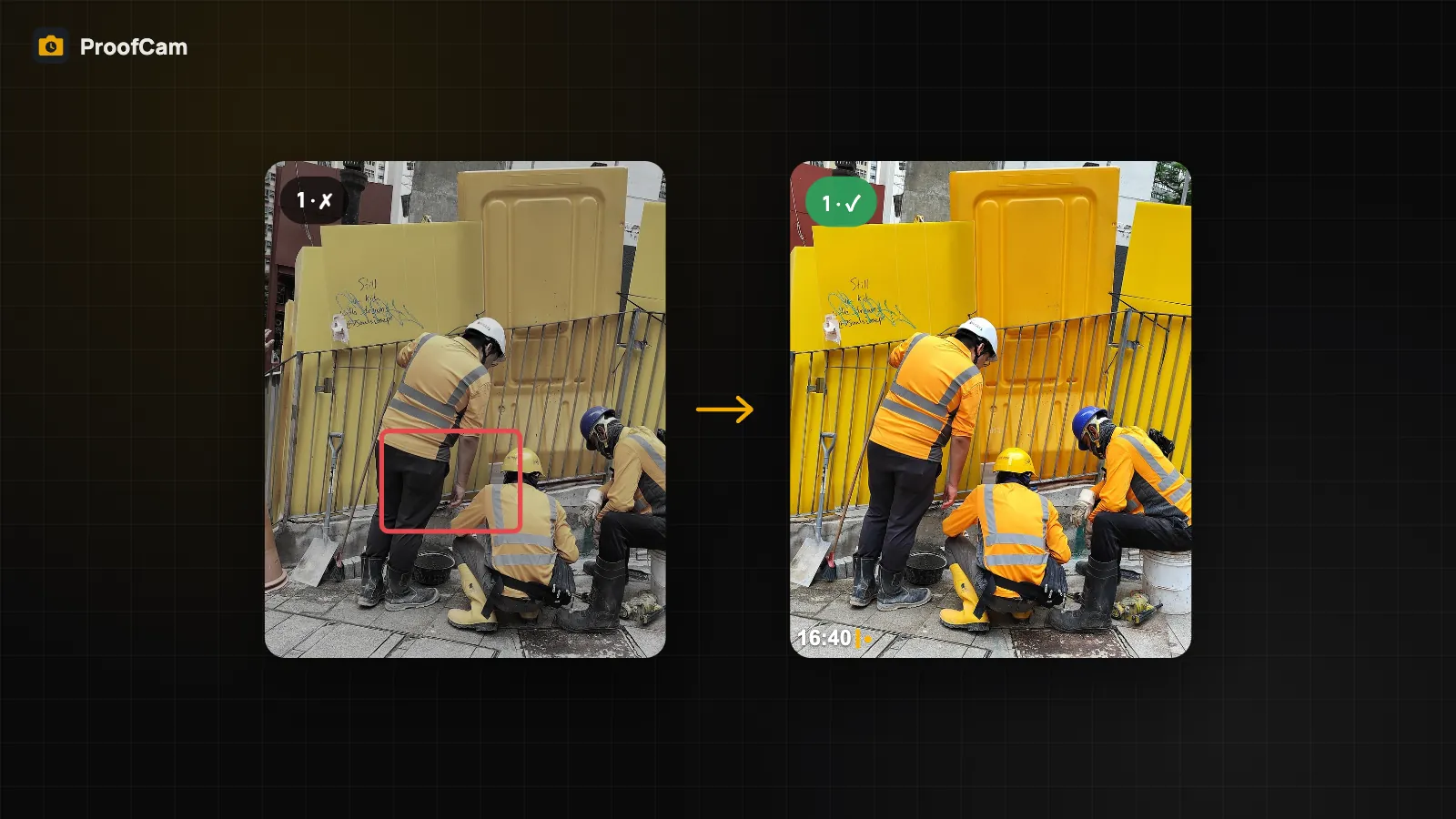
When you work with tasks in Teamspace, the comparison is built in. A task's before photo is the problem; the after photo closes it. When the assignee taps Take after photo, the before shot appears as a faint ghost at 30% opacity over the camera view, so the after photo lines up with the same angle.
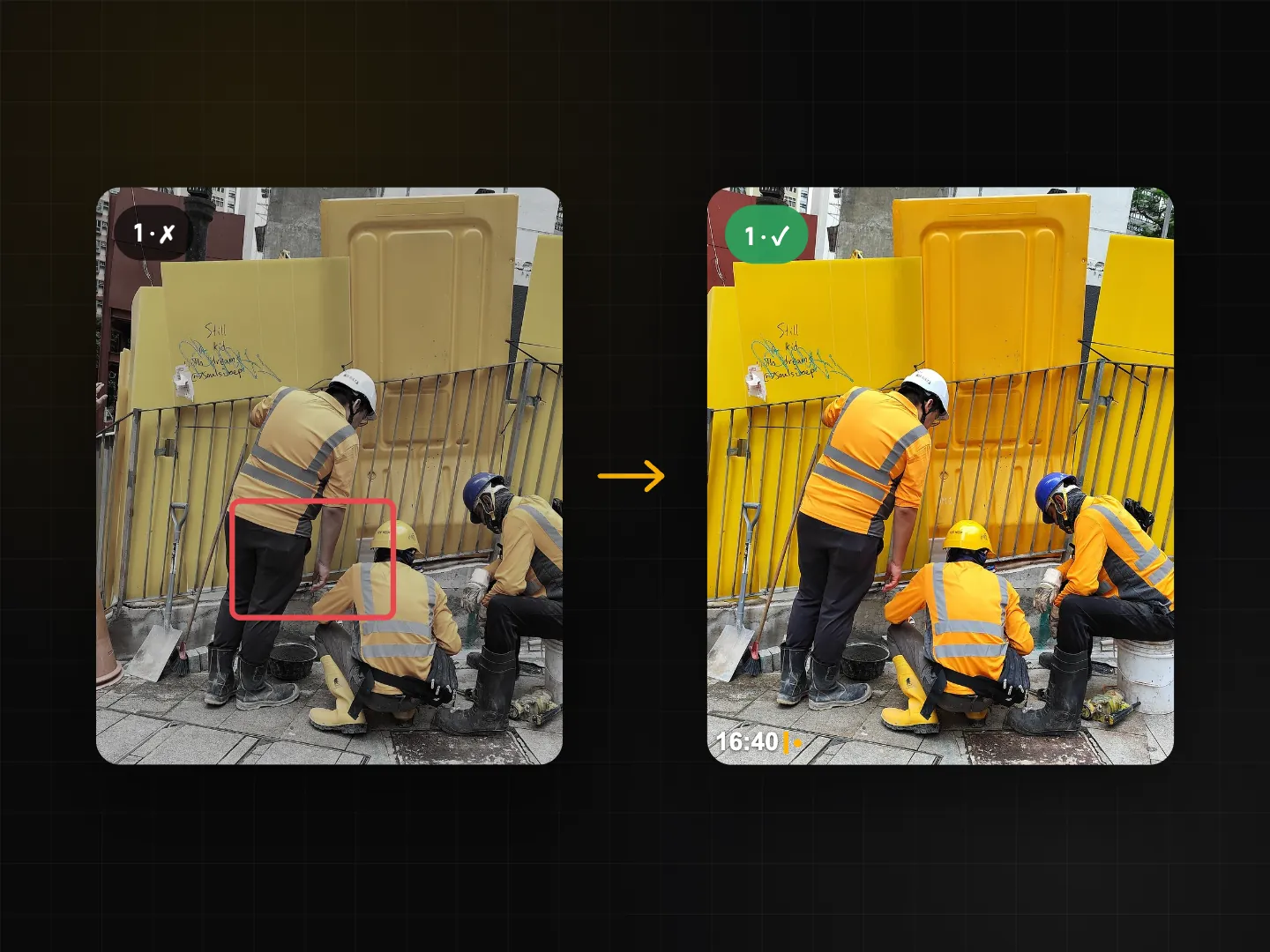
In the task detail, both Android and iPhone show the slider on that before/after pair. The full workflow, with assignees, statuses and a Kanban board, is described in the punch list with before/after photos guide.
What managers see in the web portal
The Teamspace web portal at /app/ does not have a slider. Instead, each task shows:
- the before and after photos next to each other;
- the distance between where the before and after photos were taken;
- a red warning when the after photo is too far away (50 m by default; the team can change it).
When you export tasks, the export has before and after columns, so the pairs land in your report. See Teamspace web portal for managers for the rest of the portal.
Side-by-side photo compare as a collage
A slider is great on a phone, but clients often want one image they can forward or print. That is the before/after collage: two stamped photos side by side in a single image, with both dates and both Photo Codes readable.
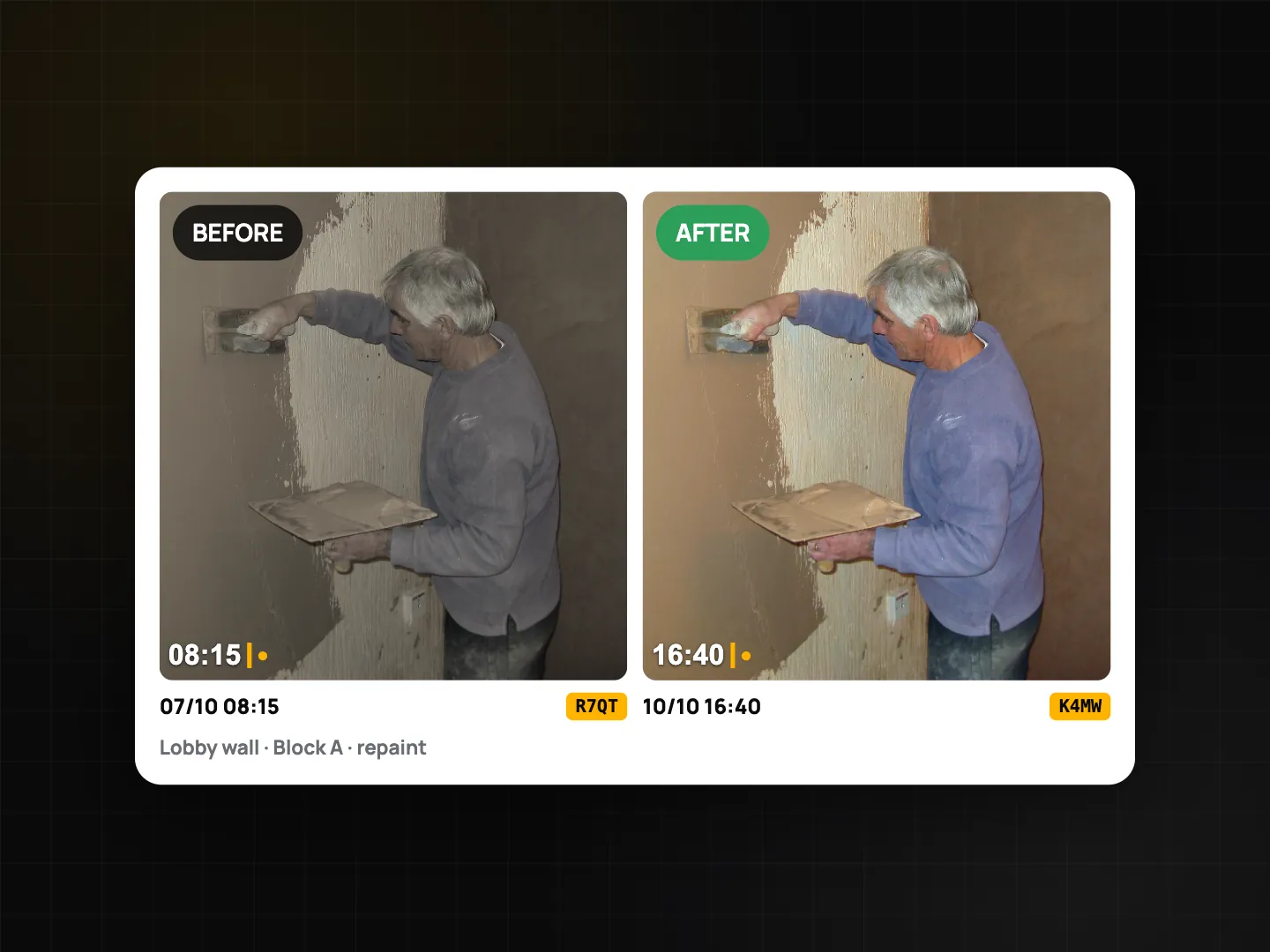
To make one, open the gallery, pick a before photo and an after photo, and create the collage. The collage is a Plus feature.
Each original photo keeps its own Photo Code, so anyone who receives the collage can check either photo on the verify page.
Tips for a convincing comparison
- Shoot the before photo with the after photo in mind. Pick a spot you can find again: a door frame, a corner, a lamp post.
- Match the framing. Stand in the same place and hold the phone at the same height. In tasks, the ghost overlay does this for you.
- Use the same light if you can. A sunny before and a cloudy after makes everything look different.
- Keep the gap honest. The dates are visible on both photos and the slider, which is the point. Don't reuse an old before photo from another job.
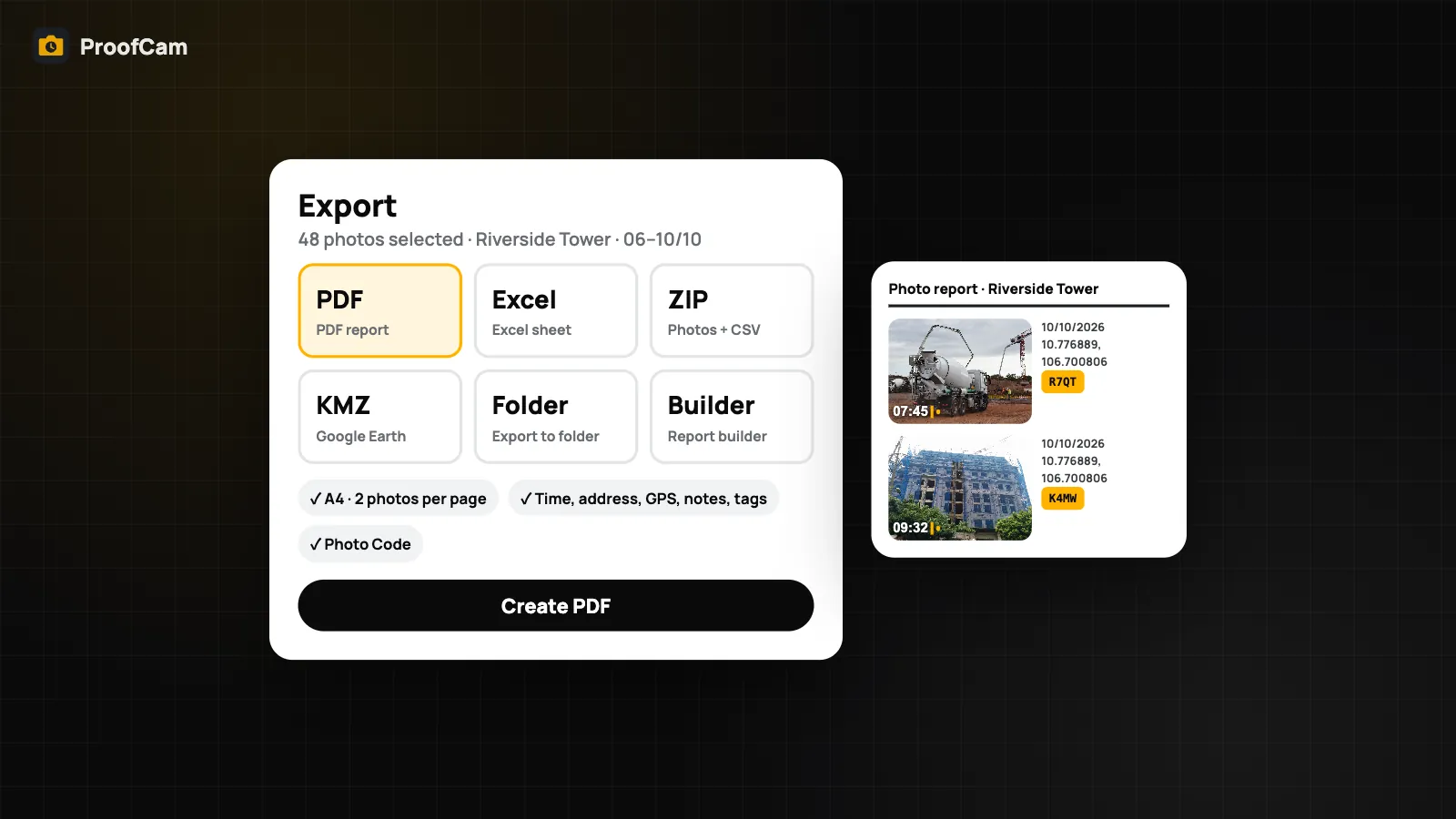
- Send the collage, keep the originals. Clients get one tidy image; you keep both originals with their codes. Export options are covered in export geotagged photos to PDF, Excel, ZIP and KMZ.
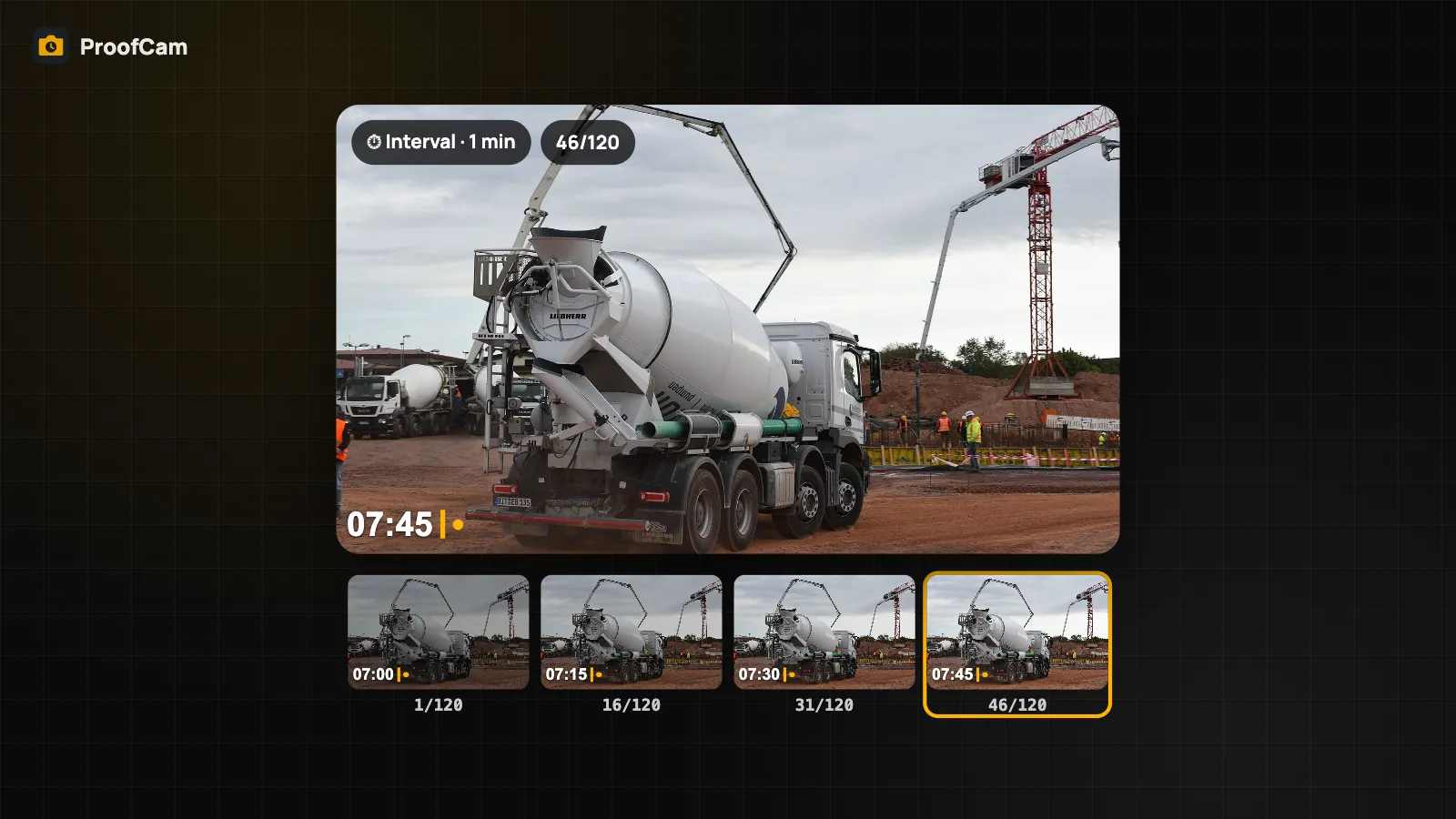
- For a process, not a result, use frames. If you need to show how something changed over a few hours, a construction time-lapse fits better than two photos.
Who uses before and after photos
- Cleaning crews show a room before and after a deep clean. See cleaning before/after photos.
- Landscaping and tree care teams show a lawn, hedge or tree before and after the job. See landscaping and tree care job photos.
- Landlords and tenants compare the same room at move-in and move-out. See move-in/move-out inspection.
- Freelancers and small contractors send proof that the job is done. See proof of work photos for contractors.
Which plan and platforms?
| Feature | Android | iPhone | Web portal | Plan |
|---|---|---|---|---|
| Slider from photo detail (local photos) | Yes, any other photo | Yes, same project or within 100 m | No | Free |
| Slider on a task's before/after pair | Yes | Yes | No (photos side by side, distance, red warning) | Any Teamspace team |
| Ghost overlay when taking the after photo | Yes | Yes | No | Any Teamspace team |
| Before/after collage (from the phone gallery) | Yes | Yes | No | Plus |
Free Teamspace teams are limited to 100 photos and 3 projects; new teams get a 14-day Business trial.
FAQ
Does the slider change my photos?
No. The slider only displays two photos together. Neither file nor its Photo Code is changed, and no new file is created.
Can I compare photos from two different jobs?
On Android you can pick any photo, with photos from the same project listed first. On iPhone the other photo must be in the same project or within 100 m.
Why is there no slider in the web portal?
The portal shows task photos side by side with the distance between them and a warning when they are too far apart. The drag slider is on Android and iPhone.
Is the collage verifiable?
The collage shows both stamps and Photo Codes. Each original photo can be checked on the verify page with its code.
Related: punch list with before/after photos and construction time-lapse from a phone.