A concrete pour, a crane lift or a night shift changes the site in a few hours, and nobody has time to stand there pressing the shutter every minute. Afterwards someone asks how long the pour took, when the truck arrived, or whether the formwork moved, and all you have is three random photos from the start.
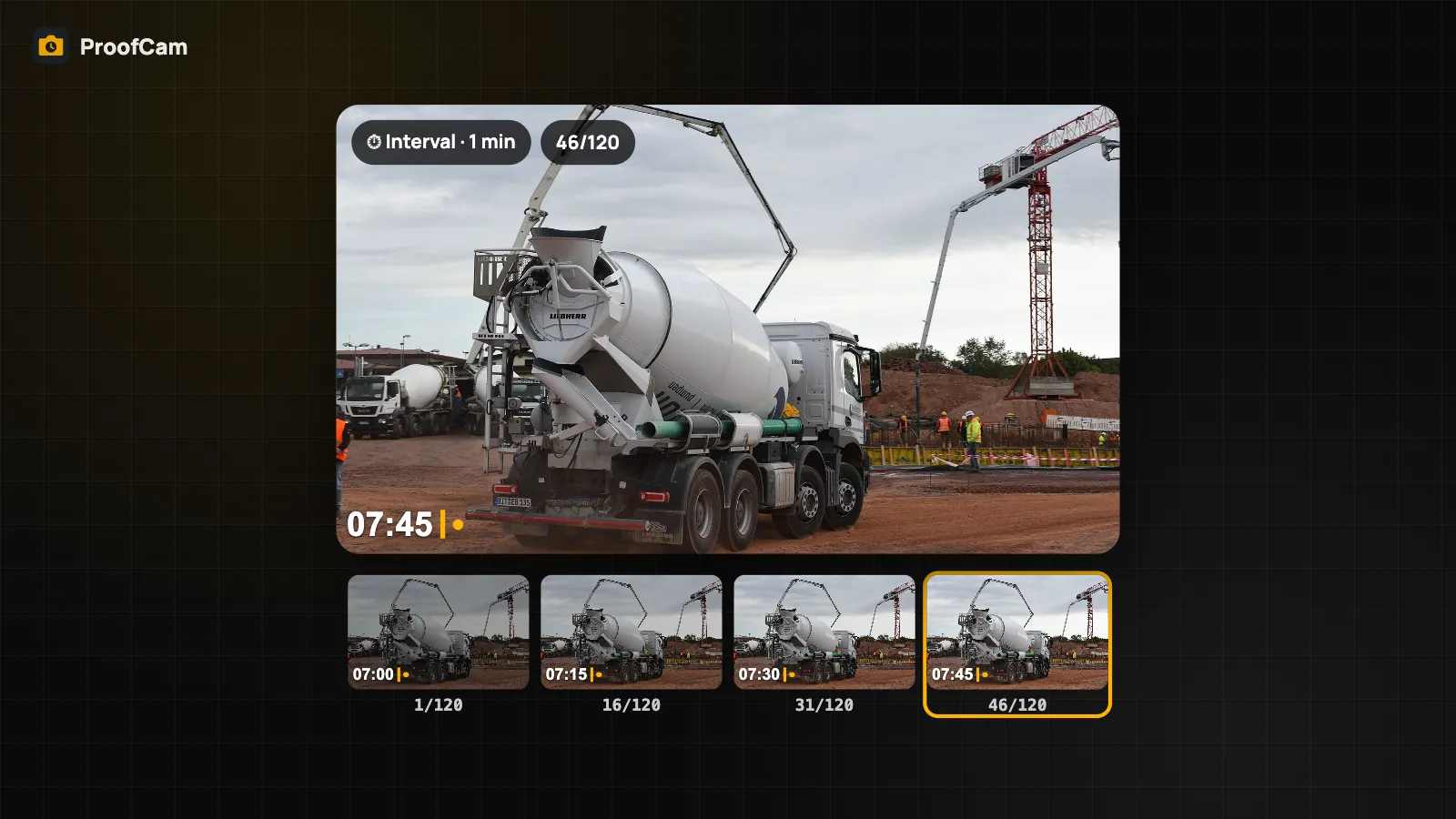
ProofCam can shoot a construction time-lapse from an ordinary phone. You set an interval and a number of photos, put the phone on a tripod, and it takes stamped photos on its own. Every frame is a normal ProofCam photo with time, place and its own Photo Code, and at the end you can stitch the frames into a short MP4 on the phone.
How interval shooting works
Interval shooting is a timer for the shutter. You choose how often to shoot and how many photos to take, and the camera does the rest.
- Presets: 5 s, 10 s, 30 s, 1 min, 5 min and 15 min.
- Custom range: anything from 3 seconds up to 1 hour between shots.
- Number of photos: from 2 up to 500.
Each frame is saved exactly like a photo you took by hand: the watermark carries the time, date, address and coordinates, and the photo gets its own Photo Code that anyone can check later. So a 200-frame run is 200 pieces of evidence, not one video file.
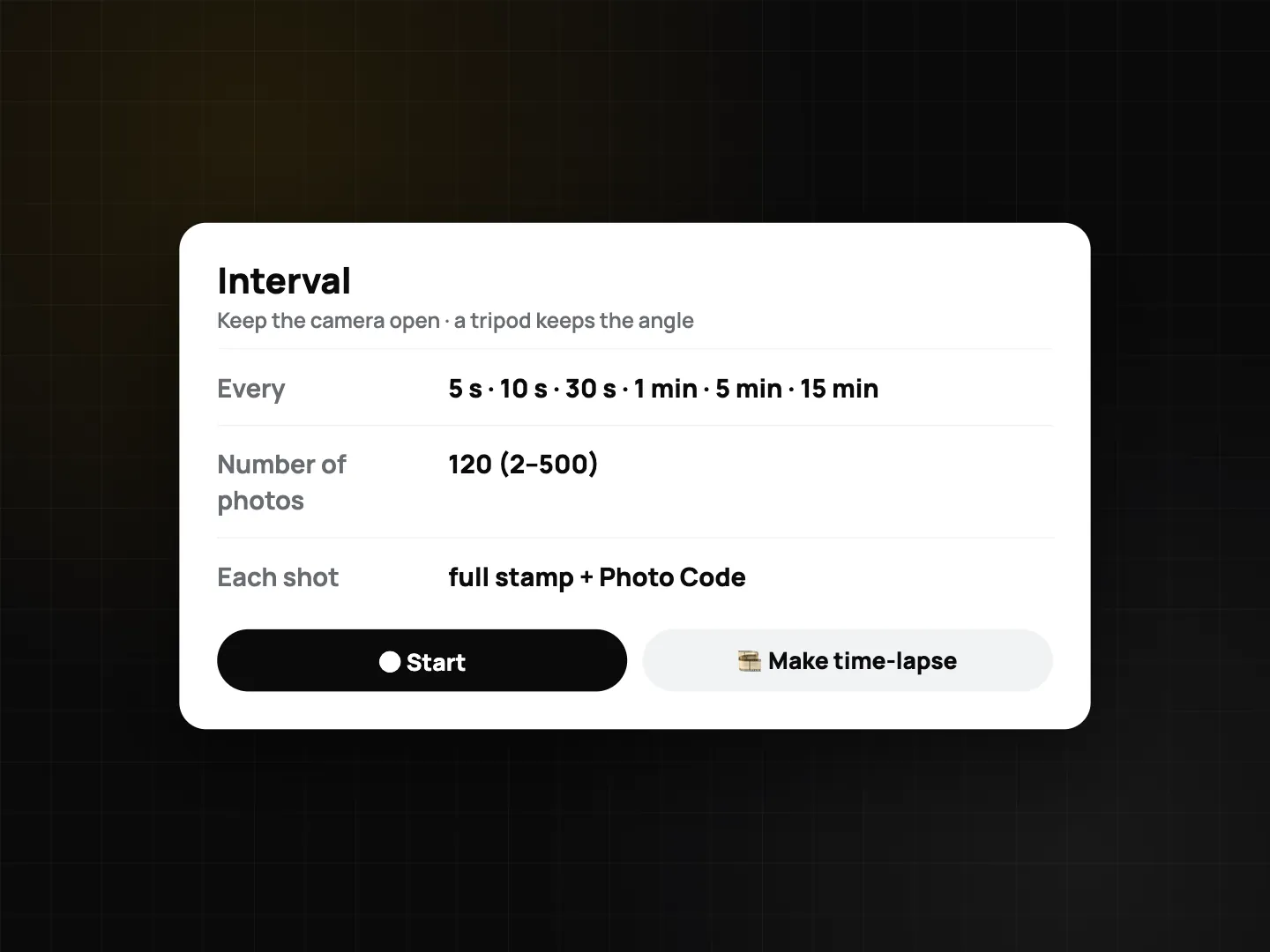
Start an interval run step by step
On Android:
- Open the camera in Photo mode and tap the Interval quick chip.
- Pick a preset or set your own interval, then set Number of photos.
- Start the run. The camera keeps shooting until it reaches the number or you tap Stop interval.
- At the end, tap Time-lapse to build the clip.
On iPhone:
- Open Field tools and choose Interval.
- Set the interval and the number of photos, and start.
- When the run ends, tap Make time-lapse.
Know the limits before you set up
Interval shooting runs while the camera screen stays open. It is not a background service: if you lock the phone, switch apps or the battery dies, the run stops. That shapes how you use it:
- Good fit: one pour, one lift, a delivery window, a shift, a day of setting up a booth. Hours, not weeks.
- Longest gap: 1 hour between shots, and at most 500 photos per run.
- Power: keep the phone on a charger or power bank for long runs. A screen that stays on uses battery.
- Mounting: use a tripod or a clamp. A handheld phone gives a jumpy clip and frames that don't line up.
ProofCam does not build time-lapses on the server or in the web portal. Everything happens on the phone.
Turn the frames into a construction time-lapse video
The MP4 is assembled on the phone, between 2 and 30 frames per second, aiming for a clip of about 3 to 20 seconds so it is easy to send.
- Android: offered at the end of a run, or later by selecting two or more photos in the gallery and choosing Time-lapse. The finished clip goes to the share sheet.
- iPhone: offered at the end of a run. The clip is saved to Photos and shared from there.
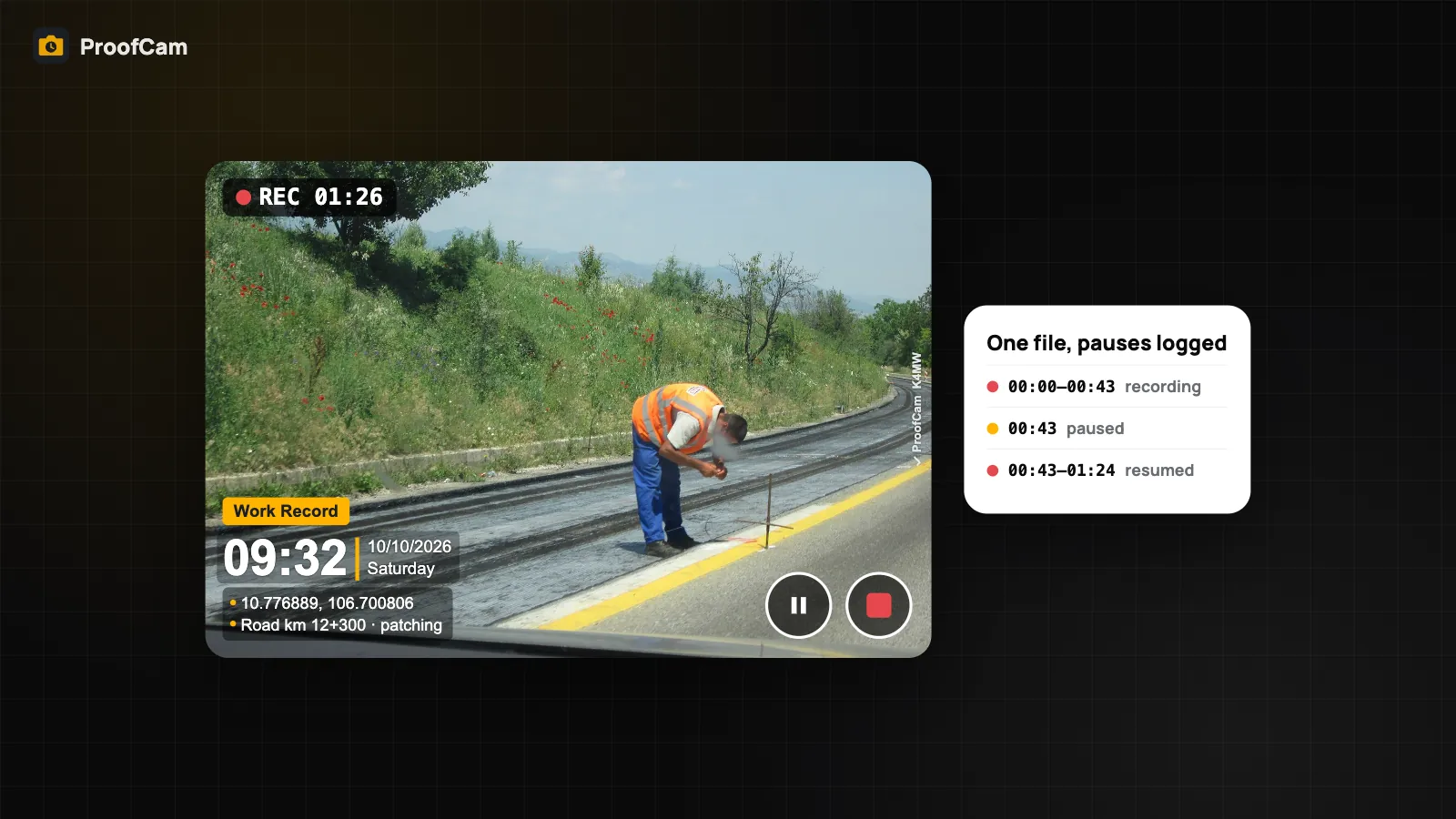
One honest note: the time-lapse video itself is not a new verifiable item. It is a convenient summary for the client or the site meeting. The proof lives in the individual stamped photos, each with its own Photo Code. If someone questions a moment in the clip, open the matching frame and check it on the verify page.
Multi-week progress: repeat the same shot
Because the camera has to stay open, you can't leave a phone on site for three months and get a project time-lapse. For long builds, use a simple routine instead:
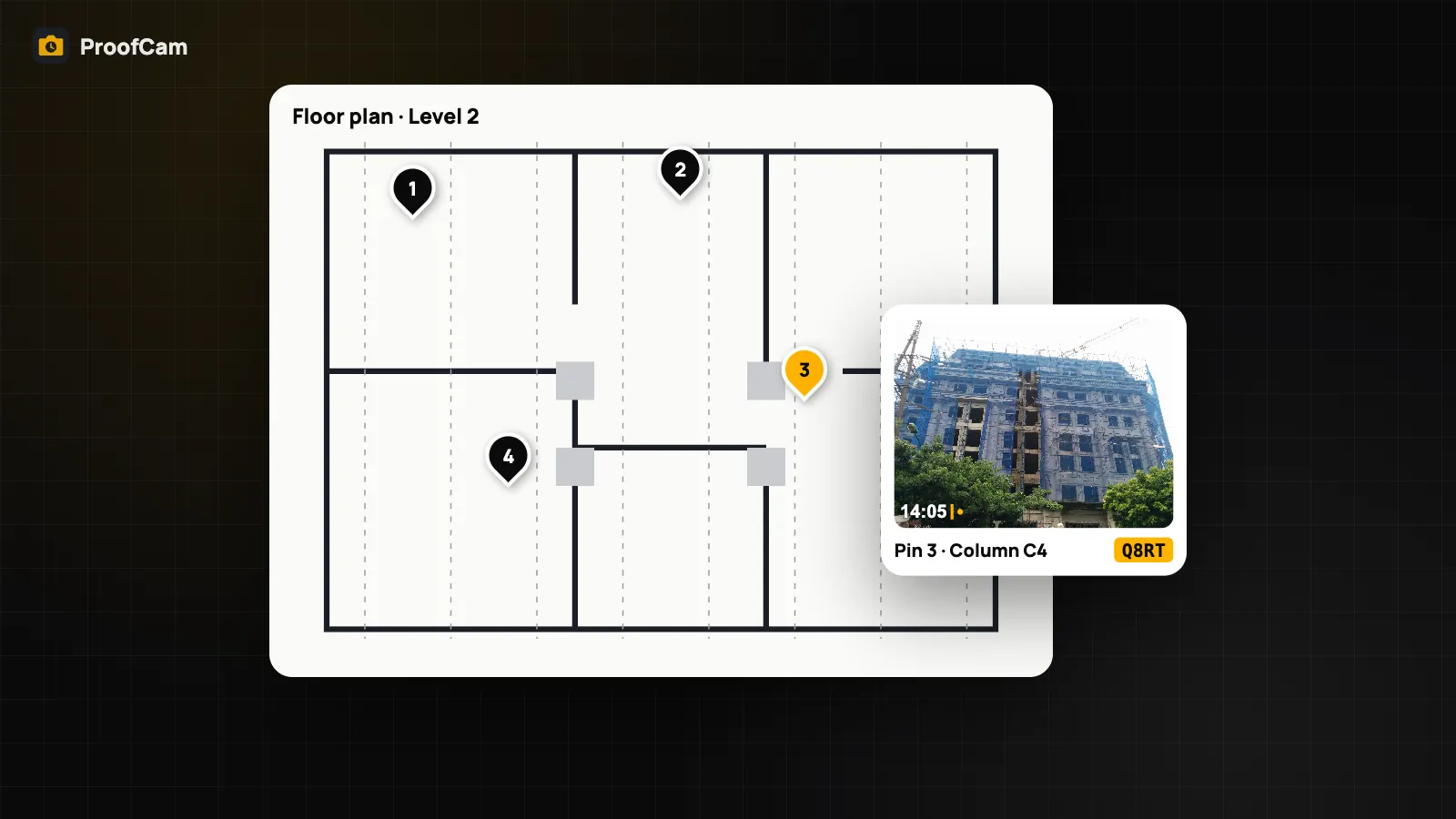
- Pick fixed spots. Mark a few positions on site, for example a corner of the slab or a window across the street, and shoot from them every day or every week.
- Shoot stamped photos. Each one records the date, place and Photo Code, which is what you need for progress claims and delays.
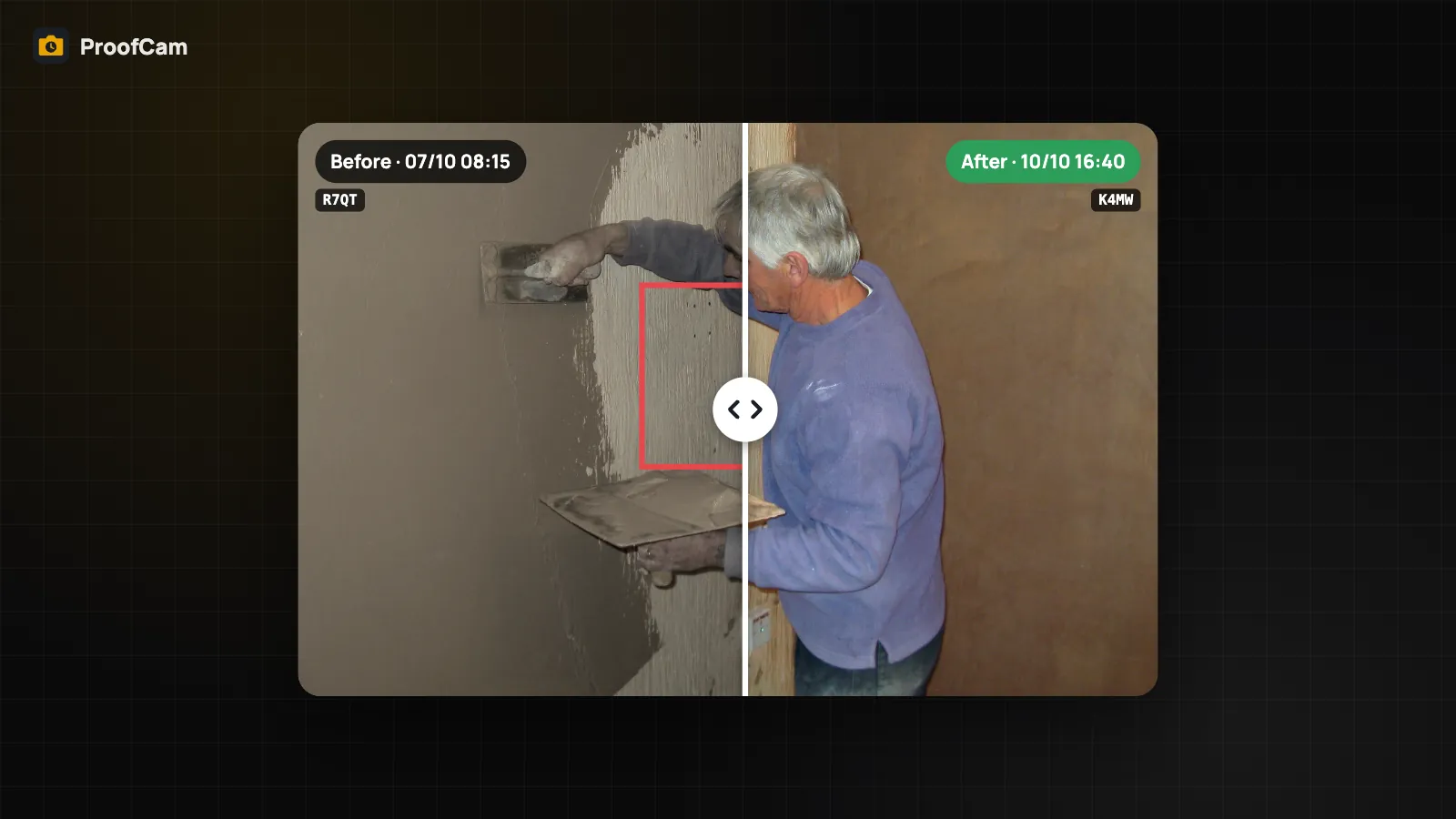
- Compare pairs. The before and after photo comparison slider lets you drag between two photos of the same spot.
- Line up repeat shots. When a fix is tracked as a task, the after photo is taken over a faint ghost of the before shot. See punch list with before/after photos.
- On Android, stitch them anyway. Select the daily photos from one spot in the gallery and build a time-lapse from them, as long as you have two or more.
This fits into the routine described in the construction photo documentation guide, and the same photos can go straight into a construction daily report.
Tips for useful interval shots
- Frame wide and high. Shoot the whole work area from above if you can, so people and machines stay in view as they move.
- Choose the interval from the length of the job. A 2-hour pour at 30 s gives 240 frames; a 10-hour shift at 5 min gives 120. Stay under 500.
- Lock the phone in place before you start. Moving it mid-run breaks the clip.
- Use it outside construction too. Environmental crews can watch water levels or runoff during a storm (see environmental site monitoring), and event crews can record a booth build-up from empty floor to finished stand.
- Need motion, not frames? For a walk-through or a moving machine, a timestamp video is the better tool.
Which plan and platforms?
| What | Android | iPhone | Web portal |
|---|---|---|---|
| Interval shooting (3 s to 1 h, 2 to 500 photos) | Plus | Plus, or a Business / trial team | Not available |
| Each frame stamped with its own Photo Code | Yes | Yes | Frames uploaded to Teamspace show like any photo |
| Make time-lapse MP4 on the phone | Plus (end of run or from gallery selection) | Plus, or a Business / trial team (end of run) | Not available |
New Teamspace teams get a 14-day Business trial, which unlocks interval shooting on iPhone during the trial.
FAQ
Can I leave the phone recording a time-lapse for weeks?
No. Interval shooting only runs while the camera screen is open, with at most 1 hour between shots and 500 photos per run. For weeks or months, take stamped photos from the same spot regularly and compare them.
Is the time-lapse video proof on its own?
The MP4 is a summary and has no Photo Code of its own. Each frame is a normal stamped photo with its own Photo Code, so those frames are what you verify.
Can I make a time-lapse from photos I already took?
On Android, yes: select two or more photos in the gallery and choose Time-lapse. On iPhone, the time-lapse is offered at the end of an interval run.
What happens if the screen turns off during a run?
The run stops, because it is not a background service. Photos already taken are saved normally. Keep the phone on power and the camera open until the run ends.
Related: construction photo documentation guide and timestamp video with GPS watermark.