On site, nobody takes one photo. You take four of the scratched bumper because the first was dark, three of the meter because your hand shook, and a burst of the crane lift because you weren't sure you caught it. Multiply that by a month and the gallery is half copies: harder to scroll, slower to report from, and eating phone storage.
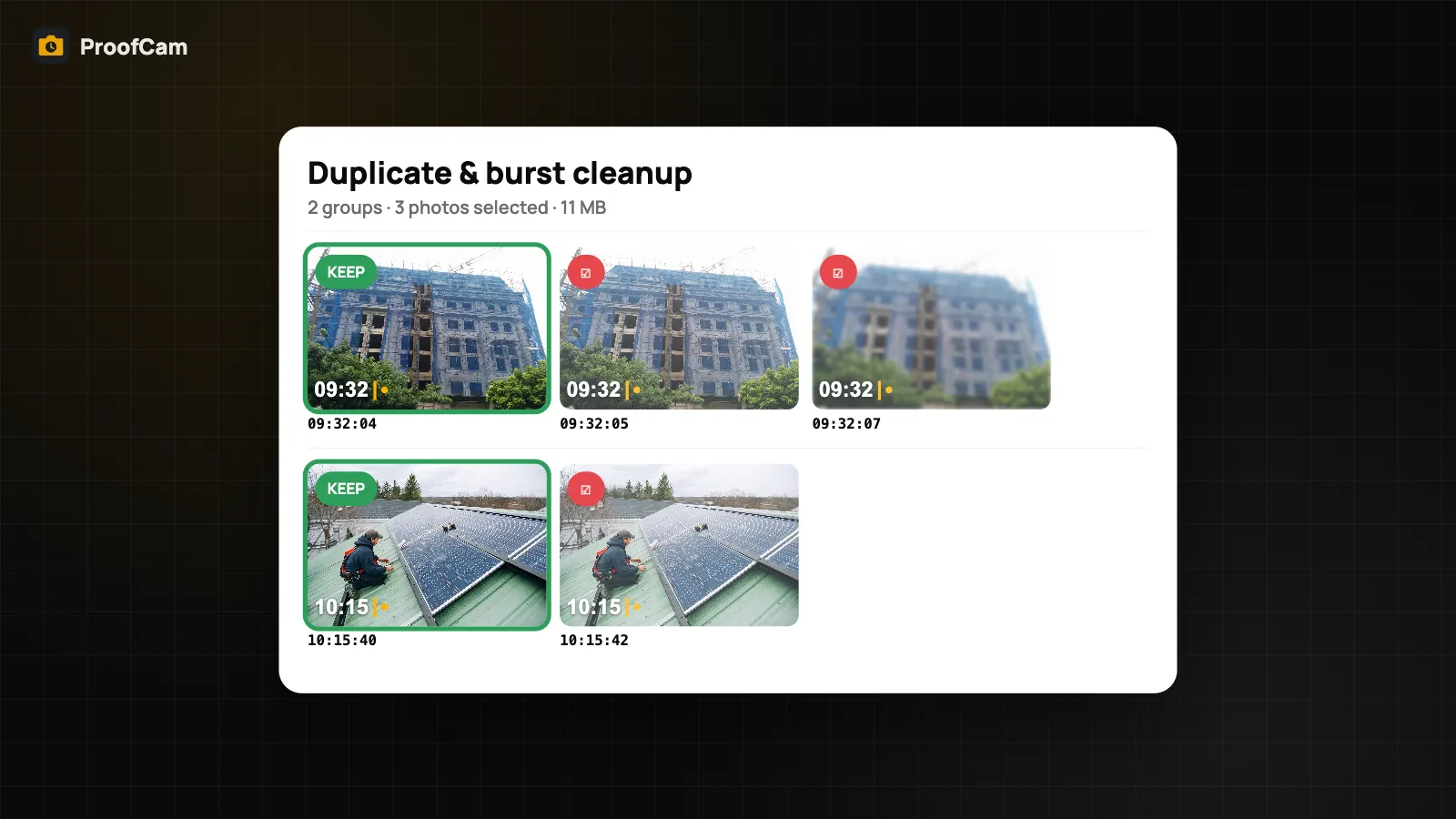
ProofCam can find those copies for you. It groups near-identical photos and burst shots taken seconds apart, suggests the best one to keep in each group, and lets you delete duplicate photos you don't need. It all runs on the phone, works offline, and nothing is deleted until you confirm.
Where to find it
- Android: Settings → Offline & privacy → Duplicate & burst cleanup. The screen describes itself as "Finds near-identical photos on the phone; you choose what to delete".
- iPhone: Settings → Offline tools → Duplicate & burst photos, described as "Find near-identical shots and keep the sharpest".
The tool is free on both platforms. There is no web portal version, because it works on the photos stored on your phone.
How ProofCam finds similar photos
The scan runs entirely on the phone. ProofCam computes a small visual fingerprint for each photo from its thumbnail and saves it, so the next scan only has to look at new photos. That keeps repeat scans quick even on a large library.
It groups two kinds of copies:
- Near-identical images: photos that look almost the same, for example the same wall shot twice from the same spot.
- Burst shots: photos taken seconds apart that look alike, such as a quick series of the same event.
What it looks at:
- Photos only. Videos are not scanned.
- Only the ProofCam library, not your whole camera roll.
- Private folder photos are excluded on Android.
The grouping rules differ slightly between Android and iPhone, so the same set of photos can produce slightly different groups on each platform. Always look at a group before deleting.
Which photo it keeps
In each group ProofCam suggests one keeper:
- Android picks the largest image, and if there is a tie, the earliest. It is labelled KEEP.
- iPhone picks the sharpest, then the largest, then the earliest.
The suggestion is a starting point, not a decision. You may prefer the photo where the serial number is readable, or the one where the damage is centred. Tap to change the selection.
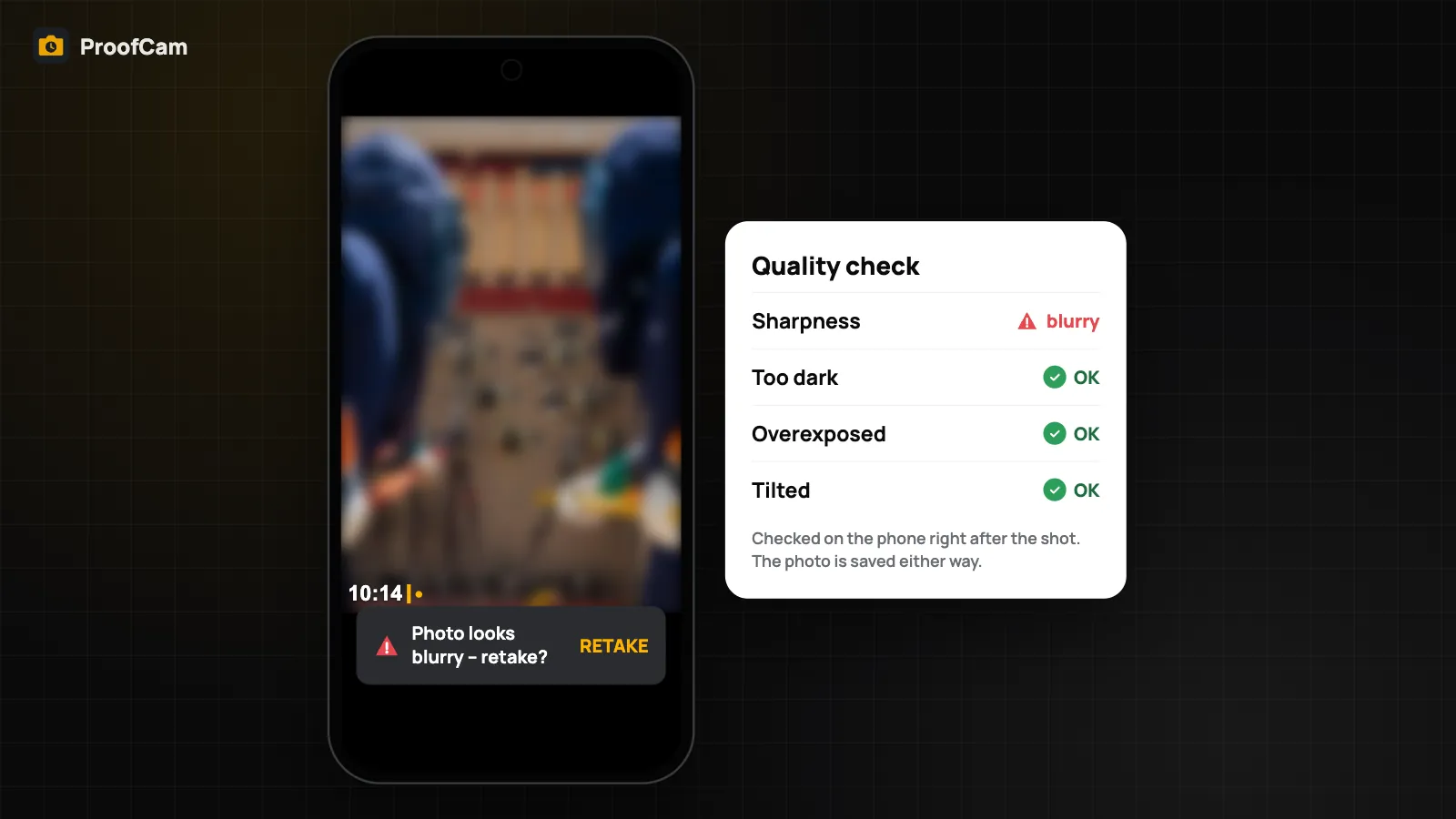
If many of your duplicates exist because the first shot was blurry or dark, the blurry photo detection warning at capture helps you retake on the spot, so fewer copies pile up in the first place.
Delete duplicate photos safely
Nothing is deleted automatically. The flow differs a little per platform:
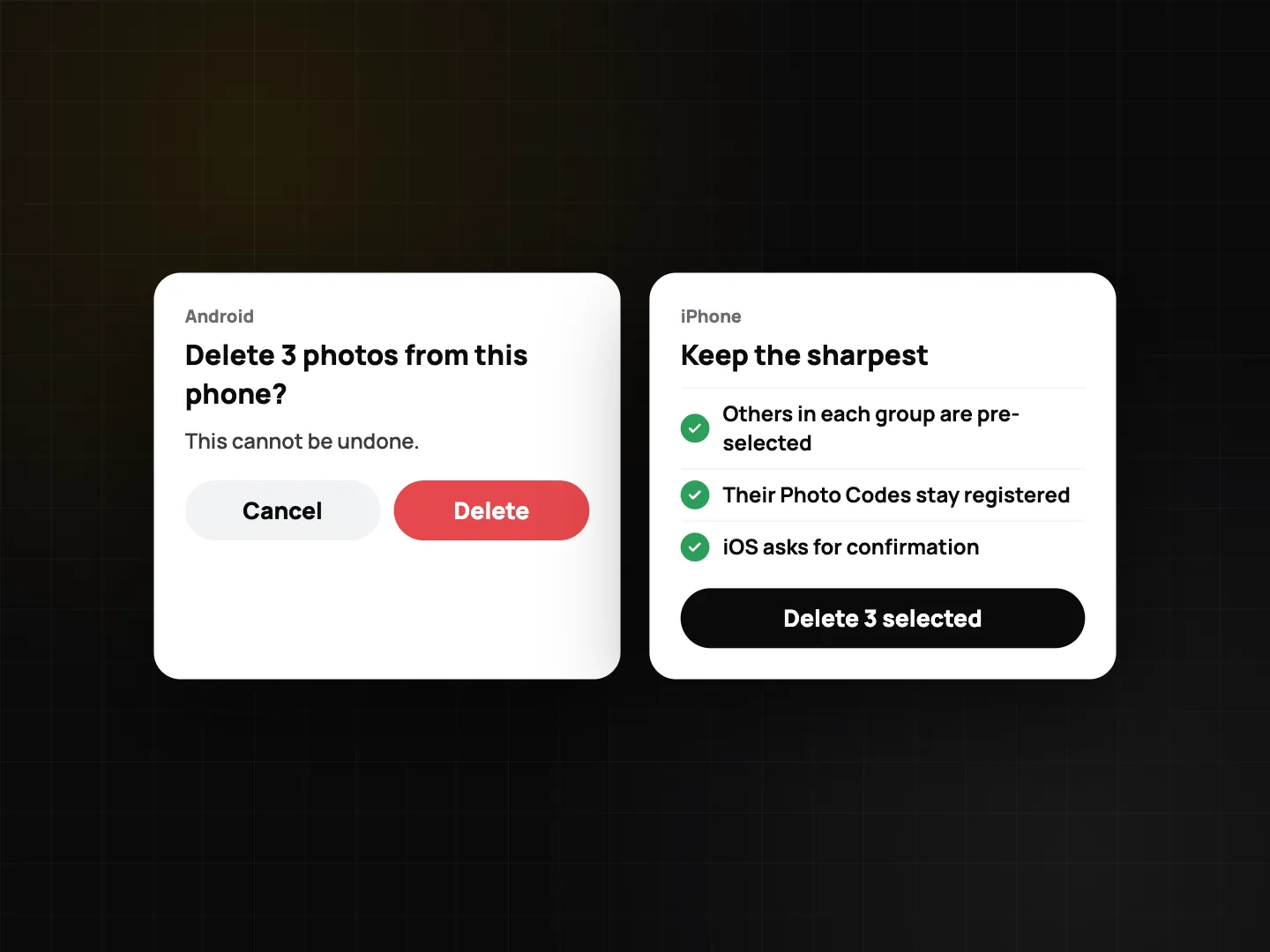
- Android: tap the photos you want gone, or use Select all but the best. ProofCam then asks: "Delete N photos from this phone? This cannot be undone." Deleting is permanent and removes the photo file, its saved original and its sidecar files.
- iPhone: the copies other than the keeper are pre-selected. Tap Delete N selected; iOS then shows its own confirmation. The app reminds you: "Their Photo Codes stay registered."
Each photo in a burst had its own Photo Code at capture. The photo you keep still has its stamp and code and still verifies on the verify page. The ones you delete are gone from the phone, so make sure you keep the shot you will actually show a client.
Before you clean up: back up first
Duplicate cleanup is permanent on the phone. Two habits make it safe:
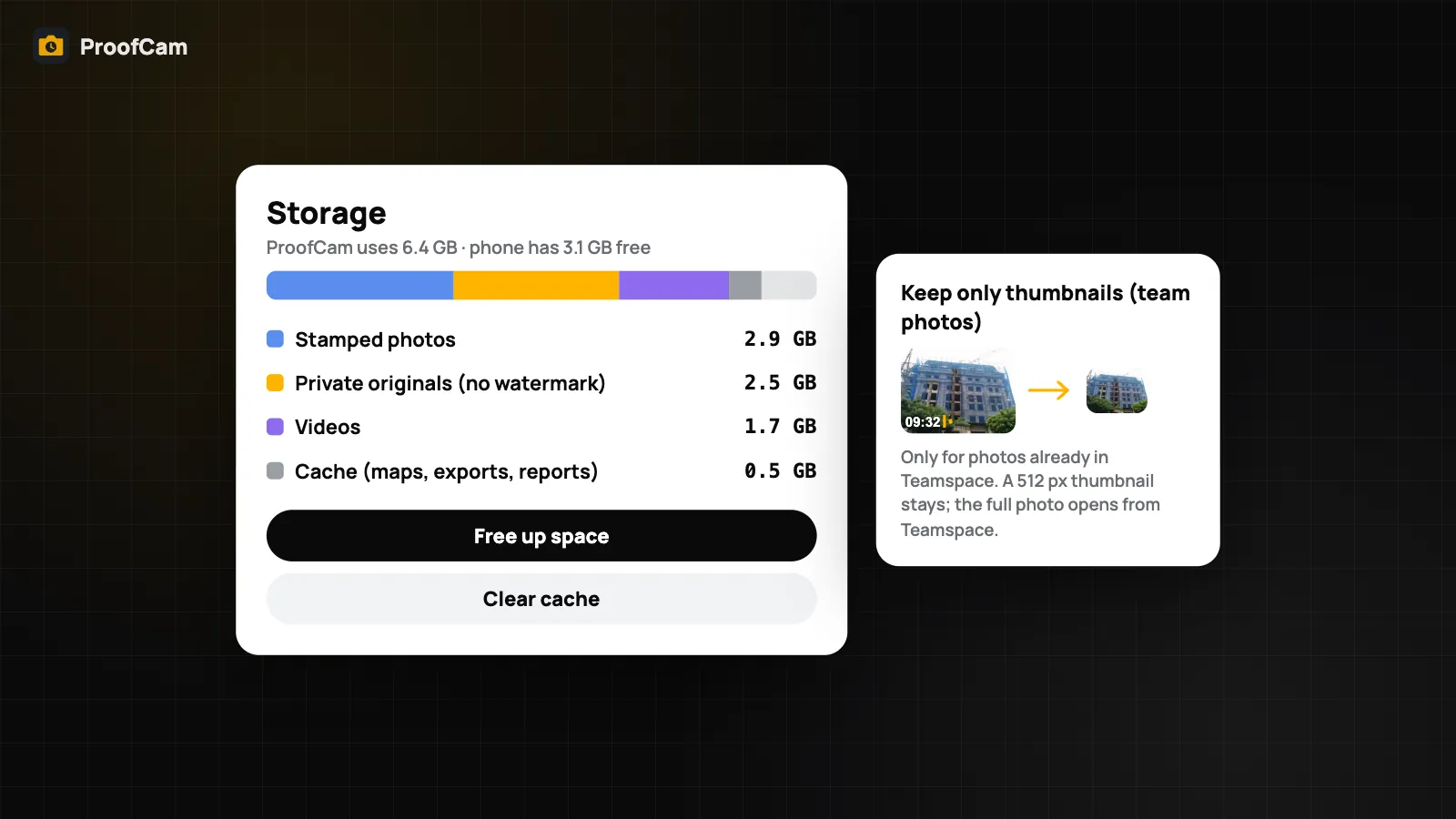
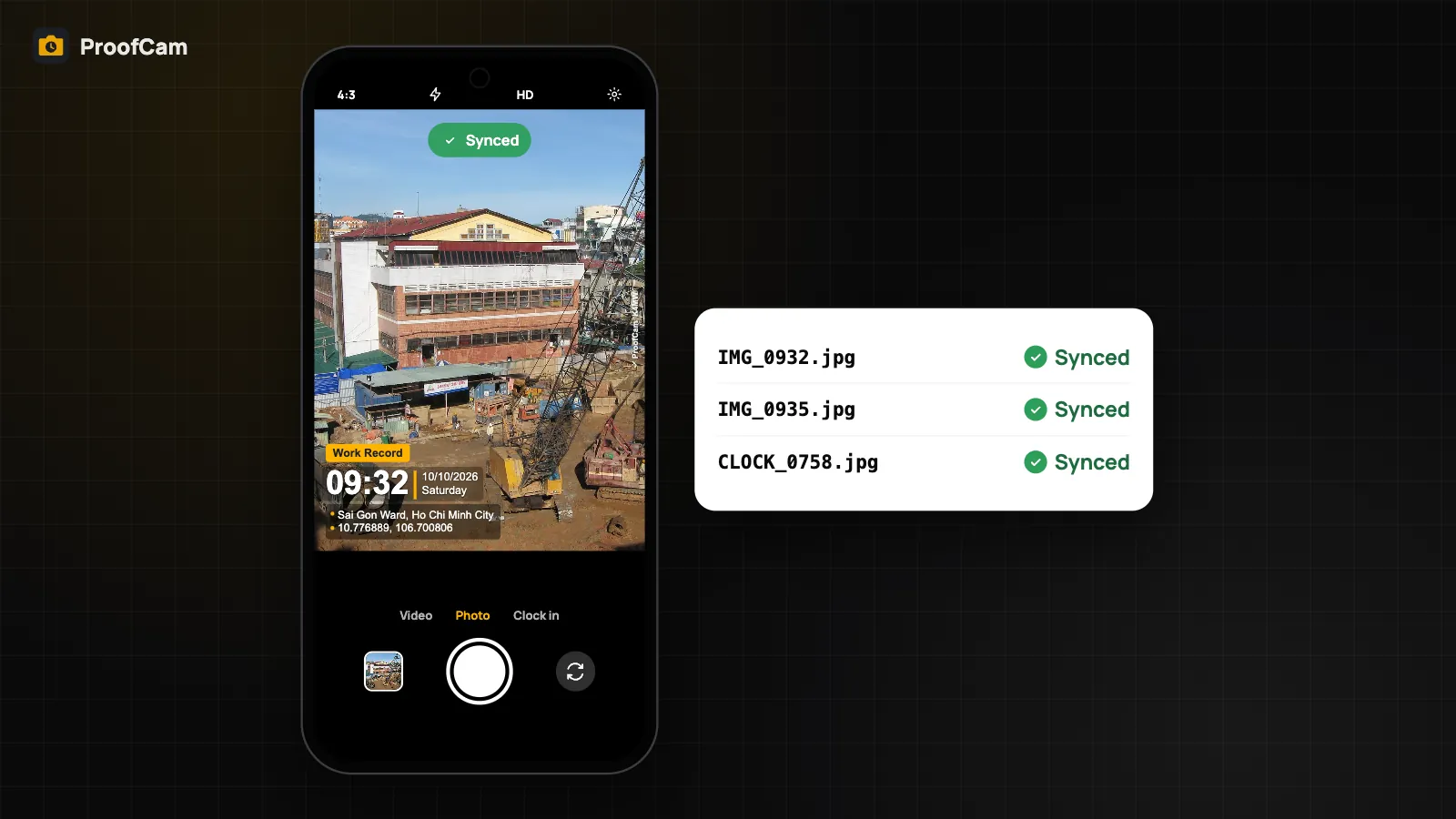
- Let photos sync first. If you use Teamspace, Google Drive or OneDrive, check the Sync center and wait until nothing is waiting or failed.
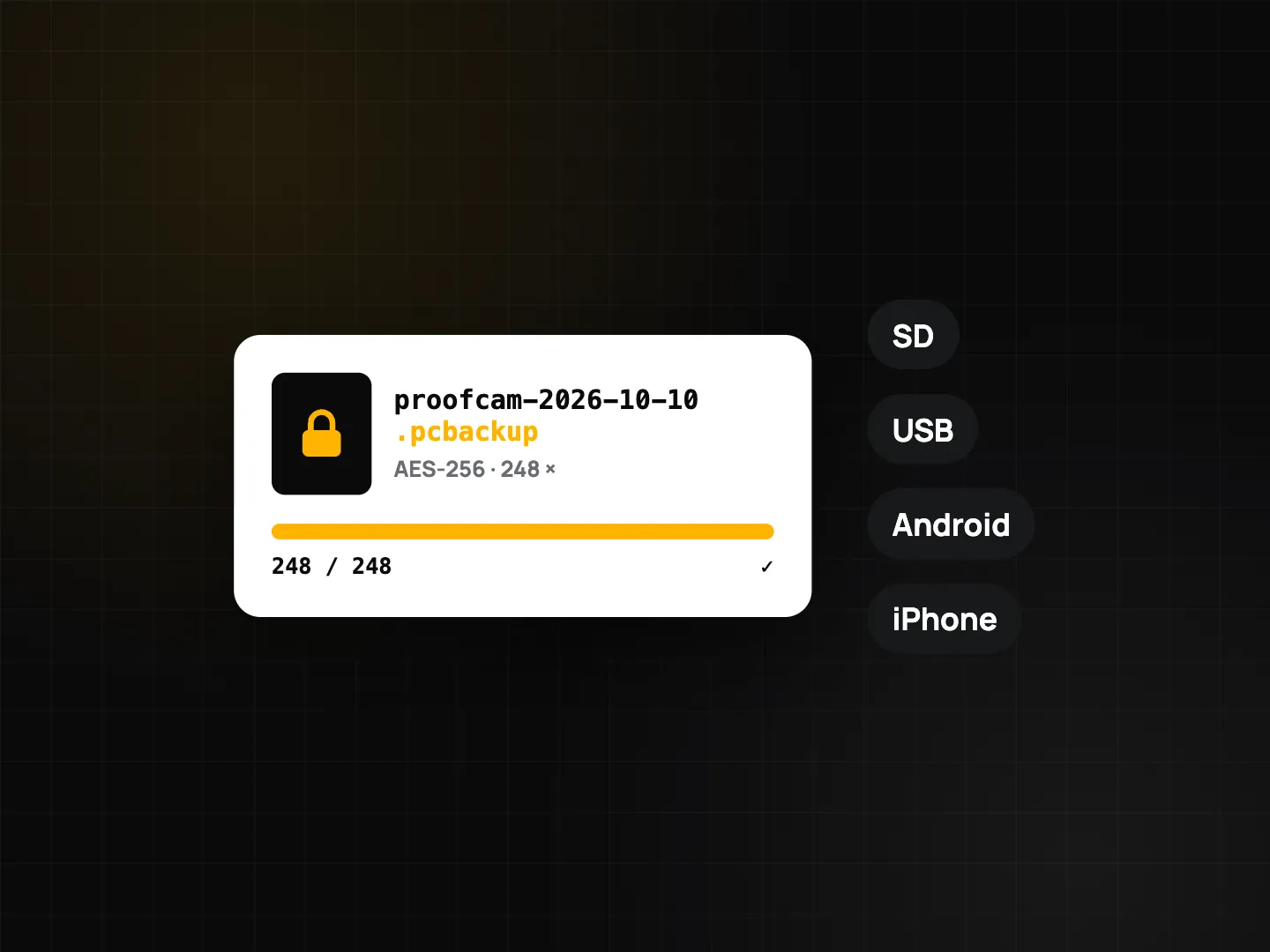
- Make an encrypted backup. ProofCam can write your library to a single
.pcbackupfile, protected by a password (AES-256), on an SD card, USB drive or any folder. Manual backup is free. See offline photo proof without internet for how backups and restore work.
Where duplicates pile up most
- Equipment rental check-out and return: several shots of every scratch and dent. Keep one clear photo per defect; see equipment rental check-out and return photos.
- Insurance claims: many angles of the same damage. Delete the near-identical ones but keep the different angles; see insurance claim photos.
- Events and trade shows: bursts during booth setup and teardown; see trade show booth setup and teardown photos.
After a cleanup, exporting a clean set is easier too: fewer near-copies in your PDF or ZIP. See export geotagged photos to PDF, Excel, ZIP and KMZ.
Which plan and platforms
| Android | iPhone | Web portal | |
|---|---|---|---|
| Where | Settings → Offline & privacy → Duplicate & burst cleanup | Settings → Offline tools → Duplicate & burst photos | Not available |
| Suggested keeper | Largest, then earliest (KEEP) | Sharpest, then largest, then earliest | – |
| Selection | Tap, or Select all but the best | Copies pre-selected | – |
| Confirmation | "This cannot be undone" | iOS confirmation | – |
| Scans | Photos in the ProofCam library, not private folder | Photos in the ProofCam library | – |
| Plan | Free | Free | – |
FAQ
Does ProofCam delete duplicate photos automatically?
No. It only groups similar photos and suggests a keeper. Nothing is deleted until you select photos and confirm.
Will it scan my whole camera roll?
No. It only looks at photos in the ProofCam library, and only photos, not videos. On Android, photos in the private folder are excluded.
Can I undo a delete?
No. On Android the confirmation says it cannot be undone, and on iPhone iOS asks you to confirm. Make a .pcbackup first if you are unsure.
Why do I get different groups on Android and iPhone?
The grouping rules and the keeper choice differ slightly between platforms. Android prefers the largest image; iPhone prefers the sharpest. Check each group before deleting.
Related: search job photos fast and share job photos with clients.