You find out a photo is useless when it is too late: back at the office, zooming into a serial number that is just a smudge, or an inspection shot of a cable tray that is almost black. The site is two hours away, the ceiling has been closed, and the claim needs that picture.
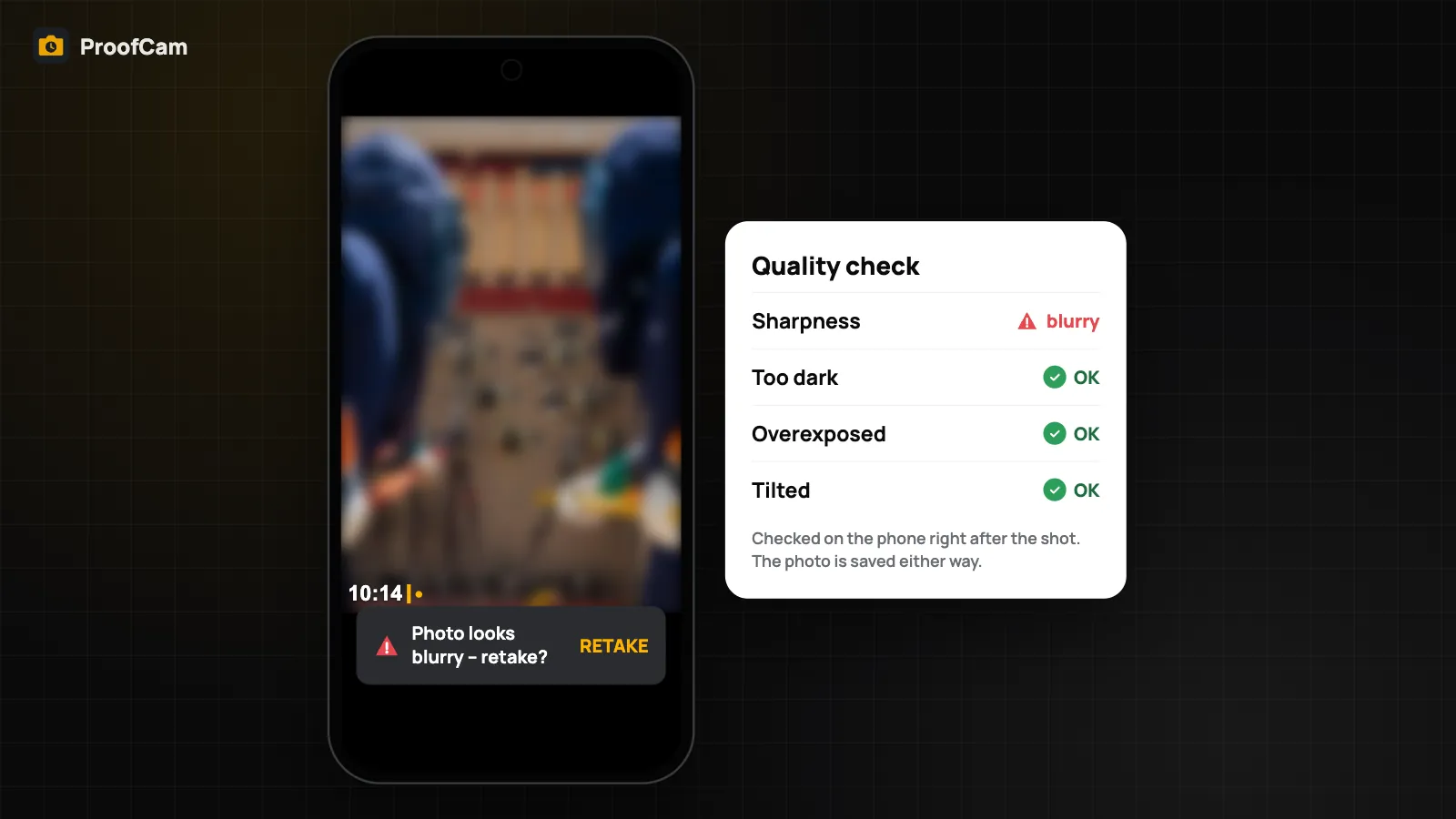
ProofCam's blurry photo detection checks every shot on the phone, right after you press the shutter. If the photo looks blurry, too dark, overexposed or tilted, a short warning appears with a Retake button, while you are still standing in the right spot. This guide explains what the check looks at, what it does with the result, and when to turn it off.
How the photo quality check works
The check runs on the phone immediately after capture. ProofCam makes a small 512 px greyscale copy of the photo and measures it. Nothing is sent to a server, and it works offline.
Four things are checked:
- Blur — whether edges are sharp, or smeared by camera shake, a moving subject or a missed focus.
- Too dark — whether most of the frame is underexposed.
- Overexposed — whether large areas are blown out to white.
- Tilted — whether the phone was held at a noticeable angle.
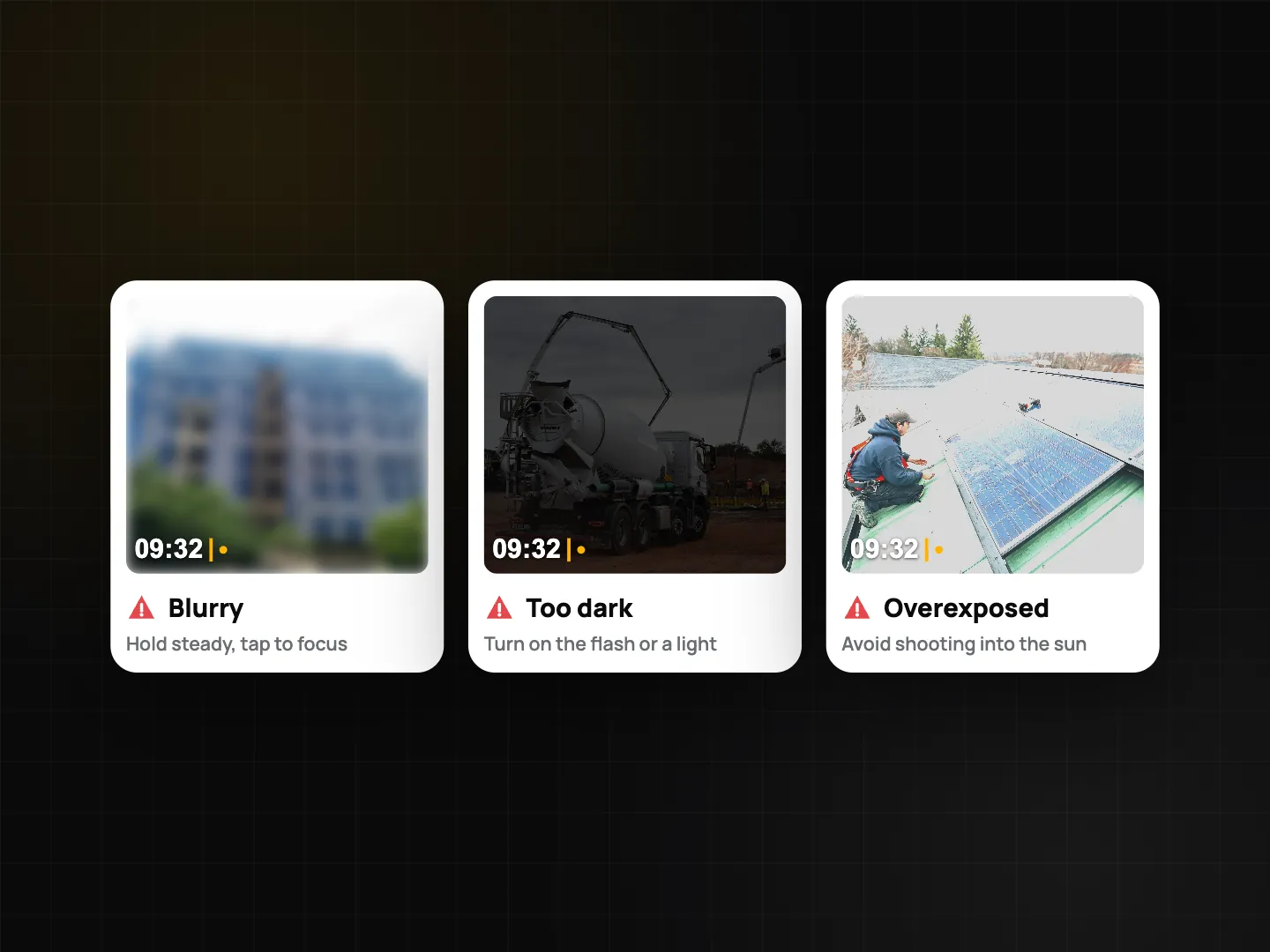
The photo is always saved. The check never blocks the shutter or deletes anything. It only tells you, in time to fix it.
What you see after a bad shot
If a problem is found, a short bar appears at the bottom of the camera (a snackbar on Android, a 3-second hint on iPhone) with one of these messages:
- "Photo looks blurry – retake?"
- "Photo is too dark…"
- "Photo is overexposed…"
- "Photo is tilted…"
Tap Retake to take another shot straight away. The first photo is kept, with its own stamp and Photo Code. You end up with both, and you can delete the bad one later if you want.
If you ignore the bar, nothing happens. Keep shooting.
Where the result is recorded
The result of the check is saved in the photo's evidence data (the XMP metadata and the technical report), as Quality check: Passed or Warning (blurry / dark / bright / tilted).
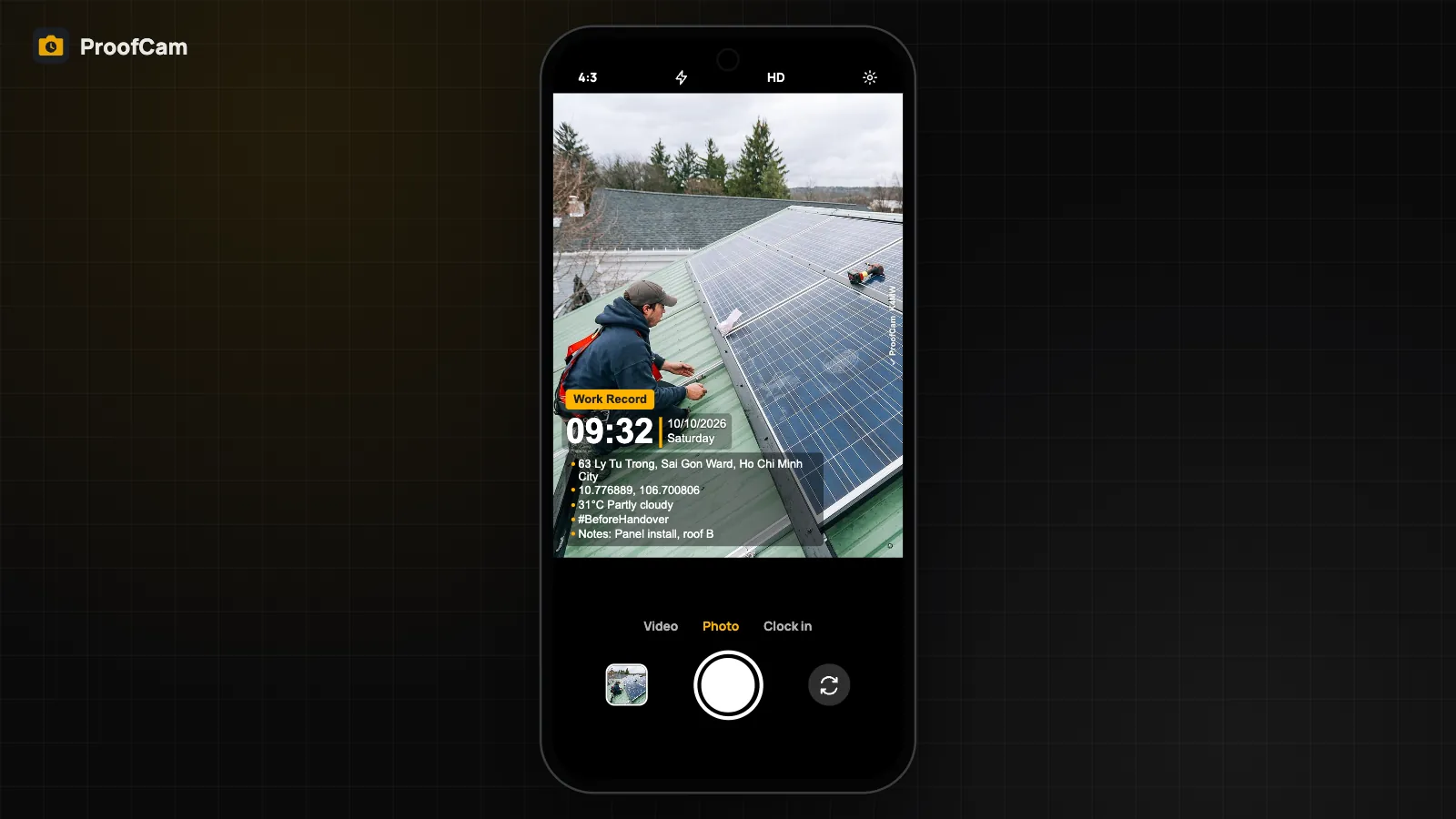
It is never printed on the watermark. The stamp still shows time, date, address, GPS and your notes, exactly as before.
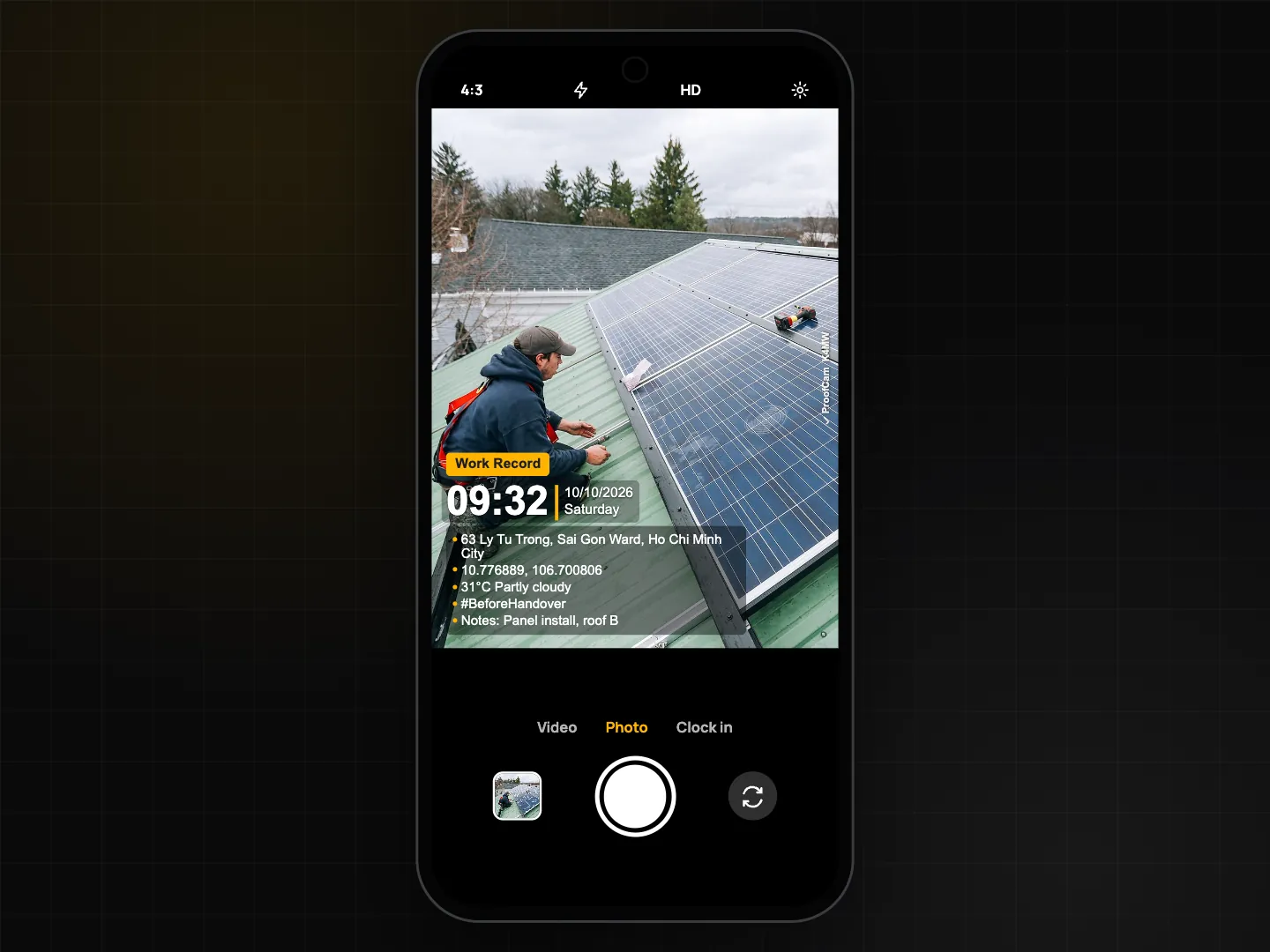
Why record it at all? When someone reviews a set of photos later, a warning in the technical report explains why one shot looks soft, without anyone having to guess. The stamp and Photo Code still prove time and place; the quality note just adds context.
Retake blurry inspection photos: field tips
The warning helps most when you know why the shot failed. Quick fixes:
Blurry
- Hold the phone with both hands and tuck your elbows in.
- Give the camera a moment to focus before shooting, especially for labels and nameplates.
- Step back slightly; phones struggle to focus very close.
- Wipe the lens. Dust and fingerprints on site are the most common cause.
Too dark
- Bring a work light or torch for ceilings, cabinets and shafts.
- Move so the light falls on the subject, not behind it.
- Avoid shooting into a bright window with the subject in shadow.
Overexposed
- Don't point straight at the sun or a floodlight.
- Shade the subject with your body or a clipboard if the sun is hitting it directly.
- For shiny metal and white surfaces, change the angle to cut reflections.
Tilted
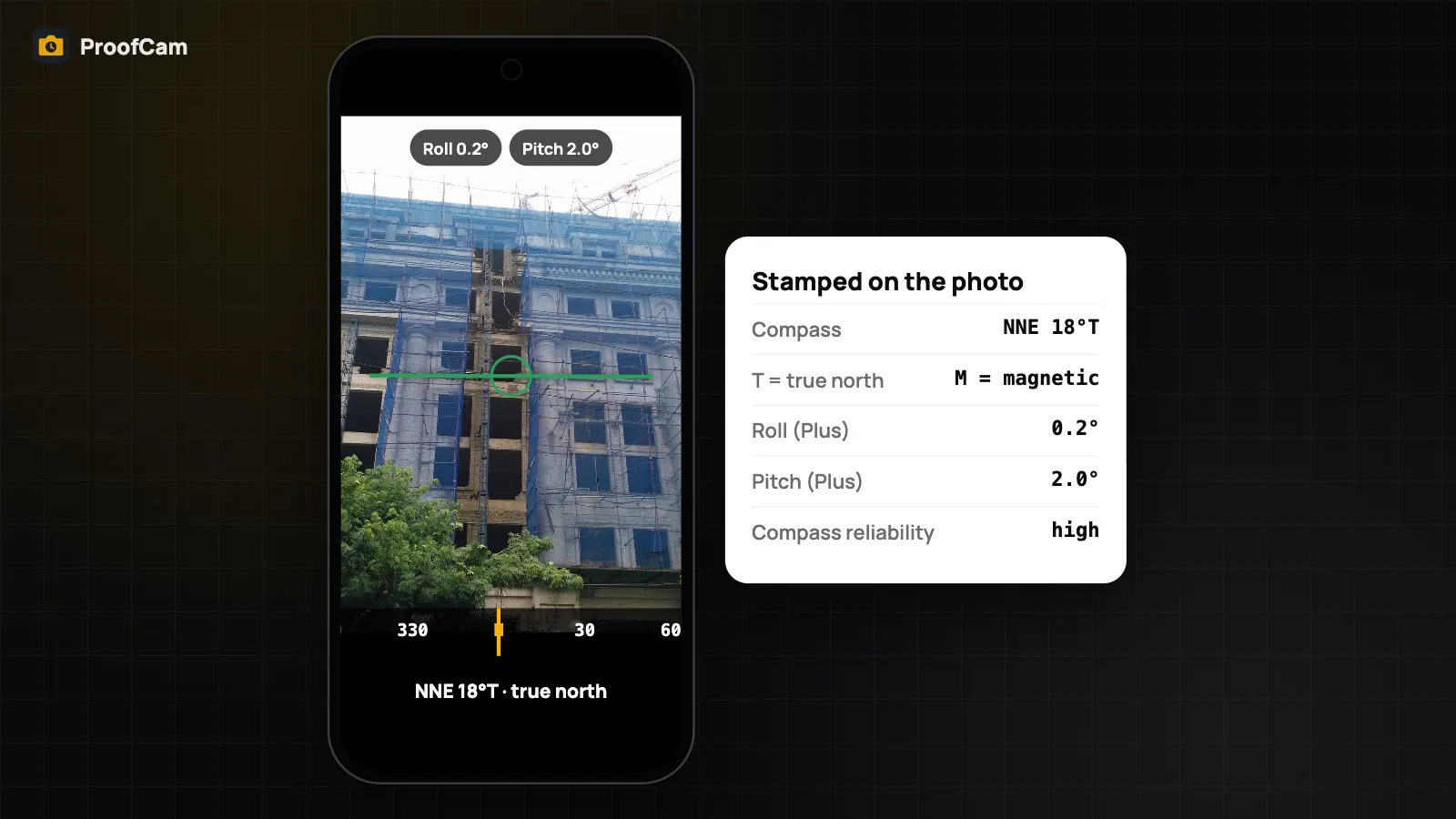
- Turn on the camera level so you can see when the phone is straight; see camera with level and compass.
For a full shot list on site (wide, medium, close-up, the same spot every visit), follow the construction photo documentation guide.
Turning quality warnings off
The check is controlled per watermark template with the switch Quality warnings, which is on by default.
Turn it off for templates you use in conditions where the warning would fire every time and you already know why:
- tunnels and dark shafts where low light is expected;
- night work under floodlights;
- deliberate angled shots, such as a roof slope.
Because it is per template, you can keep a "Night work" template with warnings off and leave them on everywhere else. See watermark templates for how to create and switch templates.
Where blurry photo detection helps most
- Insurance claims and damage surveys. A blurry close-up of a crack or a dent is often the photo that matters most. See insurance claim photos.
- Telecom site audits. Labels, cable markings and antenna serials are small and often shot at arm's length on a tower. See telecom site audits.
- Anything you can't come back to. Before the ceiling closes, before the trench is backfilled, before the tenant moves in.
Which plan and platforms
| What | Plan | Android | iPhone |
|---|---|---|---|
| Quality check after capture (blur, dark, overexposed, tilt) | Free | Yes | Yes |
| Retake button | Free | Snackbar | 3-second hint |
| Result in evidence data (XMP, technical report) | Free | Yes | Yes |
| Quality warnings switch per template | Free | Yes | Yes |
The thresholds differ slightly between Android and iPhone (blur and tilt sensitivity), so the same scene can trigger a warning on one phone and not on the other. There is no team policy to require a passing photo: the check advises, it never blocks.
FAQ
Does ProofCam delete or block blurry photos?
No. The photo is always saved. The warning only offers a Retake, and the first photo is kept.
Is "blurry" printed on the watermark?
No. The result goes into the photo's evidence data (XMP and technical report) as Passed or Warning, never onto the stamp.
Can a manager force crews to retake blurry photos?
Not at the moment. There is no team setting that requires a passing quality check.
Does the check need internet?
No. It runs on the phone on a small copy of the photo, right after capture.
Related: timestamp camera for work proof and camera with level and compass.