Shoot a few dozen site photos and videos every day, and a mid-range phone fills up within months. Then the warning appears: storage full, camera can't save. The usual fix is to open the gallery and delete old photos in bulk, which is exactly how site evidence disappears before anyone checked it was backed up.
ProofCam's storage manager lets you free up phone storage the safe way. It shows what is using the space, deletes only the copies that are already safely in the cloud, and keeps the stamped photo and its Photo Code, so every photo can still be verified. This guide walks through what each option removes and what it never touches.
What uses the space
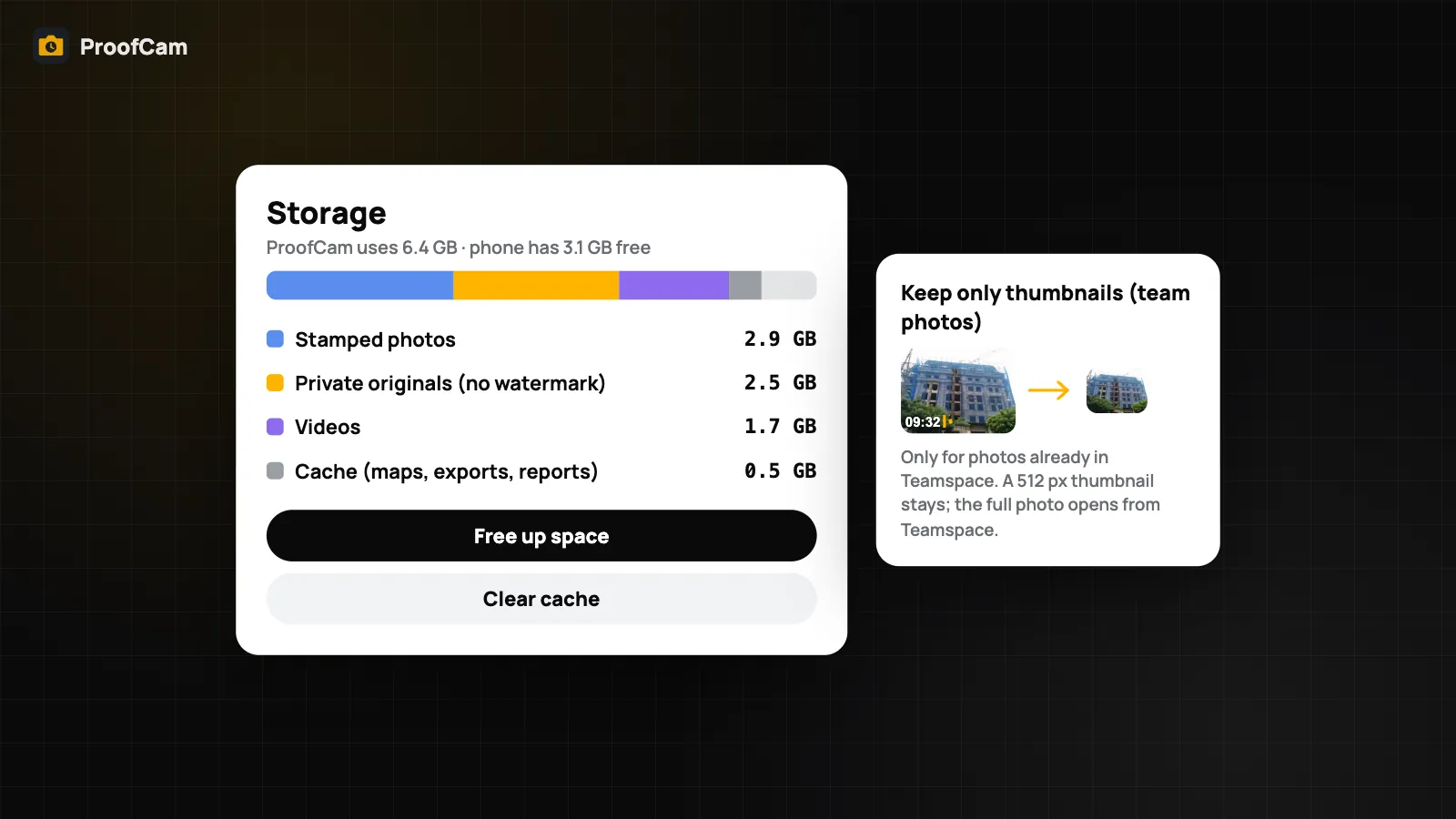
Open Settings → Storage & cleanup on Android, or Settings → Storage on iPhone. A usage bar splits ProofCam's space into:
- Stamped photos — the photos with the watermark. This is your proof.
- Private originals — a copy of each photo without the watermark, kept so you can use "edit watermark later".
- Originals without watermark — an optional extra copy (Plus).
- Videos.
- Cache — maps, exports and generated reports.
- Voice notes.
When the phone has less than 1 GB free, ProofCam warns you. On Android the warning also shows on the camera screen, so you notice before a shot fails to save.
In most libraries, the private originals take almost as much space as the stamped photos. They are the safest thing to remove, because the proof is in the stamped photo, not in the clean copy.
Free up space: delete photos after backup
Free up space is the first-level cleanup. It deletes only the private, unwatermarked copy of each photo. The stamped photo, its fingerprint (hash) and its Photo Code stay on the phone, so the photo still verifies at the verify page.
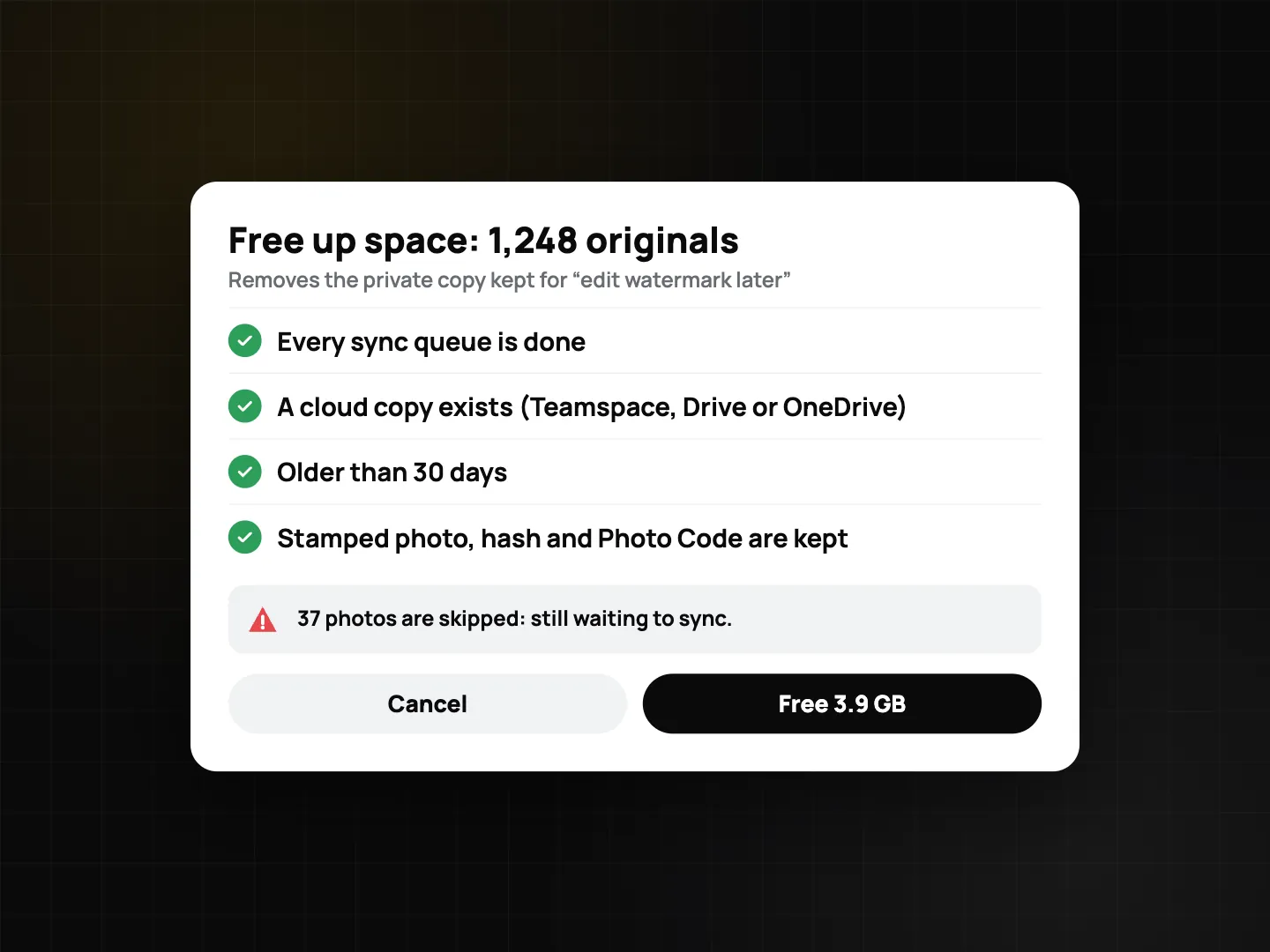
ProofCam runs it only when it is safe:
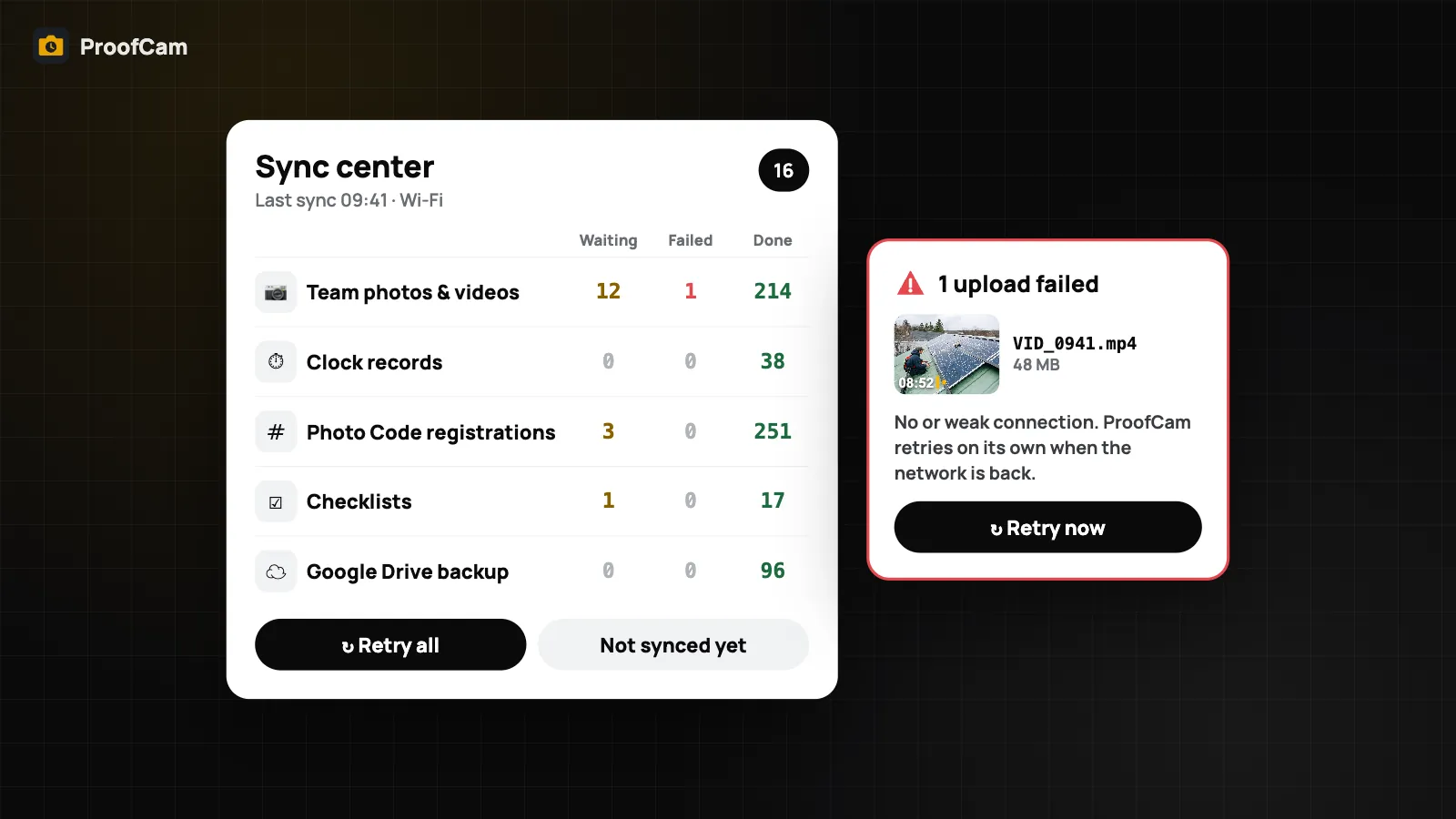
- every sync queue is done (check the Sync center first);
- a cloud copy exists in Teamspace, Google Drive or OneDrive;
- photos still waiting or failed to sync are never touched.
You can add an age filter so only photos older than 30, 60 or 90 days are cleaned. Recent jobs, where you might still want to edit the watermark, stay as they are.
The one thing you give up for cleaned photos is "edit watermark later", since that needs the clean copy.
Android only: you can also include photos that have no cloud copy, after a clear warning. Do this only if you accept losing "edit watermark later" for them. On iPhone, Free up space works on synced photos only.
Clear cache
Clear cache removes map tiles, old exports and generated reports. None of it is evidence: maps reload when needed, and you can export a PDF or ZIP again from the photos. It is a quick win when you need space for today's job right now.
On iPhone there is also Delete generated reports, for PDFs you have already sent.
Keep thumbnails only for team photos
If you work in a Teamspace team, there is a second level: Keep only thumbnails (team photos). It replaces the full photo on the phone with a 512 px thumbnail. The full photo stays on the server and opens from Teamspace when you need it.
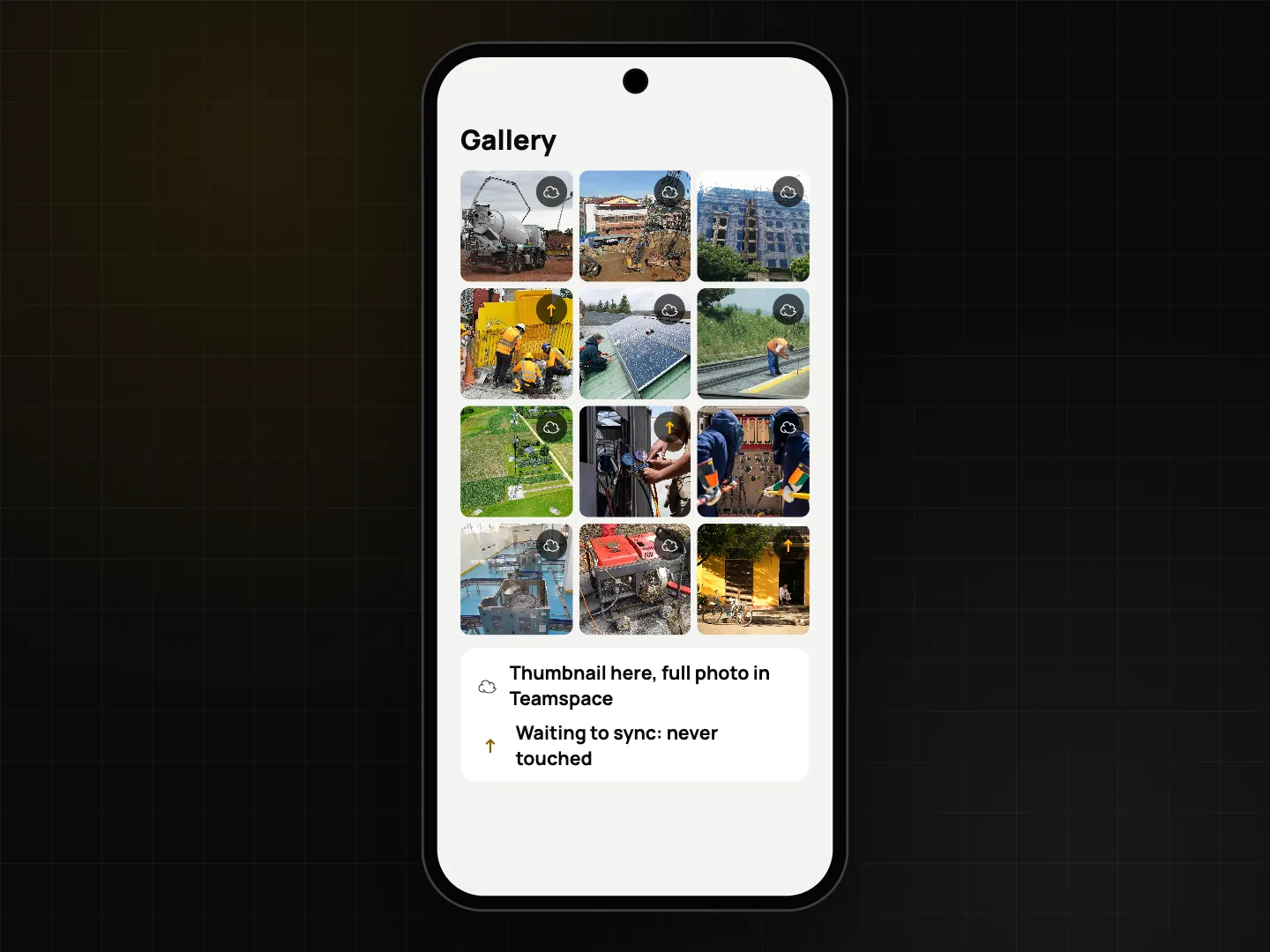
This is the biggest saving, so it comes with strict rules:
- it is manual, asks for confirmation and cannot be undone;
- only photos uploaded to Teamspace with the hash confirmed by the server qualify;
- all sync queues must be closed;
- photos with markup, 360° photos and videos are skipped;
- copies that exist only in Google Drive or OneDrive don't qualify.
After that, you can't share, mark up or edit that photo on the phone. Your manager still has the full photo in the Teamspace web portal, and you can open it from the team view.
Free up phone storage on the job: a safe routine
- Check the Sync center. Make sure nothing is waiting or failed.
- Clear cache. Instant space, nothing lost.
- Free up space, older than 30 days. Removes clean copies already in the cloud.
- Team photos older than a few months: Keep only thumbnails.
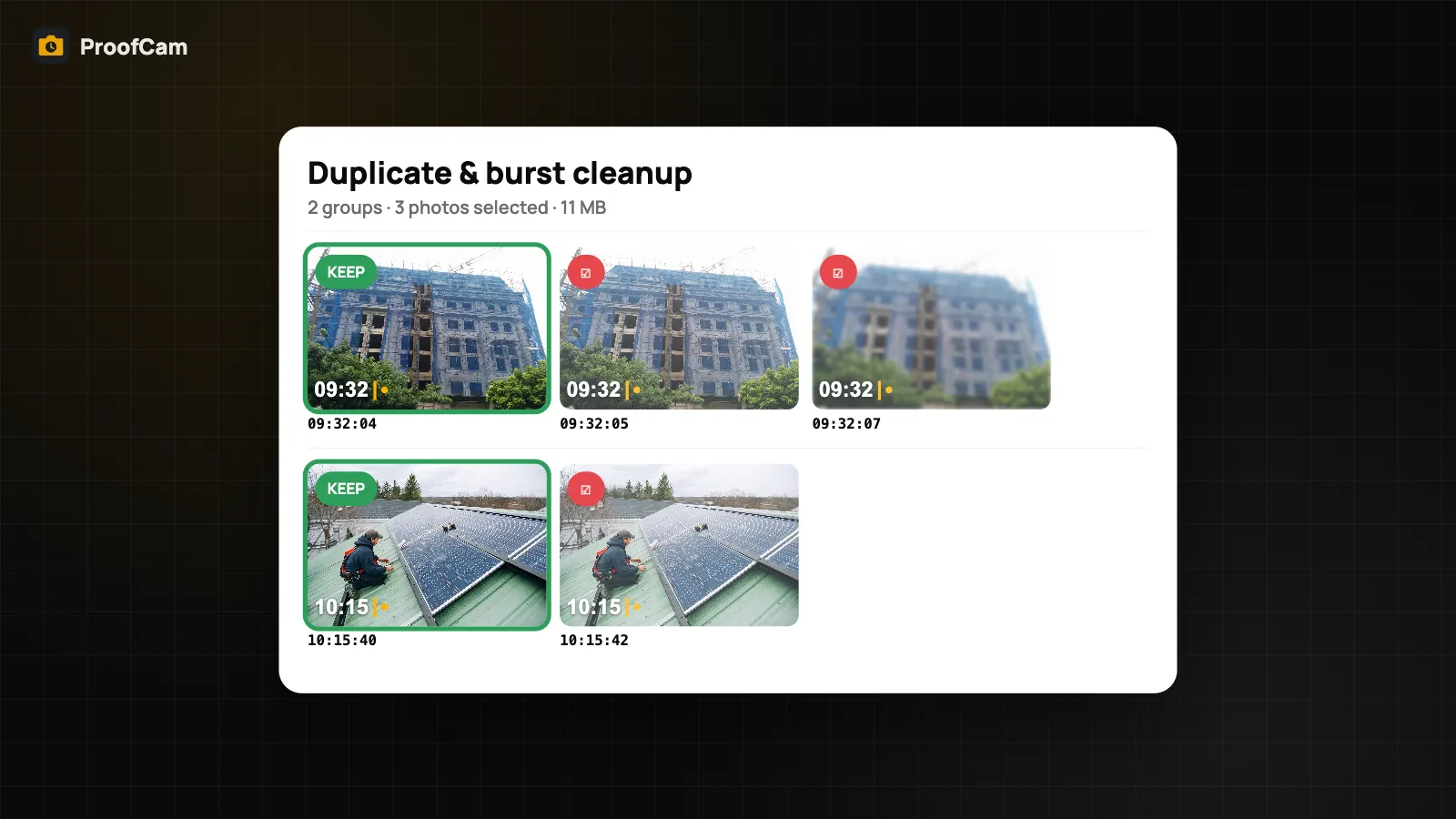
- Remove near-duplicates. Burst shots add up; see delete duplicate photos.
Never delete stamped photos from the system gallery or file manager to make space. That removes the proof itself.
For a construction crew, a weekly routine on Friday afternoon is enough to stay ahead; see how photo logs grow in the construction daily report guide. Service technicians who carry the same phone for years should look at the thumbnail option; more in HVAC, plumbing and electrical job photos.
Automatic cleanup on iPhone
iPhone has Auto-clean originals (Plus). It is off by default; when you turn it on, ProofCam removes private originals for you instead of waiting for you to tap Free up space. Android has no automatic cleanup yet: cleanup on Android is manual.
Which plan and platforms
| Option | What it removes | Plan | Android | iPhone |
|---|---|---|---|---|
| Free up space | Private unwatermarked copy of synced photos | Free | Yes (can include unsynced after a warning) | Yes (synced only) |
| Clear cache | Maps, exports, reports cache | Free | Yes | Yes |
| Delete generated reports | Generated PDFs | Free | No | Yes |
| Keep only thumbnails (team photos) | Full photo, keeps 512 px thumbnail | Needs a Teamspace team | Yes | Yes |
| Auto-clean originals | Private originals, automatically | Plus | No (manual only) | Yes |
Settings names: Storage & cleanup on Android, Storage on iPhone.
FAQ
Does Free up space delete my stamped photos?
No. It deletes only the private copy without the watermark. The stamped photo, its fingerprint and its Photo Code stay, so the photo still verifies.
Can I undo Keep only thumbnails?
No, it cannot be undone on the phone. The full photo remains in Teamspace and opens from there.
Why were some photos skipped?
Photos still waiting or failed to sync, photos without a cloud copy, and for thumbnails also marked-up photos, 360° photos and videos are skipped on purpose.
Is there automatic cleanup on Android?
Not yet. On Android, cleanup is manual. iPhone has Auto-clean originals with Plus, off by default.
Related: photo upload queue and Sync center and offline photo proof.