The office asks where this morning's site photos are. On your phone they look fine, but the team portal shows nothing. Maybe the 4G dropped in the basement, maybe the hotspot ran out of data, maybe you were signed out. Without a clear photo upload queue, you end up guessing, re-sending photos through a chat app and losing the evidence that came with them.
ProofCam keeps every capture on the phone first and uploads it later. The Sync center shows you exactly what is still waiting, what failed and why, and lets you retry everything with one tap. This guide explains how it works, which network options you have on Android and iPhone, and what to check when photos are not uploading.
Why photos get stuck in the photo upload queue
ProofCam is built to work without a connection (see offline photo proof). Taking the photo never depends on the network: the stamp, the time and the Photo Code are created on the phone. Uploading is a separate step, and on a real job site it can fail for ordinary reasons:
- no connection, or a connection too weak to finish a large file;
- you were signed out of your account;
- your role in the team doesn't allow that action;
- the team has reached its photo quota (a Free team holds 100 photos);
- the project or item no longer exists on the server;
- the file was deleted from the phone before it could upload;
- Google Drive needs you to grant permission again;
- a record is waiting for its photos to upload first.
None of these lose the photo. They only mean it hasn't reached its destination yet.
The Sync center: one screen for every queue
Open it from Settings → Sync center on Android and iPhone. On Android you can also reach it by tapping the "sync failed" notification or the pending-sync widget on your home screen.
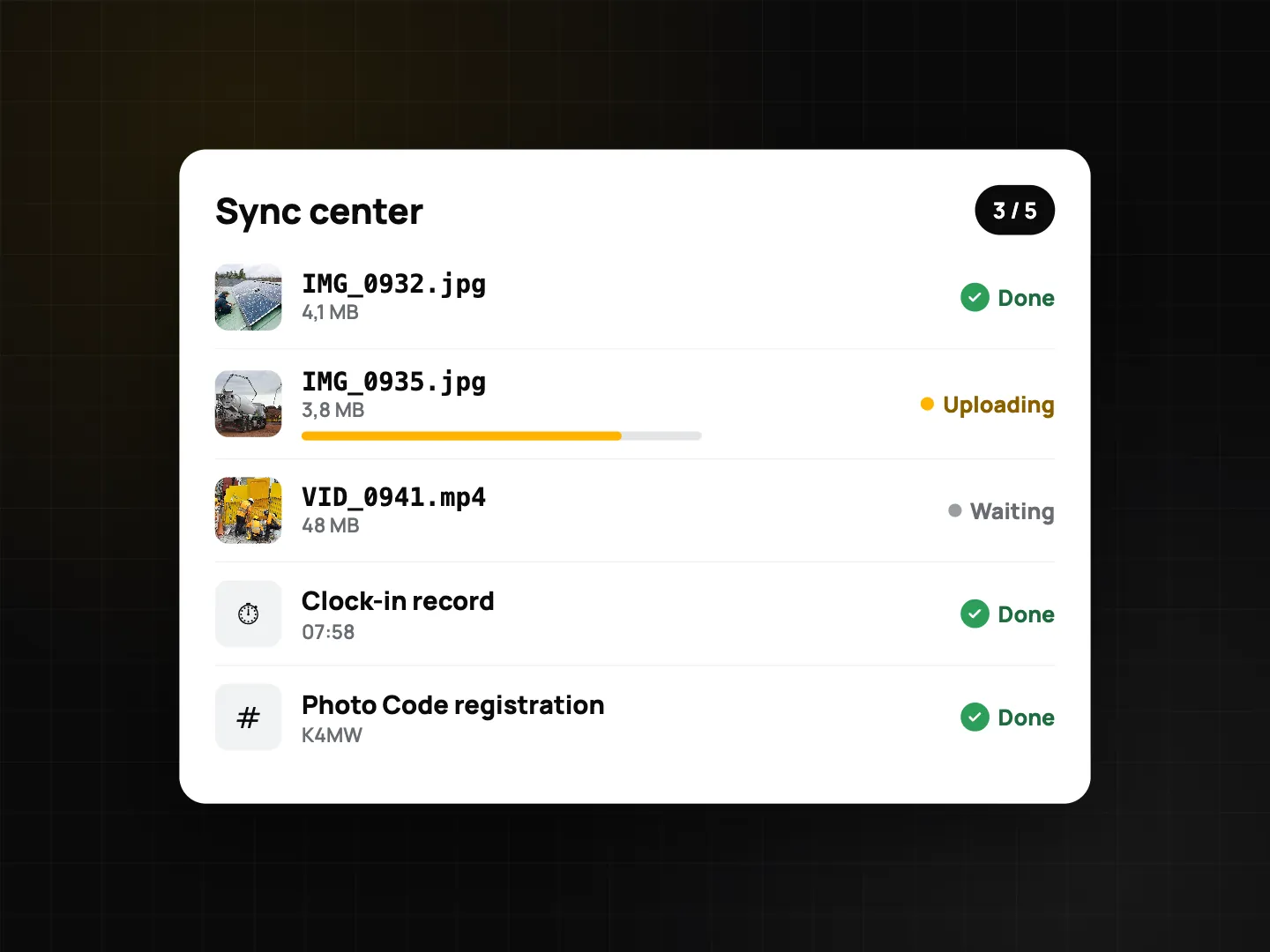
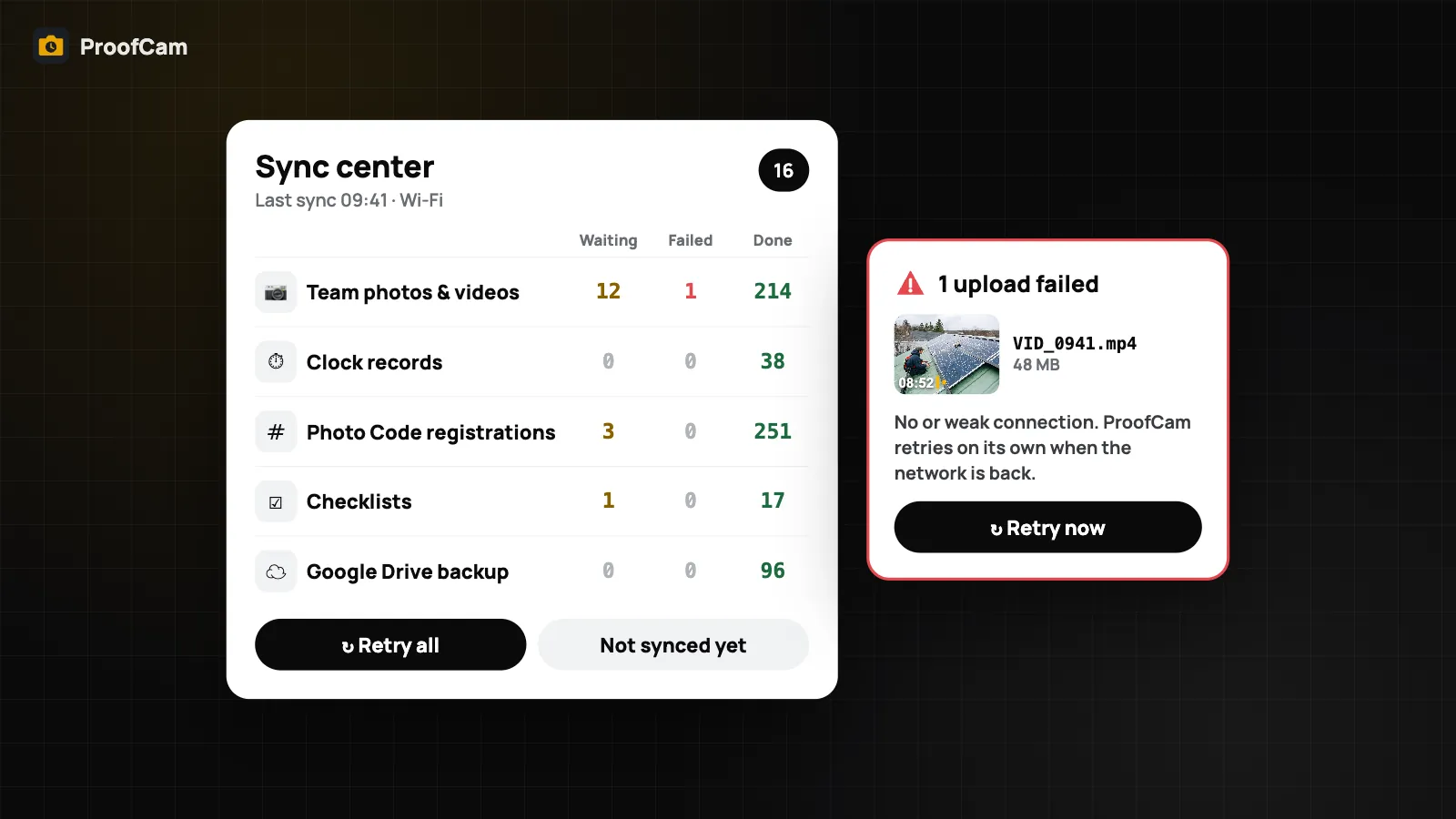
Each queue gets its own row with Waiting / Failed / Done counts:
- Teamspace upload (team photos)
- Photo Code registration
- Google Drive and OneDrive backup
- Markup
- Clock records
- Checklists
- Patrol checkpoints
- Deliveries
- Voice notes
Below the counts you see the list of captures that are not synced yet, and a Retry all button. When something fails, the reason is written in plain words ("Drive needs permission again", "team quota reached") instead of an error code. Failure reasons are kept on this phone for 7 days and are never uploaded.
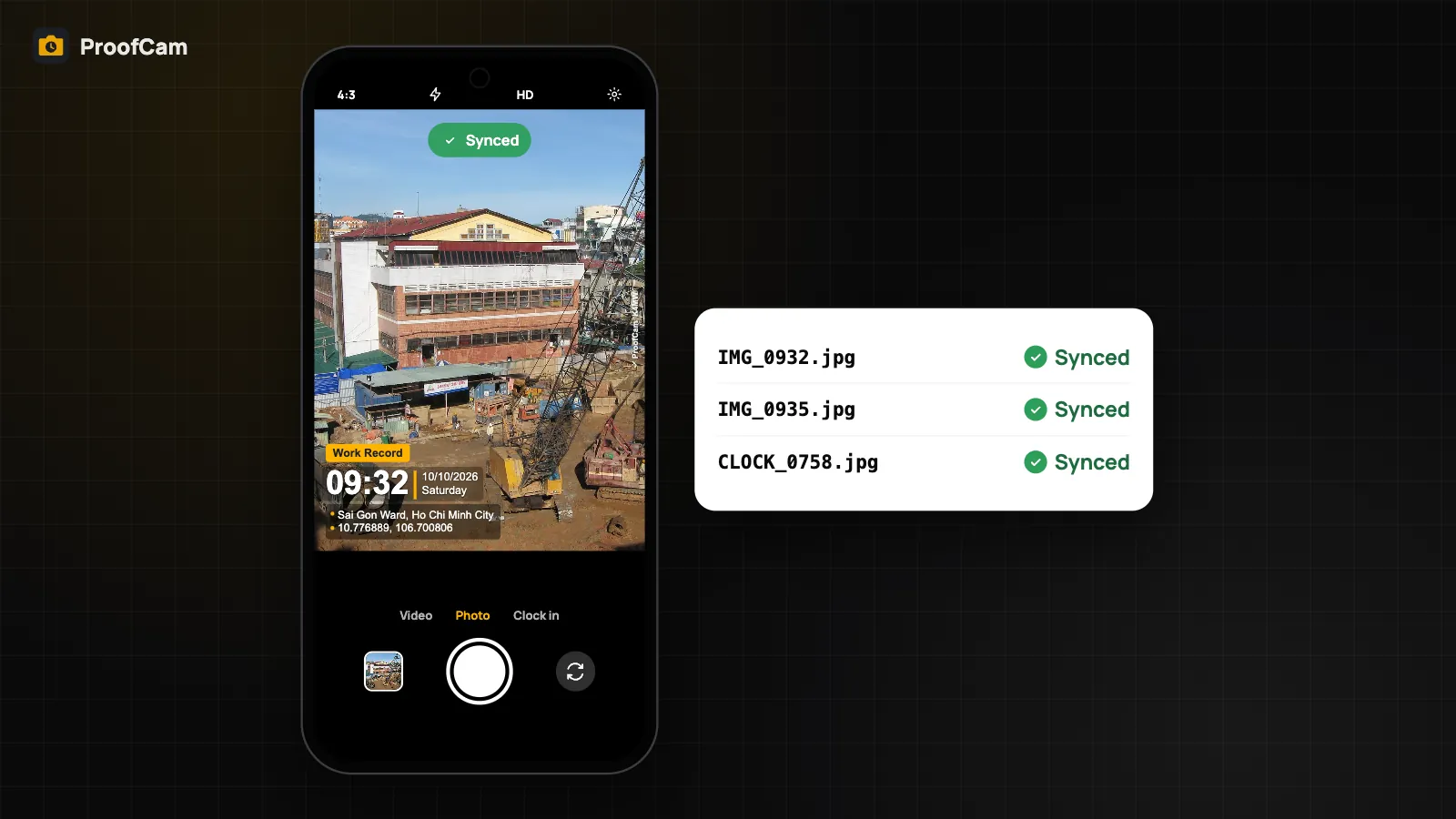
You don't have to open the Sync center to see the status of one photo. In the gallery, every thumbnail has a small chip: Waiting for network, Uploading, Failed or Synced. The Settings row also shows a count such as "12 waiting to sync", so you notice a backlog before the end of the shift.
Sync status and retry: step by step
When the office says photos are missing, work through this:
- Check the Settings row. If it shows items waiting, open the Sync center.
- Find the queue. Is it team photos, Photo Code registration or Drive backup? Each one fails for different reasons.
- Read the reason. "Signed out" means sign in again. "Not allowed" is a role question for your team admin. "Team quota reached" needs a manager to free space or upgrade the team.
- Fix the cause, then tap Retry all. If the problem was only the network, you usually don't need to do anything: uploads resume on their own.
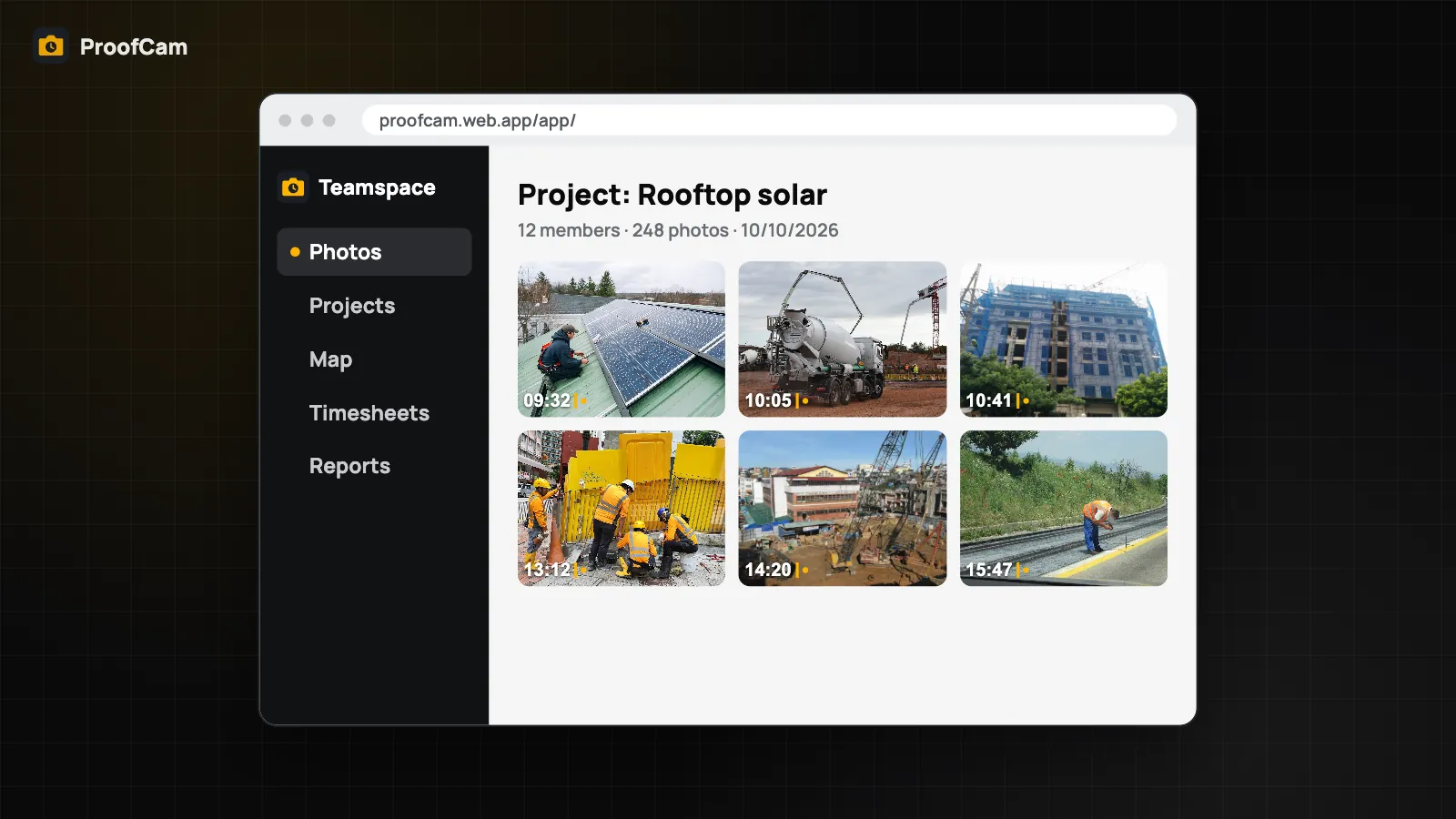
- Check the gallery chips. Once a photo shows Synced, it is on the server and visible in the Teamspace web portal.
Avoid deleting photos or uninstalling the app while anything is still waiting. Unsynced captures exist only on the phone.
Wi-Fi only upload and data options
Large photos and videos can eat a mobile data plan quickly, especially on a shared hotspot. Both apps let you hold big files for Wi-Fi, but the options differ.
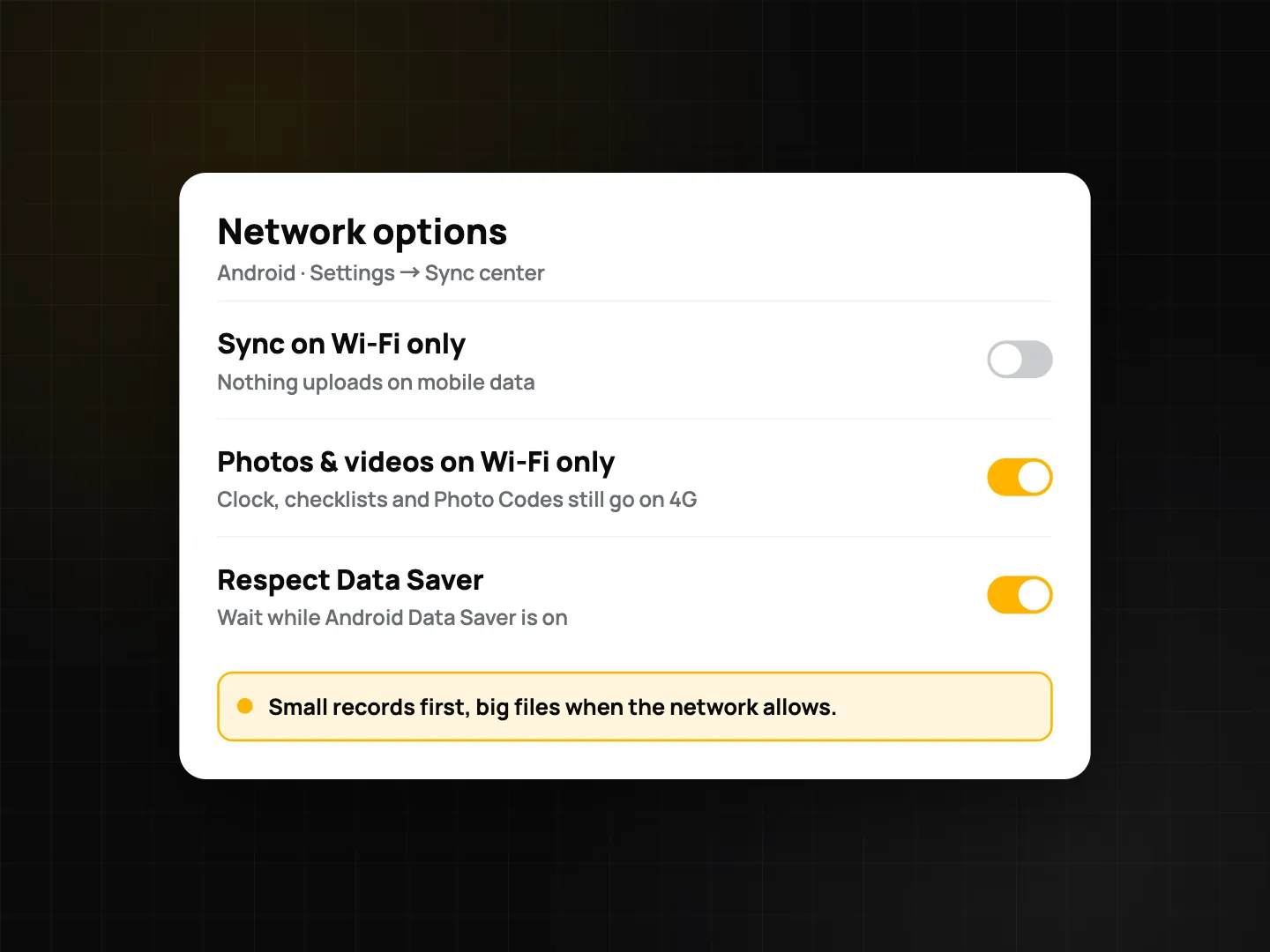
On Android:
- Sync on Wi-Fi only holds everything until you are on Wi-Fi.
- Photos & videos on Wi-Fi only holds the large files but still sends clock records, checklists and Photo Code registrations over mobile data, so your attendance and codes stay current.
- Respect Data Saver follows the system Data Saver setting.
Android uploads through the system job scheduler. Failed uploads retry with a growing delay, starting around 30 seconds, and there is also a periodic run every 6 hours. Uploads held back on mobile data resume by themselves when Wi-Fi appears. On bandwidth-limited links (for example satellite connections on Android 16), only small records are sent.
On iPhone:
- Photos & videos over Wi-Fi only holds large files for Wi-Fi.
- Pause uploads in Low Data Mode follows the iOS Low Data Mode setting.
- Sync now and Upload all now start uploading immediately.
Videos and photos of 4 MB or more upload through an iOS background session that keeps going after you close the app. On iOS 26, Upload all now shows the system progress; on earlier versions it uses the normal short background time, so keep the app open for a big batch.
There is no single "Wi-Fi only for everything" switch on iPhone, and Android uses Data Saver where iPhone uses Low Data Mode.
Tips for crews on weak networks
- Turn on "Photos & videos on Wi-Fi only" (Android) for crews on prepaid data. Clock-ins and checklists still arrive on time.
- Plan a Wi-Fi stop. Delivery drivers and telecom technicians can let the backlog clear at the depot or a café. See how this fits in delivery driver photo proof and telecom site audits.
- Check the count before leaving a remote site. On farms and rural plots, signal is patchy; a quick look at "N waiting to sync" tells you whether to wait. More in farm record keeping with GPS photos.
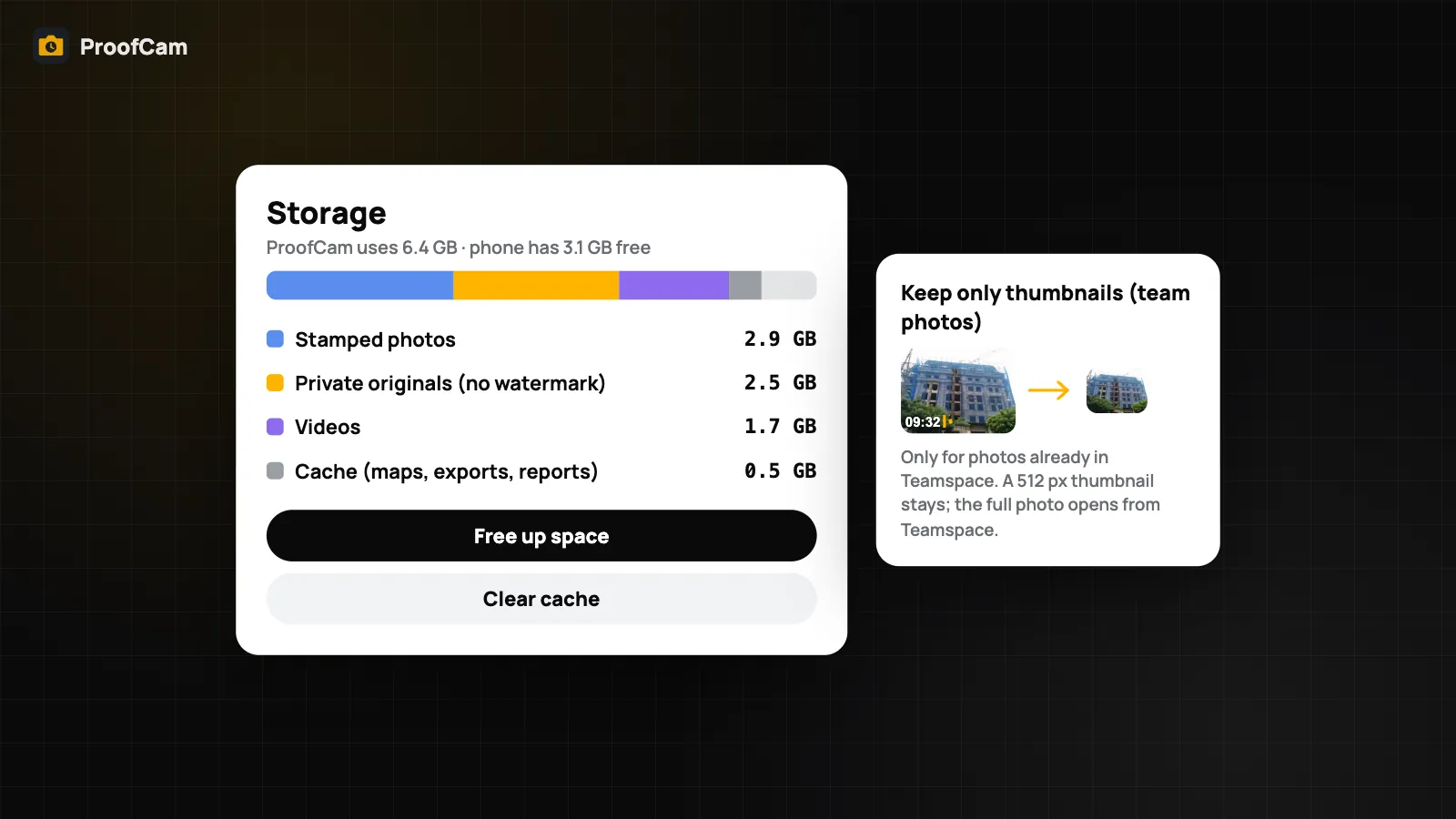
- Don't clean up storage until queues are empty. ProofCam's storage cleanup only removes copies that are safely in the cloud, and never touches photos still waiting or failed.
Which plan and platforms
| What | Plan | Android | iPhone |
|---|---|---|---|
| Sync center, Retry all, gallery status chips | Free | Yes | Yes |
| Teamspace photo upload | Needs a Teamspace team (Free team: 100 photos) | Yes | Yes |
| Google Drive / OneDrive backup | Plus | Yes | Yes |
| Sync on Wi-Fi only (everything) | Free | Yes | No |
| Photos & videos on Wi-Fi only | Free | Yes | Yes |
| Respect Data Saver / Pause in Low Data Mode | Free | Data Saver | Low Data Mode |
| Shortcut from notification and widget | Free | Yes | Settings only |
What appears in the queues depends on what you use: a solo user on Free sees Photo Code registrations, while a team member also sees team photos, clock records and checklists.
FAQ
Why are my photos not uploading even though I have signal?
Open the Sync center and read the failure reason. Common causes besides the network are being signed out, a full team quota, or a Wi-Fi only setting holding large files back.
Will Retry all create duplicate photos?
No. Retry all resends items that are still waiting or failed. Photos already marked Synced are not uploaded again.
Do failure reasons get sent to ProofCam?
No. Failure reasons are kept on the phone for 7 days and never uploaded.
Can I close the app while photos upload?
On iPhone, videos and photos of 4 MB or more continue in a background session after you close the app. On Android, uploads run through the system scheduler and resume on their own, including when Wi-Fi comes back.
Related: offline photo proof without internet and free up phone storage without losing proof.