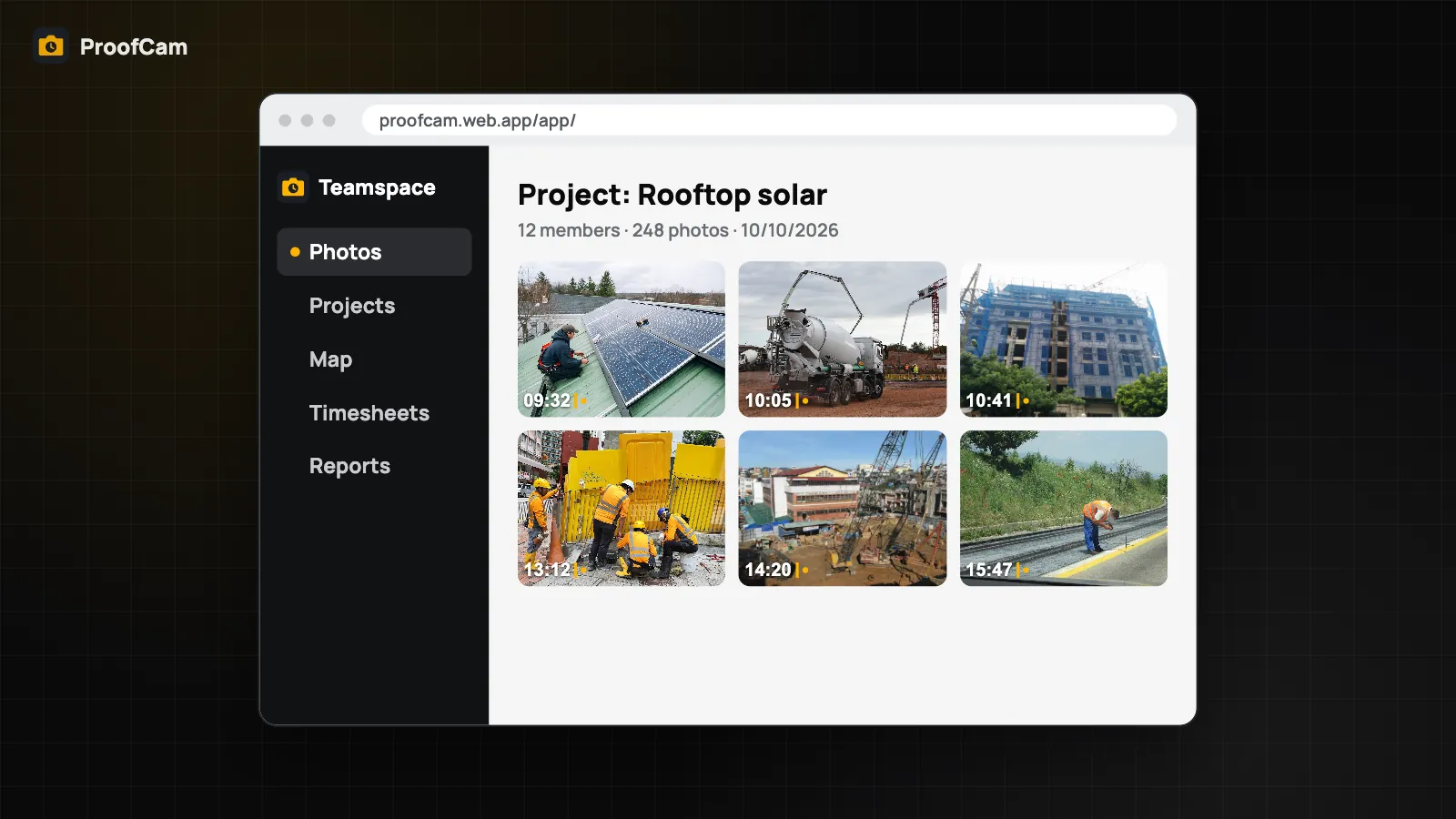
Most field teams already collaborate on photos, just badly. A technician sends twenty pictures to a chat group, the supervisor replies "which one?", someone forwards it to the office, and by evening nobody knows which crack was fixed and which still needs a crew. The photos are proof; the conversation around them is lost in a scroll.
ProofCam's Teamspace turns that into a field team collaboration app built around the photo itself. You comment directly on a team photo and @mention the person who needs to act, turn the photo into a task with an assignee and a due date, and at the end of the day a daily report with photos, people and hours is drafted for you to check and sign. This guide walks through each part and the honest differences between Android, iPhone and the web portal.
Comments and @mentions on team photos
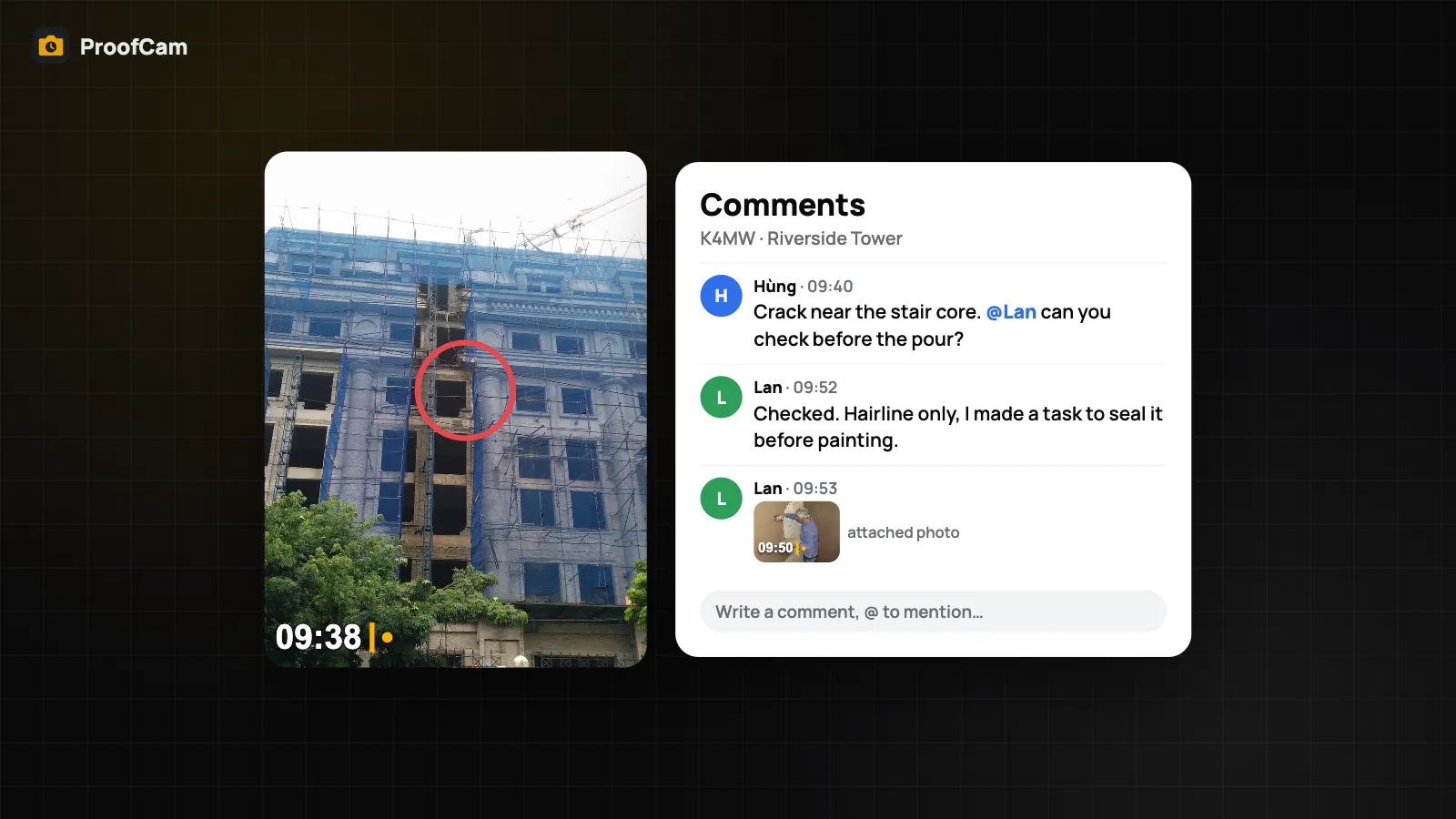
Every photo uploaded to a Teamspace team can carry a Comments thread, and so can every task. On the web portal you can also comment on a project and on a checklist submission.
- Type @ to mention a team member. They get notified (see the notifications section below for how that differs by platform).
- Edit or delete your own comments.
- Attach one of your own team photos to a comment, for example a close-up that shows the detail better, or the photo after a quick fix.
Because the comment sits on the stamped photo, nobody has to ask which photo, where or when: time, place and Photo Code are already on it.
Comments work on Android, iPhone and the web portal at /app/, so a manager at a desk and a crew lead on a scaffold see the same thread.
Assign tasks from photos
A comment is a conversation; a task is a commitment. When a photo shows something that needs fixing, create a task from it:
- Open the team photo and create a task (Teamspace → Tasks).
- Set the assignee, due date and priority.
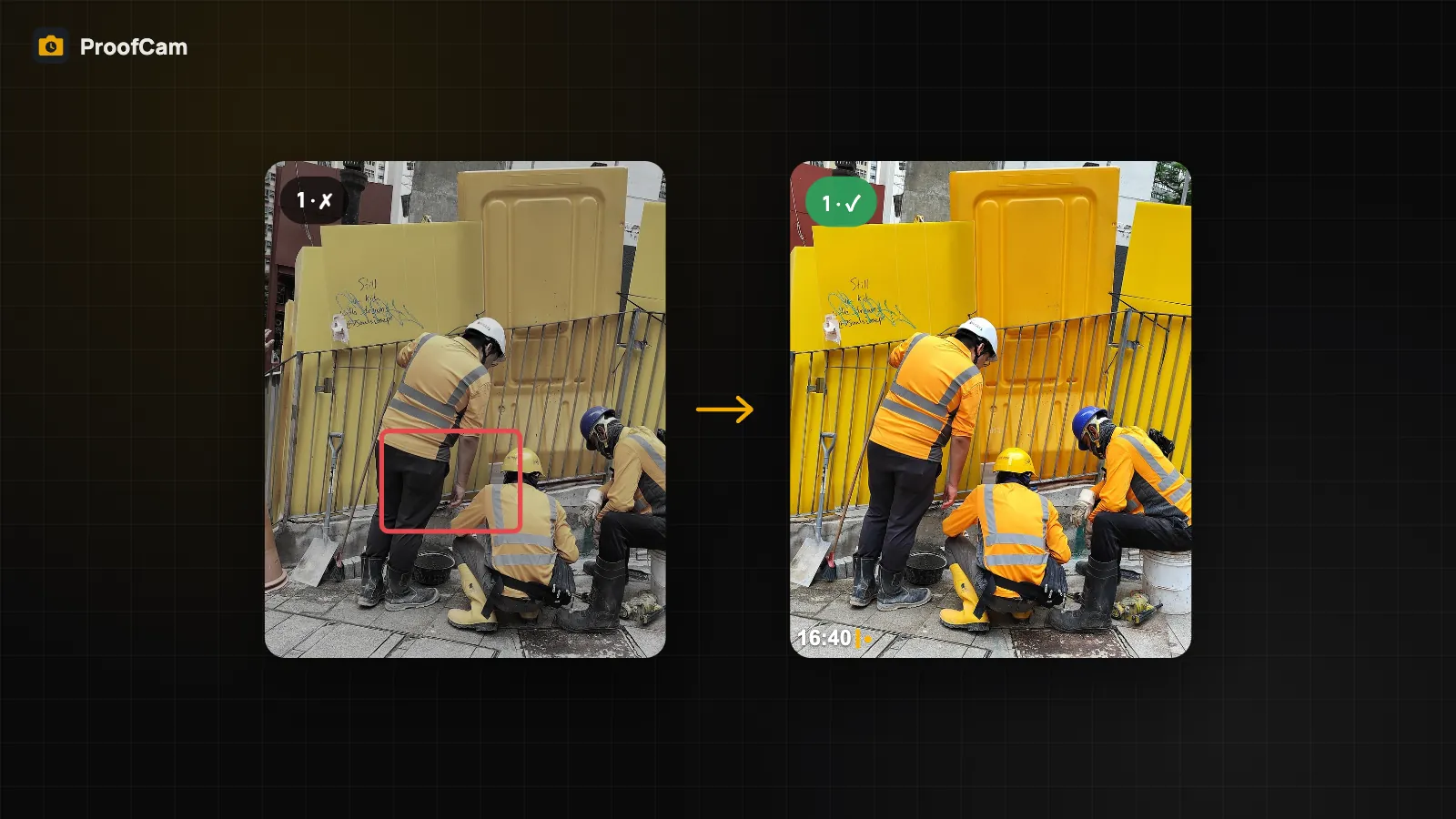
- The assignee finds it on their phone, goes to the spot, and taps Take after photo. The original photo appears as a faint ghost overlay, so the after shot is framed the same way.
- If the after photo is taken too far from the before photo, a red location warning flags it.
Tasks can be completed offline and sync when the phone is back online, and managers follow them on a Kanban board. The full workflow is described in punch list with before/after photos.
The daily report with photos, drafted for you
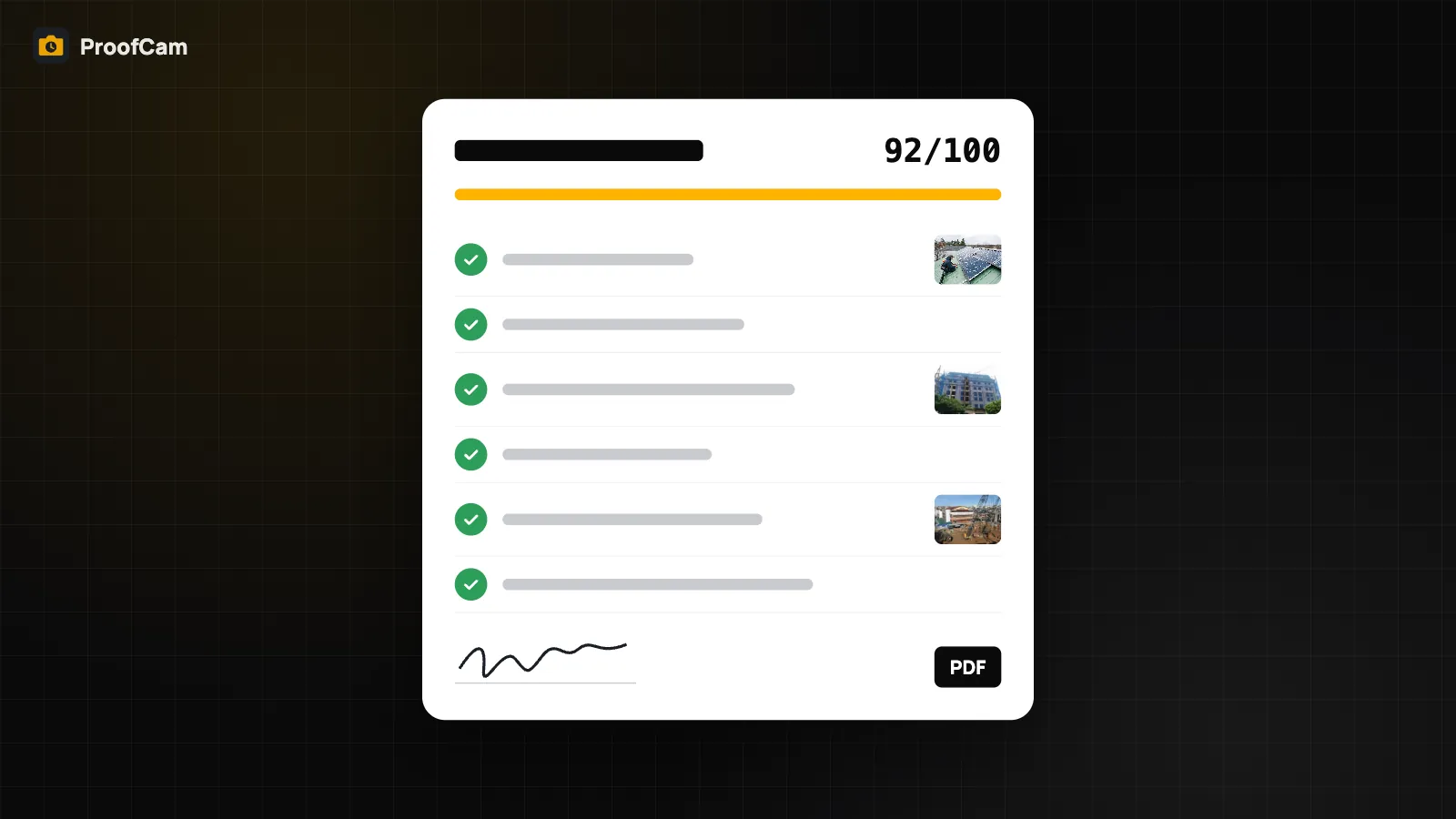
Writing a daily report at 18:00 after a long day is where most good intentions fail. In Teamspace, open a project and go to Daily report. For every day with activity, the server builds a draft automatically after 17:30, pulling together:
- the weather,
- manpower and hours worked,
- the day's photos,
- checklists and tasks,
- notes.
Users with project-management permission review it, edit the notes, and tap Sign report. A report can be signed once; after that it is the record for that day. Export it as a PDF or share it. A Daily report ready notification tells the team when the draft is waiting.
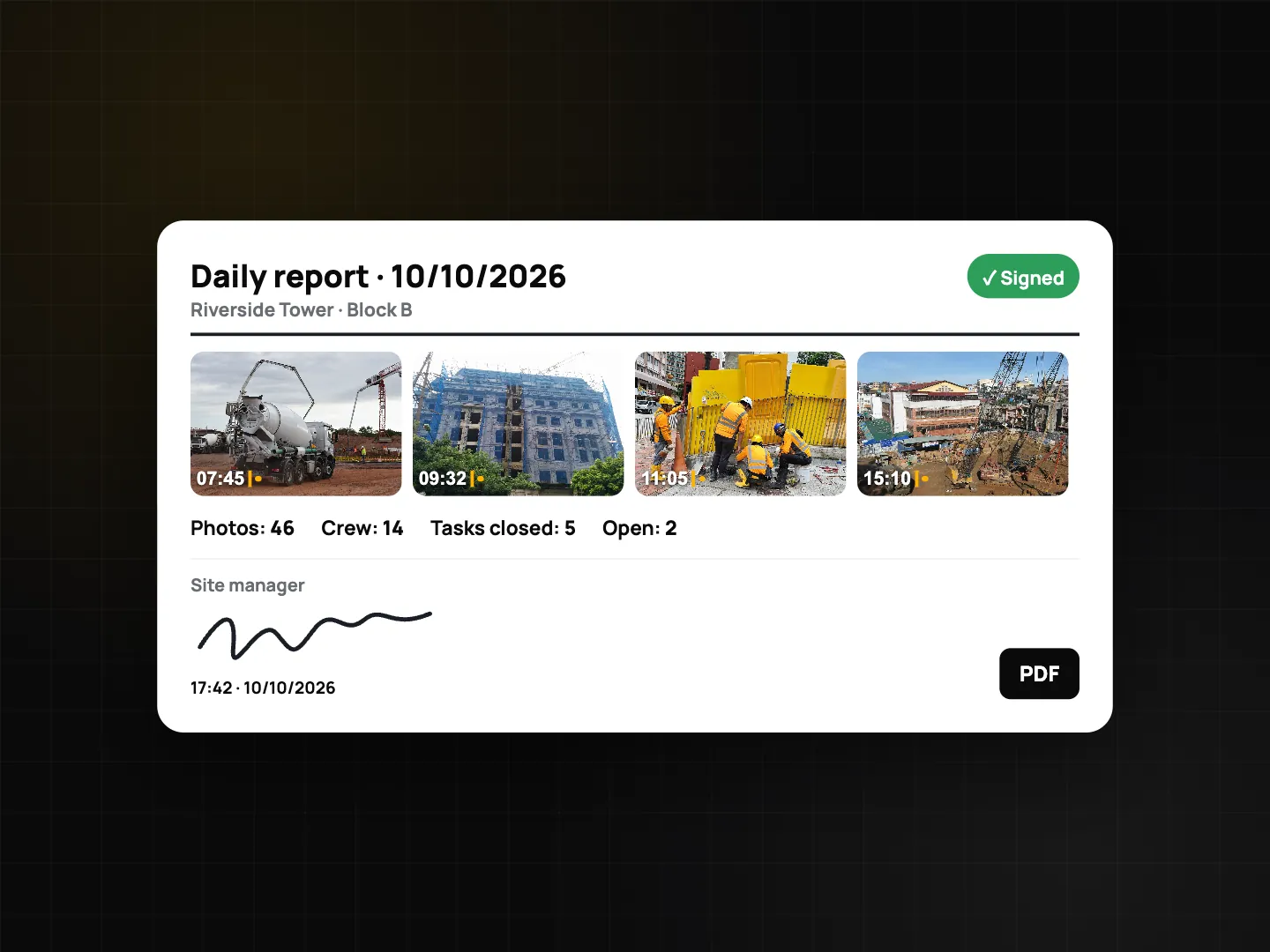
The draft is assembled from the data, not written by AI. There is no AI summary on daily reports; what you read is what the team captured, plus your edits. For inspection forms that feed into the report, see inspection checklists and PDF reports.
Roles and permissions
Not everyone should sign a report or reassign work. Teamspace uses roles (Owner, Admin, Member, plus custom roles you define, such as "QC") and permissions such as managing tasks and managing projects.
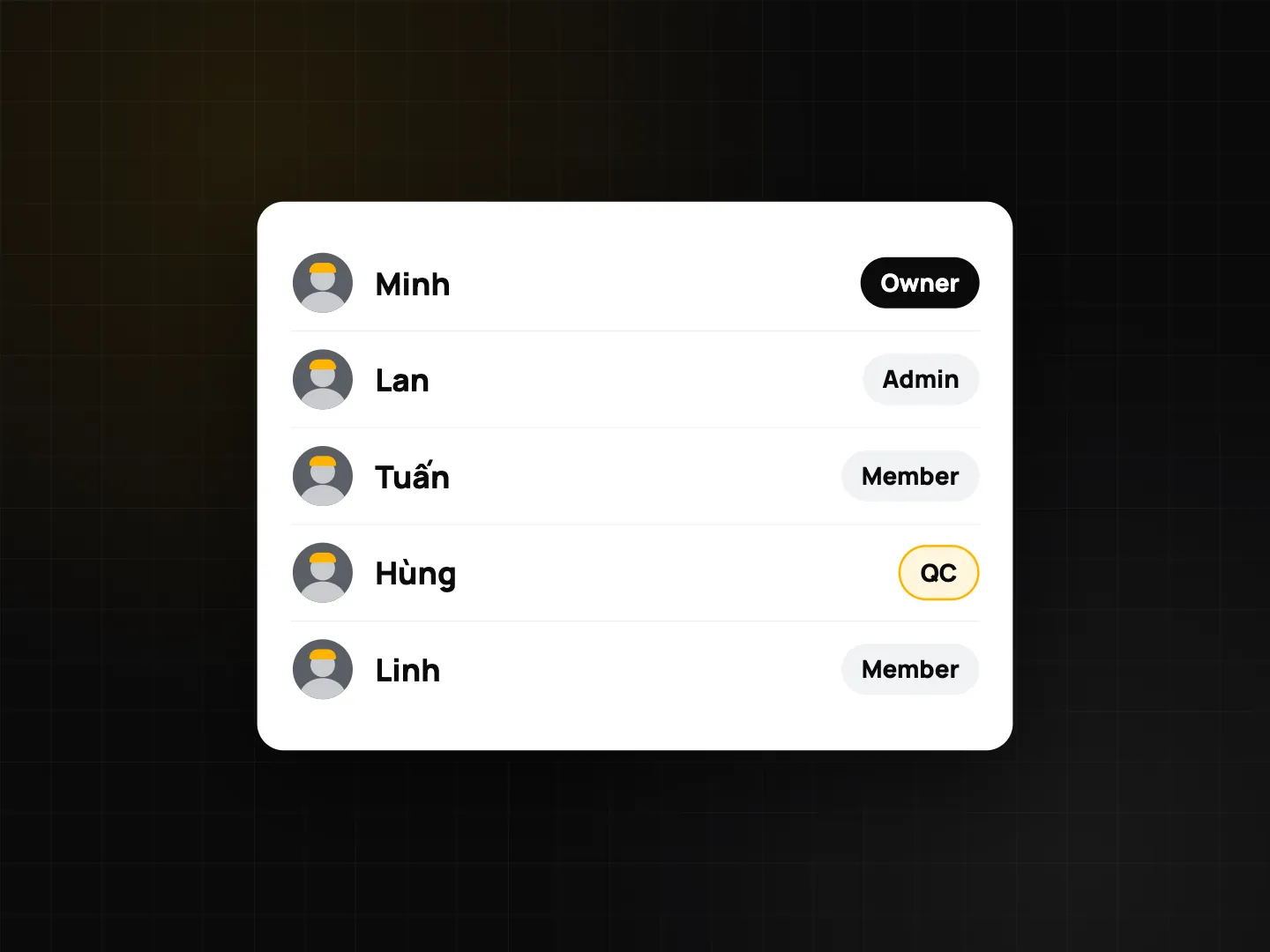
A typical setup:
- Members take photos, comment, and complete tasks assigned to them.
- A QC custom role creates and assigns tasks.
- Admins or project leads, with project-management permission, edit and sign the daily report.
More on roles and the portal in the Teamspace web portal for managers.
Notifications: what to expect on each platform
This is where the platforms really differ, so it's worth being clear:
- Android: push notifications for a new comment, when you are mentioned, when a task is assigned to you and when a task is due. Tapping one opens the item. You can mute notifications per team and per type on that phone under Team activity notifications.
- iPhone: no push notifications yet. Open the in-app Notifications screen to see comments, mentions and assignments. Task reminders are scheduled on the phone itself: one hour before the due time, and a daily 9:00 reminder for overdue tasks.
- Web portal: an in-app bell shows new activity while you are signed in.
If part of your crew uses iPhones, agree that they check the Notifications screen at the start and end of a shift, or that the supervisor follows up on urgent items by phone.
How teams use it
- Building maintenance: a resident's complaint photo becomes a task for the night technician; the comment thread holds the follow-up. See building maintenance work orders.
- Cleaning contracts: supervisors comment on missed spots and assign a re-clean with an after photo. See cleaning before and after photos.
- Construction: the signed daily report gives the main contractor one record per day of people, weather and photos. See the construction daily report guide.
Which plan and platforms
| Feature | Android | iPhone | Web portal | Plan |
|---|---|---|---|---|
| Comments, @mentions, attach a team photo | Yes | Yes | Yes (also on projects and submissions) | Teamspace team |
| Tasks from photos, after photo with overlay | Yes | Yes | View and manage | Teamspace team |
| Daily report draft, Sign report, PDF | Yes | Yes | Yes | Teamspace team |
| Notifications | Push | In-app screen + local task reminders | In-app bell | Teamspace team |
Collaboration needs a Teamspace team. A Free team holds 100 photos and 3 projects; the Business plan allows up to 300,000 photos and unlimited projects, and new teams get a 14-day Business trial.
FAQ
Do iPhone users get push notifications for comments and tasks?
Not yet. On iPhone, open the in-app Notifications screen; task reminders are scheduled on the phone (one hour before due, and 9:00 daily for overdue tasks). Android gets push notifications.
Who can sign the daily report?
Users with project-management permission. A report can be signed once.
Is the daily report written by AI?
No. The server assembles a draft from the day's weather, manpower, hours, photos, checklists, tasks and notes after 17:30, and a person edits and signs it.
Can I attach a photo from my phone's gallery to a comment?
You can attach one of your own team photos, which keeps its stamp and Photo Code.
Related: inspection checklists and PDF reports and on-device AI photo captions.